How To Format Pendrive Using Cmd How To Format Write Protected Pendrive In CMD Windows 10 8 7 How To Format Pendrive Using CMD Format Pen Drive How To Format Pendrive Using CMD Step By Steps Androidgreek How To Format Pendrive Using CMD HackingTricks Info How To Format Pendrive Using Cmd In Windows 10 Clean Pendrive 2021 [desc-7]
1 First plug in the USB drive After that open the Command Promot window as admin Search for cmd in the start menu right click on Command Prompt and select Run as Administrator 2 To format the USB drive we need to use the Diskpart tool [desc-8]
How To Format Pendrive Using Cmd In Windows 10 Clean Pendrive 2021 How To Format Pendrive Using Command Prompt In Windows Format How To Format PenDrive Using Command Prompt Format USB Using CMD How To Format Pendrive Using CMD Command Prompt Windows Https How To Format Pendrive Using Cmd Daily New Tips And Tricks How To Format Pendrive Using Command Prompt In Tamil YouTube Zlat Klinec V hradn Saturate Format Usb Cez Cmd Umelec Nemo n Rozl i How To Format Pendrive Using Cmd Pendrive Ko Kaise Format Kare YouTube Format Pendrive Using CMD HOW TO GUIDE Computer And Technology
How To Format Pendrive Using Cmd
 How To Format Pendrive Using Cmd
https://www.diskpart.com/articles/images/how-to-format-write-protected-pendrive-in-cmd-7201/remove-write-protection-cmd.jpg
[desc-9]
Templates are pre-designed documents or files that can be used for various functions. They can save effort and time by offering a ready-made format and design for producing different type of material. Templates can be used for individual or professional tasks, such as resumes, invites, flyers, newsletters, reports, discussions, and more.
How To Format Pendrive Using Cmd
How To Format Pendrive Using CMD Tech Hub Digital

How To Format Pendrive Using Command Prompt In Windows Format

How To Format PenDrive Using Command Prompt Format USB Using CMD

How To Format Pendrive Using CMD Command Prompt Windows Https

How To Format Pendrive Using Command Prompt In Tamil YouTube
Zlat Klinec V hradn Saturate Format Usb Cez Cmd Umelec Nemo n Rozl i
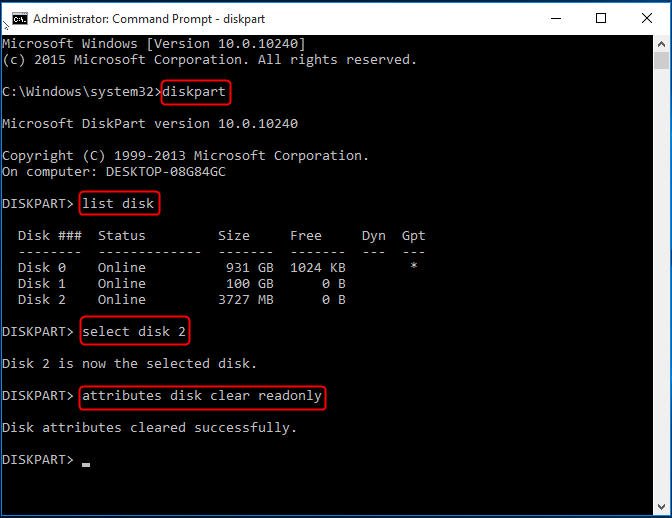
Format USB Pen Drive using CMD When using the Command Prompt you have two methods One is using a simple format command while the other is using Diskpart We will show both

How to Format USB Flash Drive Pen Drive Using CMD on Win 10 Step 1 Open Command Prompt on Windows 10 You have several ways to open Command Prompt on Windows 10 One easy way is Step 2 Open DiskPart command tool Next you can type the command diskpart in Command Prompt window Press Enter to

Format pen drive using CMD 1 In the Search box type CMD right click Command Prompt among pop up results and select Run as administrator to 2 In the appearing window type diskpart and hit Enter 3 Run the following commands
Step 1 Launch and run Command Prompt as Administrator Click the Start button and enter cmd in the search box then right click Command Prompt and select Run as Administrator Step 2 Then type Diskpart and press Enter to launch Diskpart to format USB drive Step 3

How to Format USB Pen Drive Using CMD in Windows Step by Step Guide Step 1 Connect the bootable USB drive to your PC Step 2 Open Command Prompt Step 3 Type diskpart and hit Enter Step 4 Type list disk and hit Enter Step 5 Type select disk number and hit Enter Replace 2 with the number
[desc-11] [desc-12]
[desc-13]