How To Format Pendrive Using Cmd In Windows 7 How To Format Pendrive Using CMD In Windows 10 How To Format Pendrive Zlat Klinec V hradn Saturate Format Usb Cez Cmd Umelec Nemo n Rozl i Format Pendrive Using CMD HOW TO GUIDE Computer And Technology How To Format Pendrive Using CMD Tech Hub Digital How To Format Pendrive Using CMD Command Prompt Windows Https Open File Explorer Click on This PC from the left pane Under the Devices and drives section right click the flash drive and select the Format option Image credit Future Use the File
1 First plug in the USB drive After that open the Command Promot window as admin Search for cmd in the start menu right click on Command Prompt and select Run as Administrator 2 To format the USB drive we need to use the Diskpart tool Open File Explorer Click on This PC on the left side Under the Devices and drives section right click the USB drive and select the Format option Image credit Future Use the File system
How To Format Pendrive Using CMD Command Prompt Windows Https How To Format USB Using CMD In Windows 7 8 10 How To Install Windows 11 From Usb Pendrive Complete Guide Bootable How To Format Flash Disk Using Cmd UnBrick ID Create A Bootable USB Pendrive By Using Cmd Command Prompt DESKDECODE COM How To Format Pendrive Using Cmd Tech Hub Digital Vrogue Guida 2023 Come Formattare USB Utilizzando CMD EaseUS How To Format USB Flash Drive From Command Prompt CseWorld Online How To Make Pendrive Permanent Bootable Using CMD Om India Tech
How To Format Pendrive Using Cmd In Windows 7
 How To Format Pendrive Using Cmd In Windows 7
https://i.ytimg.com/vi/vGHOCv-0PMc/maxresdefault.jpg
In this video I will show you step by step on how to format a USB Flash Drive using Command Prompt on a Windows PCMore command prompt tutorials https ww
Pre-crafted templates use a time-saving option for creating a varied range of files and files. These pre-designed formats and layouts can be utilized for different personal and expert jobs, consisting of resumes, invites, leaflets, newsletters, reports, discussions, and more, simplifying the content development process.
How To Format Pendrive Using Cmd In Windows 7

How To Format Pen Drive In Windows 7 8 10 11
How To Format USB Using CMD In Windows 7 8 10

How To Install Windows 11 From Usb Pendrive Complete Guide Bootable

How To Format Flash Disk Using Cmd UnBrick ID

How To Format Pendrive Using Cmd Tech Hub Digital Vrogue
Guida 2023 Come Formattare USB Utilizzando CMD EaseUS

1 Using Format Command Plug in the USB drive you want to format and open File Explorer Identify the exact drive name of the USB drive Make sure not to make any mistakes here If you

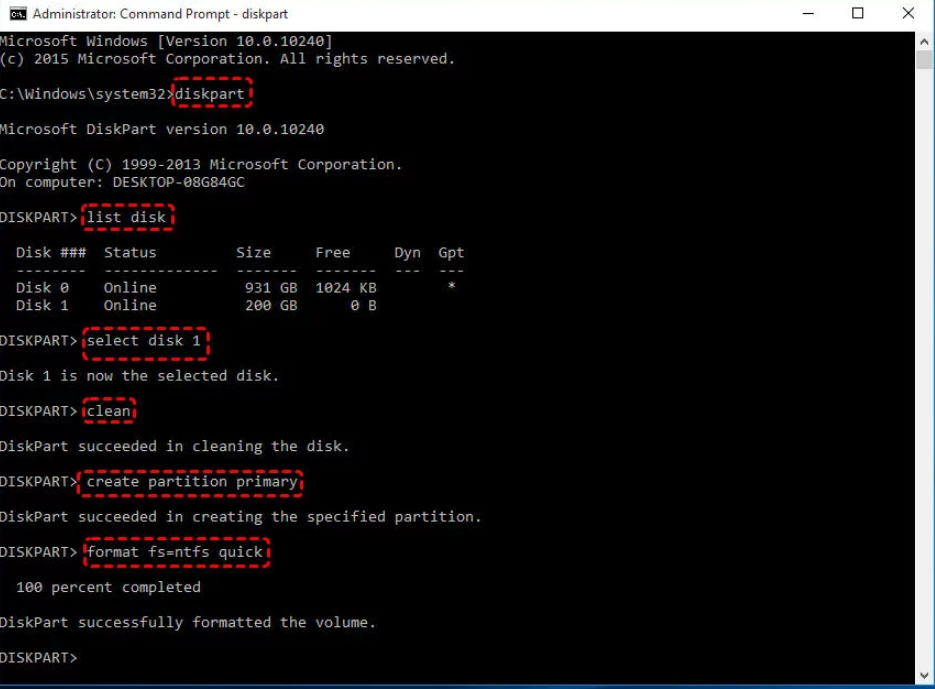
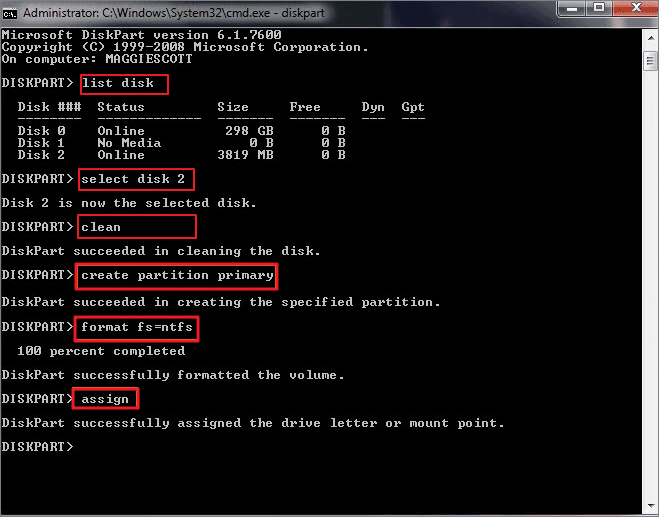
Step 1 Launch and run Command Prompt as Administrator Click the Start button and enter cmd in the search box then right click Command Prompt and select Run as Administrator Step 2 Then type Diskpart and press Enter to launch Diskpart to format USB drive Step 3
Experienced Windows users can directly run the CMD formatting command format fs ntfs quick or format fs fat32 quick to format the USB drive

Step 1 Run Command Prompt as administrator To do so type CMD in the Start taskbar search box right click on the Command Prompt entry in the search results and then click Run as administrator option Click Yes button when you get the User Account Control screen to continue

One easy way is press Windows R type cmd in Run dialog press Ctrl Shift Enter and click Yes to run Command Prompt as administrator Step 2 Open DiskPart command tool Next you can type the command diskpart in Command Prompt window Press Enter to launch DiskPart utility Step 3 List all disks on PC
Connect the pen drive to your computer and note the drive letter assigned to it for example J or G or H You will need this drive letter while giving the format command on command prompt Alternatively you can type the following all in one command FORMAT G FS FAT32 Q V MyName and press Enter Formatting on Windows 11 10 Connect your USB to the PC Click on Windows R keys In the search bar type in CMD and click Enter Type the command line afterwards diskpart and list disk Type select disk number The number should be replaced with that of your USB drive Type list volume and select volume number
Step 1 Type cmd in the search box then you can get the best match called Command Prompt Right click on it and choose Run as administrator Step 2 On the Command Prompt window type diskpart and press Enter Step 3 Type list disk and press Enter According to the list disk information check which disk is your USB flash drive