Enable Rdp Via Cmd 5 Ways To Open Remote Desktop Connection In Windows 10 Is RDP Enabled Enable And Disable Remote Desktop In Windows 10 For All How To Enable Remote Desktop RDP Using Command Line CMD YouTube How To Enable Remote Desktop In Windows 11 Via Command Prompt Connecting A Webcam To A Hyper V VM Via RDP Follow the steps below to enable Remote Desktop remotely with Group Policy Launch your Group Policy Management Console GPMC Generate a new Group Policy Object or edit an existing GPO Navigate to the GPO node below
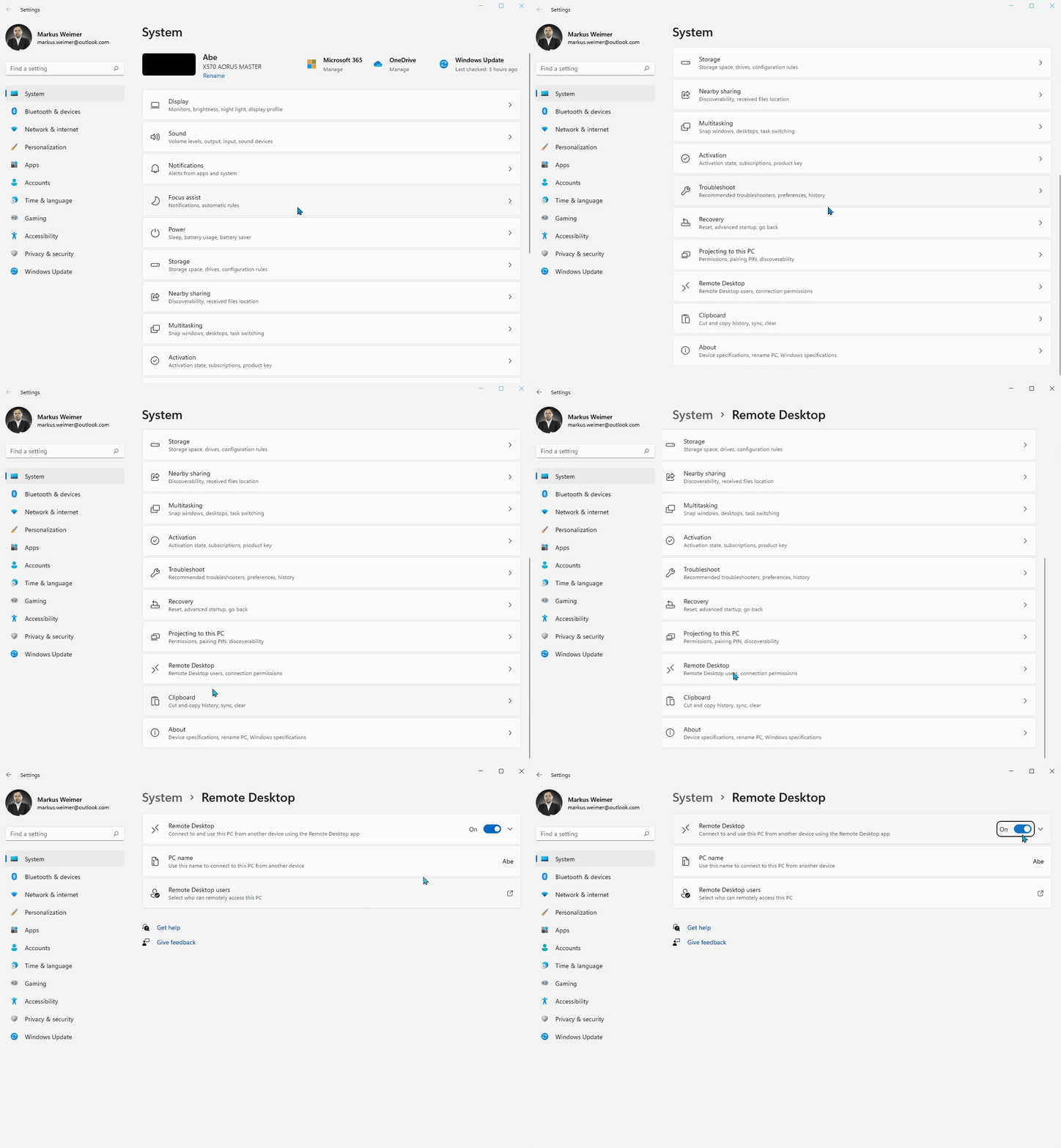
To enable Remote Desktop on Windows 11 open Settings System Remote Desktop turn on the Remote Desktop toggle switch and click Confirm Alternatively you can also configure the feature through Control Panel or with commands using PowerShell and Command Prompt To configure your PC for remote access download and run the Microsoft Remote Desktop Assistant This assistant updates your system settings to enable remote access ensures your computer is awake for connections and checks that your firewall allows Remote Desktop connections
Connecting A Webcam To A Hyper V VM Via RDP Shutdown And Reboot Remote PCs RDP Via The Command Prompt HeelpBook Enable RDP In CMD A Windows Guide How To Enable Remote Desktop In Windows 10 Home RDP Via 5 Ways To Open Remote Desktop Connection In Windows 10 How To Use Remote Desktop Connections Definitive 2022 Guide Enable RDP From Powershell PoshDB Allow Remote Desktop On Windows 10 11 Detailed How to Guide How To Enable Remote Desktop In Windows 10 Or 8 1 Or 7 Simple Fixes
Enable Rdp Via Cmd
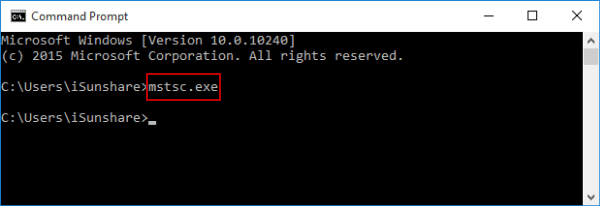 Enable Rdp Via Cmd
https://www.isunshare.com/images/article/windows-10/5-ways-to-open-remote-desktop-connection-in-windows-10/open-remote-desktop-connection-via-cmd.png
The easiest way to enable Remote Desktop Connection in Windows is to use the Control Panel GUI Open the system properties in the Control Panel or run the SystemPropertiesRemote command But it is much faster to enable RDP in the registry of the remote computer via the command prompt
Pre-crafted templates provide a time-saving service for developing a diverse range of files and files. These pre-designed formats and layouts can be used for various individual and expert jobs, consisting of resumes, invites, leaflets, newsletters, reports, presentations, and more, streamlining the content development process.
Enable Rdp Via Cmd

Is RDP Enabled Enable And Disable Remote Desktop In Windows 10 For All

Shutdown And Reboot Remote PCs RDP Via The Command Prompt HeelpBook
Enable RDP In CMD A Windows Guide

How To Enable Remote Desktop In Windows 10 Home RDP Via

How To Use Remote Desktop Connections Definitive 2022 Guide

Enable RDP From Powershell PoshDB

To enable remote desktop via CMD enter the following command and hit Enter reg add HKEY LOCAL MACHINE SYSTEM CurrentControlSet Control Terminal Server v fDenyTSConnections t REG DWORD d 0 f Please note Using Command Prompt to enable RDP doesn t configure the Windows Firewall with the ports that permit RDP connections

To enable Remote Desktop using Command Prompt and Windows PowerShell follow these steps Open Command Prompt or PowerShell with administrator privilege Set value of fDenyTSConnections REG

By default Remote Desktop is disabled on both desktop versions of Windows and Windows Server In this article we will look at several ways to enable RDP in Windows Table of Contents Enable and Disable Remote Desktop Locally Enable RDP Using Remote Registry How to Enable RDP Remotely Using PsExec Tool

You have to enable RDP in CMD RDP is widely used by many companies to create shared servers and it is even used to host websites with dedicated resources During the pandemic the number of users who rely on protocols like RDP has skyrocketed
By contrast on a PowerShell console you can essentially get the job done with a single command Enable Remote Desktop via PowerShell However there is a catch actually two Windows Firewall might get in your way and if PowerShell remoting is not enabled on the machine things can get a bit tricky I know of two methods to enable Remote
To check whether the Remote Desktop is enabled you just need to complete the following steps Step 1 Right click This PC or My Computer on your desktop and then select Properties from the menu Step 2 On the Properties window click Remote settings on the left pane Step 3 Under the Remote tab see if the box next to Don t allow Note command line tag do not imply batch file only I will accept a PowerShell script or any freely available utility which can be started from command line and finish its work unattended set rule group remote desktop new enable Yes opens port 3389 for public networks and I want to avoid that Also different Windows languages have
Choose System on the sidebar and select Remote Desktop from the right hand side Toggle on the switch for Remote Desktop Select Yes on the User Account Control UAC prompt and click the Confirm button on the window that pops open Next select the drop down button next to the switch Check the box for Require devices to use Network