Affinity Photo 2 Perspective Tool Affinity Photo 2 Review Life After Photoshop Affinity Photo 2 Perspective Tool Designer Free Transform Tool perspective Distort Affinity On Affinity Photo 2 Released Better Non destructive Editing New Masks To correct this image I took the following steps in Affinity Photo From the Tools panel select the Perspective tool In the Perspective menu select the mode to source Move the four corners of the grid to the four corners of the window as shown below Change the mode to Destination and switch on the Snapping tool in the upper panel
Often buildings and structures lean in or out at the top This can be fixed in by using the Perspective Tool Hi guys some of you might be wondering if there s a skew or distort feature in Affinity Photo So in this video I will show you how to use and where you can find Skew Distort Perspective feature in Affinity Photo I hope you enjoy watching this video thank you
Affinity Photo 2 Released Better Non destructive Editing New Masks Warp Perspective Tool Affinity Photo Tutorial YouTube AFFINITY PHOTO IPAD Techfeedthai Affinity Photo IPA Cracked For IOS Free Download Affinity Photo Mac Techfeedthai Affinity Photo 2 Adds A Lot Of Features But It Doesn t Require A Affinity Photo Filters Darelomatic Fixing Affinity Photos s Resize Canvas Tool With Keyboard Maestro
Affinity Photo 2 Perspective Tool
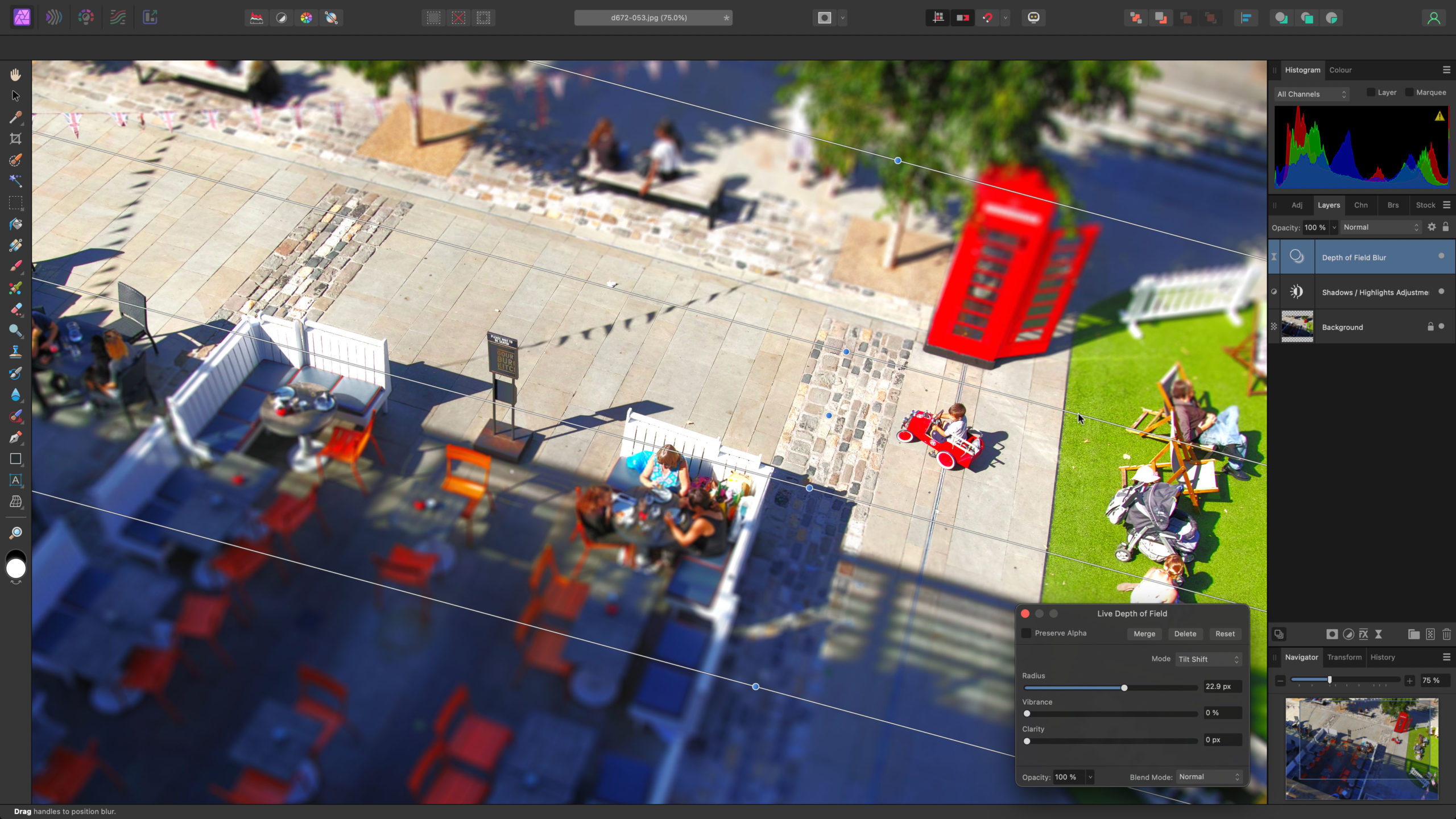 Affinity Photo 2 Perspective Tool
https://www.lifeafterphotoshop.com/wp-content/uploads/2022/11/affinity-photo-2-09-scaled.jpg
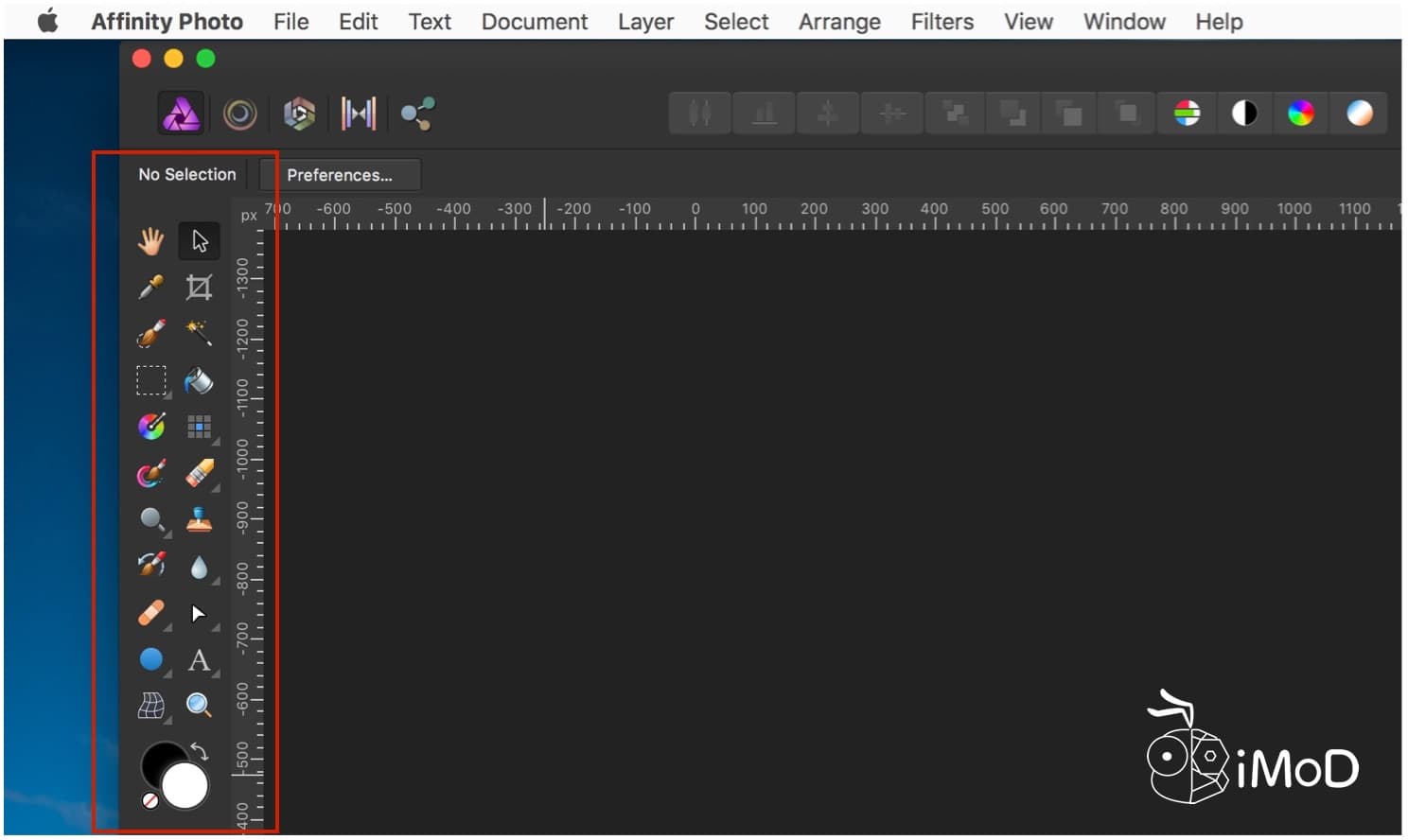
Perspective Tool Zoom Tool Z Some tools are concealed within flyouts to expand simply click and hold on the tool s icon to reveal extra tools Press a tool s letter key to select the tool Hold a tool s letter key to use the tool temporarily Affinity Photo 2 Keyboard Shortcuts Desktop Windows
Pre-crafted templates use a time-saving service for creating a varied variety of files and files. These pre-designed formats and designs can be made use of for various individual and professional tasks, including resumes, invites, flyers, newsletters, reports, presentations, and more, streamlining the content development procedure.
Affinity Photo 2 Perspective Tool
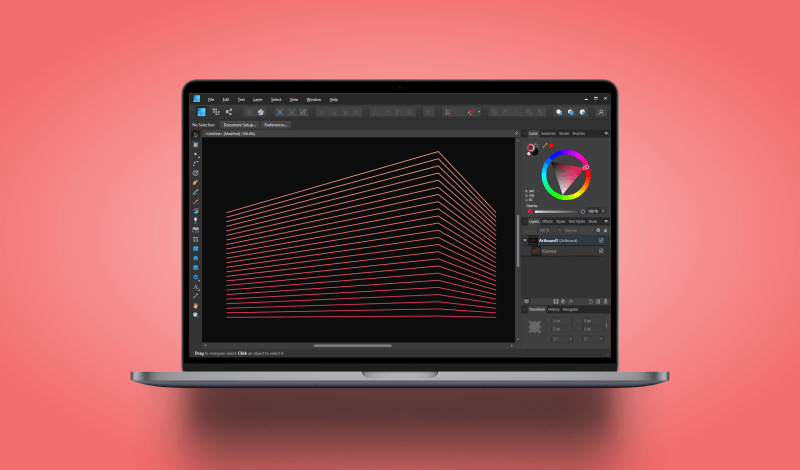
How To Make A Perspective Grid In Affinity Designer

Warp Perspective Tool Affinity Photo Tutorial YouTube
AFFINITY PHOTO IPAD Techfeedthai

Affinity Photo IPA Cracked For IOS Free Download

Affinity Photo 2 Adds A Lot Of Features But It Doesn t Require A

I often want to square up my photos when editing but struggle to get a natural looking result with the perspective tool in Affinity I often end up with square but noticeably distorted pictures The horizontal vertical rotation perspective adjustments in the develop persona sometimes help but i
Today we are going to have a look at 4 different applications of Perspective Tools in Affinity Photo You can use them in a wide variety of ways not just for

Using the Perspective Tool to alter the appearance of a building structure From the Tools panel on the left click the Mesh Warp pop up menu then the Perspective Tool Drag a corner handle on the grid Use the to snap a grid handle to vertical or horizontal With Snapping enabled the grid handles will snap to any page edge
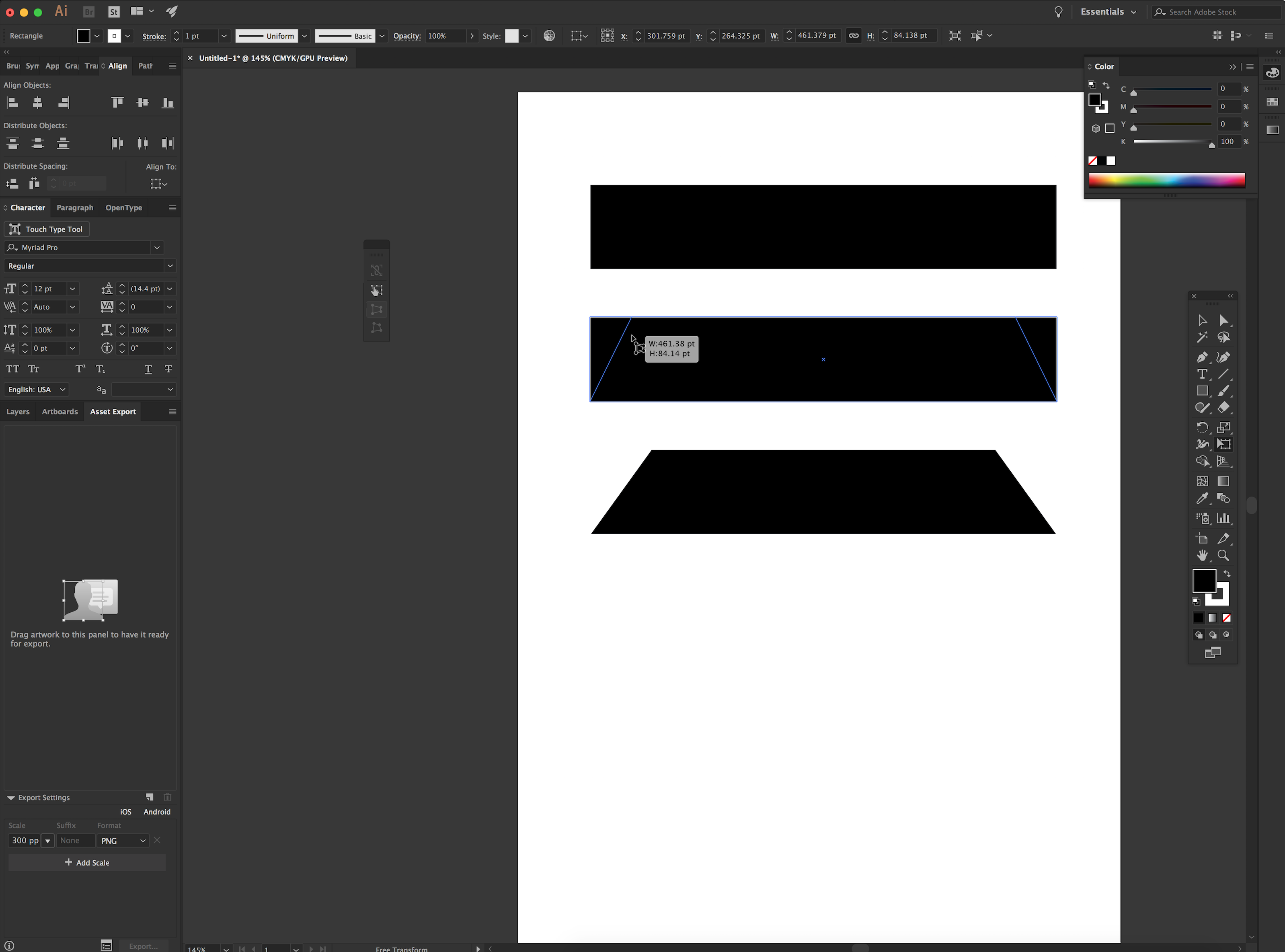
Free Transform with Affinity Photo To free transform with Affinity Photo use the Move Tool keyboard shortcut V for moving scaling rotating and shearing objects Use the Perspective Tool to change an image s perspective and the Mesh Warp Tool to warp your images The following video tutorial will walk you through every free transform

Changing perspective in 3D may seem rather difficult but with Affinity Photo s Perspective tool it is really easy Here s how you can do this in literally
This tutorial is a simple way to get into a crazy world The world of warping images and altering the perspective of all you images More to come in the fu Affinity Photo 2 is the perfect Photoshop alternative for anyone who wants professional photo editing power without an Adobe subscription And this really is a professional tool matching or even beating Photoshop in many key areas It s recently been re released in version 2 now with a free v2 1 update to incorporate many new features
Table of Contents Step 1 Create a line going across your canvas Step 2 Add a new node in the center of the line Step 3 Duplicate the line until it fills the entire height of your workspace Step 4 Merge the lines together Step 5 Transform the endpoint nodes of the grid to change its perspective Step 6 Lock the perspective grid layer