Windows Wsl Docker Desktop Not Starting Running Docker Desktop With The New WSL 2 Backend WSL With Docker Installation On Windows 11 Docker Desktop WSL Backend How To Develop A Docker Application On Windows Using WSL Visual Studio Docker Desktop Starting Forever Solved Docker Desktop With WSL 2 In Windows 10 2004 Update YouTube There is a great guide here which gives some up to date instructions and some prerequisites on using WSL 2 and the new docker desktop Share Improve this answer Follow answered Aug 6 2019 at 19 32 Docker not starting on Windows 11 with WSL 2 1 Docker installed in wsl2 without docker desktop not starting with sudo service docker start 8
Docker Desktop Version Docker Desktop 4 4 4 73704 WSL2 backend Are you running inside a virtualized Windows e g on a cloud server or a VM no I m having this problem where Docker seemingly does not automatically start in my WSL machine Every time I booted my Windows 11 and tried docker ps in my WSL machine I m getting the Cannot connect PS C Users feldm wsl status Default Distribution Ubuntu Default Version 2 Windows Subsystem for Linux was last updated on 2022 09 18 WSL automatic updates are on Kernel version 5 10 102 1 Hypervisor is launch type is set to auto bootmenupolicy Standard hypervisorlaunchtype Auto trying to start Docker Windows throws this error
Docker Desktop With WSL 2 In Windows 10 2004 Update YouTube Download Docker Desktop 3 3 0 For Windows Filehippo Using Docker In Windows For Linux Subsystem WSL 2 Docker For Windows Stuck At Kubernetes Is Starting A Turning Point Running Docker Desktop With The New WSL 2 Backend Docker In WSL Running Docker Desktop With The New WSL 2 Backend Docker Desktop WSL 2 Integration Deep Dive YouTube Phoronix Windows 10 WSL Vs Docker On Windows 10 Vs Bare Metal Linux
Windows Wsl Docker Desktop Not Starting

https://images.unsplash.com/photo-1512380924987-27e737876395?ixlib=rb-1.2.1&q=80&fm=jpg&crop=entropy&cs=tinysrgb&w=2000&fit=max&ixid=eyJhcHBfaWQiOjExNzczfQ
Once installed start Docker Desktop from the Windows Start menu then select the Docker icon from the hidden icons menu of your taskbar Right click the icon to display the Docker commands menu and select Settings Ensure that Use the WSL 2 based engine is checked in Settings General
Templates are pre-designed documents or files that can be utilized for various functions. They can save effort and time by supplying a ready-made format and design for developing various sort of content. Templates can be used for personal or expert projects, such as resumes, invites, leaflets, newsletters, reports, discussions, and more.
Windows Wsl Docker Desktop Not Starting

Docker Desktop Not Starting On Windows 11 Docker Desktop For Windows
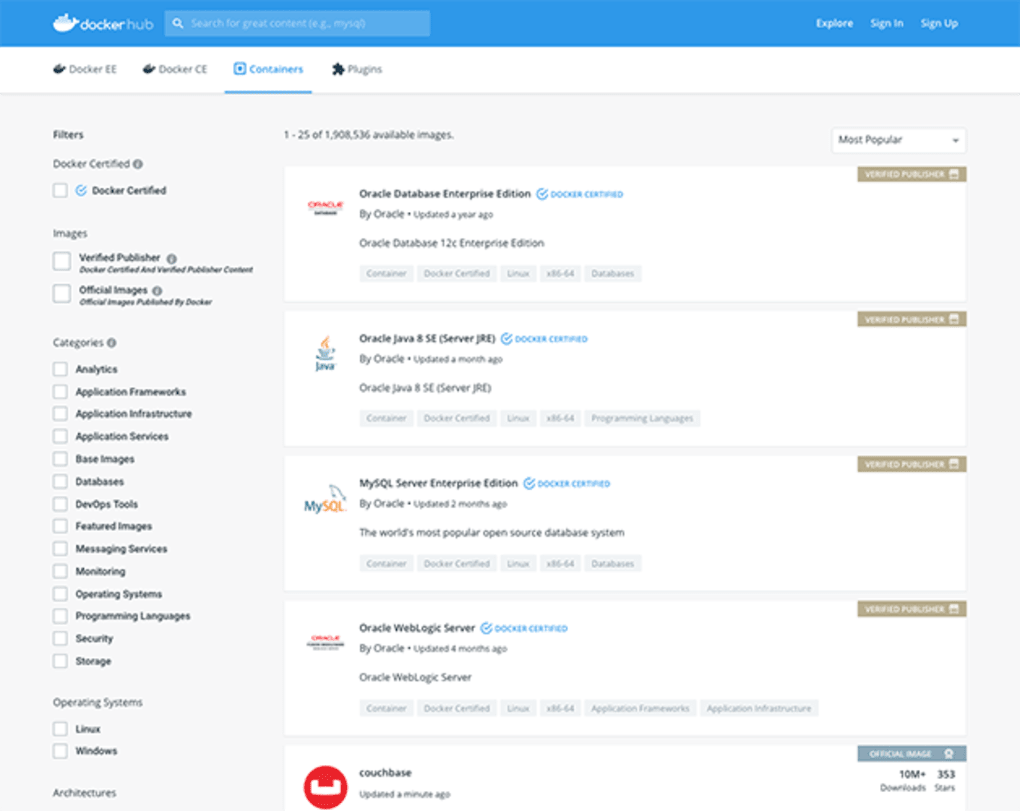
Download Docker Desktop 3 3 0 For Windows Filehippo
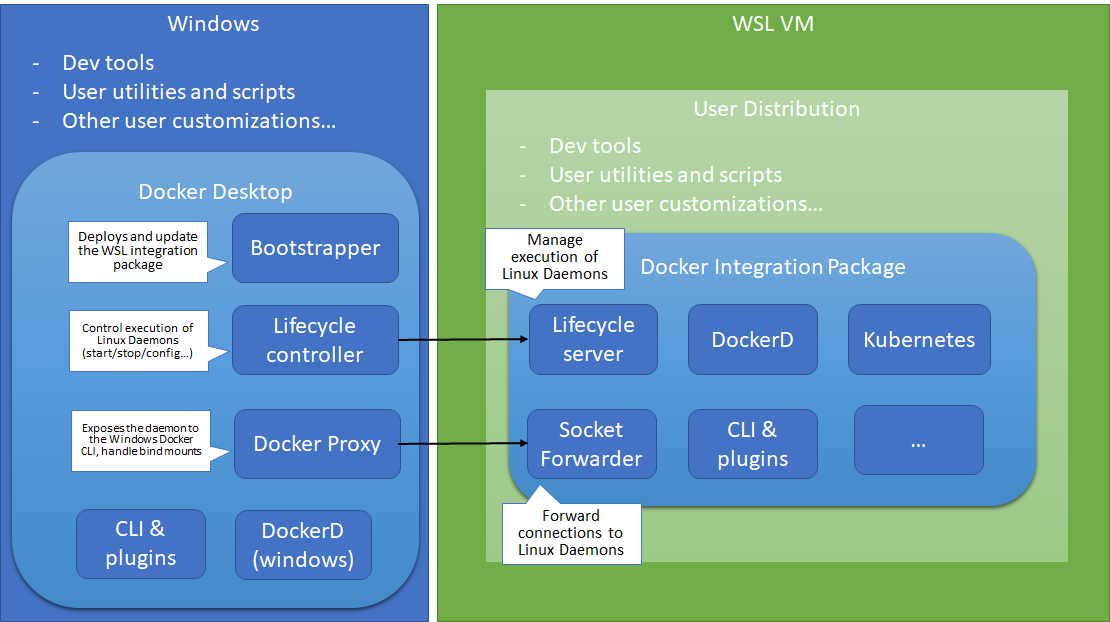
Using Docker In Windows For Linux Subsystem WSL 2
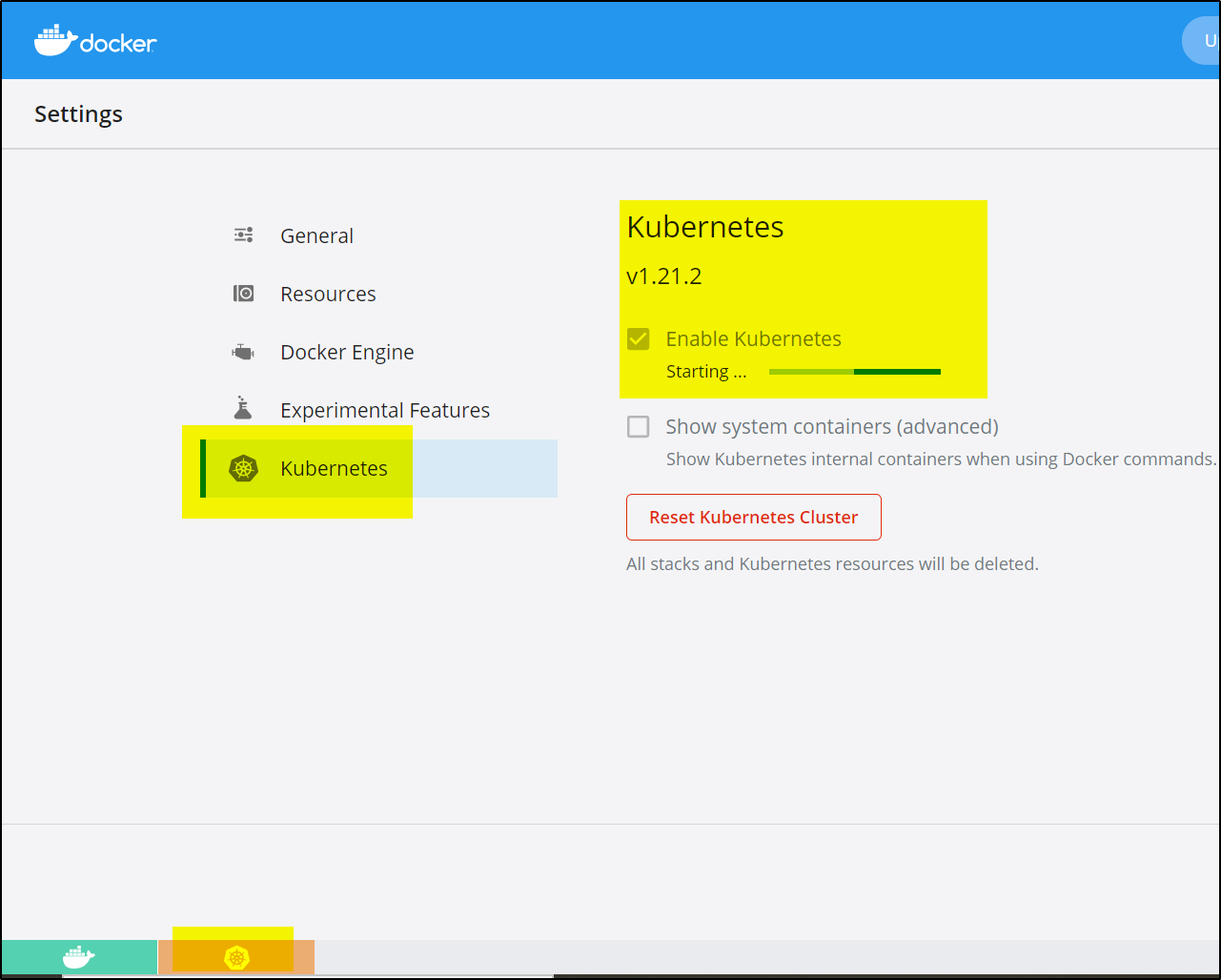
Docker For Windows Stuck At Kubernetes Is Starting A Turning Point

Docker In WSL
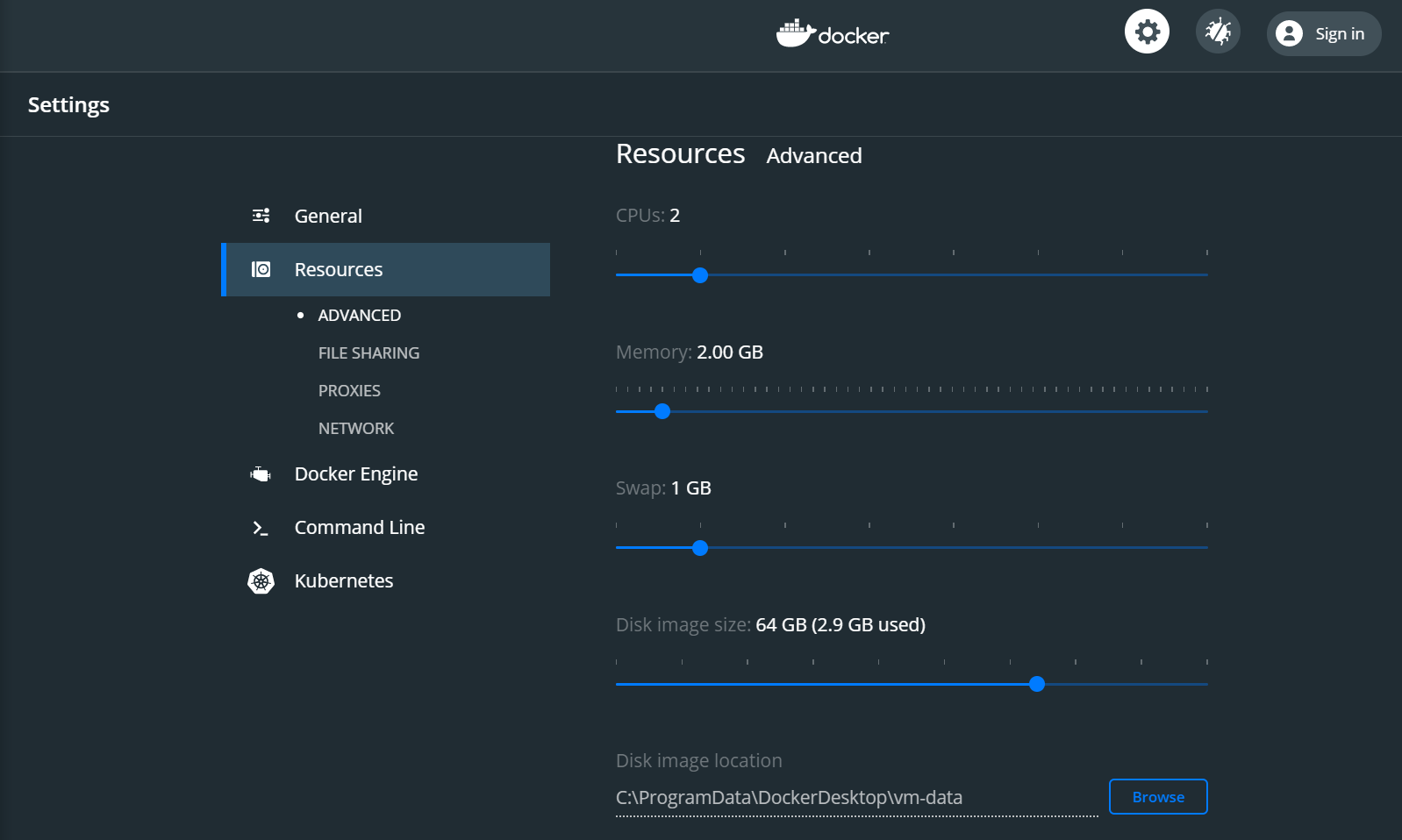
Running Docker Desktop With The New WSL 2 Backend

First close docker using the task manager and run wsl shutdown on powershell Then change lifecycleTimeoutSeconds to 5 seconds in order to be able to enter the interface Re enter docker update it and restart it Lastly set autoDownloadUpdates to true to ensure that is always updated So far it s working for me

Follow the usual installation instructions to install Docker Desktop Depending on which version of Windows you are using Docker Desktop may prompt you to turn on WSL 2 during installation Read the information displayed on the screen and turn on the WSL 2 feature to continue Start Docker Desktop from the Windows Start menu Navigate to Settings

Run PowerShell as Administrator Open PowerShell and run it as an administrator Switch to Docker Daemon for WSL Run the following command in PowerShell C Program Files Docker Docker DockerCli exe SwitchDaemon If it doesn t work you may need to run the above command one or two more times That s it

Try setting the default distribution wsl set default Ubuntu If that fails try unregistering and reinstalling the distribution wsl unregister Ubuntu then go to the Microsoft store and click Launch Share Improve this answer Follow

2 You should check WSL Execute wsl l v at the command prompt If the result is like this Then execute wsl shutdown on the command line Then execute wsl l v you will see Then start Docker Desktop
Install Docker Desktop on Windows Install interactively Install from the command line Double click Docker Desktop Installer exe to run the installer When prompted ensure the Use WSL 2 instead of Hyper V option on the Configuration page is selected or not depending on your choice of backend If you are unable to access WSL from your current Command Prompt console switch to the Legacy Console To do the same follow the steps mentioned below Right click on the header and select
To fix the Docker Desktop Unexpected WSL error update WSL use Legacy mode for Command Prompt or enable Virtualization