Windows Update Path Variable Without Reboot Unix Linux Sourcing Csh Script Does Not Set The Path Variable Update Webstorm Linux Paintdase Set Path Variable Without Admin Rights In Window 10 Add Environment Update Path Variable Intellij Idea How To Add Or Edit A PATH Environment Variable In Windows 11 10 Variables were created as REG SZ instead of REG EXPAND SZ After changing the types in regedit and triggered to update the PATH variable expansion by clicking on Modify for the PATH variable in the environment variable configuration dialog System Advanced Env Vars I don t know the exact names my OS is set to Spanish language the cmd was
Raw gistfile1 txt process to refresh environment variables without reboot windows open cmd commend prompt window input set PATH C this will refresh the environment variables close and restart cmd window input echo PATH to test Sign up for free to join this conversation on GitHub When you add or change a variable using registry directly they re not automatically re read Windows GUI calls a function or something when you click OK and new processes inherit the updated values
How To Add Or Edit A PATH Environment Variable In Windows 11 10 Windows Python Python Solved PATH Variable Resets With Reboot 9to5Answer Error After Windows Update Path Not Found Cannot Login Sz kely Erzs bet IntelliJ IDEA Maven idea Windows IT News Today MindStudio Python Pycharm JAVAEE idea
Windows Update Path Variable Without Reboot
 Windows Update Path Variable Without Reboot
https://i.ytimg.com/vi/NL3x20axOJw/maxresdefault.jpg
How to turn off variable refresh rate in Windows 10 This tutorial will show you how to turn on or off variable refresh rate for games without native support for your account in Windows 10 1 Open Settings and click tap on the System icon 4 You can now close Settings if you like 5 You might need to restart your game for changes to take effect
Templates are pre-designed documents or files that can be used for various functions. They can conserve time and effort by supplying a ready-made format and layout for developing various sort of material. Templates can be utilized for personal or expert jobs, such as resumes, invitations, flyers, newsletters, reports, discussions, and more.
Windows Update Path Variable Without Reboot

Invalid ORACLE HOME Error In TOAD13 1 0 78 Toad For Oracle Toad

Windows Python Python

Solved PATH Variable Resets With Reboot 9to5Answer
Error After Windows Update Path Not Found Cannot Login Sz kely Erzs bet

Windows IT News Today
MindStudio

1 Opening a new cmd using the task manager or explorer window does not work at least with Win10 but using the start menu and typing cmd and then checking the variable works Andreas Covidiot

Step 1 In the Start menu search for Command Prompt and run it as an administrator Command Prompt CMD Icon Step 2 Type the command set PATH c without quotation marks press the enter key and restart the Command Prompt set PATH c command

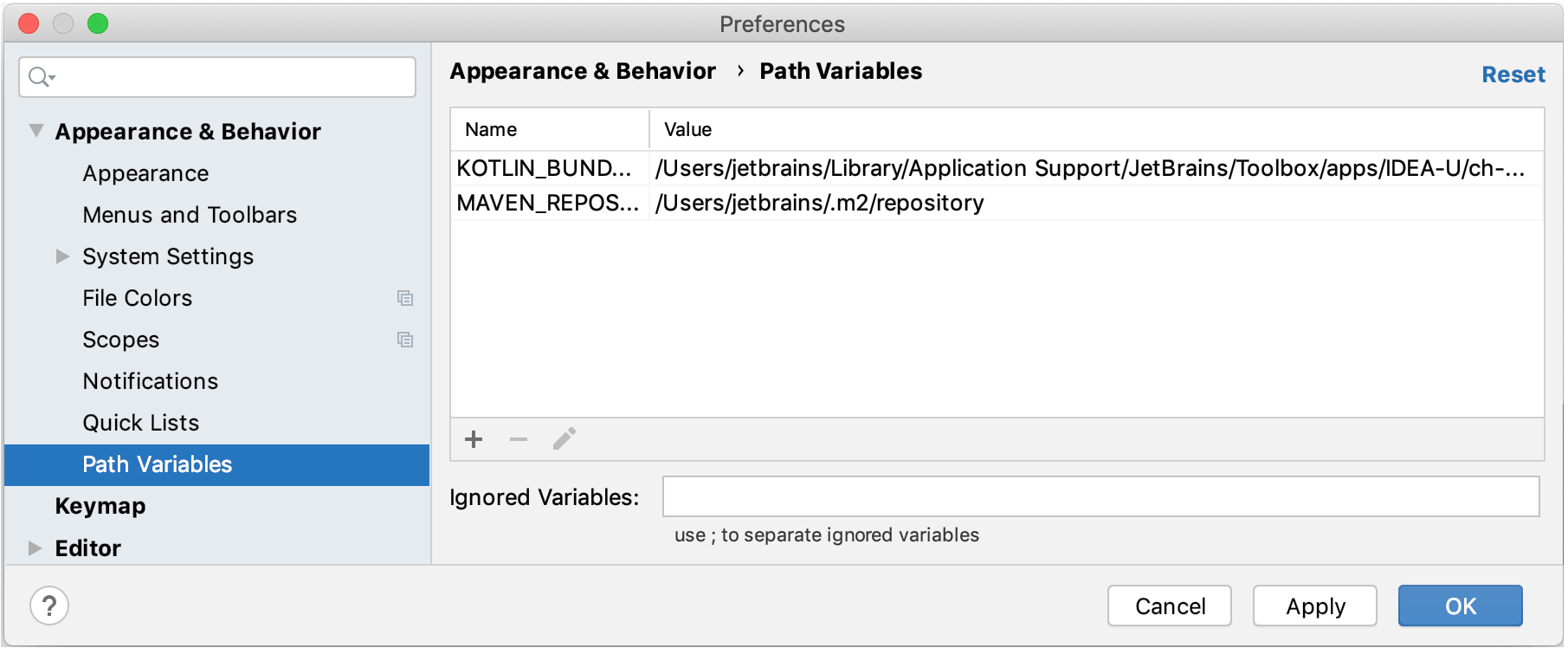
Open your system properties window Screenshots below are for Vista Open you Environment Variables Window Double Click on you Path if you want to just change you path for your login use the top one if you want to change it for all logins use the bottom one Append the path you would like to add separated with a semi colon
Is there a command to refresh environment variables from the command prompt in Windows Ask Question Asked 15 years 3 months ago Modified 1 month ago Viewed 816k times 684 If I modify or add an environment variable I have to restart the command prompt Is there a command I could execute that would do this without restarting CMD windows cmd
Open cmd commend prompt window input set PATH C this will refresh the environment variables close and restart cmd window input echo PATH to test Reference L https search4fan github io post win10 new system variable without restart html
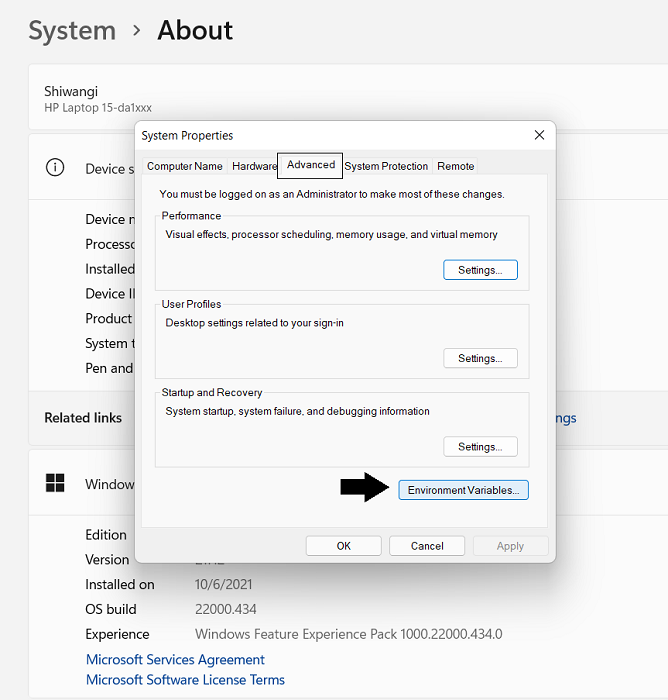
When I set an environment variable through the setx command in Windows 7 the variable is correctly set but if I type in set it list the environment variables that were set at the script start up not now I am wondering if there is a way to refresh the environment variables in the current batch session Setting the path and variables in Windows 10 Press the Windows key X to access the Power User Task Menu In the Power User Task Menu select the System option In the About window click the Advanced system settings link under Related settings on the far right side In the System Properties window click the Advanced tab then click the Environment Variables button near the bottom of that tab
Verify the installation of this update To verify the installation of this update see Check the WinRE image version Removal information This update cannot be removed once it is applied to a Windows image Update replacement information This update does not replace any previously released update References