Windows Print Screen Button Not Working How To Fix Print Screen Key Not Working On Windows 10 Not Taking Computer Talk Print Screen Button Not Working 1 By Green Guido 7 Ways To Fix Print Screen Not Working How To Use Windows Print Screen Key On Your Mac In Boot Camp Print Screen Key Not Working Print Screen Problem In Laptop 1 Use Keyboard Shortcuts There are other ways to take screenshots using a combination of PrtScr buttons Try using Alt PrtScr shortcut instead That will take a screenshot of the currently
Solution 1 Stop Background programs Solution 2 Check if you re using Print Screen correctly Solution 3 Update your keyboard drivers Solution 4 Run the Hardware troubleshooter for your keyboard Solution 5 Update Windows 10 to the latest version Solution 6 Find an alternative way to capture your screen Check below to learn how to enable the Print Screen shortcut Step 1 Press Windows U keys to quickly open Ease of Access Step 2 On the left menu click on Keyboard Step 3 Find the Print Screen shortcut section and turn it ON if it is off Method 3 Stop Background programs
Print Screen Key Not Working Print Screen Problem In Laptop Vorl ufer Richtig Ergebnis My Print Screen Button Is Not Working Why Is My Print Screen Button Not Working YouTube 4 Easy Methods Of How To Take A Screenshot On Windows 10 How To Fix Print Screen Not Working In Windows 10 TechPocket How To Print Screen On Windows Selected Area BEST GAMES WALKTHROUGH 2023 Solved How To Fix Print Screen Button Not Working In Windows How To Solve Print Screen Not Working In Windows 10 11 YouTube How To Take A Screenshot In Windows 7 8 And 10
Windows Print Screen Button Not Working
 Windows Print Screen Button Not Working
https://i.ytimg.com/vi/xnkJYcVG8yw/maxresdefault.jpg
Depending on your hardware you may use the Windows Logo Key PrtScn button as a shortcut for print screen If your device does not have the PrtScn button you may use Fn Windows logo key Space Bar to take a screenshot which can then be printed To locate your screenshots open File Explorer from the taskbar
Pre-crafted templates provide a time-saving solution for developing a diverse variety of documents and files. These pre-designed formats and layouts can be made use of for various individual and expert projects, including resumes, invites, leaflets, newsletters, reports, presentations, and more, streamlining the material development process.
Windows Print Screen Button Not Working

Solution To Print Screen Button Not Working YouTube
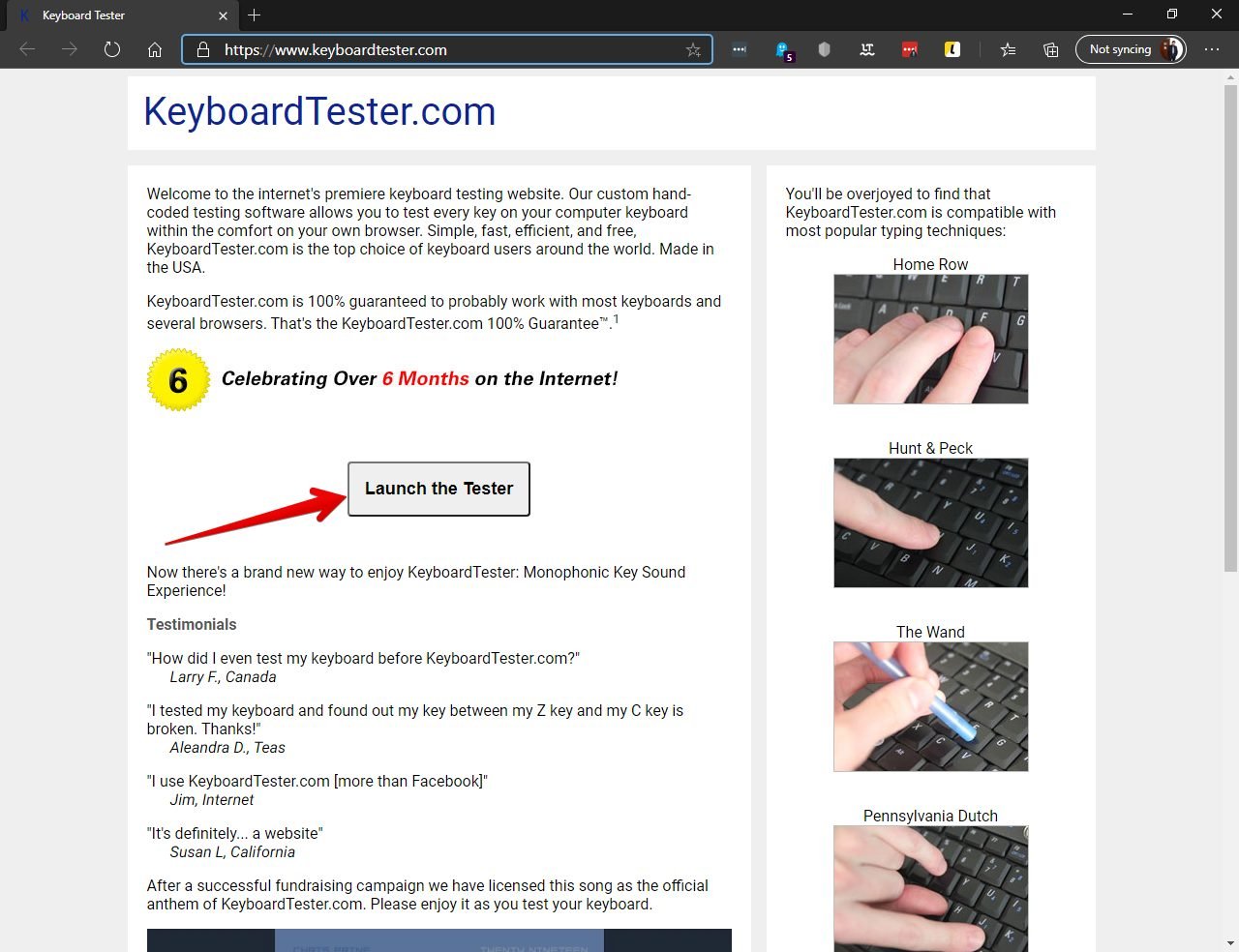
Vorl ufer Richtig Ergebnis My Print Screen Button Is Not Working

Why Is My Print Screen Button Not Working YouTube
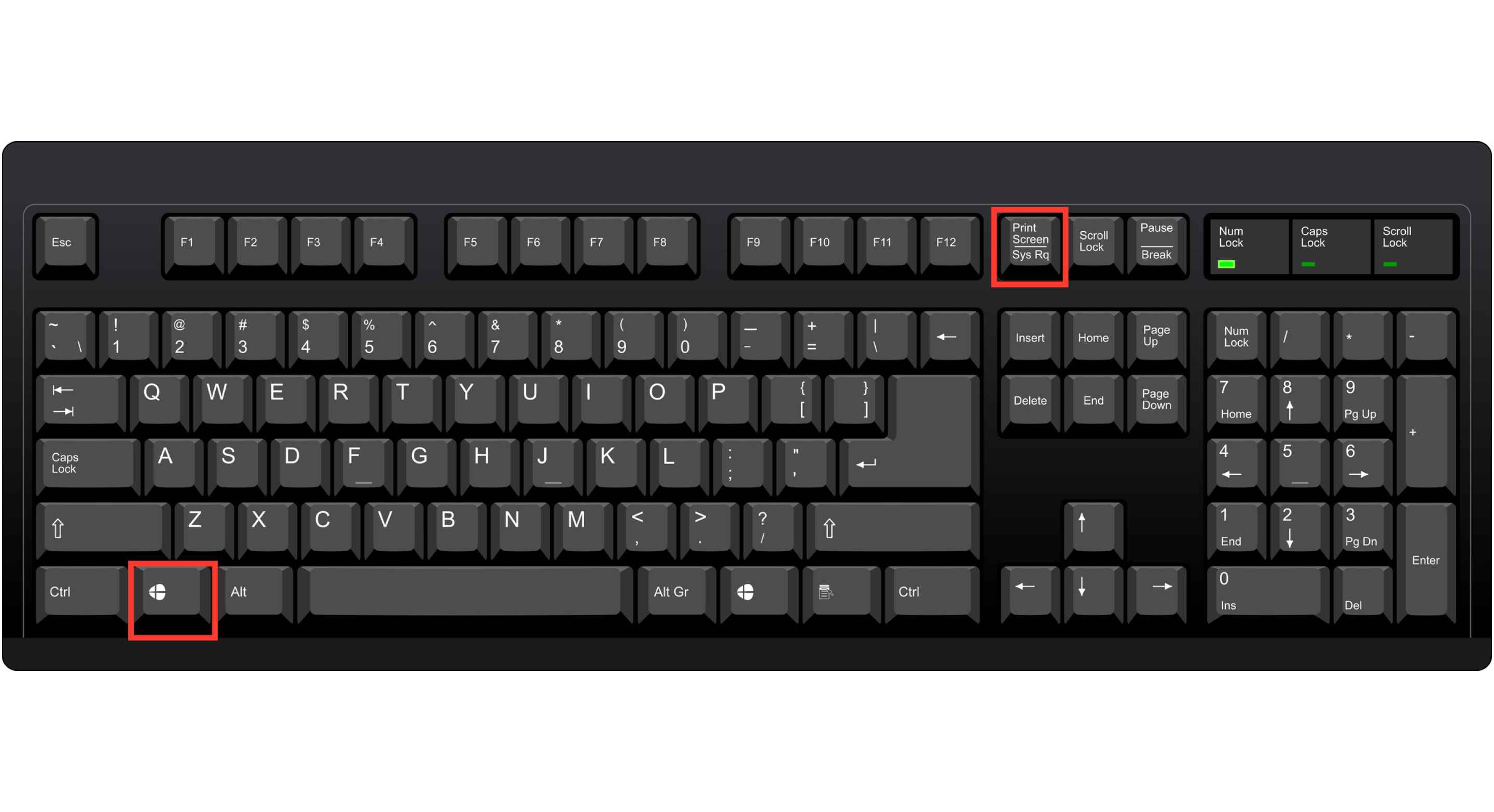
4 Easy Methods Of How To Take A Screenshot On Windows 10
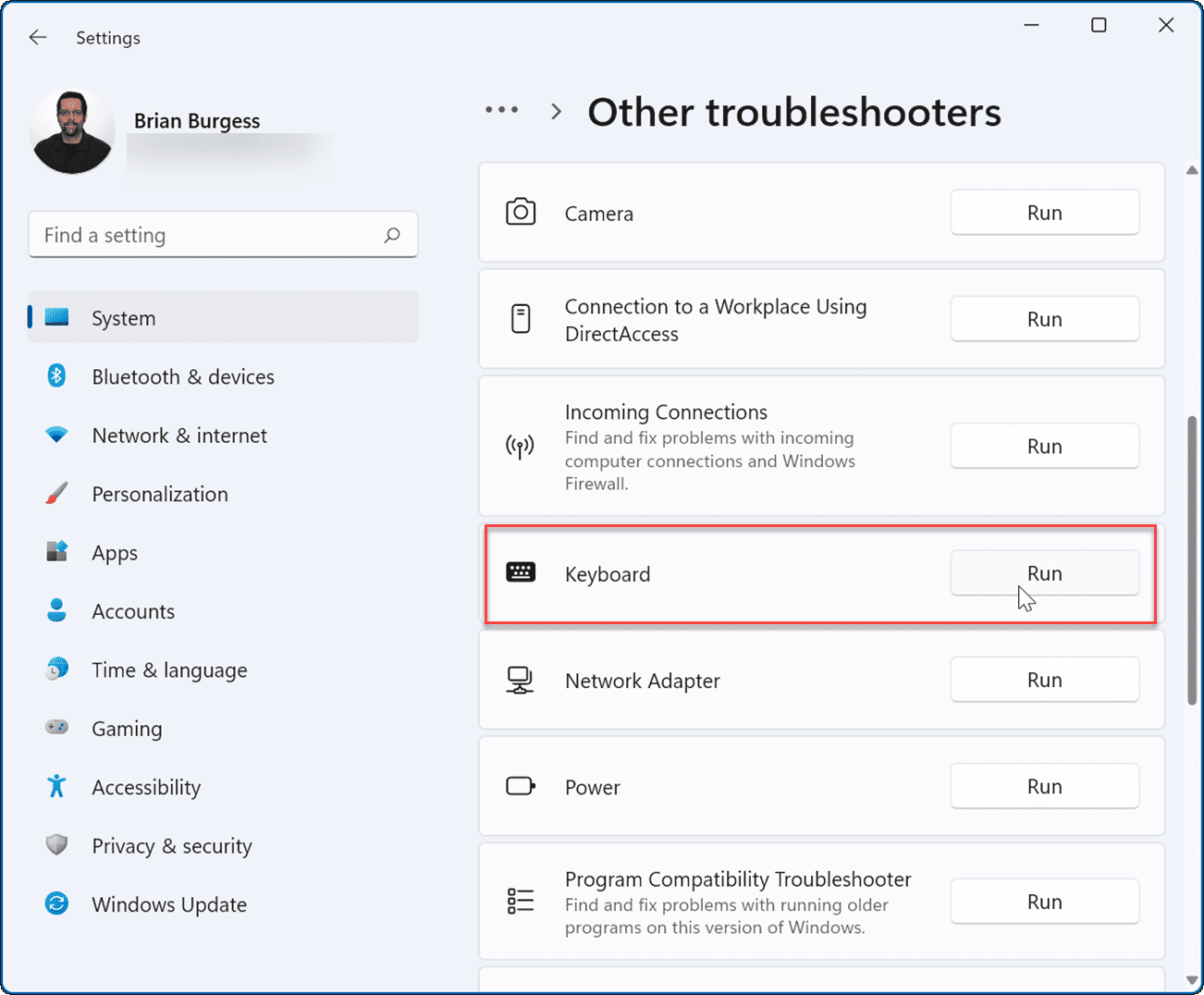
How To Print Screen On Windows Selected Area BEST GAMES WALKTHROUGH

2023 Solved How To Fix Print Screen Button Not Working In Windows

Hold down the F Lock or F Mode keys to disable them to see if that gets the Print Screen key working again Disable any third party screenshot programs like Snagit on your system Check out our guide on how to capture full page screenshots in Chrome Firefox if the Print Screen button is not working for those browsers

Method 1 If it is an external keyboard connected to your system in order to isolate the issue I would suggest you to check the keyboard on a different system and see if the Print Screen key is functional If the same issue persists on the different system I would suggest you to try with the method 2 Method 2

Solution 1 Stop Background Programs Solution 2 Make Sure the Print Screen Shortcut Is Enabled Solution 3 Use Hotkey Combination Solution 4 Check If There Is an F Mode or F Lock Key on the Keyboard Solution 5 Update Keyboard Driver Solution 6 Use Third Party Tool Print Screen Button Not Working
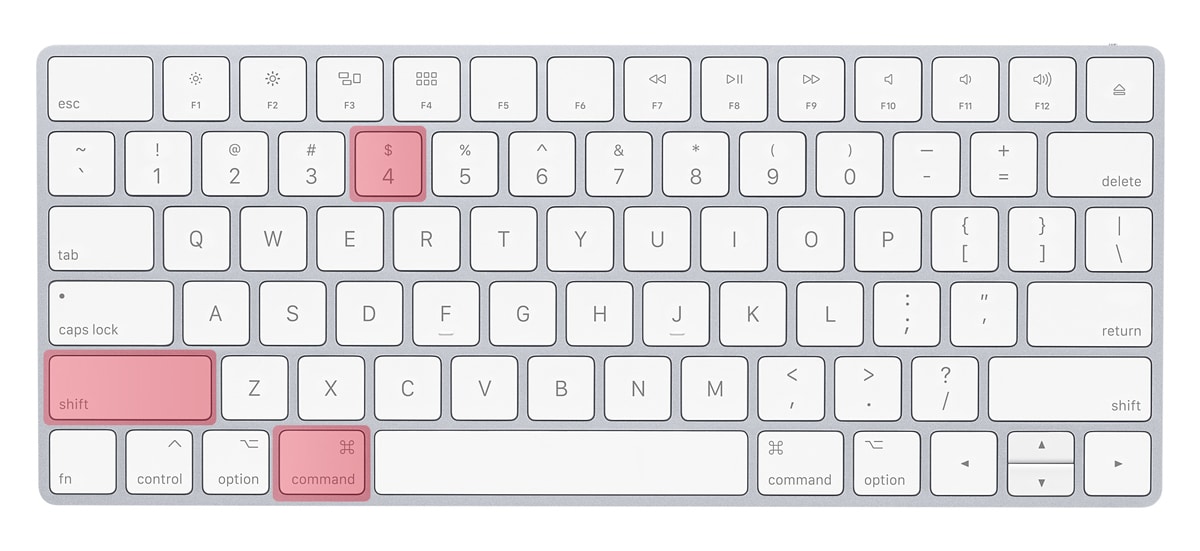
Programs running in the background could be a reason for your Print Screen key not working Open your Task Manager and look if applications such as OneDrive Snippet Tool or Dropbox are running in the background These are common culprits but other apps could cause the issue as well
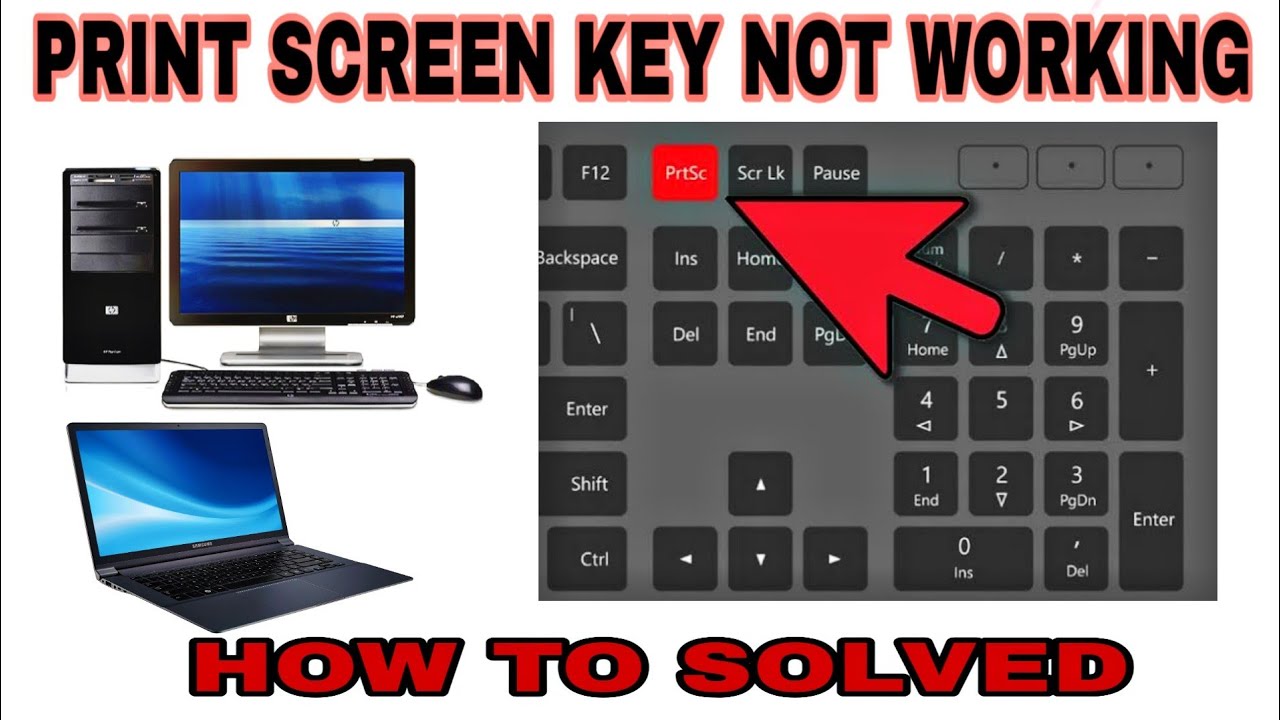
It can happen if the key itself is not working properly or your system is not executing the Print Screen function If the key is not working it mainly indicates hardware damage unless the key has been remapped On the other hand if the key is intact other applications are likely preventing you from taking screenshots
What you need to know Microsoft is changing the default behavior of the Print Screen key In an upcoming update the Print Screen key will be changed to launch the Snipping Tool Try to press F Mode key or F Lock key when there is such keys on your keyboard if not please skip this fix then check if Print Screen works That s because such keys may prevent you from using print screen key Fix 3 Stop all the running programs
Just follow the steps below Step 1 Press Ctrl Shift Esc to open the Task Manager window Step 2 Find the program that you want to close and then right click on it to choose the End Task option Step 3 Once done press Print Screen to check if it works