Netstat View Active Connections Netstat Command In Linux With Examples Windows Netstat Display Active TCP UDP Ports Connections The Netstat Find Number Of Active Connections In Linux Using Netstat What Is Netstat Command And How To Use It EaseUS Check All The Active Connections With NETSTAT YouTube The netstat command also displays the active connections that exist on a device this is shown highlighted in Figure 4 The specific connection that is highlighted is being used by remote
How to use netstat to view a list of active TCP and UDP connections and count them Ask Question Asked 10 months ago Modified 10 months ago Viewed 1k times 0 I want to monitor the number of active TCP and UDP connections using the netstat command I tried to run the following command Click on the Search button on your taskbar and search for the Command Prompt app Next to the matching search result click on Run as administrator This will launch Command Prompt with advanced user permissions On the Command Prompt type netstat and press Enter The command after executing will output a list of active connections along
Check All The Active Connections With NETSTAT YouTube How To Find Listening Ports With Netstat And PowerShell 4 Ways To See Active Network Connections Windows WikiHow How To Use Netstat Command On Windows 10 Windows Central Query List Of Active Tcp Connections In Windows Using Powershell Vrogue How To Find Listening Ports With Netstat And PowerShell Ping Vs Traceroute Vs Netstat Detailed Analysis Site24x7 Netstat Command In Linux With Examples 01 DevopsRoles Free 1 BashSenpai Your Terminal Assistant
Netstat View Active Connections
 Netstat View Active Connections
https://static.haydenjames.io/wp-content/uploads/2023/02/Termius_aJakV0Zp8F.png
Netstat is a command line network tool that is a handy troubleshooting command Its cross platform utility means you can use it on Linux macOS or Windows netstat can be very handy in the following Display incoming and outgoing network connections Display routing tables Display number of network interfaces Display network protocol statistics
Pre-crafted templates offer a time-saving service for creating a diverse series of documents and files. These pre-designed formats and designs can be utilized for different personal and expert jobs, consisting of resumes, invites, leaflets, newsletters, reports, presentations, and more, streamlining the content creation process.
Netstat View Active Connections
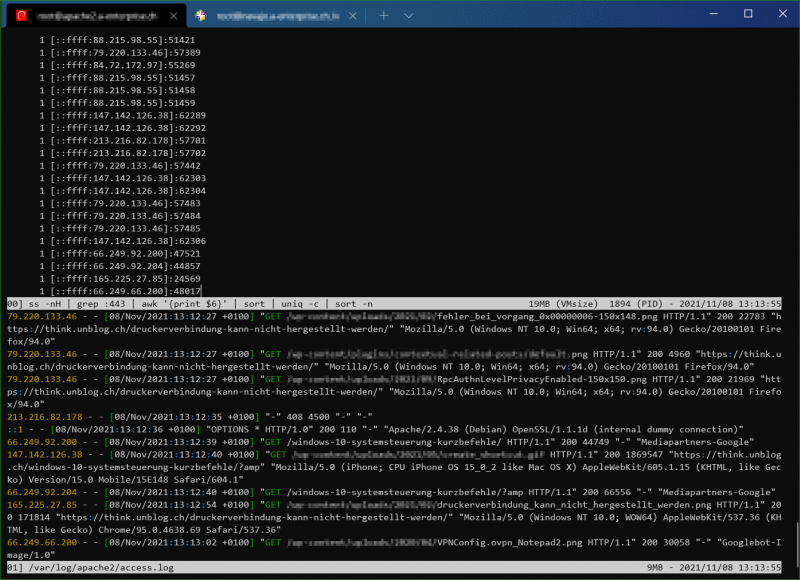
How To View Network Connections Real Time Using Netstat And Ss UNBLOG

How To Find Listening Ports With Netstat And PowerShell

4 Ways To See Active Network Connections Windows WikiHow

How To Use Netstat Command On Windows 10 Windows Central
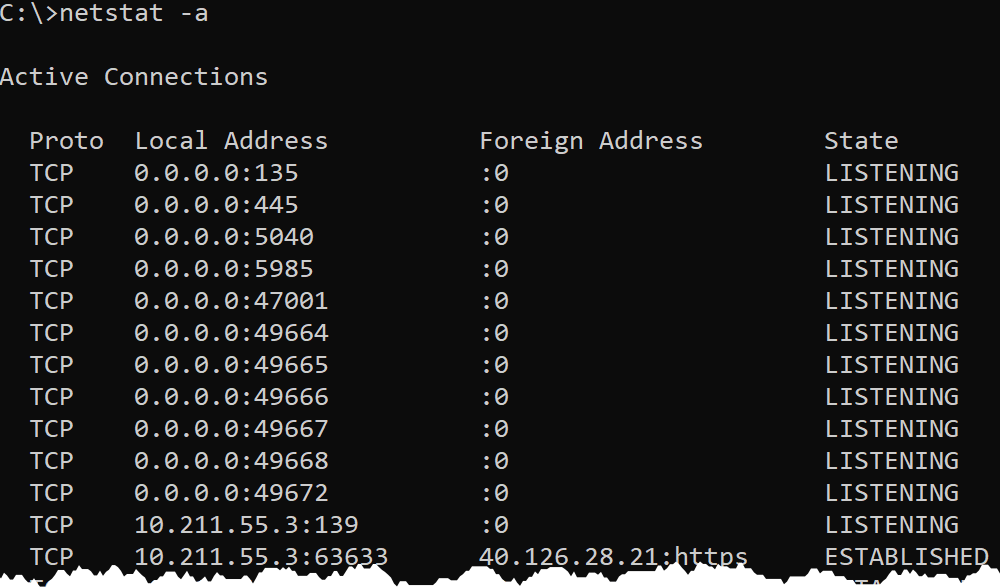
How To Find Listening Ports With Netstat And PowerShell
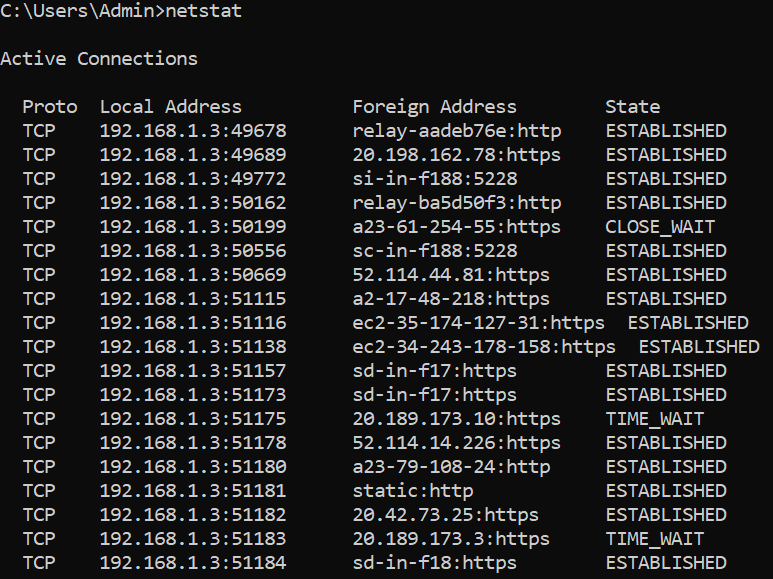
Ping Vs Traceroute Vs Netstat Detailed Analysis Site24x7

Netstat Command List Option Explanation netstat Execute the netstat command alone to show a relatively simple list of all active TCP connections which for each one will show the local IP address your computer the foreign IP address the other computer or network device along with their respective port numbers as well as the TCP state a This switch displays active TCP connections
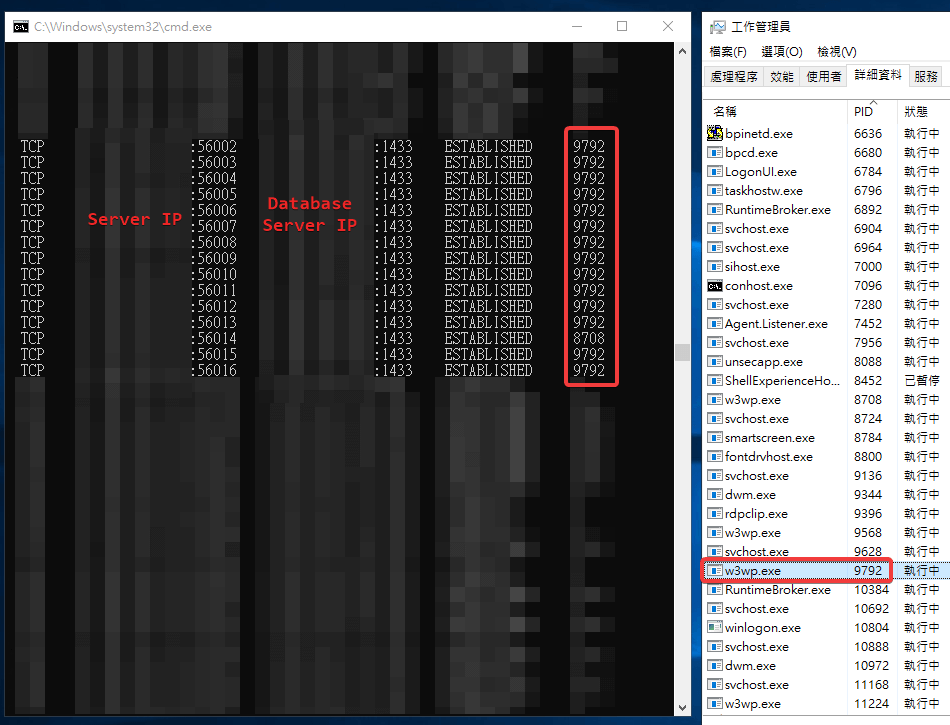
To display active TCP connections and the process IDs using numerical form type netstat n o Command Line Syntax Key Feedback Reference article for the netstat command which displays active TCP connections ports on which the computer is listening Ethernet statistics the IP routing table IPv4 statistics and IPv6 statistics

The tool helps you to list active network incoming and outgoing connections and listening ports You can view network adapter statistics and statistics for protocols such as IPv4 and

Introduction The netstat command is a CLI tool for net work stat istics It gives an overview of network activities and displays which ports are open or have established connections The netstat tool is essential for discovering network problems This article shows 28 netstat commands for displaying port and internet statistics data on Linux

Option One Check Active Connections with PowerShell or Command Prompt This option uses the netstat command to generate a list of everything that has made an Internet connection in a specified amount of time You can do this on any PC running Windows from Windows XP Service Pack 2 all the way up to Windows 10
Like netstat the command has displayed the list of all active connections with local and remote IP addresses ports connection state Listen Established Internet TimeWait Bound CloseWait SynReceived SynSent and process ID PID that is using this TCP connection You can display a list of open listening ports on your local computer First just open a command prompt window and type netstat an The a parameter lists all the computer s connections and listening ports while the n parameter displays addresses and port
Activity 1 Display All Active Connections To display all active connections Open a command prompt Type netstat a Press Enter Observe active TCP and UDP connections and listening ports the local address and port number the remote name or address and port number if a connection is established and the connection status