Make A Header Row In Google Sheets How To Make A Header Row In Google Sheets YouTube How To Create A Header Row In Google Sheets In 2022 Google Sheets Set Header Row In Google Sheets Yabdab Inc Support How To Make Header Row In Google Sheets How To Make Header Row In Google Sheets YouTube Tyler Osborne 548 subscribers Subscribed 1 3K 166K views 6 years ago Google Sheets This short tutorial shows you how to create a header row in Google
Follow these steps to create a header in Google Sheets Open Google Sheets and navigate to the desired spreadsheet Select the first row or column where you want the header to appear Enter the desired text for the header Format the header by adjusting the font size style and color Save your changes After that go to Menu Bar Insert Rows Insert 1 row above Next you will see a new row appear on top of your existing dataset Then you can input the desired name for the header We label the first header as Employee ID and the second one as Employee Name
How To Make Header Row In Google Sheets YouTube How To Add A Header Row In Excel 4 Step by Step Methods How To Create A Header In Google Sheets In 2022 Examples How To Make Header Row In Google Sheets How To Make A Header In Google Sheets Draw public How To Make Header Row In Google Sheets How To Freeze Fixed Header Row In Excel YouTube Guide To Add A Row To A Table In Google Docs Riset How To Add Header And Footer In Google Sheets YouTube
Make A Header Row In Google Sheets
 Make A Header Row In Google Sheets
https://i.ytimg.com/vi/HZ3VZOJSBu4/maxresdefault.jpg
Step 1 Open Your Google Sheet Open the Google Sheet document where you want to specify a header row Here you ll want to make sure you ve got your sheet filled out with at least the first row filled with your column titles or categories Step 2 Select Your Header Row
Templates are pre-designed documents or files that can be utilized for numerous functions. They can conserve effort and time by supplying a ready-made format and design for developing different kinds of content. Templates can be used for personal or expert jobs, such as resumes, invitations, leaflets, newsletters, reports, presentations, and more.
Make A Header Row In Google Sheets

How To Make A Header On Google Sheets On PC Or Mac 8 Steps

How To Add A Header Row In Excel 4 Step by Step Methods

How To Create A Header In Google Sheets In 2022 Examples

How To Make Header Row In Google Sheets

How To Make Header Row In Google Sheets
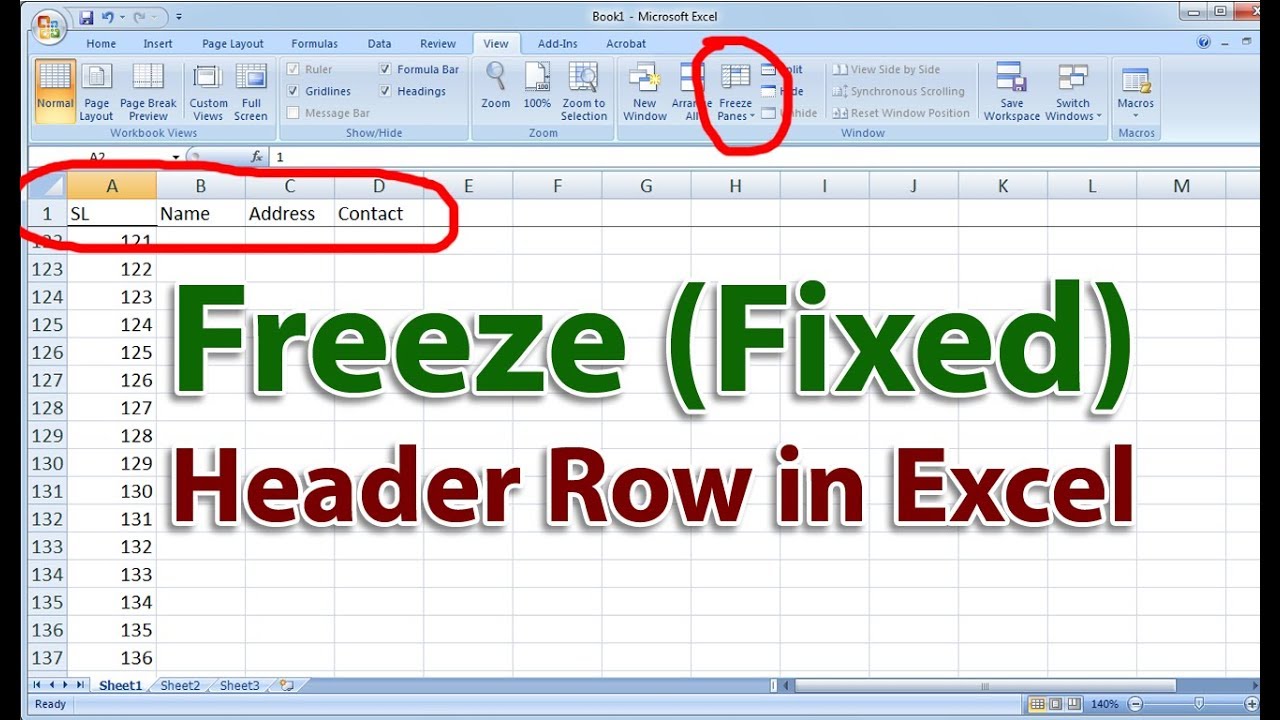
How To Freeze Fixed Header Row In Excel YouTube

January 5 2024 by Matt Jacobs Making a header row in Google Sheets is a simple task that can greatly improve the organization and readability of your data To do this just highlight the first row of your sheet right click and select View more cell actions and then choose Freeze and 1 row This action will keep the header

To create a header row quickly in Google Sheets click on the View menu item then on Freeze and then select the best option presented No rows this removes any frozen rows 1 row to freeze the first row 2 rows to freeze the first two rows Up to current row freezes where you cursor is on the active sheet
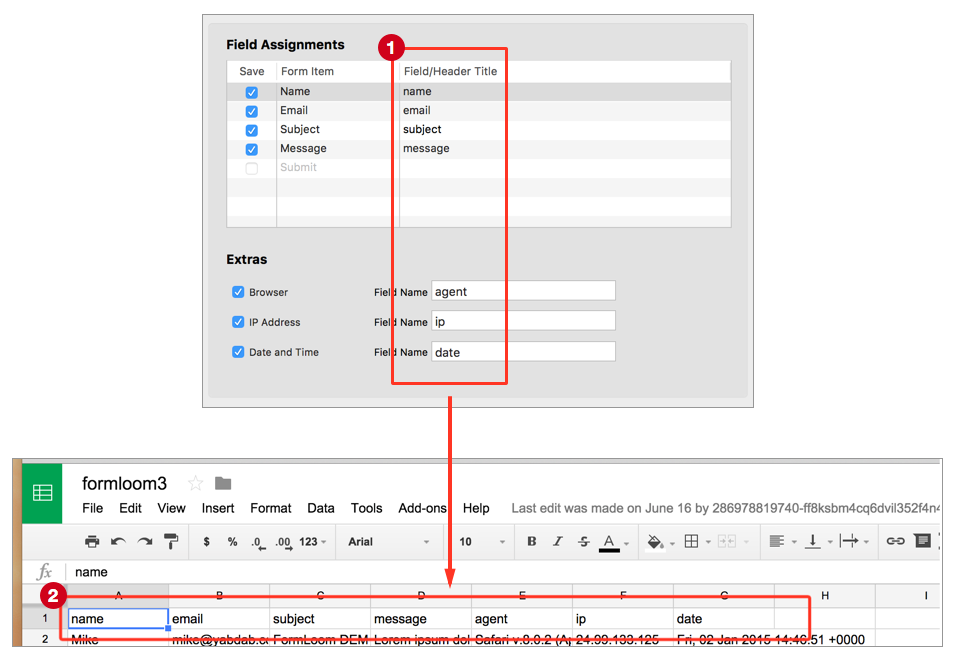
Application of Headers Creating a header in Google Sheets is a simple process Follow these steps to set up a header row Select the desired row Click on the row where you want the header to appear usually the first row in the sheet Enter header titles Type the header information for each data column into the selected row

20K views 1 year ago Find out how to make a Google Sheets header row that will include descriptions of the data in your spreadsheet columns and will remain frozen at the top of the
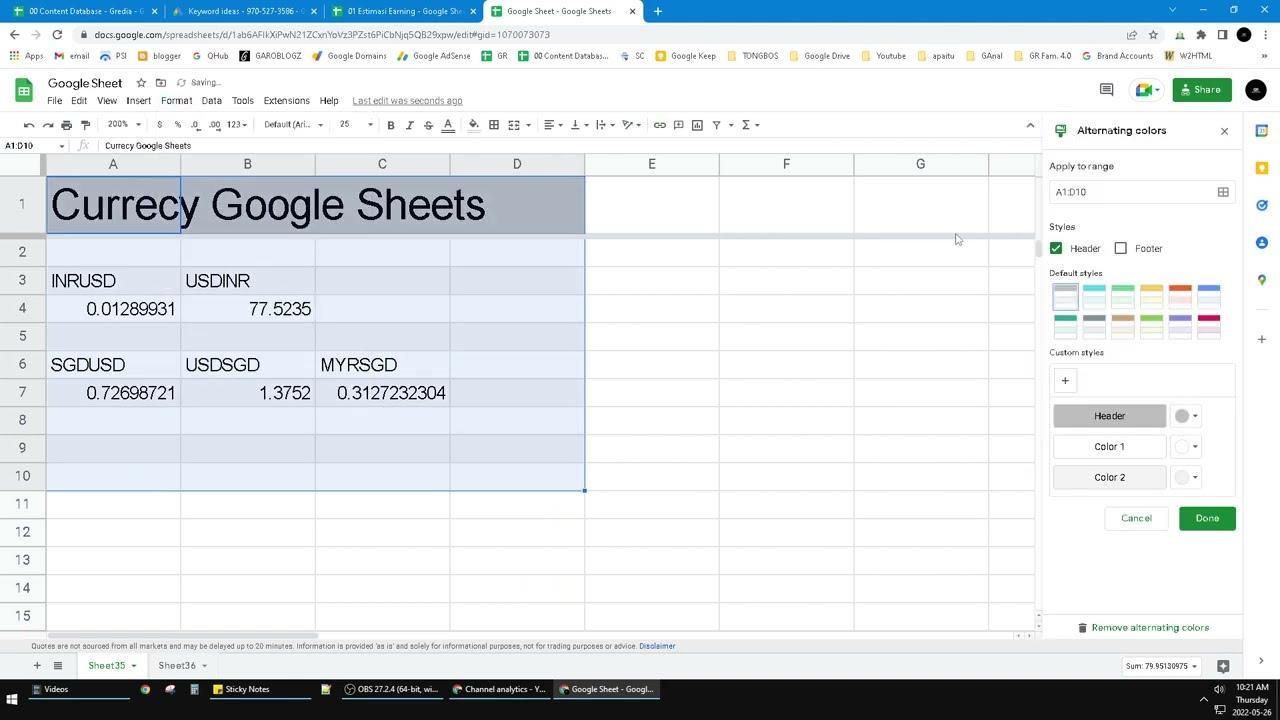
Step 1 Right click on the row number beside your first row of data and choose Insert Row before to insert a row for your headers Step 2 In the newly inserted row enter header labels for each column of data in your sheet Step 3 You can also format the header with larger or bold font colors or any other formatting to make it
Creating headers in Google Sheets involves opening a new spreadsheet and selecting the top row as the header Formatting the header text enhances its appearance and can be done by choosing the desired font style and size Merging cells allows for the creation of expanded header space in Google Sheets Understanding Headers in Google Sheets To add headers or footers to a Google Sheets spreadsheet go to the printer settings menu by clicking File Print or pressing Ctrl P Customize your layout and design in the Headers and Footers section You can enable preset options like page numbers the name of the sheet and more Add custom text by clicking Edit Custom
Going forward you can customize the headers and footers in your Google Sheets documents with the text of your choosing In addition you can select from many more pre defined options for date time etc and move those options around within your header and footer