How To Put Background Image In Html Notepad 746 How To Get A Background Image Html Free Download MyWeb How To Set Full Background Image In Html Design Talk How To Set A Background Image In HTML 13 Steps with Pictures How To Put Background Image In Html Notepad Lightningstashok 836 Background Image In Html Without Css For FREE MyWeb You can add background Images in HTML Document in two ways Using HTML background attribute and Using Internal CSS style Get All HTML Tutorials Playlists Here
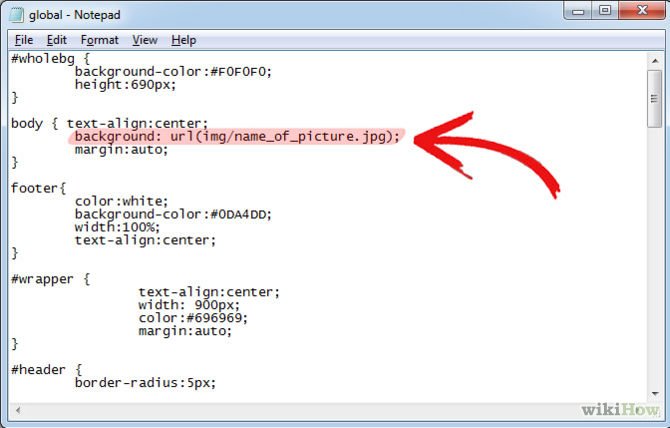
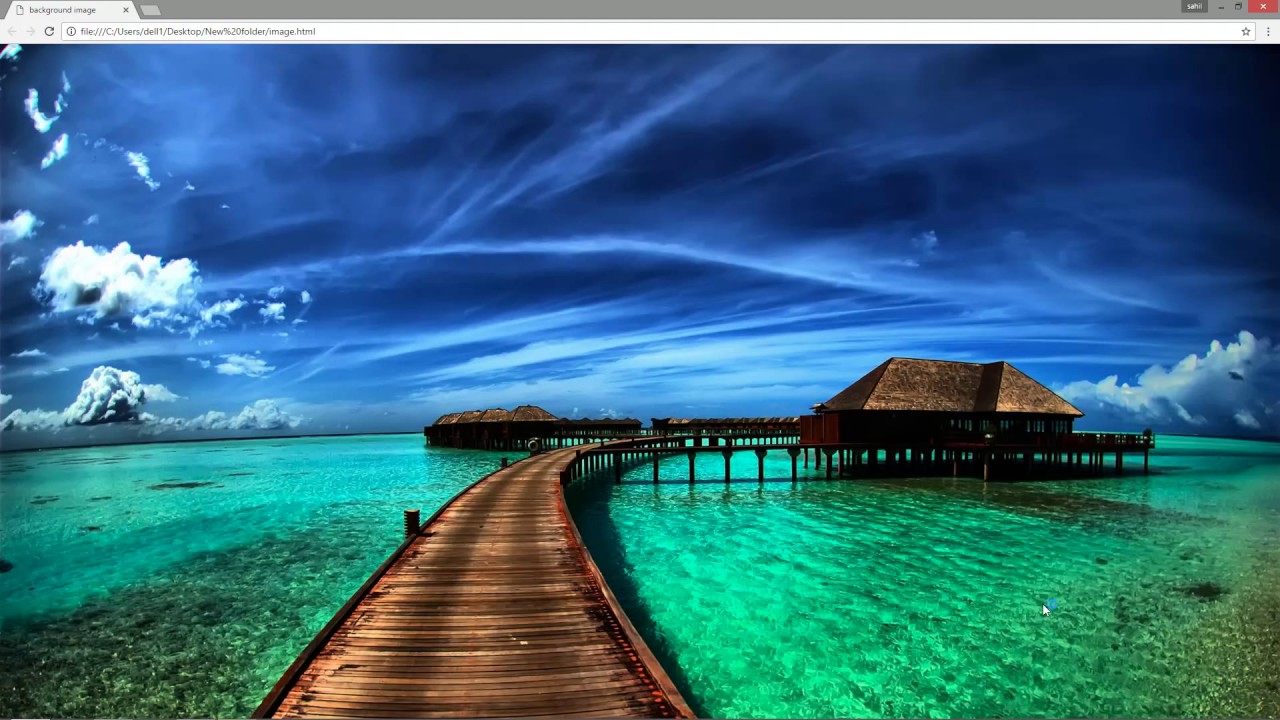
CSS How to Add Background Image with CSS How to Add Background Image with CSS Let us demonstrate how you can add and position a background image in an HTML document with CSS styles Watch a video course CSS The Complete Guide incl Flexbox Grid Sass How to position a background image To insert a background image in HTML using Notepad first open your HTML file in Notepad Then add the following code to the section of your HTML code Replace image jpg with the name of the image file you wish to use as your background Save your HTML file and then open it in a web browser to view the results
836 Background Image In Html Without Css For FREE MyWeb Background Image Url Path New Background Image Manifestation Stay Up Donor How To Set Background Image In Html Wake Up How To Put Background Image In Html Gerapretty How To Add Background Image In Coreldraw Design Talk How To Put Background Image In Html Dreamweaver Tidekingdom How To Change Your Wallpaper Using Notepad ThemeBin Background Images In Html If You Compare The Container On Your Site 746 How To Get A Background Image Html Free Download MyWeb
How To Put Background Image In Html Notepad
 How To Put Background Image In Html Notepad
https://cdn.wallpapersafari.com/25/40/sFVTN0.jpg
First open up Notepad and click on File Open Find the image you want to use as your background and click on it to select it Next click on Format Background A small window will pop up with some options for your background Choose the option that best fits your needs and click OK Your image should now be your background
Pre-crafted templates use a time-saving option for developing a diverse range of documents and files. These pre-designed formats and designs can be used for various individual and professional jobs, including resumes, invites, flyers, newsletters, reports, discussions, and more, simplifying the material development process.
How To Put Background Image In Html Notepad
How To Put Background Image In HTML And CSS Ninja Technical

Background Image Url Path New Background Image
Manifestation Stay Up Donor How To Set Background Image In Html Wake Up
How To Put Background Image In Html Gerapretty
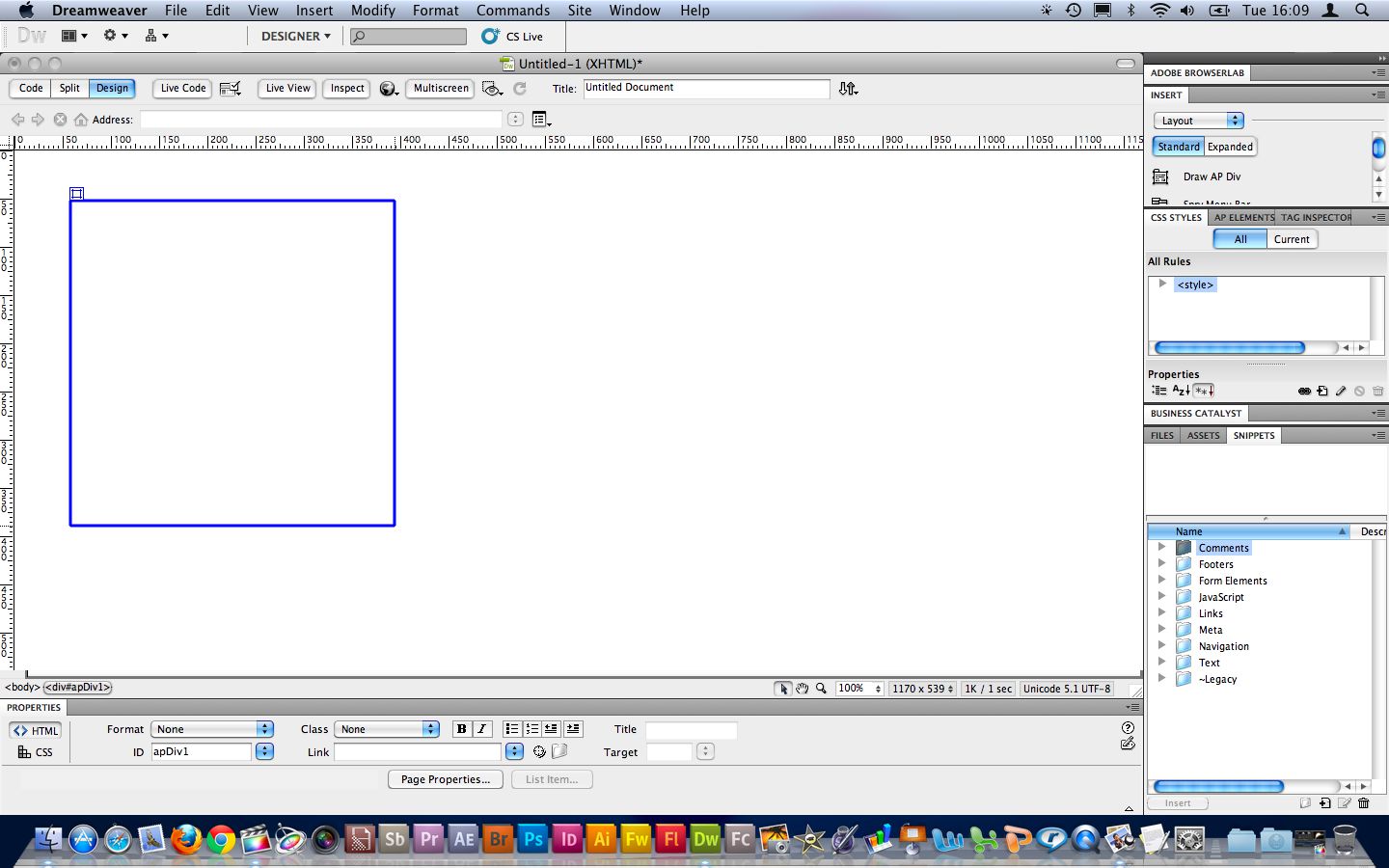
How To Put Background Image In Html Dreamweaver Tidekingdom

How To Change Your Wallpaper Using Notepad ThemeBin
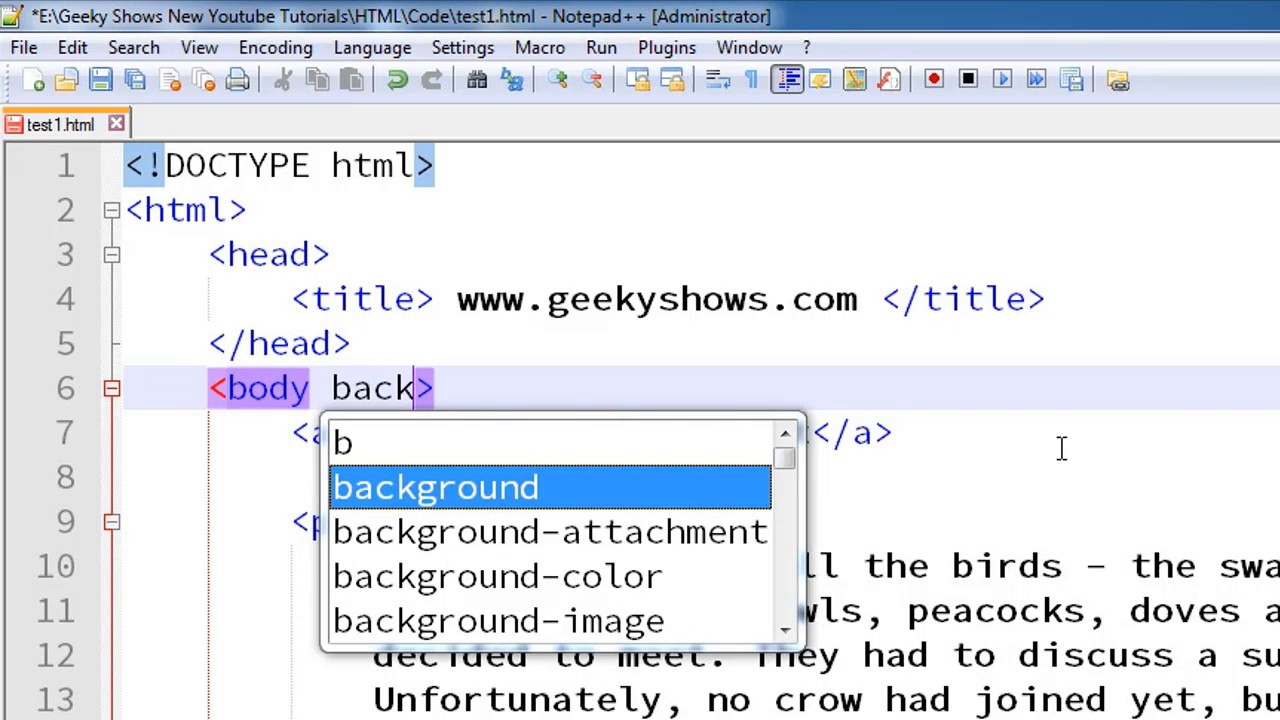
You just need to select your HTML BODY by using Tag name use CSS property background image to insert Image as Background Image and inside url you need to provide you Image Source and That s all HTML background image code notepad Full HTML CODE for inserting Background Images in HTML using Notepad

There are two methods for setting a background image in an HTML file By using background attribute in the tag in HTML By using Inline or Internal Style Sheet

Step By Step Guide On How To Insert Background Image In HTML Using Notepad As we know in html when inserting a image into webpage needs to use tag and cover the edges because its background image In tag not having any closing tag and have two attributes namely src and alt

How to insert image in HTML using notepad step by step Step 1 Open Notepad text Editor Press Start button on Windows and Search for Notepad Select and double click Notepad Step 2 Write HTML Image Syntax Write HTML Image Synax where we have yto use HTML IMG tags to insert Show Images

How to Insert Background Image in HTML Using Notepad Step 1 Open Notepad text editor Use Windows Start button to search for Notepad From the Search Results pick Notepad Step 2 Writing HTML Image Syntax Create an HTML image syntax that requires us to use HTML IMG tags to add and display
[desc-11] [desc-12]
[desc-13]