Find And Replace Between Two Characters In Word How To Write Dialogue Between Two Characters Solved Brilliantio Find And Replace Formatting And Special Characters In Word YouTube Find And Replace Between Two Characters Excel Printable Templates Free How To Count Characters In Word MS Word YouTube How To Remove Text Between Two Characters In Excel 3 Easy Ways Published Aug 29 2018 Have you ever finishing typing a letter report or presentation only to discover that you misspelled a person s name or had the wrong company listed multiple times throughout your document No worries it s an easy fix Readers like you help support How To Geek
Type Lorem Incorporated into the Find What box Click the More button to expand the Find and Replace options if they aren t already displayed Next click the Format button on the bottom left and then click the Font option In the Find Font window click the Bold Italic font style Type the keyboard shortcut or caret code into the Find what text box see figure 4 4 Enter the replacement character in the Replace with text box see figure 5 5 Select the Replace Replace All or Find Next button see figure 6 6 Select the Close button to close the Find and Replace dialog box see figure 7
How To Remove Text Between Two Characters In Excel 3 Easy Ways How To Replace Text Between Two Characters In Excel 3 Easy Ways How To Replace Text Between Two Characters In Excel 3 Easy Ways Wunder Schwan Start Count Characters In Ms Word Artikulation Get The Substring Between Two Characters In JavaScript Cald Auxiliar Perete Calculate Characters In Word mprejmuire Din Nou Wunder Schwan Start Count Characters In Ms Word Artikulation Increase Character Spacing In Word Microsoft Word Tutorial 18 YouTube My Character Model Sheet Character Model Sheet Character Design
Find And Replace Between Two Characters In Word
 Find And Replace Between Two Characters In Word
https://brilliantio.com/wp-content/uploads/2022/02/how-to-write-dialogue-between-two-characters.png
Click Replace All The 2 code tells Word to find two or more literal characters the space character you entered is the literal character Figure A Use a wildcard to find
Templates are pre-designed documents or files that can be used for different functions. They can save effort and time by providing a ready-made format and layout for producing various type of material. Templates can be used for individual or expert projects, such as resumes, invitations, flyers, newsletters, reports, discussions, and more.
Find And Replace Between Two Characters In Word
Excel Compare And Replace Between Two Spreadsheets YouTube

How To Replace Text Between Two Characters In Excel 3 Easy Ways

How To Replace Text Between Two Characters In Excel 3 Easy Ways
Wunder Schwan Start Count Characters In Ms Word Artikulation
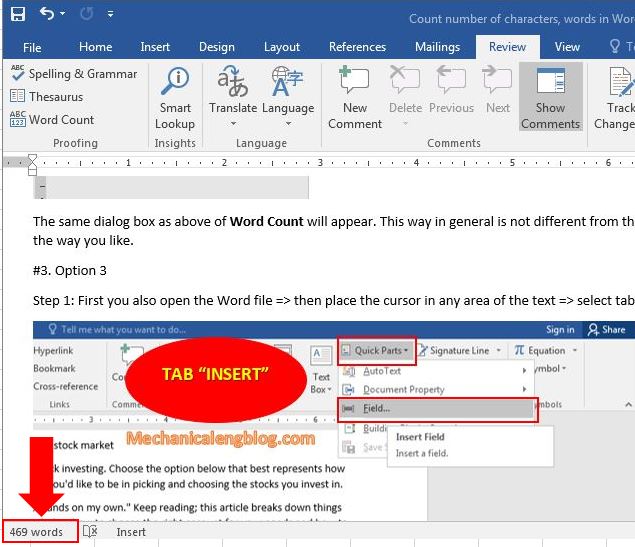
Cald Auxiliar Perete Calculate Characters In Word mprejmuire Din Nou
Wunder Schwan Start Count Characters In Ms Word Artikulation

In the Find and Replace dialog box Ctrl H click More to see all options Click to select Wildcard search Then specify the following Find what Replace with With the insertion point in the Replace with box use the Format Font button to specify the font characteristics that you want to add
Alternatively press Ctrl H A dialog box appears Select More to expand the dialog box Click in the Find What box Select or check the Use wildcards checkbox Enter the text and wildcard s you want to use For example enter s l to find any text starting with s and ending with l Click in the Replace with box

In addition to searching and replacing text Word lets you search for special characters tabs indents paragraph marks and so on and then replace them with other special characters This can be handy for quick and easy changes which would typically take you a bit more time to do manually
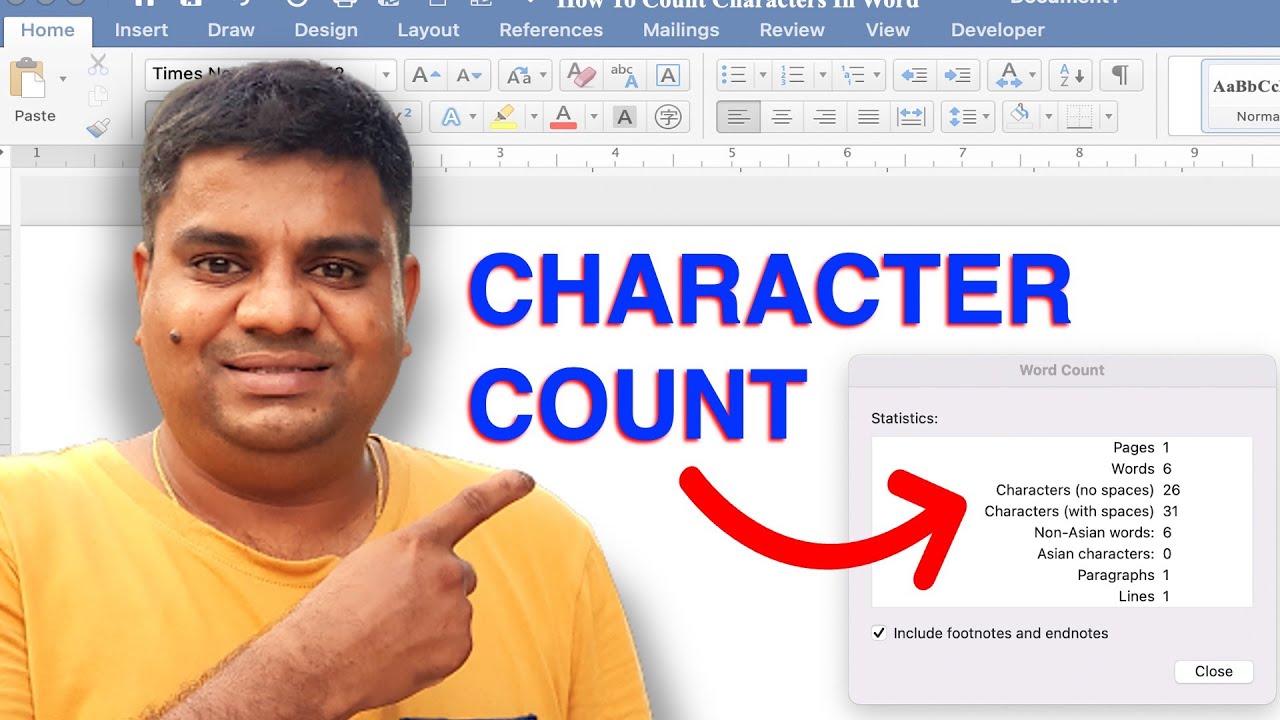
Go to Home Replace Enter the word or phrase you want to replace in Find what Enter your new text in Replace with Choose Replace All to change all occurrences of the word or phrase Or select Find Next until you find the one you want to update and then choose Replace

In the Find and Replace dialog if you click in the Find what and Replace with boxes and click the Special button you will see a list of supported special characters that you can use select one and a code will be inserted in the box for you The ones near the bottom of the list insert special codes such as t for a tab
Learn three ways to find and replace special characters in Microsoft Word Chapters 0 00 Introduction1 25 Enter special characters directly into the Find and Press Ctrl H to open the Find and Replace dialog In the Find what box enter one of the following combinations To eliminate text before a given character type the character preceded by an asterisk char To remove text after a certain character type the character followed by an asterisk char
Remove text between two characters multiple times I have a column that has a text string with various lengths What I m trying to do is remove text that starts with and ends with The text between those two characters is always going to be 36 characters