Excel Remove Duplicate Rows But Keep One How To Duplicate Rows In Excel Amp Google Sheets Automate Excel Riset How To Delete Blank Rows In Excel The Right Way 2021 Riset How To Remove Duplicates In Excel 4 Simple Ways To Delete Or Remove Blank Rows In Excel Vrogue Removing Duplicate Rows In Excel ManyCoders In Excel the Remove Duplicate feature can help you remove all but keep one duplicate value 1 Select the data list you need and click Remove Duplicates See screenshot 2 Then in Remove Duplicates dialog check the column name that you want to remove duplicates from and if your data has header check My data has headers option too
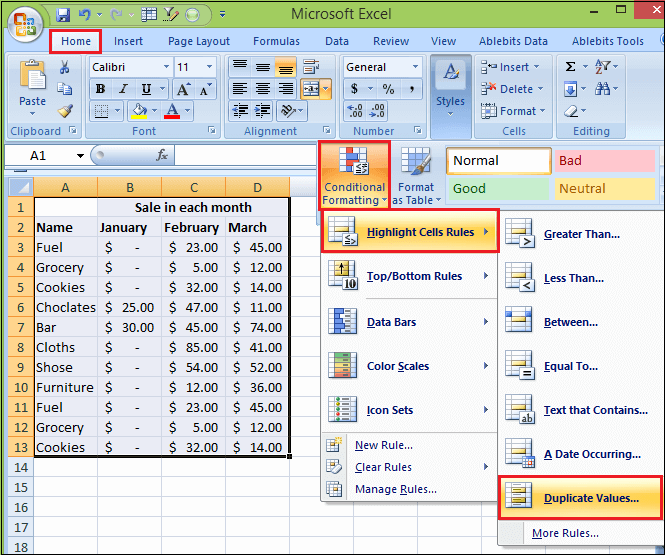
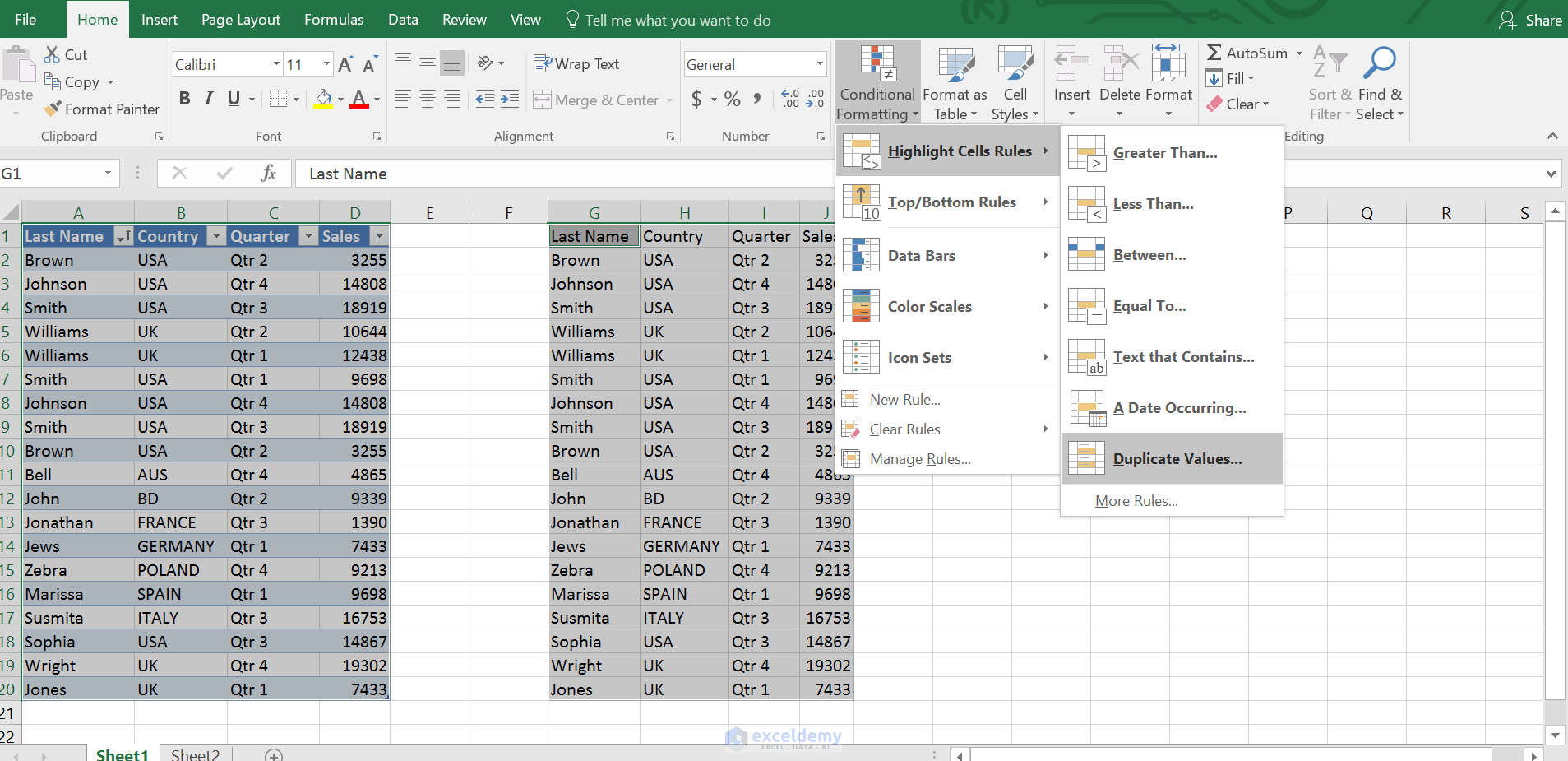
After that apply conditional formatting to your data range and select Highlight Cells Rules followed by Duplicate Values Choose your formatting settings and select Unique instead of Duplicate values under Duplicate and click OK This will highlight the first instance of each value in your data set In Excel there are several ways to filter for unique values or remove duplicate values To filter for unique values click Data Sort Filter Advanced To remove duplicate values click Data Data Tools Remove Duplicates To highlight unique or duplicate values use the Conditional Formatting command in the Style group on the Home tab
Removing Duplicate Rows In Excel ManyCoders 2 Easy Ways To Remove Duplicates In Excel with Pictures Excel Remove Duplicate Rows All Columns Lokibo How To Remove Duplicate Rows In Excel Table ExcelDemy How To Filter Duplicates In Pivot Table Brokeasshome How To Remove Duplicates In Excel Delete Duplicate Rows With A Few Clicks MySQL Delete Duplicate Rows But Keep One Delete Duplicate Rows In Excel Remove Duplicates CustomGuide How To Remove Duplicates In Excel In Java HOWOTREMVO
Excel Remove Duplicate Rows But Keep One
 Excel Remove Duplicate Rows But Keep One
https://static.javatpoint.com/ms/excel/images/how-to-delete-duplicate-rows-in-excel.png
Keep duplicate rows To open a query locate one previously loaded from the Power Query Editor select a cell in the data and then select Query Edit For more information see Create load or edit a query in Excel
Pre-crafted templates offer a time-saving option for developing a varied series of files and files. These pre-designed formats and designs can be used for various personal and professional projects, consisting of resumes, invitations, flyers, newsletters, reports, discussions, and more, streamlining the content production process.
Excel Remove Duplicate Rows But Keep One
How To Remove Duplicate Rows Based On One Column In Excel

2 Easy Ways To Remove Duplicates In Excel with Pictures
Excel Remove Duplicate Rows All Columns Lokibo
How To Remove Duplicate Rows In Excel Table ExcelDemy
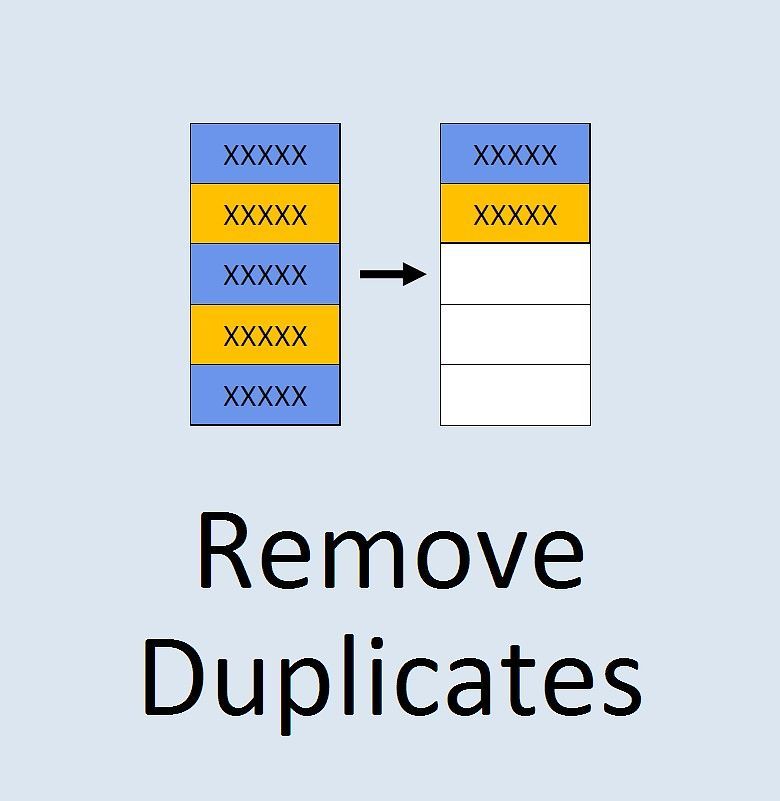
How To Remove Duplicates In Excel Delete Duplicate Rows With A Few Clicks

MySQL Delete Duplicate Rows But Keep One Delete Duplicate Rows In
One way to remove duplicate rows in Excel while keeping the first occurrence is by using the Remove Duplicates button in the Data tab First highlight the cells in the range A1 B10 Then click the Data tab along the top ribbon and then click the Remove Duplicates button in the Data Tools group In the new window that appears check the box

Subsequently click on Remove Duplicates Now put a check on all names of the columns you want to erase duplicates from Subsequently click on the OK button Thus you will get the duplicates removed automatically from your data set 2 Using Advanced Filter to Remove Duplicates and Keep the First Value
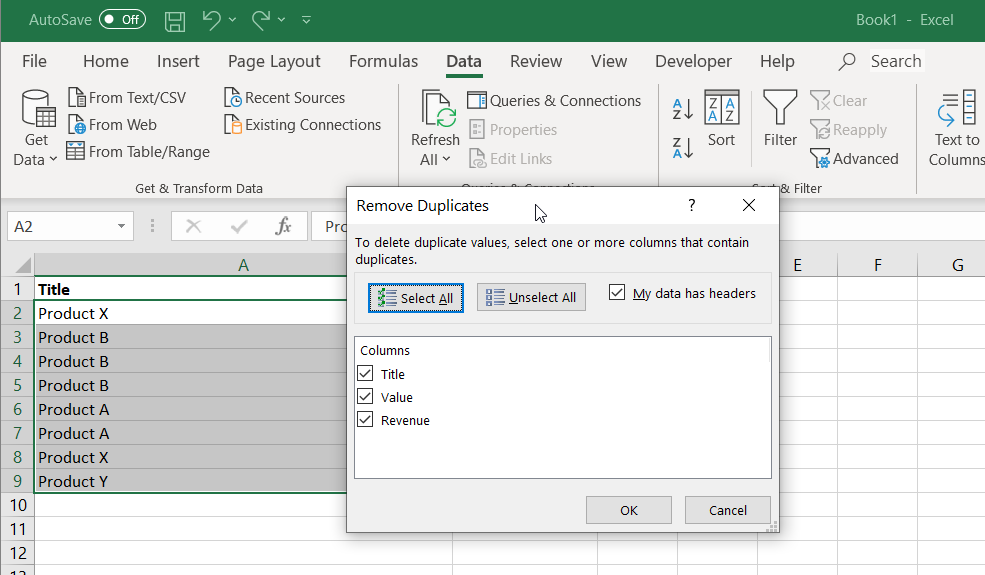
After selecting your table simply click the Data tab and in the Sort Filter section click Advanced If you are using Excel 2003 click Data Filters then choose Advanced Filters Now you will need to select the Unique Records Only check box Once you click OK your document should have all duplicates except one removed

Excel always keeps the first data set of a duplicated row All consecutive rows are removed In your case Set up a helper column and fill it with numerical values Start by 1 and use autofill till the end of our table Make sure your date column is formatted as date and Excel recognize them as date Otherwise your sorting wouldn t work

1 The first occurrence is kept The page Filter for unique values or remove duplicate values says When duplicates are removed the first occurrence of the value in the list is kept but other identical values are deleted Share Improve this answer Follow
The shortcut to remove duplicates in Excel is as follows Select the range of cells or columns containing the data you want to check for duplicates Press the Alt key on your keyboard to display the Excel ribbon shortcuts Press A for the Data tab Press M again for the Remove Duplicates button Select a cell inside the data which you want to remove duplicates from and go to the Data tab and click on the Remove Duplicates command Excel will then select the entire set of data and open up the Remove Duplicates window You then need to tell Excel if the data contains column headers in the first row If this is checked then the first row
Type or paste CONCAT in the cell select the first cell on row type a column and select the last cell on the row Afterward close the formula with a parenthesis and press Enter In our sample worksheet see image below the first and last cells on the first row have the reference A2 and D2 respectively