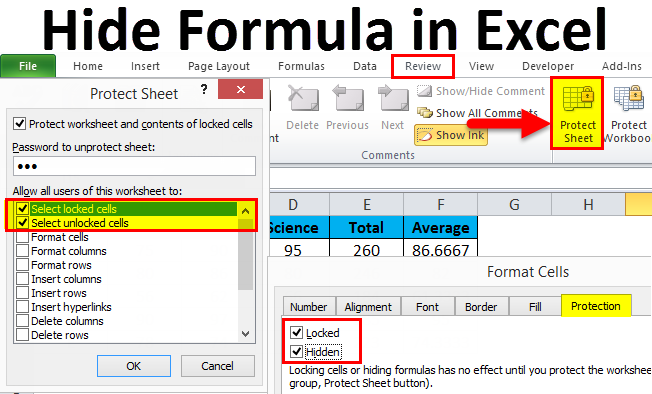
Excel Hide Text Over Cell How To Use Button To Show Or Hide Columns In Excel Excel Tutorials How To Hide Text In Excel Cells Password Recovery How To Unhide Rows In Excel Here Is The Ways Excel Hide Overflow Text In Cell Brobetta Hide Formulas In Excel Examples How To Use Hide Formula In Excel Quick Links Hide Comments Hide Formulas Hide Overflow Text Hide Gridlines We ve shown you how to hide cells rows and columns and how to hide worksheets tabs and entire workbooks in Excel Additionally you can hide items such as comments formulas overflow text and gridlines We ll show you how to hide these items Hide Comments
How to Hide Overflow Text in Excel When you type text in a cell and the text is wider than the cell the text overflows into the adjacent cells in the row If there is any text in the adjacent cell the text in the first cell is blocked by the text in the adjacent cell You can solve this by having the text wrap in the first cell Hide cell values When you hide a value in a cell the cell appears to be empty However the formula bar still contains the value Select the cells On the Format menu click Cells and then click the Number tab Under Category click Custom In the Type box type that is three semicolons in a row and then click OK
Hide Formulas In Excel Examples How To Use Hide Formula In Excel Hide And Unhide Columns Rows And Cells In Excel How To Hide Excel Formulas And Protect Your Spreadsheet In Excel Hiding Text In Excel ValuSource Support How To Hide The Zero Value In Pivot Table Brokeasshome How To Show Hidden Text In Excel Porserv How To Hide Formula In Excel Images And Photos Finder How To Hide And Unhide Anything You Want In Microsoft Excel Hide Cell Values In Excel YouTube
Excel Hide Text Over Cell
 Excel Hide Text Over Cell
https://i.pinimg.com/originals/c7/00/8d/c7008d43ba1cfc3ffb7c74e37cf250a6.jpg
To fix the text overflow problem in Microsoft Excel follow these suggestions To know the steps in detail keep reading 1 Manually increase the width of a column It is probably the easiest
Pre-crafted templates offer a time-saving option for producing a diverse variety of documents and files. These pre-designed formats and layouts can be used for numerous individual and professional projects, including resumes, invitations, leaflets, newsletters, reports, presentations, and more, simplifying the content creation process.
Excel Hide Text Over Cell

Excel Hide Overflow Text In Cell Without Fill Deltacopper

Hide And Unhide Columns Rows And Cells In Excel
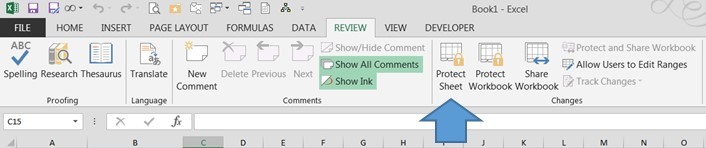
How To Hide Excel Formulas And Protect Your Spreadsheet In Excel
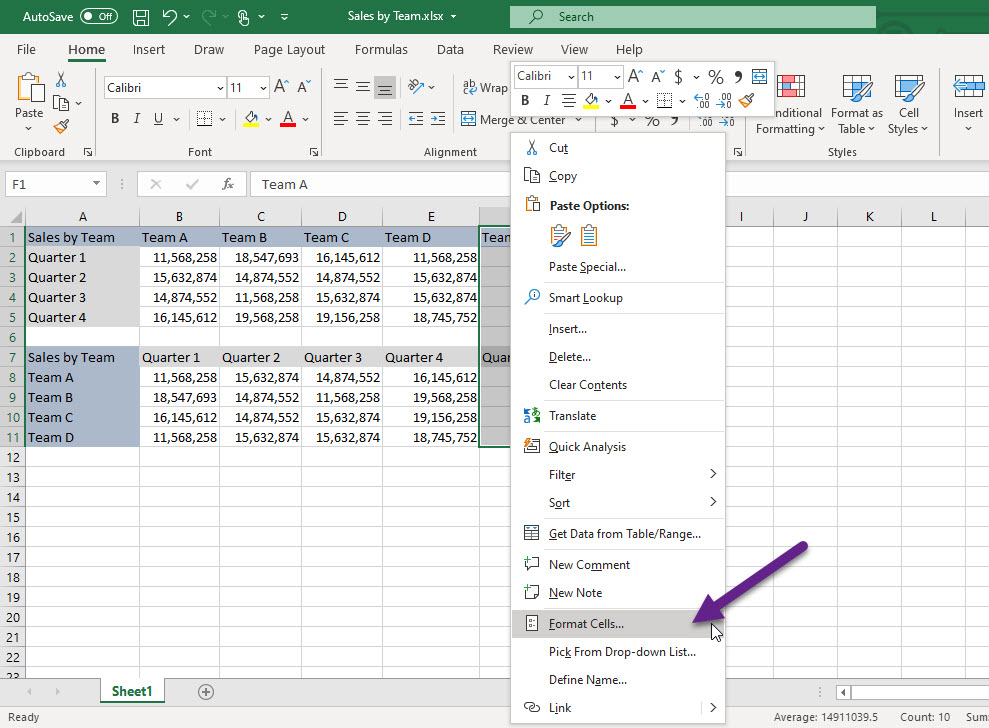
Hiding Text In Excel ValuSource Support
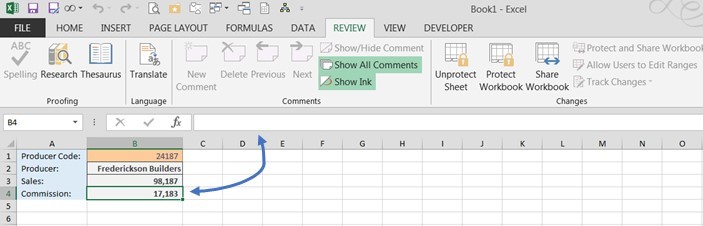
How To Show Hidden Text In Excel Porserv
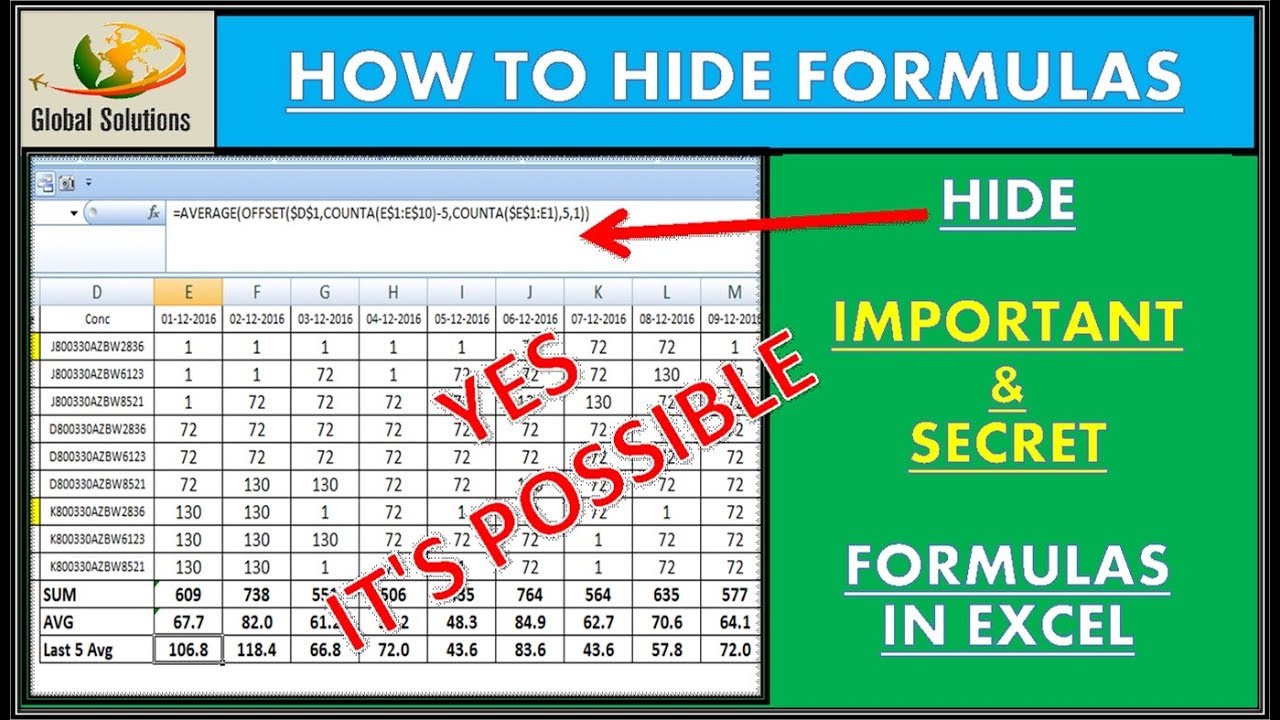
How To Hide Formula In Excel Images And Photos Finder

Text is NOT spilling over For text to be truncated at the cell s edge any one of the following conditions must be true The adjacent cell is not blank Either the current or adjacent cell is merged Wrap text is on The Show Formulas mode is enabled The cell s horizontal alignment is set to Fill
You can select as you wishes Methond Two The way will make you cell content display small if you don t mind And if all doesn t work please provide the information below Updated by Virgil Wu 19 Nov 2017 2 23 AM UTC How satisfied are you with this reply Last updated December 6 2023 English United States
13 Answers Sorted by 74 For text to overflow beyond the edge of a cell the following conditions must be true The cell does not have Wrap Text turned on The cell is not a merged cell The cell contains a value that exceeds the width of the cell The adjacent cell is empty and not a merged cell
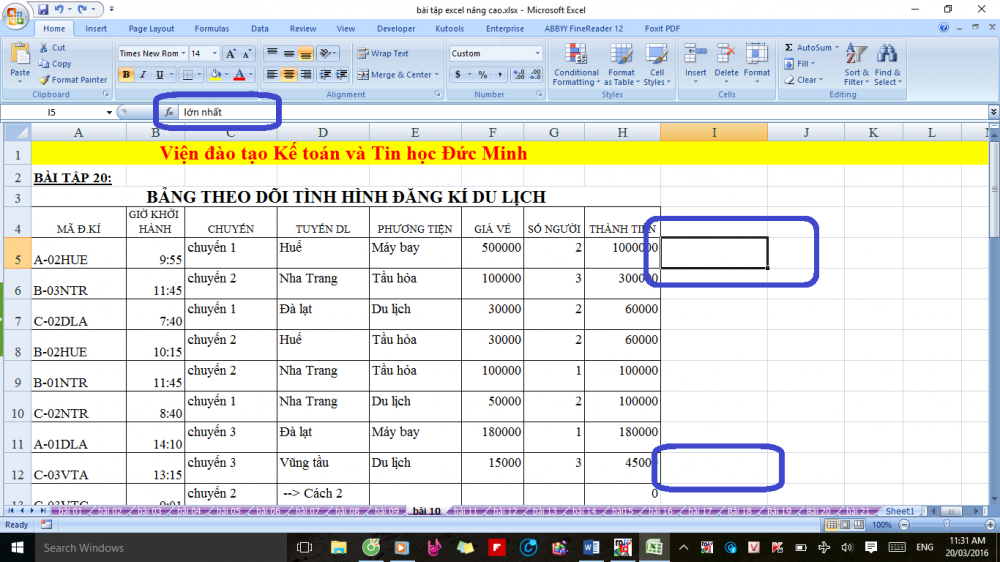
Select the cell or range of cells that contains values that you want to hide For more information see Select cells ranges rows or columns on a worksheet Note The selected cells will appear blank on the worksheet but a value appears in the formula bar when you click one of the cells
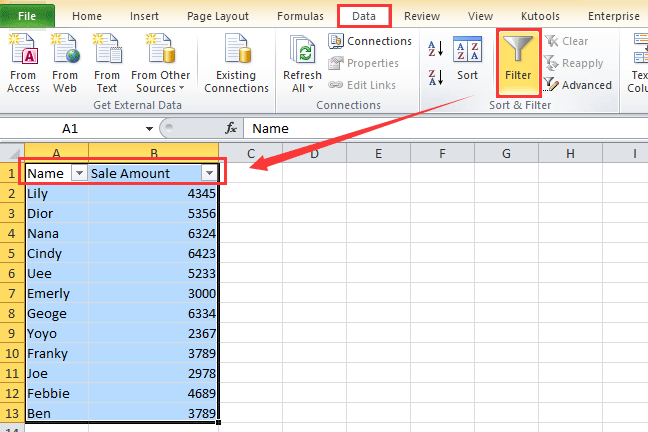
1 Select the range or the entire column next to the overflowing cells 2 Enter a space character in it 3 Continue to press Ctrl Enter so each cell of the selected range or column will be inserted a space You can now see there is no overflowing text Prevent text from overflowing using an amazing tool
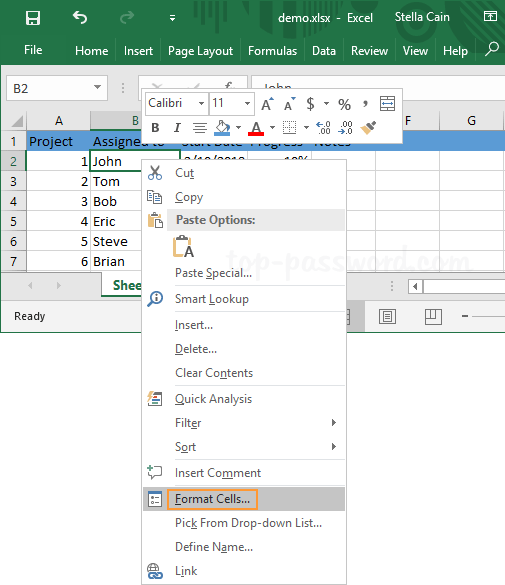
1 Use a Suitable Custom Format You can easily hide a part of a text in an Excel cell using a custom format Go through the steps below to do this Steps First and foremost select the dataset C5 to C9 cells here where you want to hide parts of texts in same sequence Following right click on your mouse upon the selection 1 Select the cells you want to prevent cell contacts from spilling over and right click then select Format Cells from the context menu See screenshot 2 In the Format Cells dialog click Alignment tab then select Fill in the drop down list of Horizontal See screenshot 3 Click OK Now the data in the selected cells will never spill over
By hiding overflow text you can ensure that the content within a cell is neatly contained and doesn t spill over into adjacent cells This helps maintain a clean and organized appearance particularly when working with large datasets or when printing the spreadsheet Step 1 Select the cells