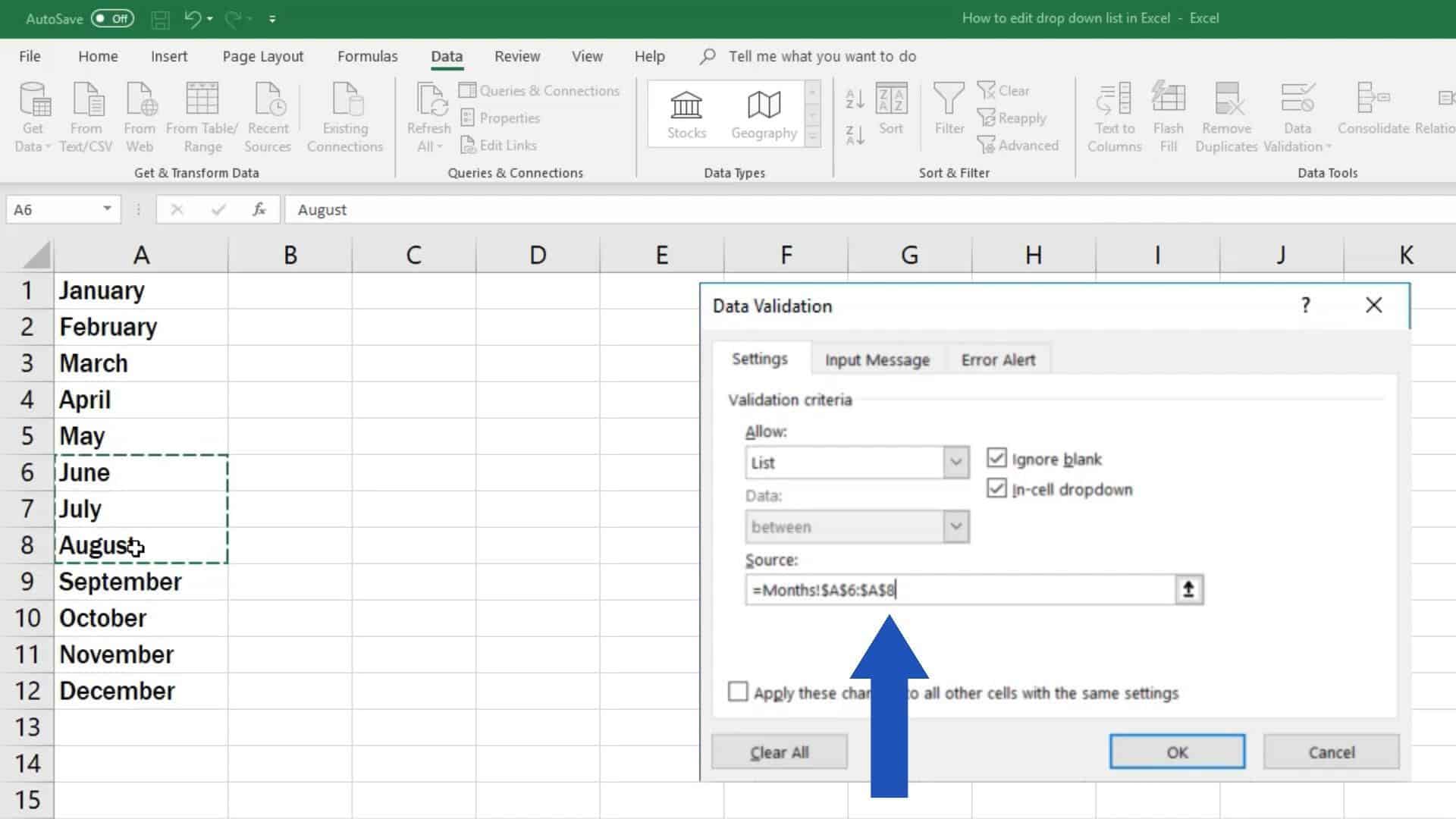
Excel Drop Down List Combine Two Columns How To Combine Two Columns In Microsoft Excel Quick And Easy Method Drop Down List In Excel In Worksheet Cell YouTube How To Merge Columns In Microsoft Excel Without Data Loss How To Create Dropdown With Multiple Columns In Excel Stack Overflow How To Combine Two Column In Excel Merge Column In Excel YouTube Go to the Settings tab and select List from the Allow dropdown In the Source input box enter your delimited list using commas as the delimiter between items Click OK button to create your dropdown list Note Keep the In cell dropdown option checked as this is what will create the dropdown
How to Create Multiple Linked Drop Down Lists in Excel Written by Ryan Dube Twitter rdube Posted on June 14th 2021 in Office Tips Drop down lists in Excel are powerful tools They let you provide users with a drop down arrow that when selected provides them with a list of choices Create a list of valid entries for the drop down list typed on a sheet in a single column or row without blank cells Select the cells that you want to restrict data entry in On the Data tab under Tools select Data Validation or Validate
How To Combine Two Column In Excel Merge Column In Excel YouTube How To Edit Drop Down List In Excel Vba Excel Combine Multiple Columns Into One If Data Exists Stack Excel Combine First And Last Name Into One Column YouTube How To Select Multiple Items From An Excel Drop Down List YouTube How To Edit Drop Down List In Excel How To Merge Data From Multiple Columns Using TextJoin Concatenate How To Create A Drop Down List In Excel TechRadar Create Dropdown In Excel Creating A Drop Down List In Excel 2010
Excel Drop Down List Combine Two Columns
 Excel Drop Down List Combine Two Columns
https://thebetterparent.com/blog/wp-content/uploads/2020/07/excel-combined-cells-CONCAT.jpg
Using formulas to make a dependent drop down list based on multiple columns Step 1 Create the main drop down list 1 Select the cells here I select G9 G13 where you want to insert the drop down list go to the Data tab click Data Validation Data Validation 2 In the Data Validation dialog box please configure as follows
Pre-crafted templates provide a time-saving solution for creating a diverse series of documents and files. These pre-designed formats and designs can be made use of for various individual and expert projects, including resumes, invites, flyers, newsletters, reports, presentations, and more, streamlining the material development procedure.
Excel Drop Down List Combine Two Columns
Excel Drop Down List Syntax Byte
How To Edit Drop Down List In Excel
Vba Excel Combine Multiple Columns Into One If Data Exists Stack
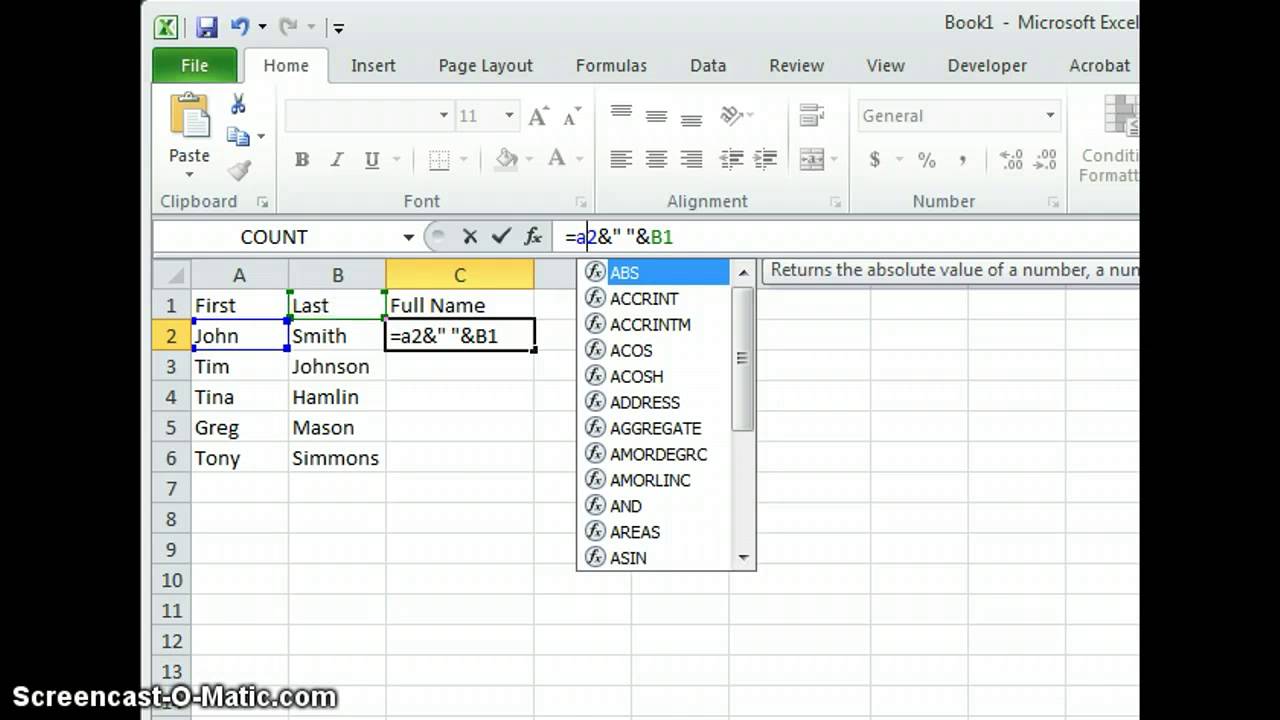
Excel Combine First And Last Name Into One Column YouTube
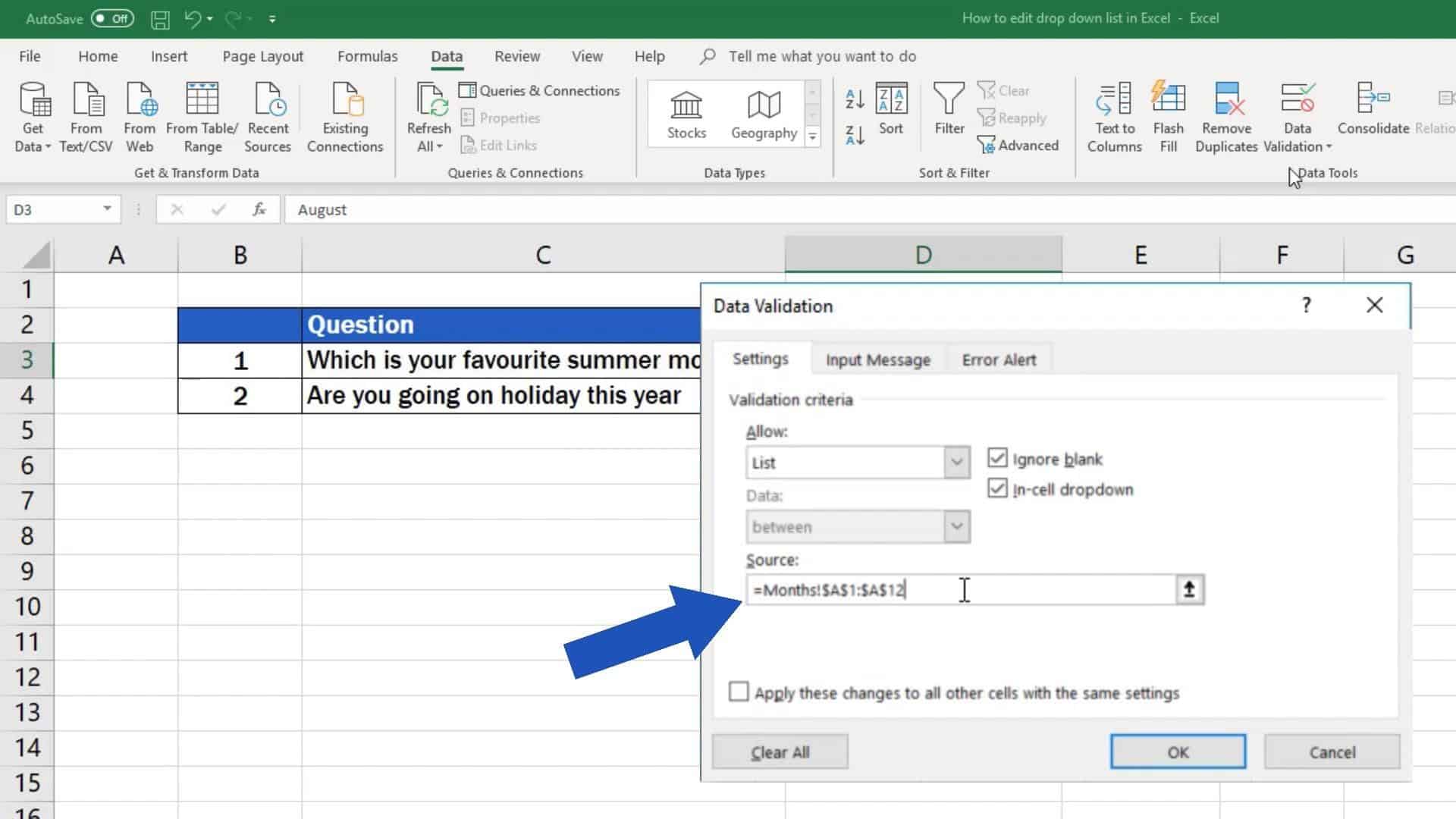
How To Edit Drop Down List In Excel
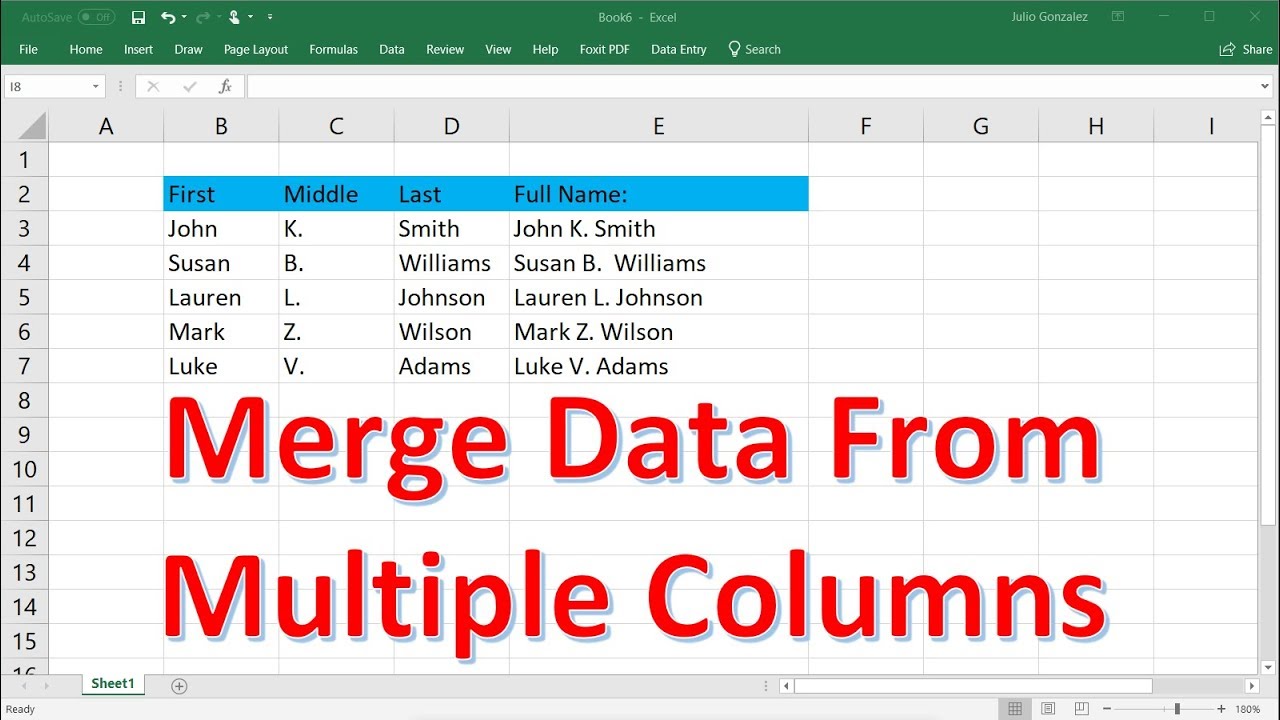
How To Merge Data From Multiple Columns Using TextJoin Concatenate
A combo box also lets you select from a drop down list and you can change the font size use autocomplete and show multiple columns Add a Single Combo Box For worksheets where you only need one or two drop downs just add the combo box on the worksheet and set its properties
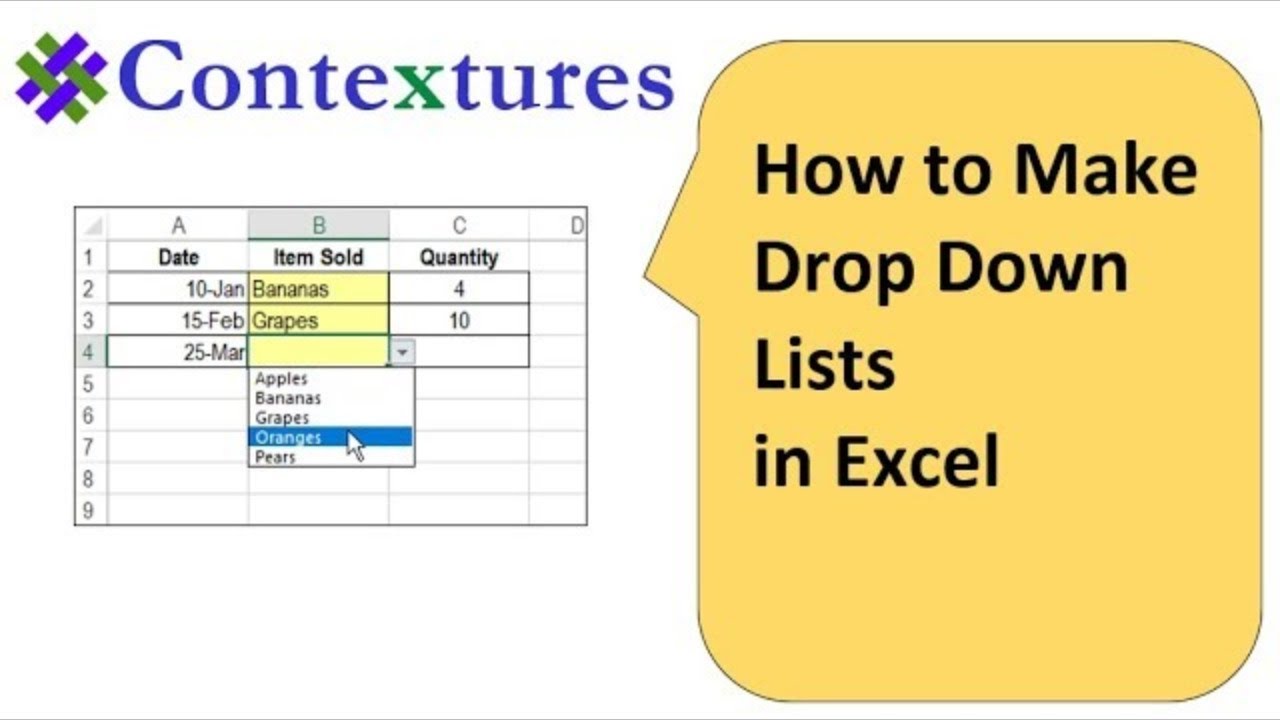
How to make dynamic drop down list in Excel This example demonstrates the general approach to creating a cascading drop down list in Excel by using the new dynamic array functions Supposing you have a list of fruit in column A
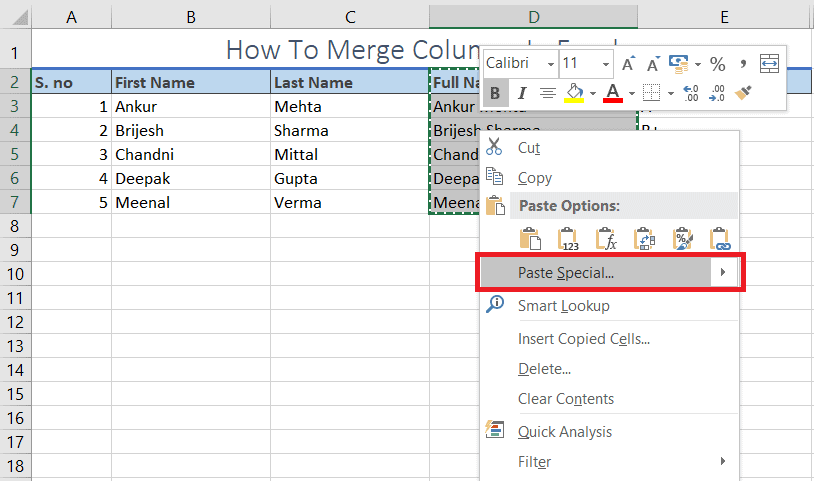
How to create multiple dependent dropdown in Excel Making a multi level dependent drop down lists in Excel is easy All you need is a few named ranges and the INDIRECT formula This method works with all versions of Excel 365 2010 and earlier 1 Type the entries for the drop down lists

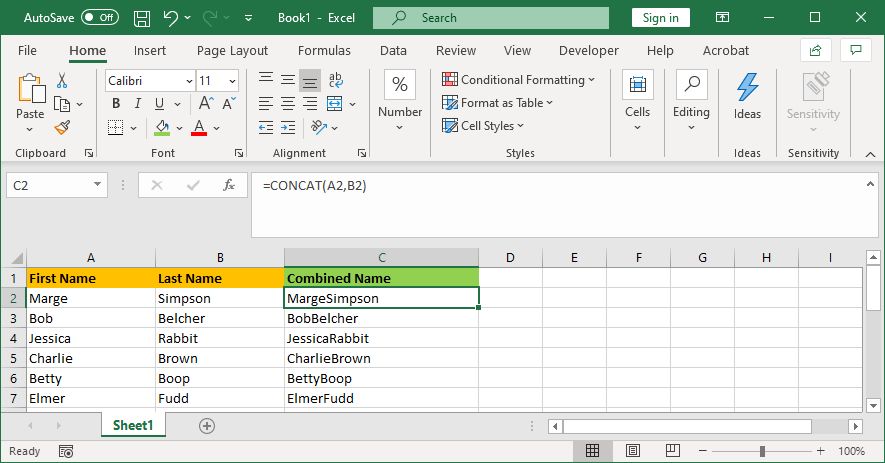
1 Multiple Columns To have multiple columns in the drop down list you can use the CONCATENATE function to combine the values from different cells into one For example if you want the drop down list to show both the item name and its corresponding price you can use CONCATENATE A2 B2 to combine the two values
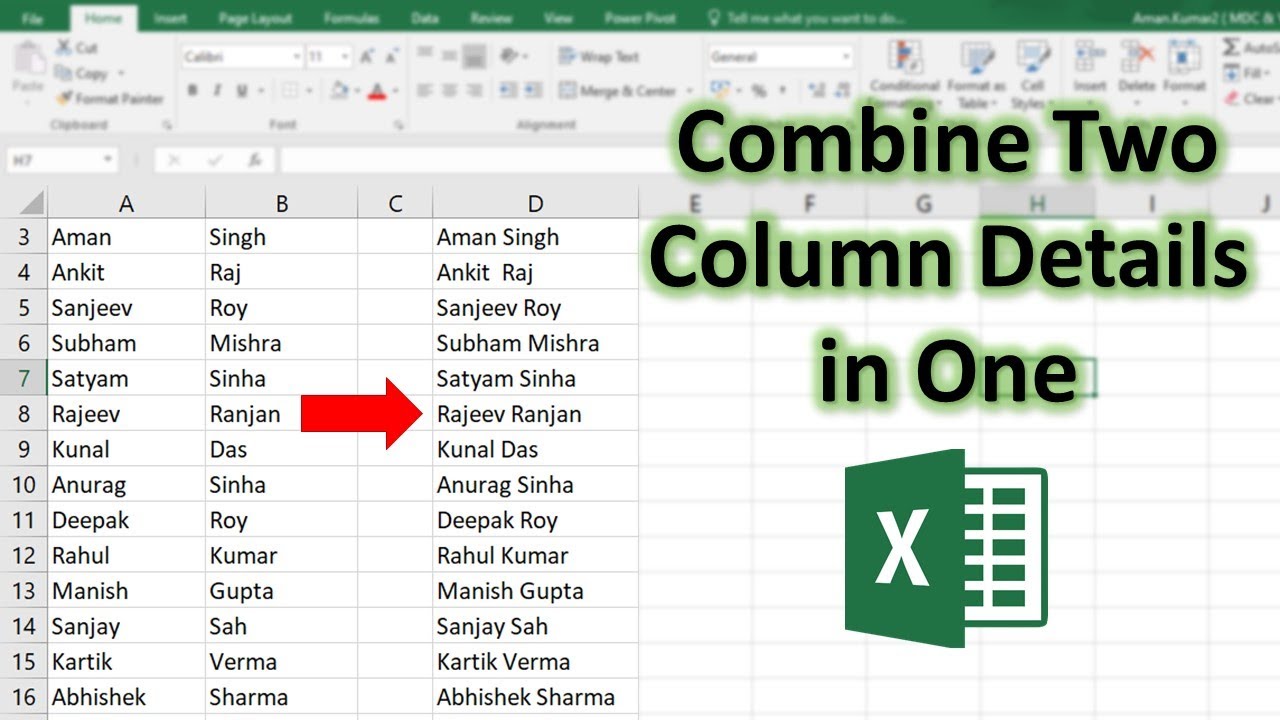
Select one or more cells for your dropdown D3 D7 in our case On the Data tab in the Data Tools group click Data Validation In the Allow drop down box select List In the Source box enter the formula that indirectly refers to Table1 s column named Items INDIRECT Table1 Items When done click OK
Step 1 Prepare the Source Tables Our first step is to create the source tables that we will use for the contents of the drop down lists In the image above the Lists sheet contains the lists for each drop down The list in column B contains the Category items for the parent list This video demonstrates two methods to help you make a dependent drop down list in Excel based on multiple columns You can follow the video or the corresponding post step by step to
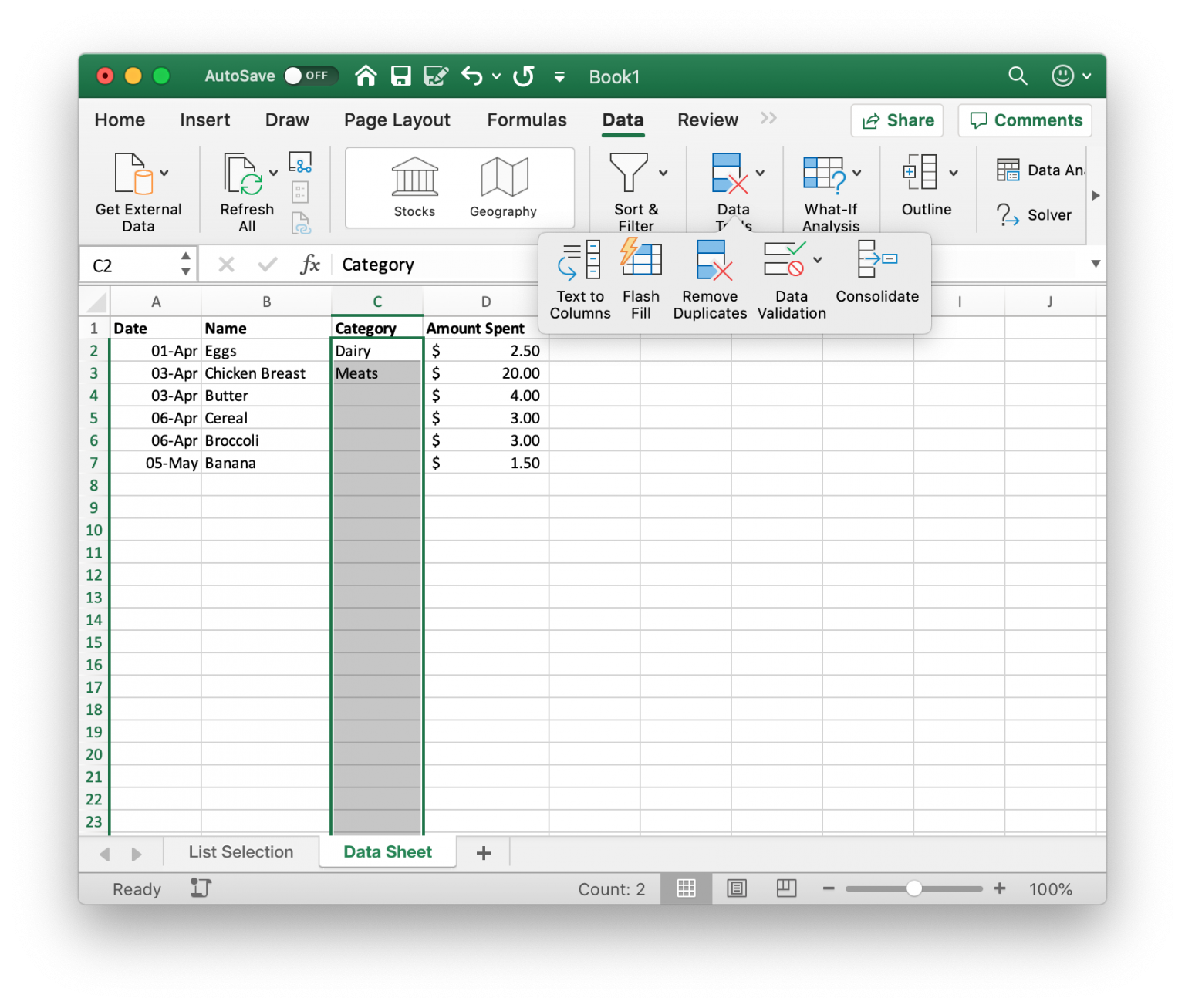
Select the range of cells where you will add an Excel drop down list Click on the Data tab in the top ribbon then on the Data Validation button in Data Tools Click Data Validation from the drop down menu to open a new window Click the Allow option in the data validation dialog box and choose List