Desktop Items On Mac Disappeared Fix Volume Icon Disappeared From Menu Bar On Mac AppleToolBox Documents Folder Disappeared From Mac What Do I Do How To Fix A Disappearing Menu Bar On A Mac Mac Toolbar Icons Disappeared After Power Outage Likoshard What Are Relocated Items On Mac Free Download Step 2 Launch Disk Drill and select the storage device that you would like to recover the desktop file from Step 3 After you have selected the storage device Disk Drill will scan your Mac This can take some time depending on how much data that you have
Step 2 Click iCloud Settings and scroll to the bottom click Restore Files under the Advanced section Step 3 Find and tick the boxes of your lost files on Mac and click Restore Method 3 Use Stacks to Find Missing Desktop Files on Mac Applies to Re organize and make Mac desktop files show up This tool can help you quickly locate the needed Desktop file or folder on your Mac Follow these steps to search for the lost Desktop files with the help of Finder Launch Finder Press the following keys Command Shift G In the field that has appeared type in Users Shared and hit Return
What Are Relocated Items On Mac How To Quickly Hide Desktop Items On Mac All Mac Desktop Icons Disappeared How To Get Them Back 2022 Hide All Desktop Icons Zaunmaler What Are Relocated Items On Mac What To Do If All Inboxes Has Disappeared In Mail On Mac IPhone Or IPad MacReports Fixed Files Disappeared From Desktop Mac All Mac Desktop Icons Disappeared How To Get Them Back 2022 6 Desktop Icons Are Disappeared YouTube
Desktop Items On Mac Disappeared
 Desktop Items On Mac Disappeared
https://appletoolbox.com/wp-content/uploads/2021/08/fix-volume-icon-disappeared-from-menu-bar-mac.jpg
To use Time Machine to recover disappeared files on Mac do these steps Use the Finder app to go to the Desktop folder Click the Launchpad and go to Other Utilities Time Machine Alternatively you can also click on the Time Machine icon at the menu bar and selecting Enter Time Machine If you don t have that enabled simply open up the Apple menu go to System Preferences click Time
Templates are pre-designed documents or files that can be utilized for different functions. They can save effort and time by providing a ready-made format and layout for producing different sort of content. Templates can be used for personal or expert projects, such as resumes, invitations, flyers, newsletters, reports, discussions, and more.
Desktop Items On Mac Disappeared
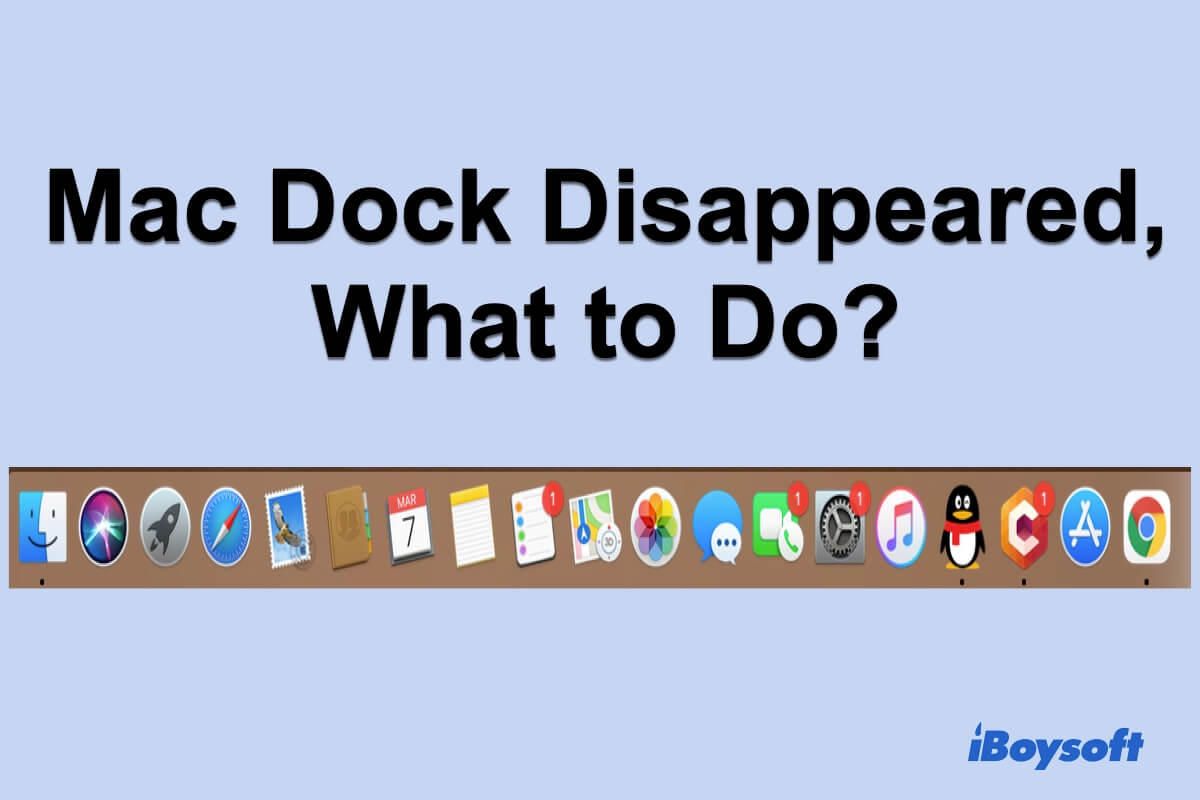
MacBook Mac Dock Disappeared What To Do Full Guide
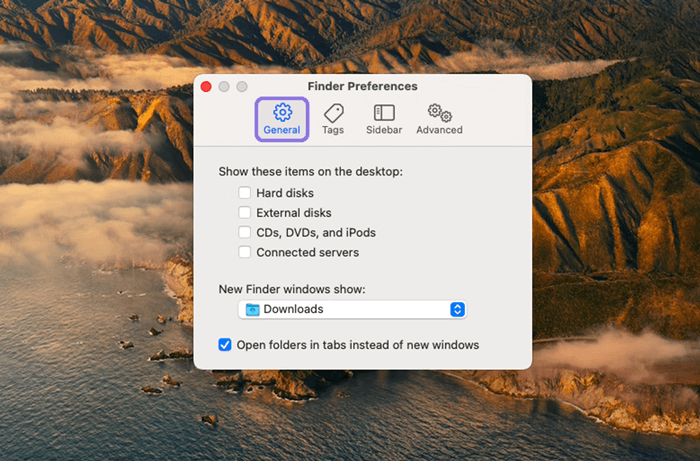
How To Quickly Hide Desktop Items On Mac
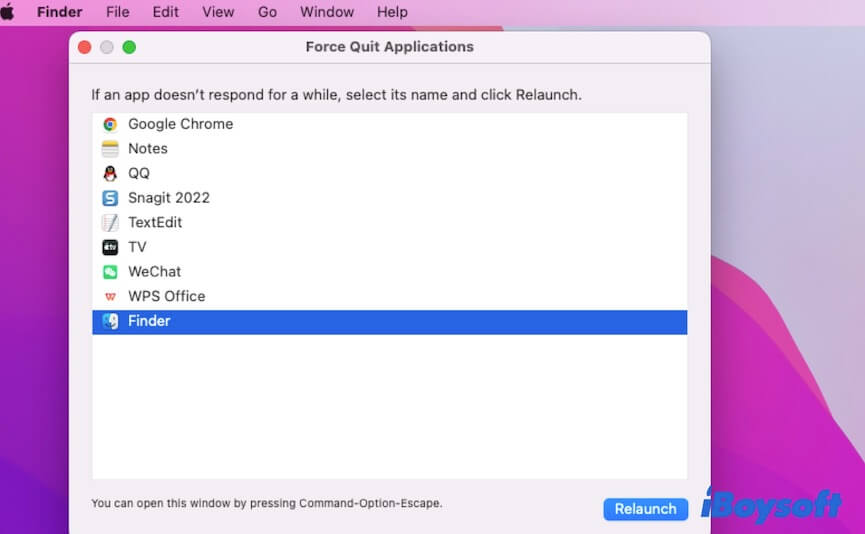
All Mac Desktop Icons Disappeared How To Get Them Back 2022
Hide All Desktop Icons Zaunmaler

What To Do If All Inboxes Has Disappeared In Mail On Mac IPhone Or IPad MacReports
Fixed Files Disappeared From Desktop Mac

Step 1 From the desktop click Go on the menu bar and select Utilities Step 2 Double click on Terminal to launch the app console Step 3 Paste the code below into the Terminal console and hit

Follow the steps below Open System Preferences on your Mac Click Apple ID Click iCloud from the Sidebar Click the Options button next to iCloud Drive Ensure that the Desktop Documents Folders is checked Click Done See also You can use Stacks to keep your desktop really neat and tidy 3
Fix 1 Use System Preferences to Show the Toolbar Just like the dock you can also get back the Mac toolbar hidden on your desktop via System Preferences Firstly go to the Apple menu on the top left and visit System Preferences From here visit the General preference panel settings to explore the available options

Press Enter to make the hidden items appear 5 Unhide Desktop Icons The Mac desktop icons disappeared problem also occurs There are two solutions you can try Sort desktop items Control click a black area Select Sort By Snap to Grid Use Finder Got to Finder Preferences General Check these boxes as shown in the screenshot below
Step 1 Open Trash Bin by clicking the Trash icon on your dock usually the right most app or by opening Finder Press CMD Shift G In the empty field type Trash Step 2 To restore desktop files on a Mac from the Trash folder right click the item and click Put Back
ICloud Drive is the strangest excuse for whatever it s supposed to be or do many have lost their files or thought they did you need to disable it in System Preferences iCloud Recover Suddenly Disappeared Files from Mac Storage Drive stellarinfo Reply Helpful User profile for user ankhank Click the Apple menu System Preferences Dock Menu Bar Uncheck Automatically hide and show the Dock in the Dock settings Uncheck Automatically hide and show the menu bar on desktop in the Menu Bar preferences If all your desktop icons come back after trying the above way share this method with others
Right click the folder and click Properties Previous Versions And then Windows will search for and list the previous versions of the deleted or lost files or folders Step 3 Choose the latest one and click Restore OK to recover the disappeared folder from the desktop Tip 3