Affinity Designer Invert Layer Mask Invert Layer Masks In Photoshop Or Elements Colorvale Blog For Remove Glare From Photo Glasses Invert Layer Mask Fancycrave How To Invert A Layer Mask In Photoshop Brendan Williams Creative Affinity Designer Invert Mask Design Talk How To Invert A Layer Mask In Photoshop Brendan Williams Creative Make sure that the Mask layer is selected At the top right click on the black circle Then adjust the brush settings in the top left toolbar We used the following brush settings Brush size 400 px Opacity 100 Flow 91 Hardness 100 Now paint over the mask to reveal parts of the image beneath
Invert a Mask Layer in Affinity Photo Photo https unsplash photos M0OIyN5u8ZMSoftware Affinity Photo 1 9 0 00 1 40 How to INVERT a mask or layer in Affinity Photo for iPad Tips and Tricks GraphicalFinity 6 85K subscribers Subscribe Subscribed 7 8K views 2 years ago Affinity Photo iPad
How To Invert A Layer Mask In Photoshop Brendan Williams Creative ILLUSTRATOR Activate And Invert Layer Mask Show And Hide Objects How To Invert Layer Mask In Photoshop Quick Easy How To Invert Layer Mask In Photoshop Quick Easy Affinity Photo LAYERS DEMYSTIFIED The Basics Grouping A MUST See How To Invert A Layer Mask In Photoshop Brendan Williams Creative How To Invert Layer Mask In Photoshop How To Invert A Layer Mask In Photoshop Brendan Williams Creative
Affinity Designer Invert Layer Mask
 Affinity Designer Invert Layer Mask
https://i.pinimg.com/originals/5d/b4/3b/5db43b4e1237cae86df32ef2cd07c1a0.jpg
Step 1 Identify The Layer You d Like To Use For The Mask In order to create a clipping path with Affinity Designer we first need two objects to work with For this demonstration I ll be creating a clipping mask with text using the follow image Click to enlarge
Templates are pre-designed files or files that can be used for different functions. They can conserve time and effort by supplying a ready-made format and layout for developing different kinds of material. Templates can be used for personal or expert projects, such as resumes, invites, flyers, newsletters, reports, discussions, and more.
Affinity Designer Invert Layer Mask
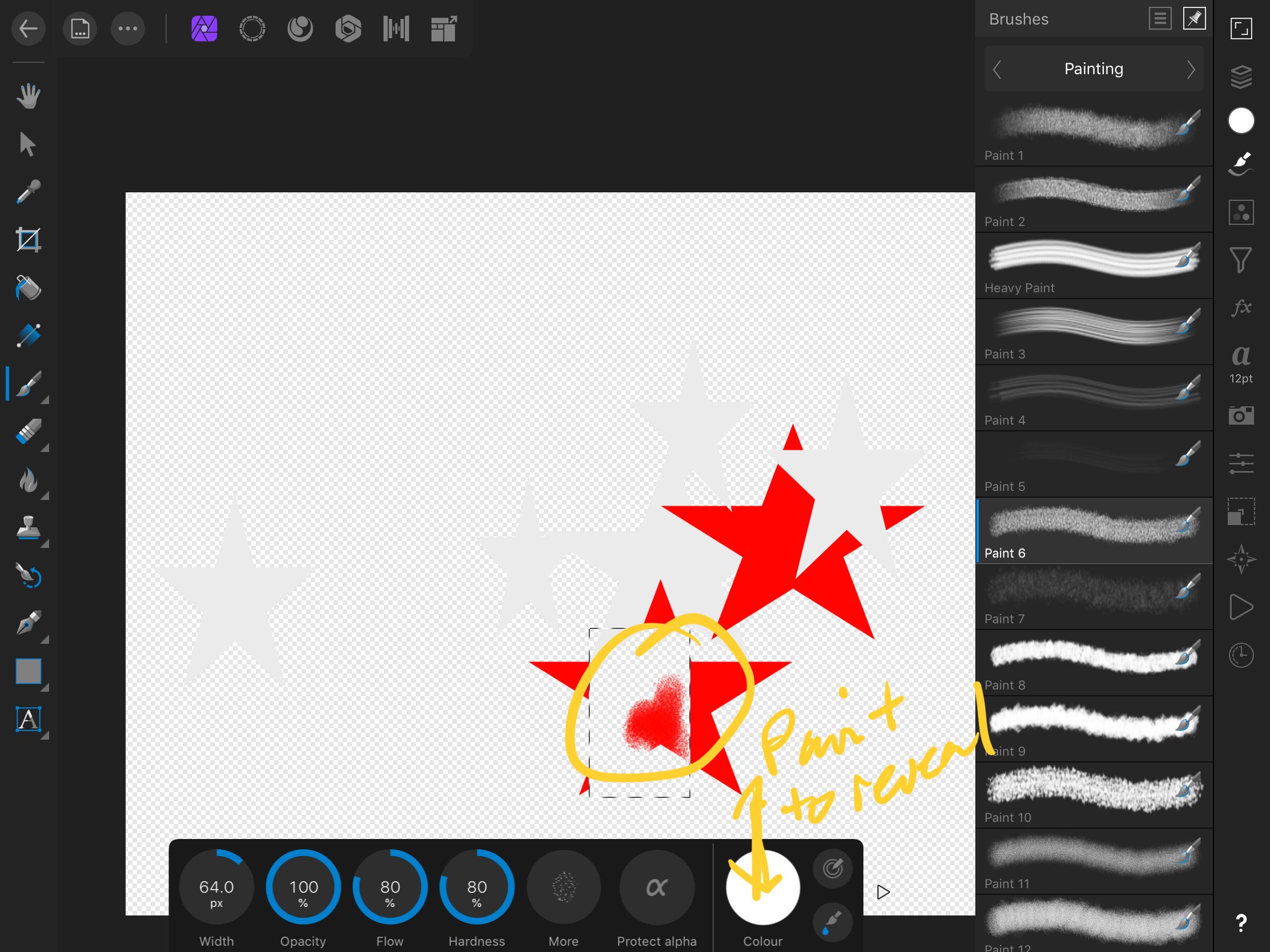
Affinity Designer Invert Mask Design Talk
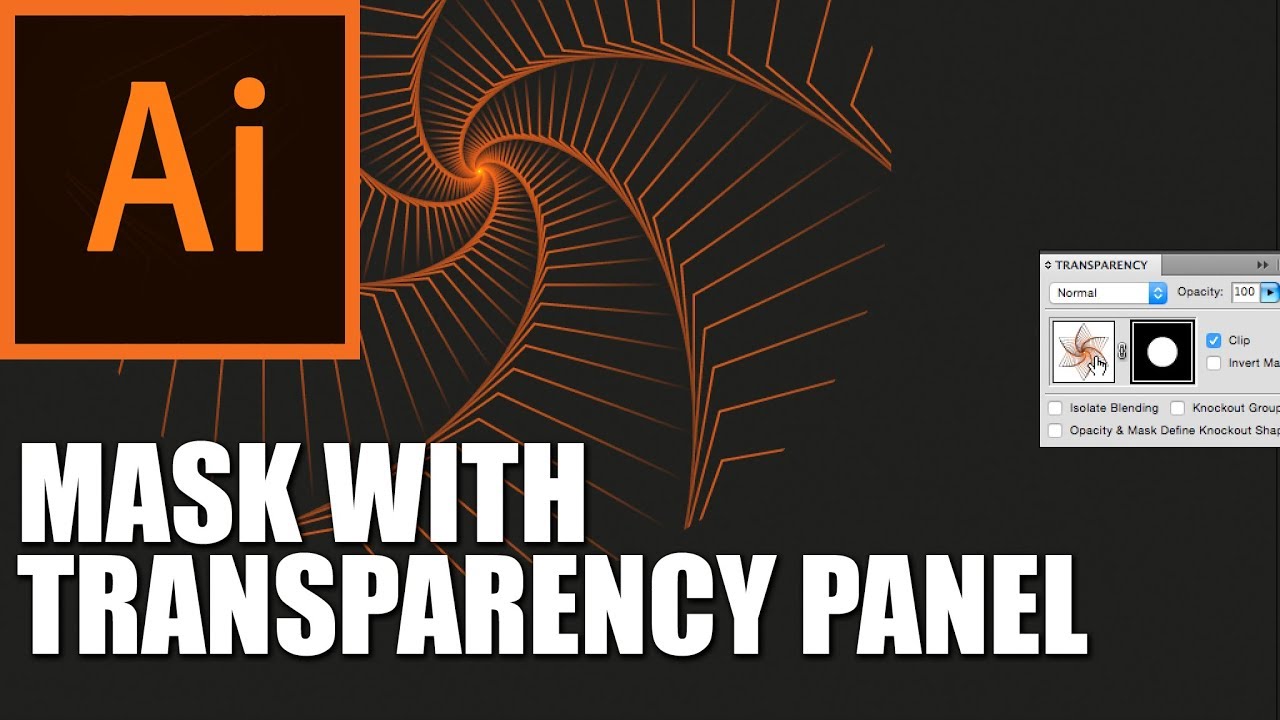
ILLUSTRATOR Activate And Invert Layer Mask Show And Hide Objects

How To Invert Layer Mask In Photoshop Quick Easy

How To Invert Layer Mask In Photoshop Quick Easy
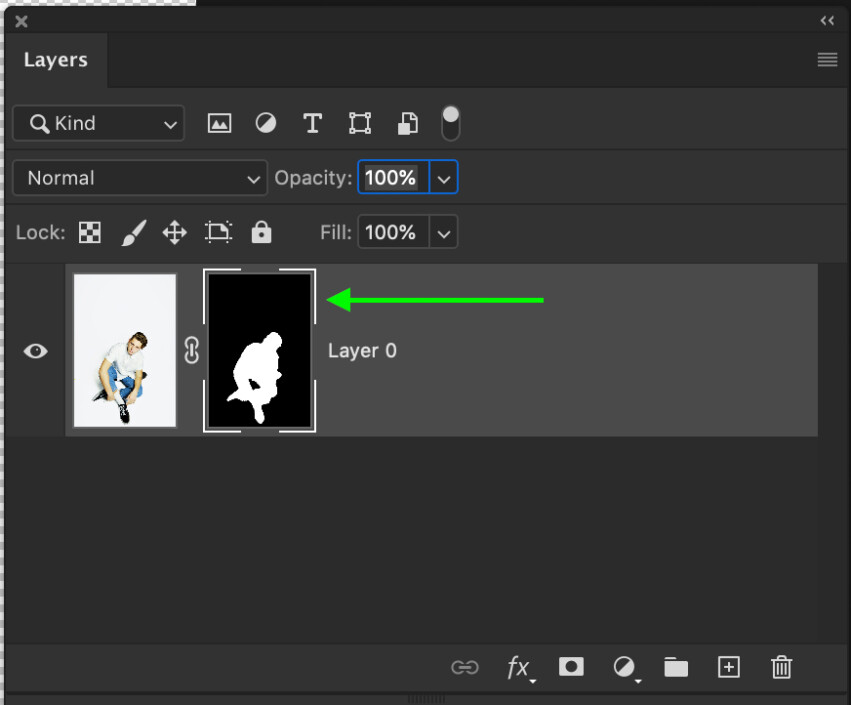
How To Invert A Layer Mask In Photoshop Brendan Williams Creative

How To Invert Layer Mask In Photoshop

Select the mask layer in the Layers panel then go to menu Layer Invert or press cmd I CTRL I if you are using Windows A Guide to Learning Affinity Software Affinity Quick Reference Call for Camera Images 3 weeks later annmiller1949 Members 5 Posted June 16 2017 How do you invert a mask on Affinity Photo for iPad

Posted July 14 2021 Welcome to the Serif Affinity Forums edvinaxelsson To mask the green rectangle with the amber circle so that you re left with a green semicircle where the shapes overlap drag the circle layer in the Layers panel and drop it onto the thumbnail of the rectangle layer Quote Alfred

In Affinity Designer two types of masking are possible pixel masking and vector masking performs a similar task to the erase tools with one important difference a pixel mask can be modified or even discarded at any point in time this involves using a line or shape as a mask over another object that crops to the line or shape s outline

From the Layers panel click Mask Layer By default a created mask layer is applied to the current layer but it can be moved by dragging outside the current layer applying the mask to all layers below Alternatively the mask can be moved onto an object applying the mask just to that object

A walkthrough showing the process and techniques that I use when compositing with Affinity Photo using layer masks inverted layer masks masking brushes
Mohadeeshu How do you invert a mask in Affinity Photo 2 So in the old version if i wanted to create an inverted mask on a layer adjustment i would highlight the adjustment then option click the mask icon and it would auto invert it on the highlighted adjustment layer In the new version it doesnt work the same from what i see Layer masking Layer masking A layer mask is used to reveal a portion of a layer while the rest of the layer remains hidden This means that you can use a mask layer to delete areas of a layer that you don t want In Affinity Designer two types of masking are possible pixel masking and vector masking
The primary difference between the two is that the Affinity Designer Layers panel alters the entire contents of a layer or layer group whereas the Color menu only alters the fill or stroke of a single object Layer Masks Towards the bottom of the Layers menu you should see an icon for applying a Layer Mask