4 Point Moving Average Excel Moving Average Formula Excel Formula Exceljet Solved For A 4 point Moving Average Filter Find The Output Chegg How To Calculate The 3 Point Moving Averages From A List Of Numbers And Moving Average In Excel Calculate With Formulas And Display In Charts How To Calculate Centered Moving Average In Excel 2 Examples June 13 2020 by howtoexcel averages intermediate offset If you re doing any type of data analysis a moving average can be useful in smoothing trends and normalizing data Below I ll show you how you can easily create a moving average in Excel
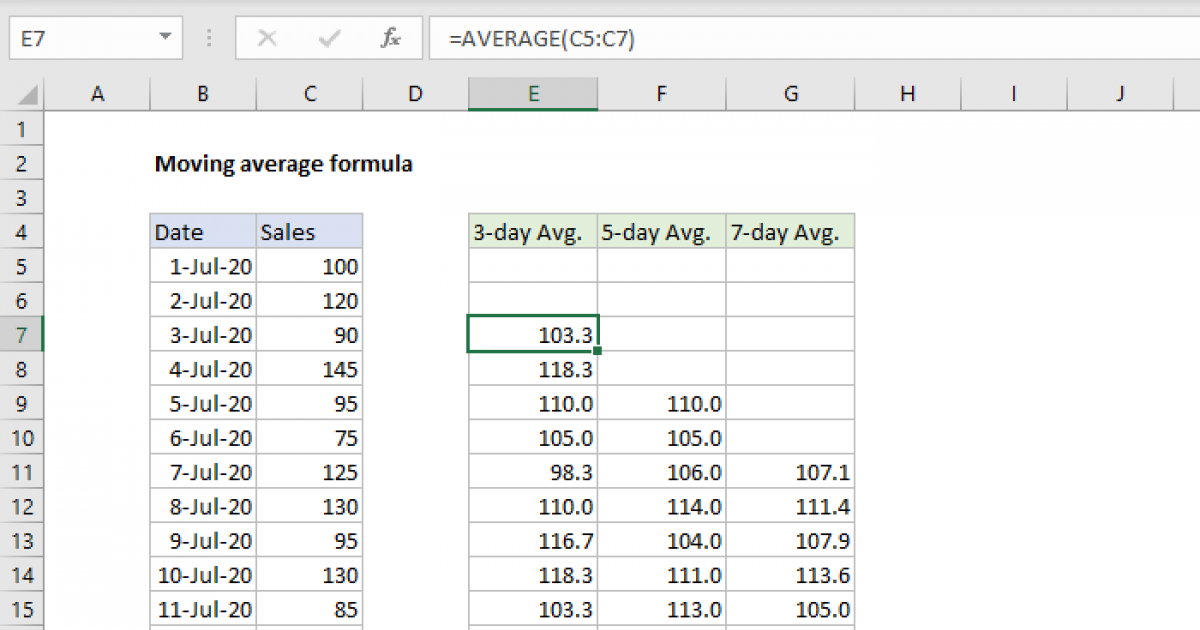
Step 1 Open a new Excel spreadsheet and enter the data for which you want to calculate the moving average Step 2 Select the cell where you want the moving average to appear Step 3 Input the AVERAGE function specifying the range of cells that contain the data points for the moving average You need to divide each number by the sum of numbers to find each number s percentage value You can use the following formula to find the total Where n number of periods For example if you calculate weighted moving average over 4 points the sum will be 10 by calculating 4 4 1 2 Thus the weights will be 0 1 0 2 0 3 0 4
How To Calculate Centered Moving Average In Excel 2 Examples Moving Average In Excel Easy Excel Tutorial Moving Average Formula Calculator Examples With Excel Template CLOUD Time Series How To Find A 4 Point Moving Average And Centred 4PMA Calculate Moving Average In Excel How To PakAccountants Calculating Moving Average In Excel ZOHAL Weighted Moving Average Real Statistics Using Excel Simple Moving Average Real Statistics Using Excel How To Create A Moving Average In Excel YouTube
4 Point Moving Average Excel
 4 Point Moving Average Excel
https://exceljet.net/sites/default/files/styles/og_image/public/images/formulas/moving average formula.png
Step 1 Click the Data tab and then click Data Analysis Step 2 Click Moving average and then click OK Step 3 Click the Input Range box and then select your data If you include column headers make sure you check the Labels in first Row box
Pre-crafted templates provide a time-saving option for creating a diverse range of documents and files. These pre-designed formats and designs can be made use of for numerous individual and professional tasks, consisting of resumes, invitations, leaflets, newsletters, reports, presentations, and more, simplifying the material development process.
4 Point Moving Average Excel
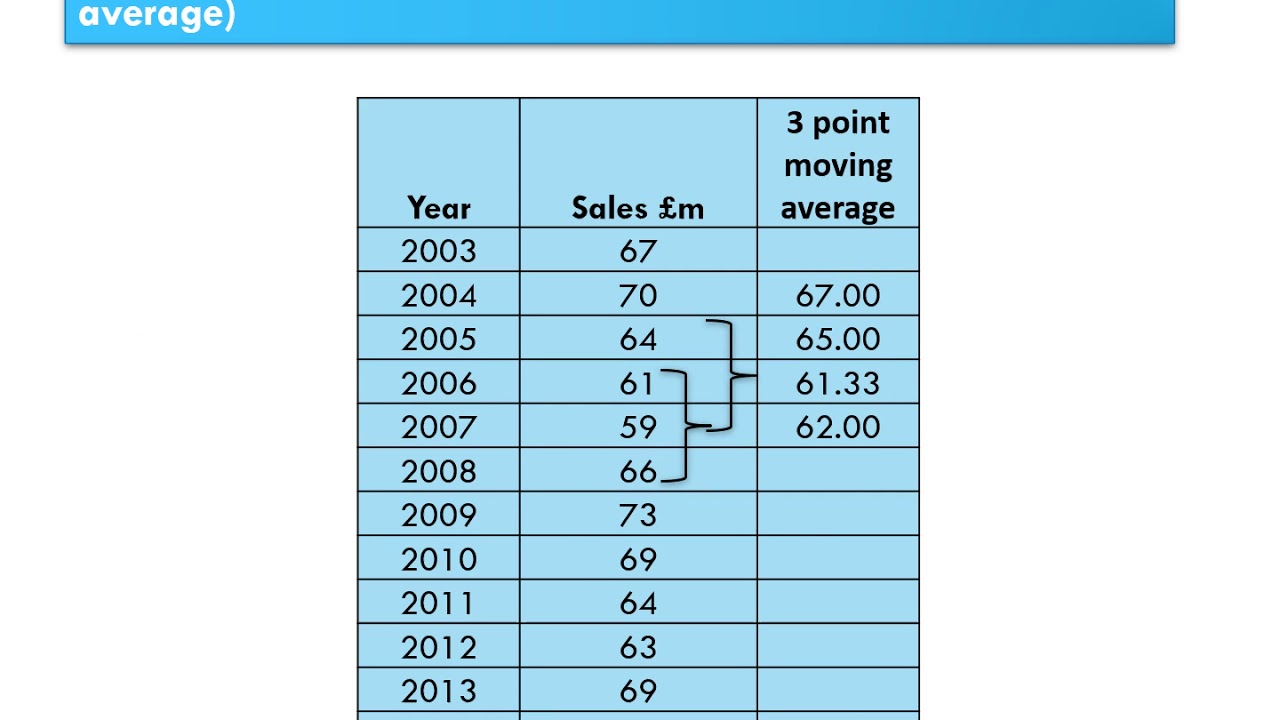
21 Quantitative Sales Forecasting 3 Point Moving Average REC YouTube
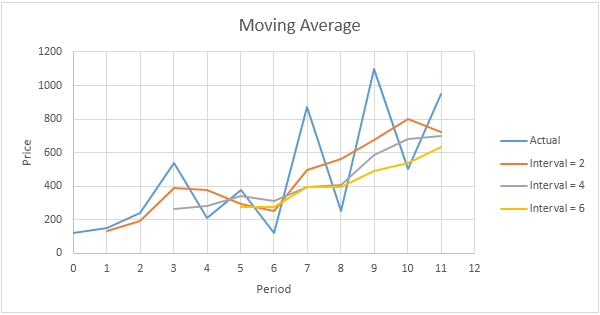
Moving Average In Excel Easy Excel Tutorial
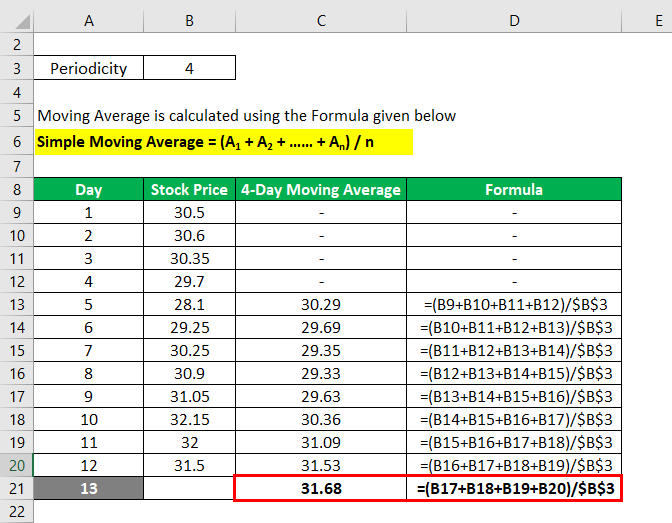
Moving Average Formula Calculator Examples With Excel Template CLOUD

Time Series How To Find A 4 Point Moving Average And Centred 4PMA
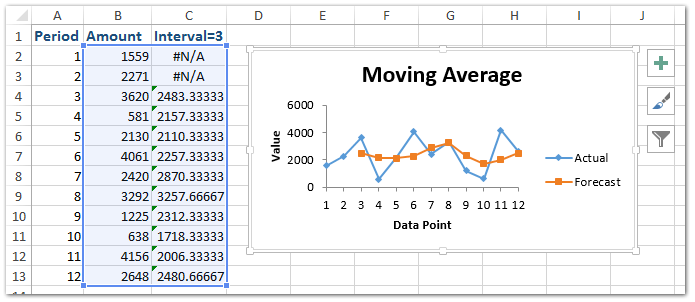
Calculating Moving Average In Excel ZOHAL

Weighted Moving Average Real Statistics Using Excel
Calculating moving average in Excel by Svetlana Cheusheva updated on March 21 2023 In this short tutorial you will learn how to quickly calculate a simple moving average in Excel what functions to use to get moving average for the last N days weeks months or years and how to add a moving average trendline to an Excel chart

Types of Moving Averages There are three types of moving averages Simple moving average SMA Weighted moving average WMA Exponential moving average EMA Simple Moving Average SMA This is the simple average of the data points in the given duration

When you re ready to calculate the moving average click the Data Analysis button on the Data tab Select Moving Average from the list and click OK At the top of the Moving Average window enter the Input Range into the corresponding box You can also click inside the box and then drag through your data range
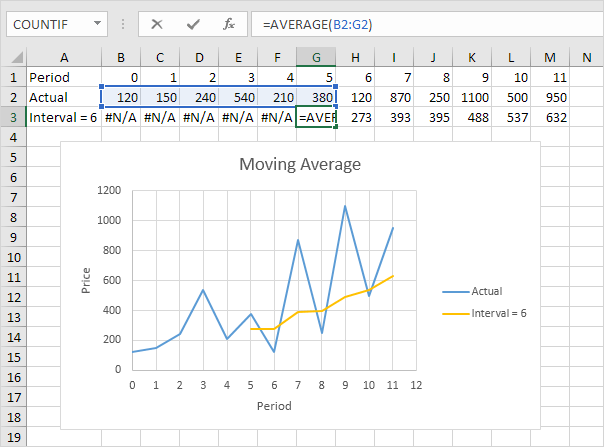
1 First let s take a look at our time series 2 On the Data tab in the Analysis group click Data Analysis Note can t find the Data Analysis button Click here to load the Analysis ToolPak add in 3 Select Moving Average and click OK 4 Click in the Input Range box and select the range B2 M2 5 Click in the Interval box and type 6 6

Moving Average in Excel Chart 4 Methods We can easily calculate the moving average in Excel by using two simple functions If you want to utilize the AVERAGE function the formula will be like the following AVERAGE C5 C6 Here C5 is the precipitation in January and C6 is the precipitation in February
Determining the moving average of a data set with Excel 1 First click Microsoft Excel s Data tab The Data tab offers different options to manipulate analyze or visualize data Image credit A moving average forecast uses a moving average of a certain number of previous periods to forecast the value of the next period The following example shows how to calculate a moving average forecast in Excel Example How to Calculate Moving Average Forecast in Excel
Step 1 First organize your data in Excel placing the values you want to analyze in a column with each value in a separate cell Step 2 Next decide on the number of data points you want to include in each average This will determine the size of the moving average window Step 3 In a separate column use the AVERAGE function to calculate