System Repair Time 7 Must know Safety Tips For HVAC Technicians InterCoast Colleges Common HVAC Problems You Need To Check Repair replacement Tire worker Free Stock Photo Public Domain Pictures Mechanic Car Repair Tune Up Your Body With Massage Therapy Sunstone Repair System For Android Quick Fix Problems Best App For Android In the left pane click Create a system repair disc and then follow the steps If you re prompted for an administrator password or confirmation type the password or provide confirmation Note If you re prompted to insert a Windows installation disc it means that the files needed to create the system repair disc can t be found on your computer
1 Download the Media Creation Tool by navigating to Microsoft s Download Windows 10 page and clicking the button labeled Download tool now under the Create Windows 10 installation media Use a fix it tool with Windows 10 Instead of fix it tools Windows 10 uses troubleshooters to help you solve problems with your PC To run a troubleshooter Select Start Settings Update Security Troubleshoot Additional troubleshooters or select the Find troubleshooters shortcut at the end of this topic and then select Additional
Repair System For Android Quick Fix Problems Best App For Android Leveling System Carli Suspension Inc Service Computers Repair Free Stock Photo Public Domain Pictures File Solar System jpg Wikimedia Commons Air Conditioner Repair Services Emergency A C Repair Massillon OH Ag Chem EU Applicator Knight Spreader Terragator System Repair Time Watch Repair Free Stock Photo Public Domain Pictures PC REPAIR PLUS When To Repair Or Replace Your HVAC System
System Repair Time
 System Repair Time
https://intercoast.edu/wp-content/uploads/2020/07/109193339-air-conditioning-repair-repair.jpeg
To open the System Recovery Options menu on your computer Remove all floppy disks CDs and DVDs from your computer and then restart your computer using the computer s power button Do one of the following If your computer has a single operating system installed press and hold the F8 key as your computer restarts
Templates are pre-designed files or files that can be used for different functions. They can conserve time and effort by supplying a ready-made format and design for creating various type of material. Templates can be used for individual or professional jobs, such as resumes, invites, flyers, newsletters, reports, discussions, and more.
System Repair Time
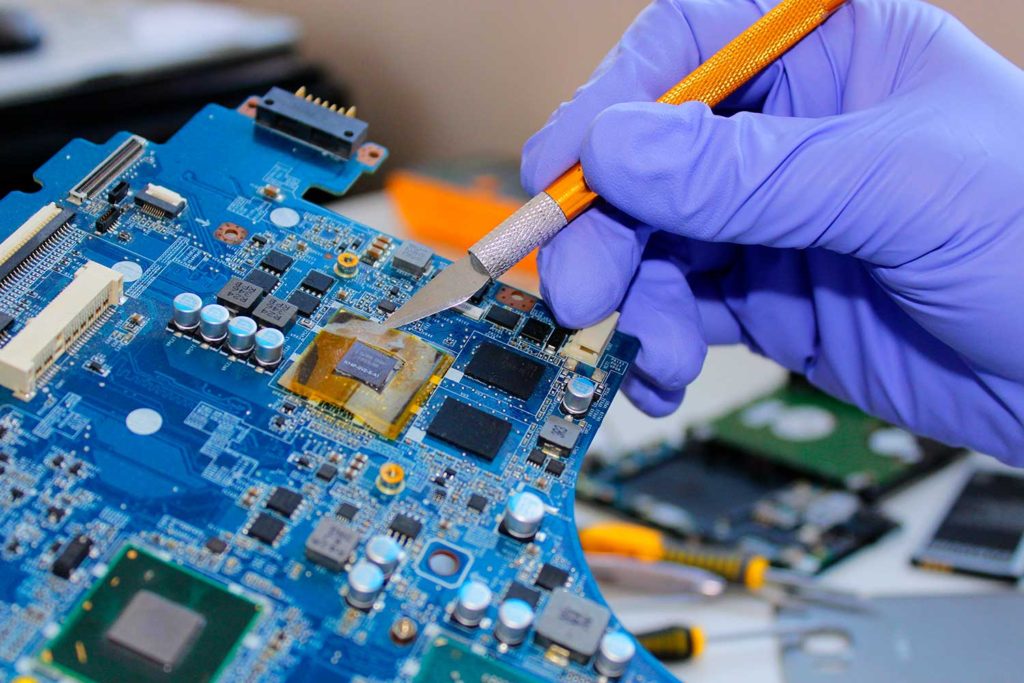
Laptop Repair

Leveling System Carli Suspension Inc

Service Computers Repair Free Stock Photo Public Domain Pictures

File Solar System jpg Wikimedia Commons

Ag Chem EU Applicator Knight Spreader Terragator System Repair Time

Watch Repair Free Stock Photo Public Domain Pictures

Boot into Safe Mode Safe Mode is a diagnostic tool but it may be trying to load this basic Windows version that fixes your startup error and the repair loop will no longer trigger Run the Fixboot and Chkdsk commands Two commands worth trying to get you out of the automatic repair loop are Fixboot and Chkdsk

Open Command Prompt or PowerShell as administrator then run sfc scannow to fix corrupted Windows System Files If SFC fails to run properly or cannot repair the files run DISM Online Cleanup Image RestoreHealth to fix any remaining issues

Step 1 Using DISM and SFC for system repair Step 2 Try a recent restore point or image backup Step 3 In place upgrade to current Windows 10 version Step 4 Completely reinstall Windows 10

1 Disconnect or Remove Recently Installed or Connected Devices 2 Run System Repair Tools Chkdsk SFC 3 Run the Windows 10 DISM tool 4 Disable Automatic Startup Repair to Limit Boot Loops Maintaining a Healthy Windows 10 Installation What Causes a Windows 10 Automatic Repair Loop

This may be because you entered incorrect commands or have insufficient permissions In this case the best solution is to use the Windows 10 installation medium or make a boot disk and use it to reinstall the Windows operating system Reinstalling the Windows operating system completely erases all data on the SSD
Use this procedure to reset the EC Turn off the computer and disconnect the power cord for 5 seconds Connect the power cord to the computer and then press the power button to turn on the computer The computer turns on and the EC is reset If this does not recover your computer see Turn on or restart the computer At the Dell logo press the F12 several times to access the One Time Boot Menu The available boot options are displayed in the menu NOTE If you wait too long the operating system loads Restart the computer and try again Select SupportAssist OS Recovery and then press Enter
1 System restore gets interrupted 2 Hard drive is full 3 Old backup is too big 4 System crash System restore gets interrupted Interruptions like the System Restore freezing up or Windows 10 11 Reset taking a long time can make the user feel obliged to force the system to shut down It can result in not being able to boot the system back