Sync Date And Time Windows 10 Login Error The Difference Between The Request Time And The Current Time Is Too Large FAQ How To Change Time On Windows 10 and Related Settings Digital Citizen How To Sync The Clock Manually On Windows 10 Pureinfotech How To Change Date And Time Formats In Windows 10 Techcult How To Change Date And Time Format In Windows 10 Winbuzzer Web Dec 2 2022 nbsp 0183 32 By default Windows 10 and 11 syncs with Microsoft s time server at time windows Switching to the alternative time nist gov server could resolve the Time synchronization failed error You must use
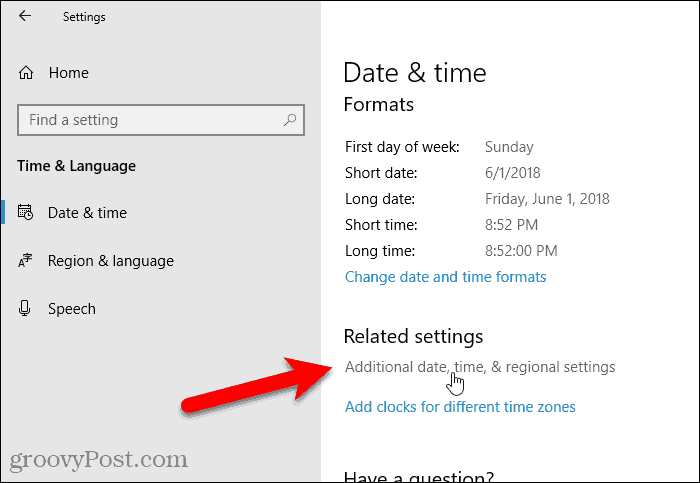
Web The easiest way to synchronize your clock is to use Windows 10 s settings Open the Start menu and click Settings Then click Time amp Language on the Settings dialog box Scroll down to the Related settings section and click Additional date time amp regional settings Click the Internet Time tab on the Date and Time dialog box Then click Web Apr 14 2020 nbsp 0183 32 Windows 11 not on a domain the setting to sync with time server is turned off The goal is to be able to quickly execute a batch file to toggle between the current date and a specific date from the command line To set the date from the command line date mm dd yyyy date 04 14 2020
How To Change Date And Time Format In Windows 10 Winbuzzer Time Is Wrong On Windows 10 How To Fix Date And Time Not Syncing In 2021 Internet Time How To Change Date And Time Formats In Windows 10 Techcult Date And Time Sync Not Working Microsoft Community Techfeedthai Windows 10 Techfeedthai How To Change Date And Time On Windows 10 Best In 2021 Gizmo Concept Change Date And Time In Windows 10 PCGUIDE4U Sync Date And Time In Windows OS From Python Stack Overflow
Sync Date And Time Windows 10
 Sync Date And Time Windows 10
https://www.groovypost.com/wp-content/uploads/2018/06/03-Click-Additional-date-time-and-regional-settings.png
Web Jul 25 2017 nbsp 0183 32 Click on Clock Language and Region Click on Date and Time Click on the Internet Time tab Click the Change settings button Check that the Synchronize with an internet time server option is
Templates are pre-designed files or files that can be utilized for numerous purposes. They can conserve effort and time by supplying a ready-made format and design for developing various sort of content. Templates can be utilized for individual or professional tasks, such as resumes, invitations, flyers, newsletters, reports, discussions, and more.
Sync Date And Time Windows 10

Date And Time Sync Not Working Microsoft Community

Time Is Wrong On Windows 10 How To Fix Date And Time Not Syncing In 2021 Internet Time

How To Change Date And Time Formats In Windows 10 Techcult

Date And Time Sync Not Working Microsoft Community

Windows 10 Techfeedthai

How To Change Date And Time On Windows 10 Best In 2021 Gizmo Concept

Web Jun 18 2021 nbsp 0183 32 The easiest way to synchronize your clock is to use Windows 10 s settings Open the Start menu and click Settings Then click Time amp Language on the Settings dialog box Scroll down to the
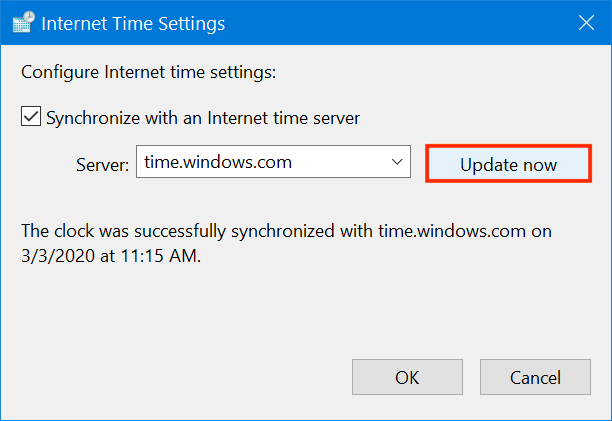
Web Feb 1 2016 nbsp 0183 32 1 Open the Control Panel icons view and click tap on the Date and Time icon 2 Click tap on the Internet Time tab and click tap on the Change settings button see screenshot below This will also show you the date and time of when your clock was last successfully synchronized with the name of the Internet server used

Web How to set your time and time zone In Date amp time you can choose to let Windows 10 set your time and time zone automatically or you can set them manually To set your time and time zone in Windows 10 go to Start gt Settings gt Time amp language gt Date amp time

Web Jun 6 2022 nbsp 0183 32 Sync date and time manually on Windows 10 using Settings To synchronize your clock using the Settings app use these steps Open Settings on Windows 10 Click on Time amp Language Click on Date amp time Under the Synchronize your clock section click the Sync now button Quick tip If the process fails wait a few

Web Windows Time Sync Command Steps to Force Sync Time with Command Line Search for Command Prompt Right click on the result and select Run as Detailed Step by Step Guide First open the start menu search for Command Prompt right click on the result and Command to Sync Time with
[desc-11] [desc-12]
[desc-13]