Setup Sftp Server Windows Server 2019 Step By Step Integration With Third Party Systems Using AWS Transfer For SFTP Guide How To Install Active Directory In Windows Server 2019 Server What S New For Docker On Windows Server 2019 Vrogue Licencia Windows Server 2019 Windows Server 2019 Windows Server 2019 Datacenter Goedkope licentie nl In this short video I will walk you though the steps of SFTP services installation on Server 2019 How To Install SFTP in Windows Server 2019Major steps are
Step 1 Start Server Manager As with all Windows Server roles we have to go to the Server Manager to begin the installation Hit your Windows key and search for Server Manager if it is not already opened Once open click on Add Roles and Features Configuring SFTP on Windows Step 1 Ensure SSH is Installed If you re using Windows 10 Windows Server 2019 or Windows Server 2022 SSH should already be installed Otherwise By following the configuration steps outlined in this guide you can set up SFTP on Windows Linux or macOS enabling seamless data transfers
Windows Server 2019 Datacenter Goedkope licentie nl How To Configure NTP Server On Windows Server 2019 Windows Server 2019 Remote Desktop Services Lizenzguru Sftp Server Software Windows Likossinc Microsoft Sql Server 2019 How To Install Exchange Server 2019 Step By Step Full YouTube Guide How To Install Active Directory In Windows Server 2019 Server Windows Server 2019 User CAL Volume Licencija Naudota Lic IToutlet Windows Server 2019 Datacenter 16 Core 1 Device Perpetual License
Setup Sftp Server Windows Server 2019 Step By Step
 Setup Sftp Server Windows Server 2019 Step By Step
https://assets.website-files.com/611b82111c177de53409c4b5/61372d57c9ac137f35846f5b_5e32a481bd23a218dca5ef8f_managed-sftp-diagram.png
The following are the steps to enable SFTP on a Windows server 2019 Go to Windows Settings Apps Click on Manage optional features Under apps and features menu Look for OpenSSH Server check if it s already installed if not click on Add a feature to install it Configuring OpenSSH server to start on Windows startup
Templates are pre-designed files or files that can be used for different functions. They can conserve effort and time by offering a ready-made format and layout for developing various sort of material. Templates can be used for individual or professional projects, such as resumes, invites, flyers, newsletters, reports, presentations, and more.
Setup Sftp Server Windows Server 2019 Step By Step
Microsoft Windows Server 2019 Review PCMag Lupon gov ph

How To Configure NTP Server On Windows Server 2019

Windows Server 2019 Remote Desktop Services Lizenzguru
Sftp Server Software Windows Likossinc

How To Install Exchange Server 2019 Step By Step Full YouTube
Guide How To Install Active Directory In Windows Server 2019 Server

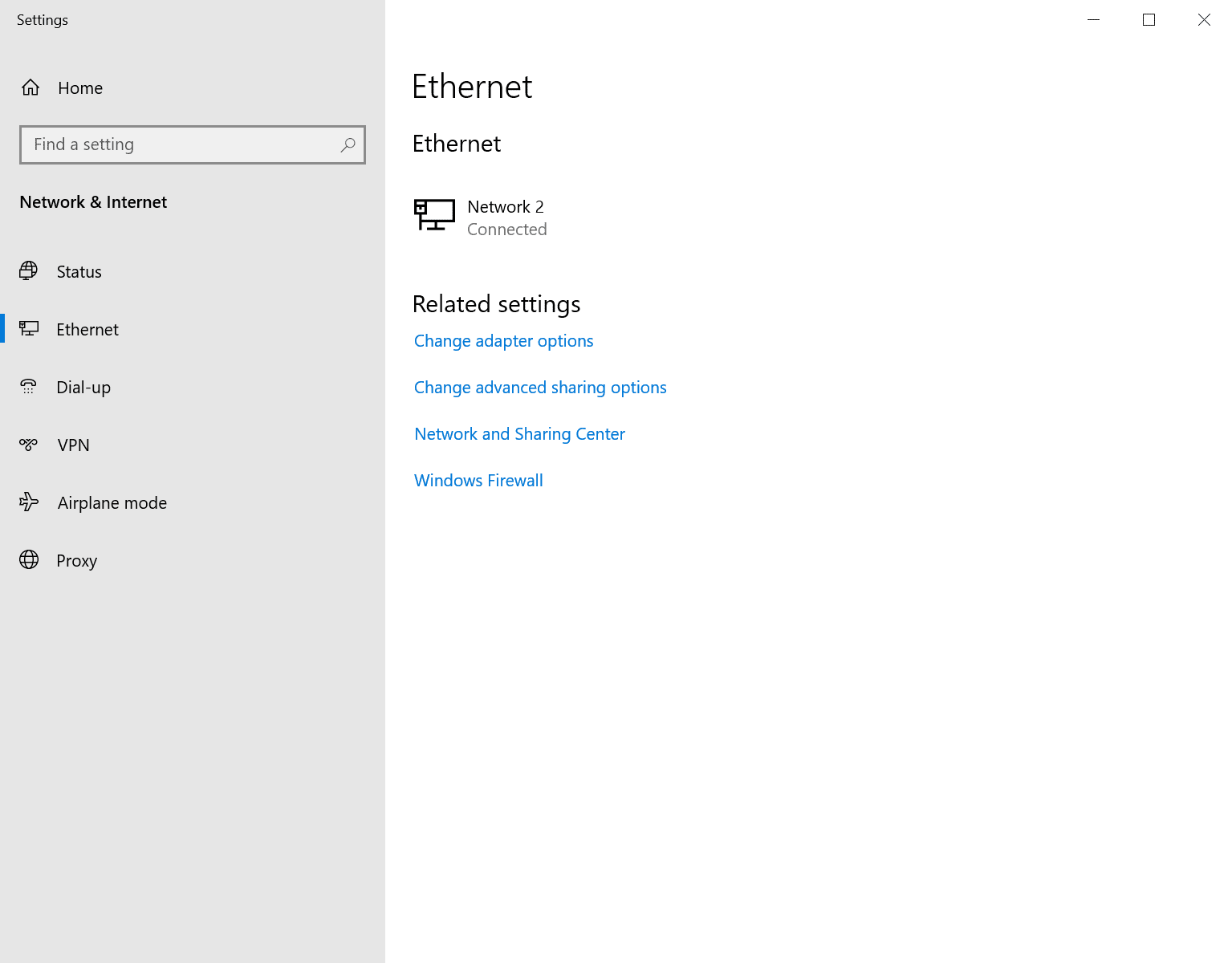
Here are the steps to enable SFTP on Windows Server 2019 Go to Windows Settings Apps Click on Manage optional features Under apps and features menu Look for OpenSSH Server check if it s already installed if not click on Add a feature to install
The following are the steps to enable SFTP on a Windows server 2019 Go to Windows Settings Apps Click on Manage optional features Under apps and features menu Look for OpenSSH Server check if it s already installed if not click on Add a feature to install

Open Windows Defender Firewall and select New Rule under Inbound Rules In the next window select Port and click on Next Select the TCP protocol and set 22 as a port In the next window keep the connection selected and tick the box next to Private under Profile You can also add a name for the new rule
STEP 11 Browse to the C drive on your server Right click in any empty space then select New from the drop down menu then click Folder Name the folder SFTPRoot Ensure that it is exactly the same as the folder name referenced in the path in Step 10
With this in mind do right click over the service to enter properties Righ click over the OpnSSH server and select properties In the next window we have to select automatic in startup type and then click on apply Finally press Start to begin the service Setting automatic on startup type
On Windows 11 Go to Settings Apps Optional features and click on View features Locate OpenSSH server feature select it click Next and then click Install On Windows 10 version 1803 and newer Go to Settings Apps Apps features Optional features and click on Add a feature Locate OpenSSH server feature expand it C users sftp01User ssh should exist with an authorized keys file inside it containing ssh rsa XXXXXXXXXXXXXXXXX rsa key our keyfile This has to exist for all users that will be hitting the SFTP server so users have to have logged in and had that key populated on the server itself public key side Your private key file if generated by
Step 10 FTP Firewall Support Input the port range for passive mode in this pop up as shown below then click Apply on the right pane The pop up below will appear making you aware that you need to allow the port range we configured in the firewall Click OK After that restart FTP Server to make the changes applied