Set Environment Variable For Java Windows 10 Command Line How To Config JAVA HOME Environment Variable In Windows 10 YouTube How To Set Java Home Path On Ubuntu Vrogue How To Set Java Variable Path In Windows 10 Compiling Java Program Vrogue Set Environment Variable In Windows Mobile Legends How To Set Environment Variables For Java Windows 10 3 Steps To Set To set environment variables for Java in Windows Press the Windows key R on your keyboard to open the Run dialog Type control panel and press Enter In the Control Panel click on System and Security and then click on System In the left panel click on Advanced system settings
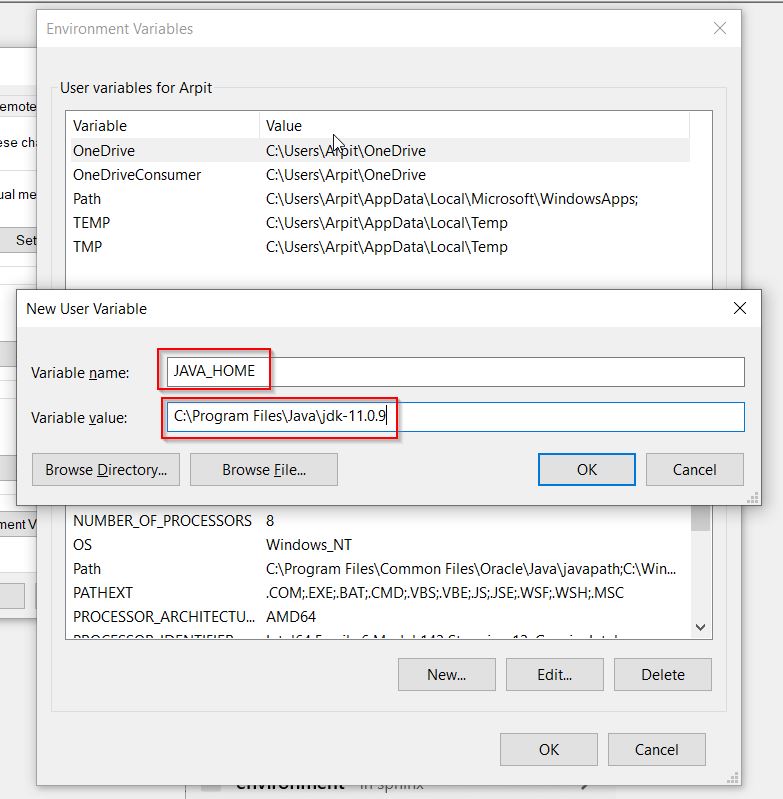
Windows In the System Properties window click on the Environment Variables button In the System Variables section click on the New button Set the Variable name as JAVA HOME In the Variable value field enter the path to the JDK installation directory 1 Press Windows R to open the Windows Run prompt 2 Type in sysdm cpl and click OK 3 Open the Advanced tab and click on the Environment Variables button in the System Properties window 4 The Environment Variables window is divided into two sections The sections display user specific and system wide environment variables
How To Set Environment Variables For Java Windows 10 3 Steps To Set How To Set JAVA HOME On Windows TestingDocs How To Set Environment Variables For Java Windows 10 YouTube Run C Program Using Command Prompt With Source Code Youtube What Does How To Set Environment Variable For Android SDK YouTube Java Path Environment Variable Enable Java In Command Prompt And How To Set JAVA HOME Environment Variable In Windows 10 Set Or Configure Java And Javac Environment Variable For Windows How To Set Environment Variable For Java Command Line Tools YouTube
Set Environment Variable For Java Windows 10 Command Line
 Set Environment Variable For Java Windows 10 Command Line
https://i.ytimg.com/vi/S0_w-sUnwE4/maxresdefault.jpg
1 Open CMD as administrator First we need to open CMD as administrator like this 2 Set JAVA HOME variable Then use the following command to set JAVA HOME variable setx JAVA HOME path to your java jdk M For example we set C Program Files Java jdk1 8 0 92 to JAVA HOME 3 Check JAVA HOME variable
Templates are pre-designed files or files that can be used for numerous functions. They can conserve effort and time by supplying a ready-made format and layout for creating various kinds of material. Templates can be utilized for personal or professional projects, such as resumes, invitations, flyers, newsletters, reports, presentations, and more.
Set Environment Variable For Java Windows 10 Command Line

How To Set PATH From JAVA HOME Webucator
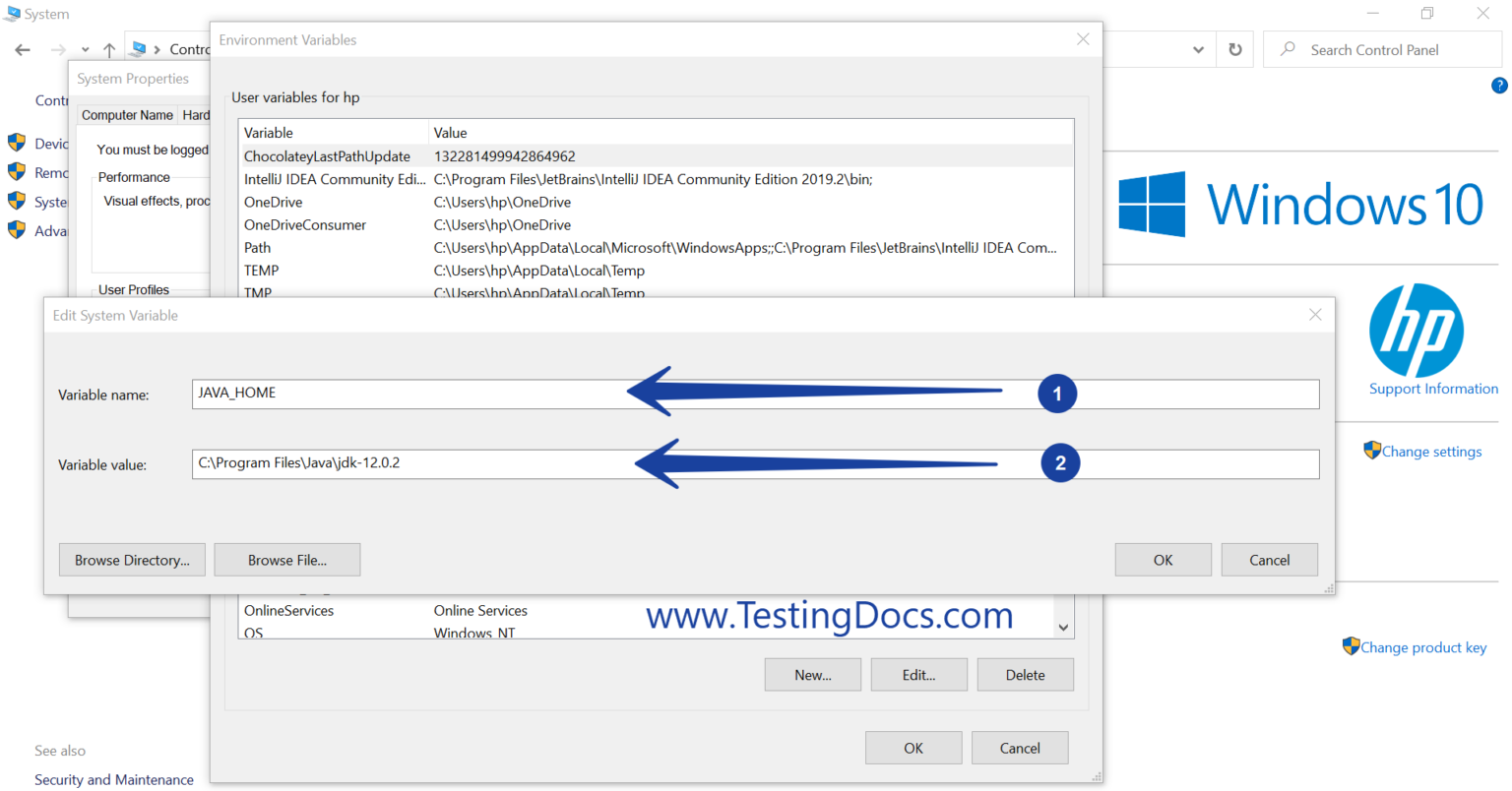
How To Set JAVA HOME On Windows TestingDocs
How To Set Environment Variables For Java Windows 10 YouTube
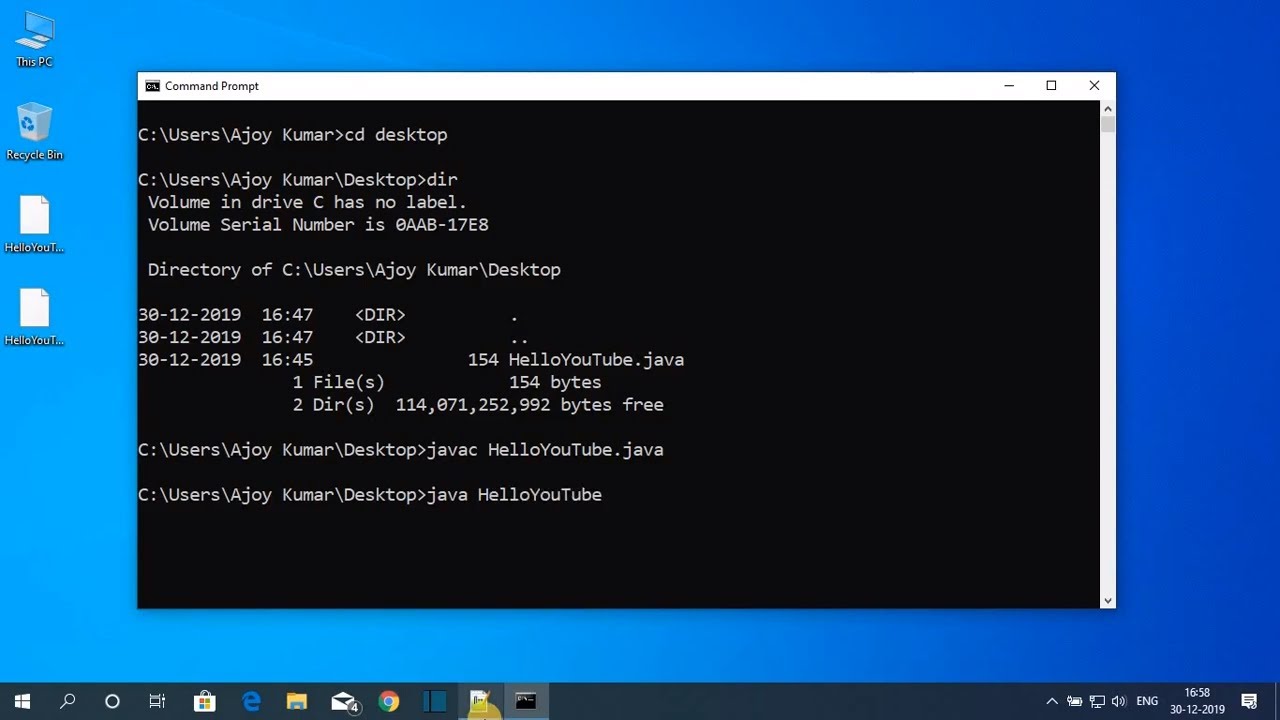
Run C Program Using Command Prompt With Source Code Youtube What Does

Java Path Environment Variable Enable Java In Command Prompt And
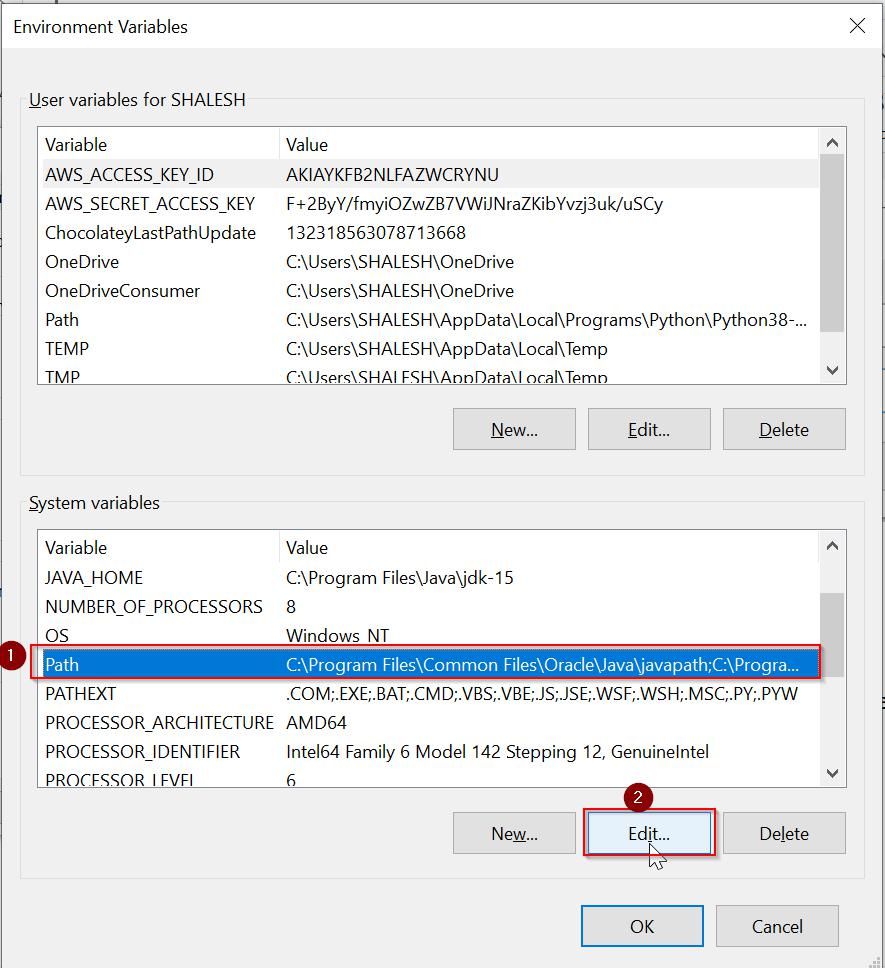
How To Set JAVA HOME Environment Variable In Windows 10

How to set JAVA HOME on Windows 10 Here are the visual steps to properly set value for the JAVA HOME and update the PATH environment variables in order to setup Java development environment on your computer 1 Firstly you need to identify the Java home directory which is typically under C Program Files Java directory Open My Computer and navigate to this directory you will see
Just go to Control Panel System Advanced system settings Advanced Environment Variables

Go to Advanced tab and click on Environment Variable s button In the Environment Variable window click on New button under the System variable In the Edit System Variable give the

Overview In this quick tutorial we ll take a look at how to set the JAVA HOME variable on Windows Mac OS X and Linux 2 Windows 2 1 Windows 11 Locate the directory where the JDK is installed on your system and note down the path to this directory Right click on the Windows Start button and select System

How to change Java version on Windows 10 1 Set the environment variable JAVA HOME 2 Add Java 1 6 0 45 and disable Java 1 8 0 66 in Java Runtime Environment Settings under Configure Java java version java version 1 8 0 66 Java TM SE Runtime Environment build 1 8 0 66 b18 Java HotSpot TM 64 Bit Server VM build 25 66 b18 mixed
Click the Environment Variables button Under System Variables click New In the Variable Name field enter either JAVA HOME if you installed the JDK Java Development Kit or JRE HOME if you installed the JRE Java Runtime Environment In the Variable Value field enter your JDK or JRE installation path Click OK and Apply Changes as prompted Open Command Prompt CMD go to where you installed java on your system and locate the bin directory Copy the full path and write it in the command line like this set path C Program Files Java jre1 8 0 121 bin Note your jdk version may be different Since java version 1 8 0 121 is installed on my system I used the same when setting the path
Step 5 New Pop up Window will appear Click on New Enter JAVA HOME as variable name and C Program Files Java jdk1 8 0 121 as Value Enter JRE HOME as variable name and C Program Files Java jre1 8 0 121 as Value Click OK button Exit System Properties window At this time you are all set