Reset Forgotten Ubuntu Root Password Linux Ubuntu Change Reset Root Password Through Terminal YouTube How To Reset Your Forgotten Password In Ubuntu 22 04 LTS YouTube Reset A Forgotten Root Password In Linux Ubuntu How To Reset Forgotten Root Password In Ubuntu 20 04 VITUX How To Reset Root Password In Ubuntu YouTube 1 This question already has answers here How do I reset a lost password using recovery mode requires me to type the password 3 answers How do I reset a lost administrative password 16 answers Closed 7 years ago I have only one user and my grub boot menu also won t load so I don t know any other way to change password
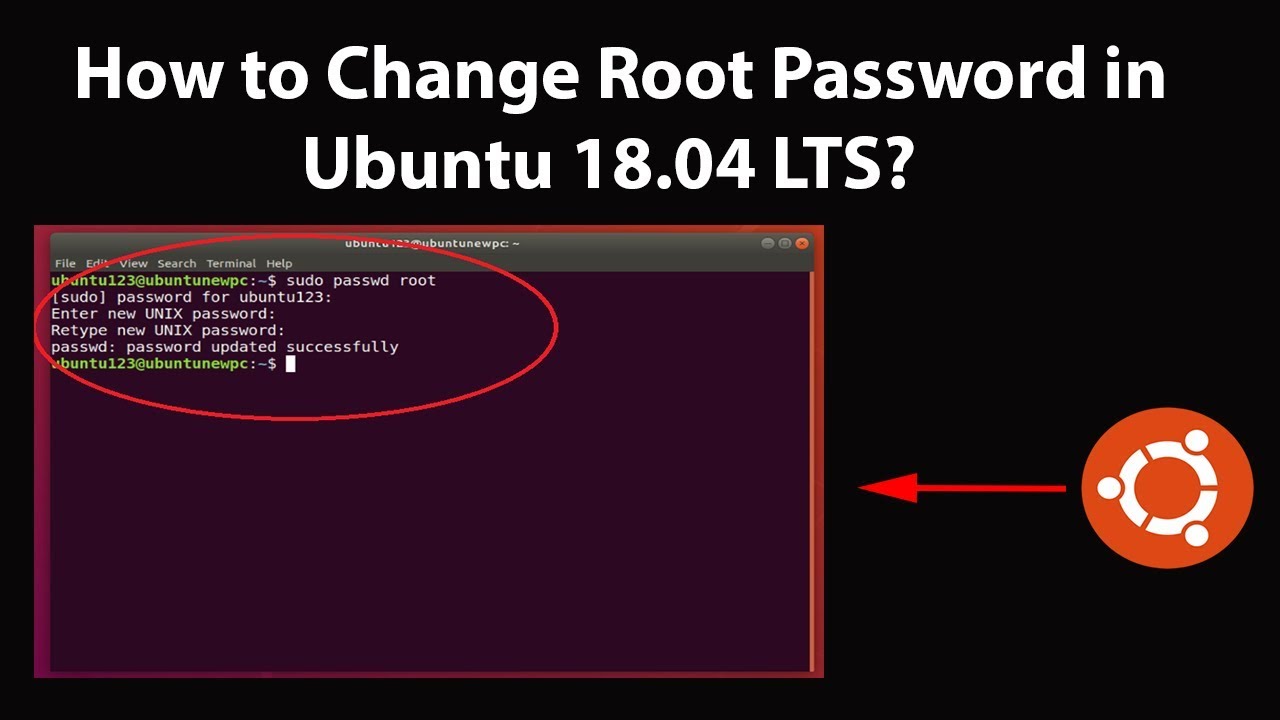
After you identify the root user use the following command syntax to reset the associated root password passwd username We can now change the root password by referencing the above syntax You will be prompted twice to enter and re confirm the new root password you wish to use Reset Ubuntu Root Password Step 1 Open a Terminal Window Right click the desktop then left click Open in terminal Alternately you can click Menu Applications Accessories Terminal Step 2 Change Your Root Password In the terminal window
How To Reset Root Password In Ubuntu YouTube Reset Forgotten Password In Linux Pacesettergraam How To Change Root Password In Ubuntu 18 04 LTS YouTube How To Reset Root Password On Ubuntu 18 04 20 04 LTS BENISNOUS How To Change Root Password In Ubuntu Linux LinuxStoney How To Reset Your Forgotten Password In Ubuntu 18 04 LTS YouTube How To Reset Ubuntu Root Or Sudo Password With Command Shell How To Reset Root Password In Ubuntu 15 10 15 04 14 04 12 04 LTS How To Reset Forgotten Password On Ubuntu 20 04
Reset Forgotten Ubuntu Root Password
 Reset Forgotten Ubuntu Root Password
https://i.ytimg.com/vi/HKcOcrOLo8A/maxresdefault.jpg
I ve forgotten the root password Even if you ve forgotten the root password to your Ubuntu Linux system it s pretty easy to recover access to the root account by setting a new password In this guide we ll show you how to set a new password for your root account in a few short steps
Pre-crafted templates use a time-saving service for creating a diverse variety of documents and files. These pre-designed formats and designs can be utilized for various personal and expert jobs, including resumes, invites, flyers, newsletters, reports, presentations, and more, improving the content production procedure.
Reset Forgotten Ubuntu Root Password

How To Reset Forgotten Root Password In Ubuntu 16 18 Utho
Reset Forgotten Password In Linux Pacesettergraam
How To Change Root Password In Ubuntu 18 04 LTS YouTube
How To Reset Root Password On Ubuntu 18 04 20 04 LTS BENISNOUS
How To Reset Your Forgotten Password In Ubuntu 18 04 LTS YouTube

How To Reset Ubuntu Root Or Sudo Password With Command Shell
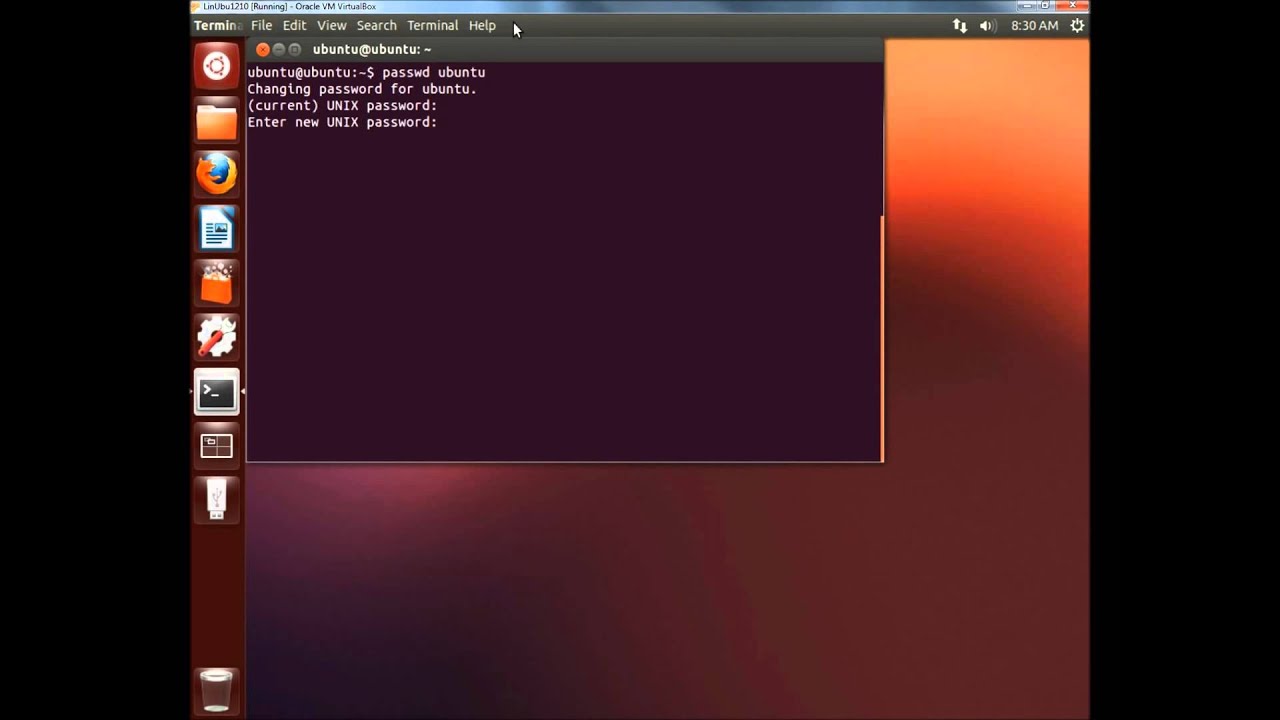
Boot into recovery mode from the Grub menu using shift key if Ubuntu is the only OS After the boot go to the option Drop to Root Shell Prompt Type mount o rw remount To reset Password type passwd username your username Then type a new Password and exit from the shell to the recovery menu
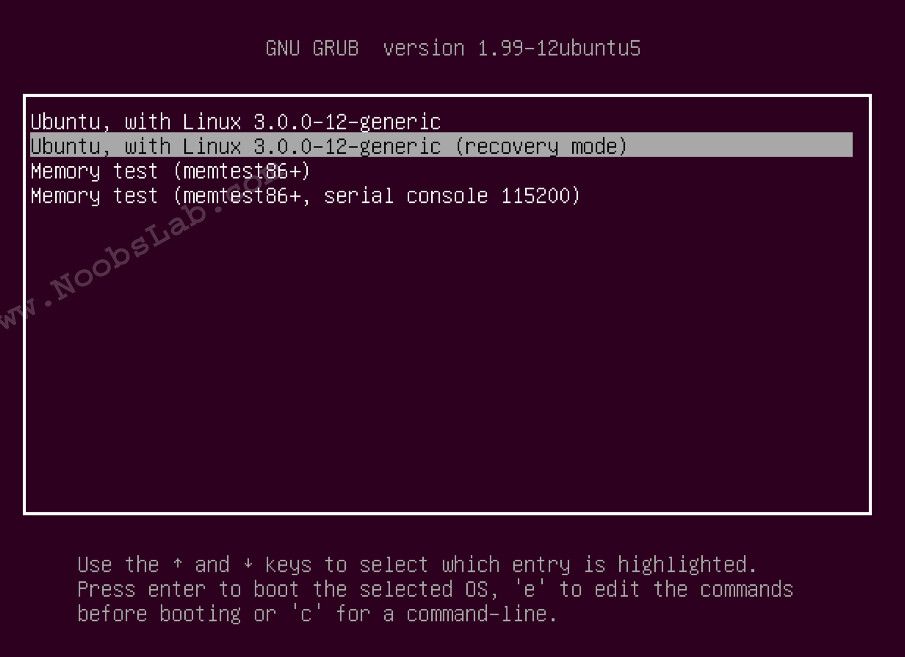
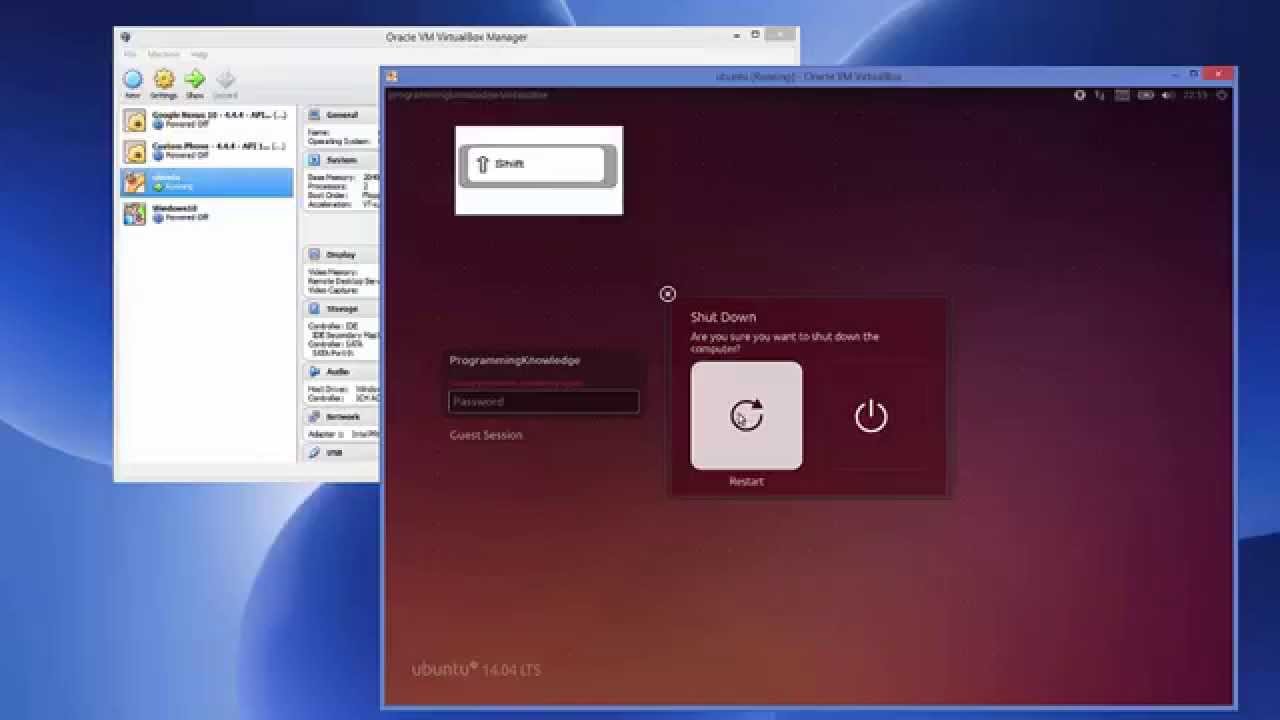
In this article you will learn how to reset the forgotten root password on Ubuntu 18 04 LTS and Ubuntu 20 04 LTS Firstly you need to either power on or reboot your Ubuntu system You should get a grub menu as shown below If you are running your system on VirtualBox press the SHIFT key on the keyboard to bring up the boot menu

The objective of this tutorial is to reset a lost root or user password on Ubuntu 20 04 Focal Fossa Linux In this tutorial you will learn How to gain root shell without password How to mount root directory read write How to reset root password How to reset user password

By default Ubuntu does not have a root password In fact the root account is disabled for all intents and purposes Ubuntu sets up the user you create with SUDO access When you execute a command that requires elevated privileges you must use SUDO If it is a GUI Gnome KDE etc command you are often prompted to enter your

Recover forgotten root password Follow along with the steps below to reset your root password by entering GRUB recovery mode In the screenshots below we are using Ubuntu Linux for an example but the instructions will apply to any distro In some cases you may have to adapt them a little
Option 2 Change sudo Password with the passwd Command An alternative is to switch to the root user and then run the passwd command to change the root password 1 First open the terminal CTRL ALT T 2 Switch to the root user with the command sudo i Type in your current password and hit Enter To reset a lost Ubuntu password first restart your system or virtual machine After the BIOS screen once you see the GRUB boot menu press the left Shift key or Esc key If you timed the keypress correctly a menu should appear as pictured above Highlight the recovery mode option using the Down arrow key and press Enter
1 Open Ubuntu 22 04 LTS Grub menu To reset the password first we have to access the Grub menu of our Ubuntu 22 04 Restart your system and while doing that press and hold the Shift key on your Keyboard This will drop you into the Grub menu of Ubuntu 2 Edit Gurb Menu to Reset root password