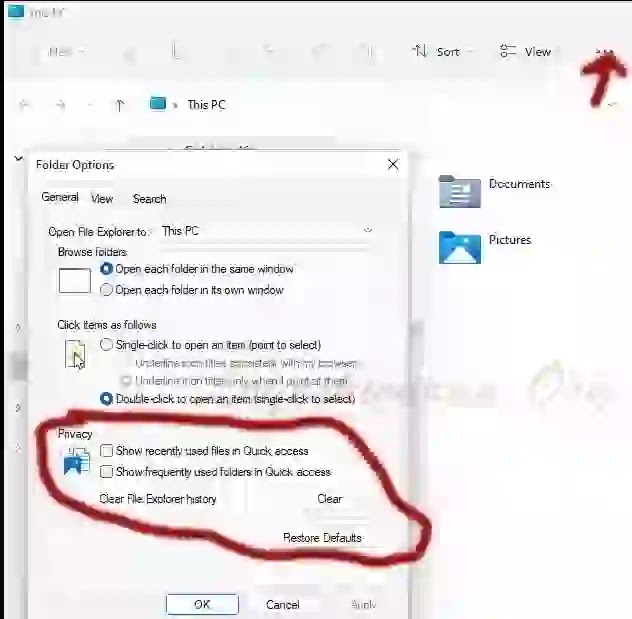
Remove All Recent Files From Quick Access Windows 11 Remove Disable Clear Turn Off Unpin Stop Quick Access Windows 11 Windows 10 Remove Recent Files From Quick Access Show Or Hide Recent How To Remove Recent Files From Quick Access In Windows 10 Add Or Remove Recent Files In File Explorer Home In Windows 11 Tutorial Windows 10 Remove Recent Files From Quick Access Web Feb 21 2022 nbsp 0183 32 1 First open File Explorer on your Windows 11 PC 2 Next click on the three dots as shown below 3 From the list that appears click on Options 4 On the Folder Options dialog switch to the General tab Under the Privacy uncheck the Show recently used files in Quick Access 5
Web May 8 2022 nbsp 0183 32 1 Delete Recent Files and Folders using Folder Options Windows 11 In Windows 11 the process to open the Folder options box is a bit different from that in Windows 10 We have Web Apr 3 2022 nbsp 0183 32 Step 1 Press the Win E shortcut keys on your keyboard to open the File Explorer window Step 2 In the File Explorer window go to the left side of the pane and select This PC Step 3 Now on the right side of the window navigate to the three parallel dots located at the upper right side click on it and select Options from the menu
Windows 10 Remove Recent Files From Quick Access How To Remove Recent Files From Quick Access In Windows 10 How To Remove Recent Files From Quick Access In Windows 10 Click How To Delete Recent Files On Windows 10 11 How To Hide Recent Files From Quick Access Section In Windows 11 10 How To Use Quick Access In Windows 11 Guiding Tech How To Remove Recent Files From Quick Access YouTube 2 Ways To Clear Recent Files In Window 10 How To Clear Windows Recent Files
Remove All Recent Files From Quick Access Windows 11
 Remove All Recent Files From Quick Access Windows 11
https://www.minitool.com/images/uploads/news/2022/03/windows-11-quick-access/windows-11-quick-access-1.png
Web Apr 9 2023 nbsp 0183 32 Method 1 Clear Quick Access from File Explorer Options This method involves using the File Explorer Options window to clear your Quick Access history Please follow the steps below Press the Windows E keys to open File Explorer
Pre-crafted templates provide a time-saving solution for producing a varied range of files and files. These pre-designed formats and layouts can be made use of for numerous personal and expert projects, including resumes, invites, flyers, newsletters, reports, discussions, and more, simplifying the content development process.
Remove All Recent Files From Quick Access Windows 11
Logeshwaran Remove Hide Delete clear Recent Files From Quick
How To Remove Recent Files From Quick Access In Windows 10

How To Remove Recent Files From Quick Access In Windows 10 Click
How To Delete Recent Files On Windows 10 11
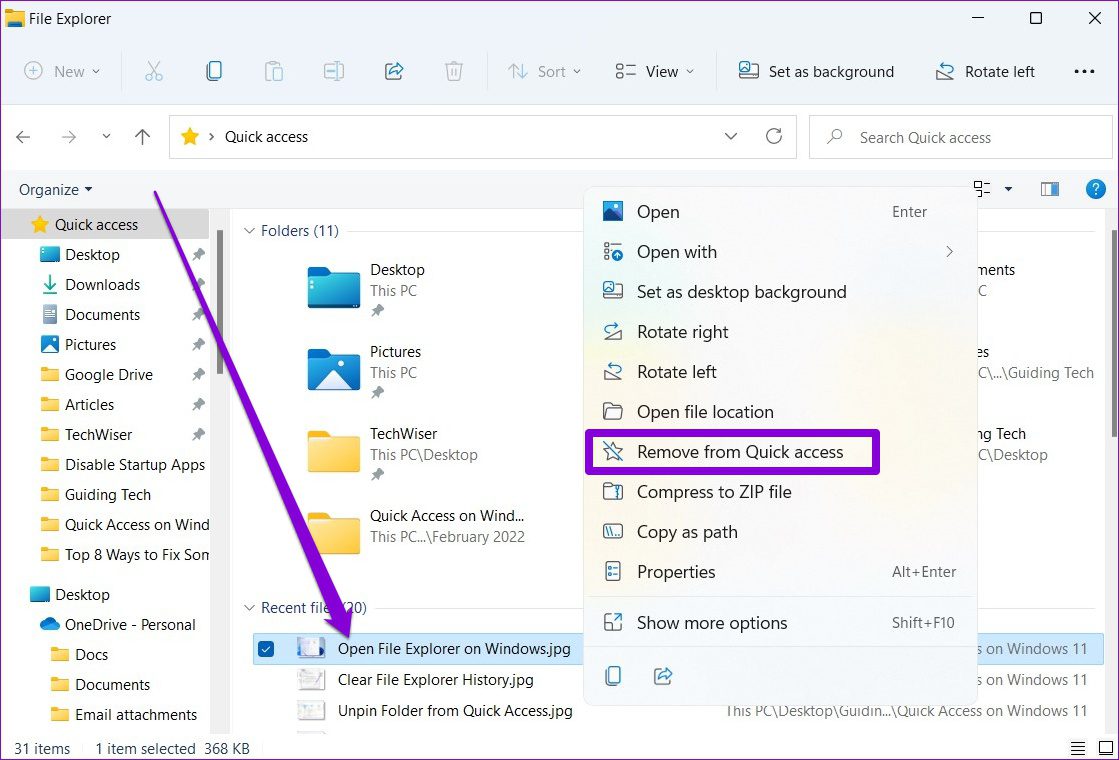
How To Use Quick Access In Windows 11 Guiding Tech

How To Remove Recent Files From Quick Access YouTube
Web Oct 4 2023 nbsp 0183 32 You can clear recent files in Windows 11 by deleting your account s File Explorer history and activity history Windows PCs display the last few files you opened in File Explorer so that you can easily use those links to quickly access the files However many users detest this feature as it exposes your recent activities Thus it may be
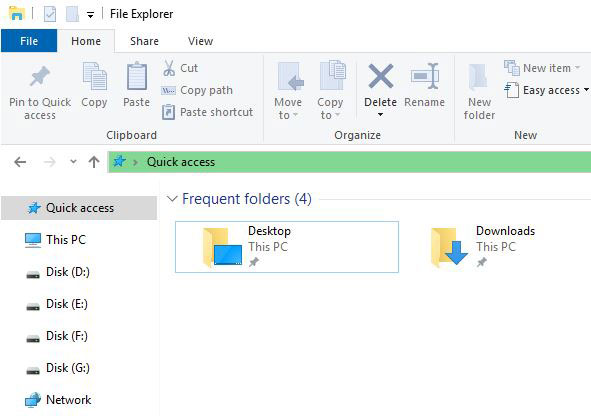
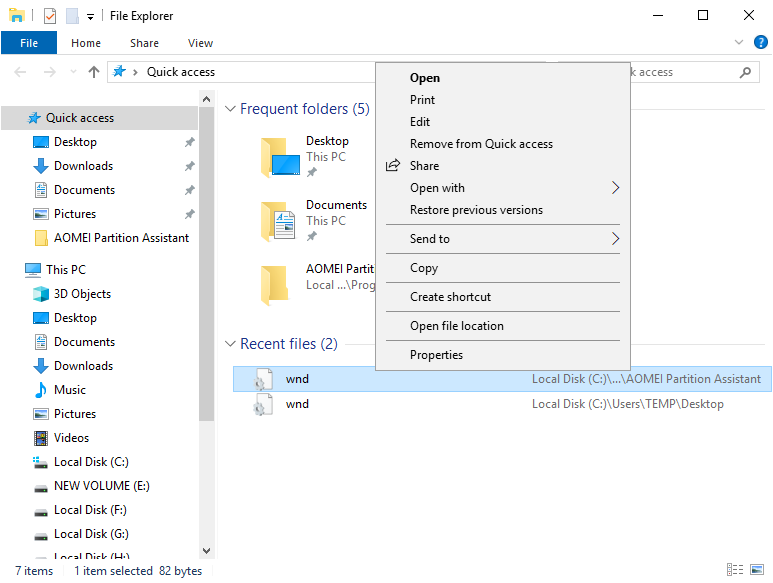
Web Oct 5 2021 nbsp 0183 32 This will delete all recently accessed or created files from the Recent Files section in File Explorer Remove File s from Recommended Section Start Menu The Start Menu in Windows 11 also shows recent files and along with

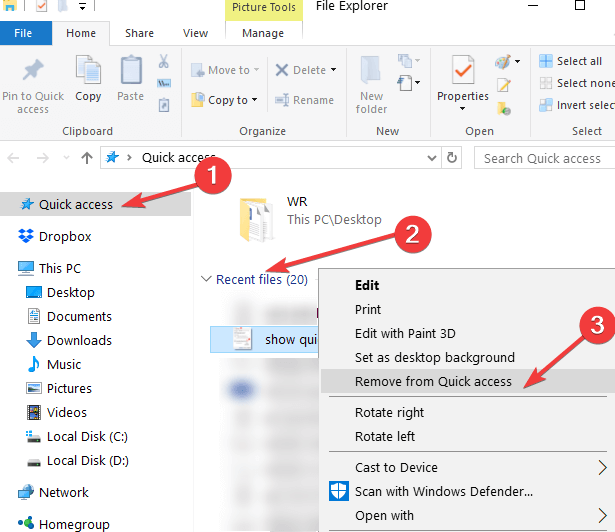
Web Apr 18 2023 nbsp 0183 32 Answer I am Dave I will help you with this At the top of File Explorer click the 3 dots and select Options On the resulting dialog click the Clear button at the bottom that will delete the list of recent files form the Quick Access section of File Explorer
Web Dec 20 2021 nbsp 0183 32 1 Press Windows E to open the File Explorer window By default it opens in the Quick Access folder Click on the three dot menu icon and select Options 2 Under the General tab click on the Clear button 3 Click on Apply to save changes How to Pin Unpin Folders from Quick Access Menu

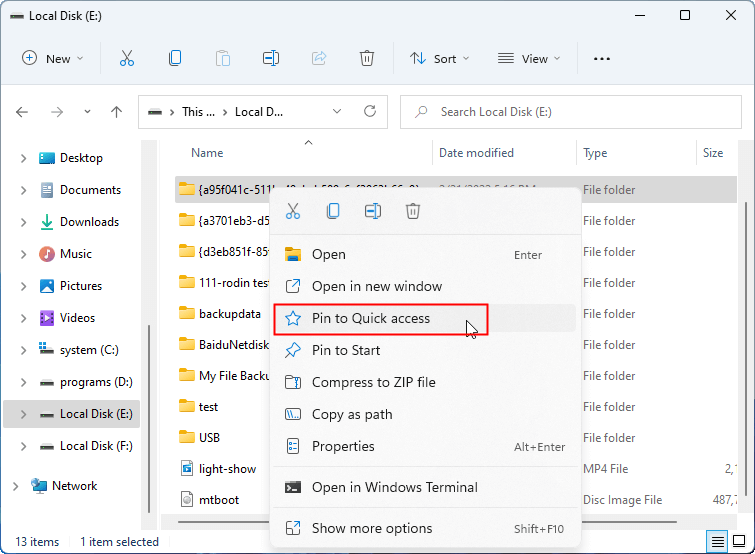
Web By default File Explorer opens to Quick Access You can set a folder to show up in Quick access so it ll be easy to find Just right click it and select Pin to Quick access Unpin it when you don t need it there anymore If you want to see only your pinned folders you can turn off recent files or frequent folders
Web Jun 3 2022 nbsp 0183 32 Option One Remove Specific Frequent Folders from Quick Access in File Explorer Home Option Two Remove Specific Frequent Folders from Quick Access in File Explorer Jump List Option Three Add or Remove Frequent Folders in Quick Access in File Explorer Home in Folder Options Web Click on the Start Menu and search for File Explorer Options and open it Next click on the General tab Under the Privacy section you can see two check box options Show recently used files in Quick access Show Frequently used folders in Quick access If you want to disable the Quick access you can uncheck these two options
Web Feb 21 2023 nbsp 0183 32 How to Remove Quick Access from File Explorer Windows 11 To completely remove quick access items from Windows Explorer follow the below guide Method 1 Launch an elevated Registry Editor Go to HKEY CLASSES ROOT CLSID 679f85cb 0220 4080 b29b