Open Terminal Here In Mac Ubuntu 18 04 Nautilus Fun Scripting 2 0 Buy Open Terminal Here For File Explorer Microsoft Store Mac OS Finder G T Wang Mac OS Finder G T Wang How To Open Terminal On Mac Basic And Advanced Functions MacViser Open Terminal On your Mac do one of the following Click the Launchpad icon in the Dock type Terminal in the search field then click Terminal In the Finder open the Applications Utilities folder then double click Terminal Quit Terminal In the Terminal app on your Mac choose Terminal Quit Terminal Quit a shell session
How to open Terminal on Mac using Launchpad Launchpad acts as a hub for your applications allowing you to access them quickly and easily Terminal can be found there 1 To open How to open the Terminal on a Mac There are two primary avenues you can use to get to the Terminal the Applications folder in your Finder or searching in Spotlight Here s a quick
How To Open Terminal On Mac Basic And Advanced Functions MacViser Armbian ROS Cache One MATLAB openEuler 21 09 Xfce Atom sublimeText Open Terminal Here Atom WebIDE Android openEuler 21 09 Xfce MATLAB MATLAB
Open Terminal Here In Mac
 Open Terminal Here In Mac
https://servercan.net/blog/wp-content/uploads/2021/08/abccab03431afe3e3067be48fa1059dd.png
Method 1 Using Finder Terminal is an app but your Mac tucks it behind a folder called Utilities along with other critical apps Here s how to discover Terminal on your Mac using Finder Open Finder on your Mac Select Applications on the left side of the app window In the sub menu scroll down until you see Utilities and select it
Pre-crafted templates provide a time-saving solution for producing a diverse variety of documents and files. These pre-designed formats and designs can be used for numerous individual and expert tasks, including resumes, invitations, flyers, newsletters, reports, presentations, and more, simplifying the material production procedure.
Open Terminal Here In Mac

Python fabric python Fabric CSDN
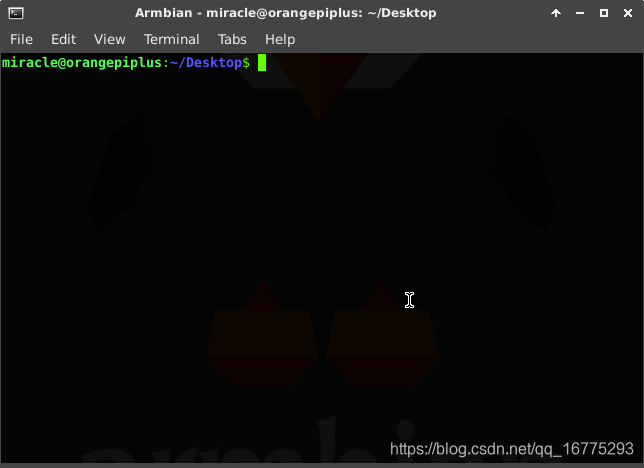
Armbian ROS Cache One

MATLAB

openEuler 21 09 Xfce

WebIDE Android

openEuler 21 09 Xfce

There are three main ways to open a new Terminal tab on your Mac without using Finder Keyboard shortcut press command T

To add Terminal shortcuts to the Services menu click on the Services category scroll down to Files and Folders and enable New Terminal at Folder and if desired New Terminal Tab at Folder Optionally you can also add keyboard combination which we recommend

Perhaps the easiest and quickest way to open Terminal is through Spotlight Search To launch Spotlight click the small magnifying glass icon in your menu bar or press Command Space When the Spotlight Search bar pops up on your screen type terminal app and hit Return Or you can click the Terminal app icon that appears

17 Answers Sorted by 191 As of Mac OS X Lion 10 7 Terminal provides Services for opening a new terminal window or tab at the selected folder in Finder They also work with absolute pathnames selected in text in any application You can enable these services with System Preferences Keyboard Keyboard Shortcuts Services

Launch the Terminal app on your Mac Hit the Terminal button in the menu bar then choose Settings Go to the Profiles tab There you will find several presets in the sidebar each having its own
1 How to Open Terminal Using Spotlight Spotlight is the quickest way to find and open documents folders and applications on your Mac Press Cmd Space to open Spotlight and start typing Terminal to search for it You should see Terminal appear at the top of your search results usually before you even finish typing Hit Return to open it Type terminal Then you can either double click or tap the Terminal search result or select it from the results and press Return on your keyboard Finding the Terminal app via Spotlight 2 Open the Terminal from Applications Another way is to open your Applications folder Press the F4 key to do that
Open new Terminal windows with a specific profile In the Terminal app on your Mac do one of the following Choose Shell New Window then choose a profile from the list of profiles at the end of the menu Choose Terminal Settings then click Profiles In the profiles list double click the icon for the profile you want to use