Mac Disable Sleep Command Line Command Line Mac Tools Command Line For Mac Tutorial Bezycal Find Out What Program Is Interrupting Windows Sleep Mode CNET Command Line Arguments The Apple Watch 5 Needs Sleep Tracking Not An Always on Display To make the caffeinate command stop running and return your Mac to normal using either of the methods above simply return to the command line and press the Control C keyboard combination A Warning
From a Terminal use the following command to disable hibernation sudo pmset a hibernatemode 0 If you later want to enable hibernation use sudo pmset a hibernatemode 3 If you want to free up the disk space used by hibernation use the following command sudo rm var vm sleepimage To set the timer to 60 minutes the command is sudo systemsetup setcomputersleep 60 If you want the computer to not go to sleep put NEVER at the end of the command sudo systemsetup
The Apple Watch 5 Needs Sleep Tracking Not An Always on Display Linux Command Line Tips And Tricks MyBlueLinux COM Turn A Command Line Tool Into A REST API With Azure Functions Turn a Learn Command Line In Mac Linux Command Line Tutorial Command Line Install Module Odoo Windows 10 Command Line Cheat Sheet DocsLib Command Line Terminal Cmd Command PNG And Vector With Transparent Cloudmapper OSCHINA How To Use Sleep Command In Linux Explained With Examples
Mac Disable Sleep Command Line
 Mac Disable Sleep Command Line
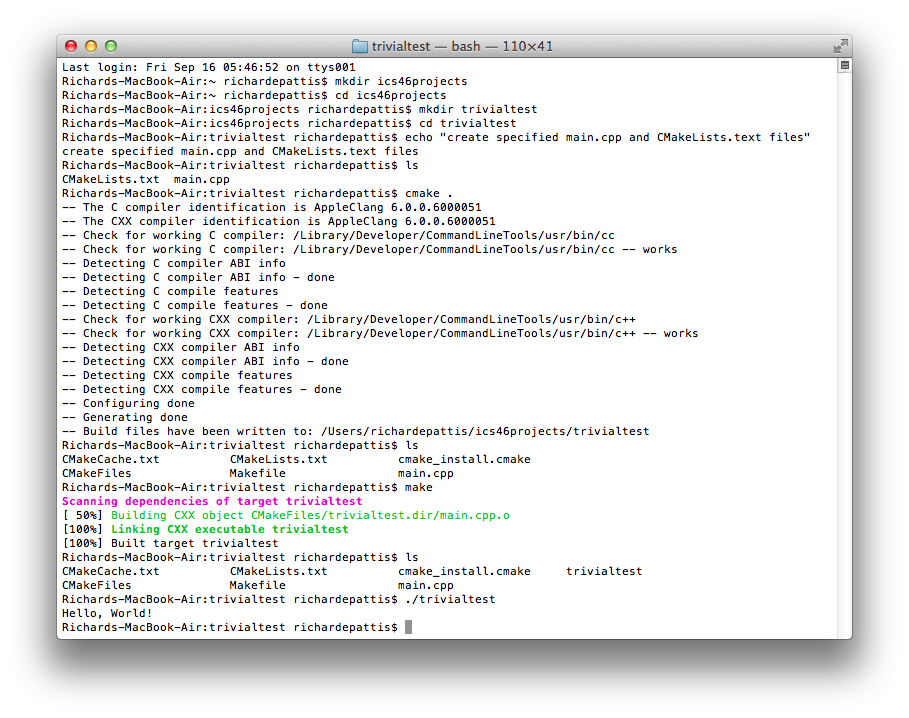
https://www.ics.uci.edu/~pattis/common/handouts/macclion/images/commandline/trivialtest.png
1 Click the Apple logo in the top left of your screen and select System Preferences 2 Open Energy Saver 3 In the Energy Saver panel locate the Turn display off after slider 4 Slide to Never to permanently keep your Mac from sleeping
Pre-crafted templates offer a time-saving solution for producing a varied variety of documents and files. These pre-designed formats and designs can be made use of for various personal and expert projects, consisting of resumes, invitations, flyers, newsletters, reports, discussions, and more, simplifying the material creation procedure.
Mac Disable Sleep Command Line
Gif To Mp4 High Quality
Linux Command Line Tips And Tricks MyBlueLinux COM

Turn A Command Line Tool Into A REST API With Azure Functions Turn a

Learn Command Line In Mac Linux Command Line Tutorial

Windows 10 Command Line Cheat Sheet DocsLib

Command Line Terminal Cmd Command PNG And Vector With Transparent
When the Terminal window opens enter the following combination in it pmset g grep hibernatemode and press Enter The Terminal will show you the sleep mode for your Mac hibernatemode 0 standard sleep hibernatemode 1 hibernate mode for pre 2005 portable MacBooks hibernatemode 3 safe sleep hibernatemode 25 for post 2005 MacBooks

1 Open Terminal If you re not sure how read our guide on how to open Terminal on Mac 2 Type caffeinate and hit Enter Image credit Future And you re done Your Mac will now stay awake

Pull down the Apple menu and go to System Settings Go to Displays Click on Advanced Toggle the switch for Prevent automatic sleeping on power adapter when the display is off Now the Mac display can turn off while keeping the Mac itself from going to sleep

To keep your Mac from sleeping change the Energy Saver settings in System Preferences You can disable sleep mode temporarily by running the caffeinate command in Terminal Scheduling your Mac

To stop the process from running you can press Ctrl C which will instantly end the process and return you to the command prompt While running caffeinate will leave a blank prompt For some situations such as while watching a movie this may be fine
On your Mac choose Apple menu System Settings then click Lock Screen in the sidebar You may need to scroll down Do any of the following Click the pop up menu next to Turn display off on battery when inactive on the right then choose an option Open the Terminal application and use the command as per your need Prevent the display from sleeping caffeinate d Prevent the system from idle sleeping caffeinate i Prevent the disk from idle sleeping caffeinate m Prevent the system from sleeping when system is running on AC power
The caffeinate command also lets you specify which parts of your Mac stay awake Adding i to the end of the command prevents your Mac from idle sleeping You can also end the command with s d or m instead s keeps your whole system awake d prevents your display from going to sleep m prevents disks from