Linux Show Network Interfaces How To List Network Interfaces In Linux How To Check Network Interface Details In Linux BlackMORE Ops Linux Show Display Available Network Interfaces NixCraft Proxmox Network Interface Setup Via Command Line YouTube Linux Guides The Linux system distinguishes two types of network interfaces the physical network interface and the virtual network interface A physical network interface represents a network hardware device such as NIC Network Interface Card WNIC Wireless Network Interface Card or a modem
I booted a system yesterday with an ethernet cable plugged in NetworkManager is not installed so once it started I went to look for the name of the ethernet interface with ifconfig to start a DHCP client manually but it did not show anything other than lo The NIC was listed via lspci and the appropriate kernel driver was loaded The ip command is one of the basic commands every administrator will need in daily work from setting up new systems and assigning IPs to troubleshooting existing systems The ip command can show address information manipulate routing plus display network various devices interfaces and tunnels
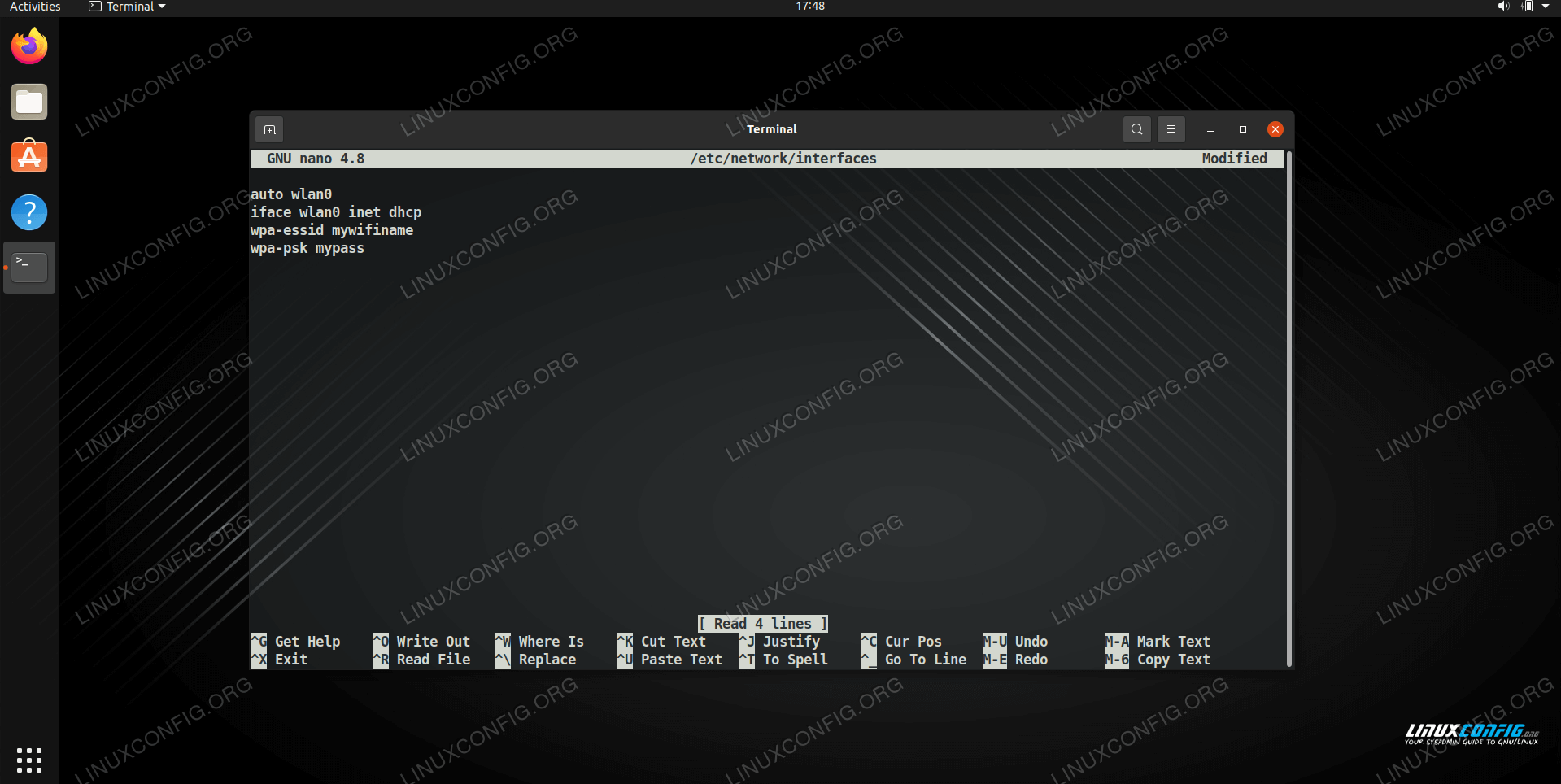
Linux Guides How To Switch Back Networking To etc network interfaces On Ubuntu 20 etc network interfaces To Connect Ubuntu To A Wireless Network Linux Perbedaan Linux Dan Windows Secara Umum Riset Ubuntu IP How To Find Your Wireless Network Interface Name In Linux Mint Ubuntu Linux Ubuntu Linux Static IP Configuration In Ubuntu 22 04 And Debian 7 8 Configuring Network Interfaces In Proxmox Linux Level1Techs Forums
Linux Show Network Interfaces
 Linux Show Network Interfaces
https://linuxopsys.com/wp-content/uploads/2022/07/ip-addr-1.png
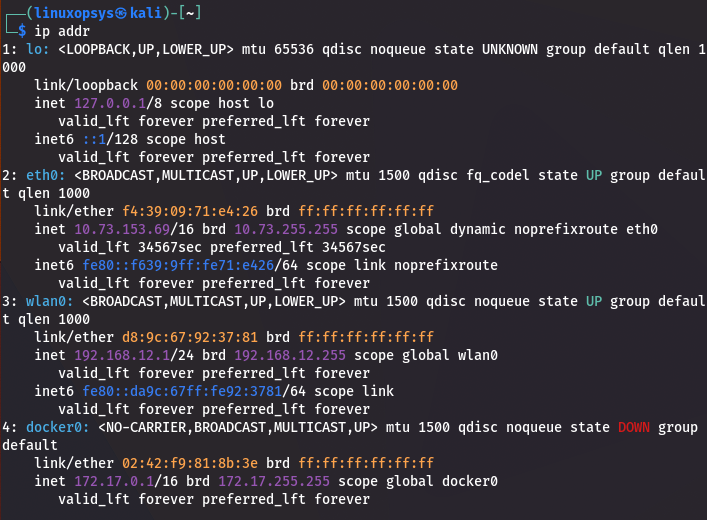
Listing of Network Interfaces in Linux Here are some common ways to list available interfaces in Linux 1 Using the ip Command Displays the status and properties of all network interfaces It s a modern command for managing network settings and often preferred in current Linux distributions ip addr show 2
Templates are pre-designed documents or files that can be used for different purposes. They can save effort and time by providing a ready-made format and design for developing different kinds of material. Templates can be utilized for personal or expert projects, such as resumes, invitations, leaflets, newsletters, reports, discussions, and more.
Linux Show Network Interfaces

Linux Create Virtual Network Interface Linux Tutorials Learn Linux

How To Switch Back Networking To etc network interfaces On Ubuntu 20
etc network interfaces To Connect Ubuntu To A Wireless Network Linux

Perbedaan Linux Dan Windows Secara Umum Riset
How To Find Your Wireless Network Interface Name In Linux Mint Ubuntu

Linux

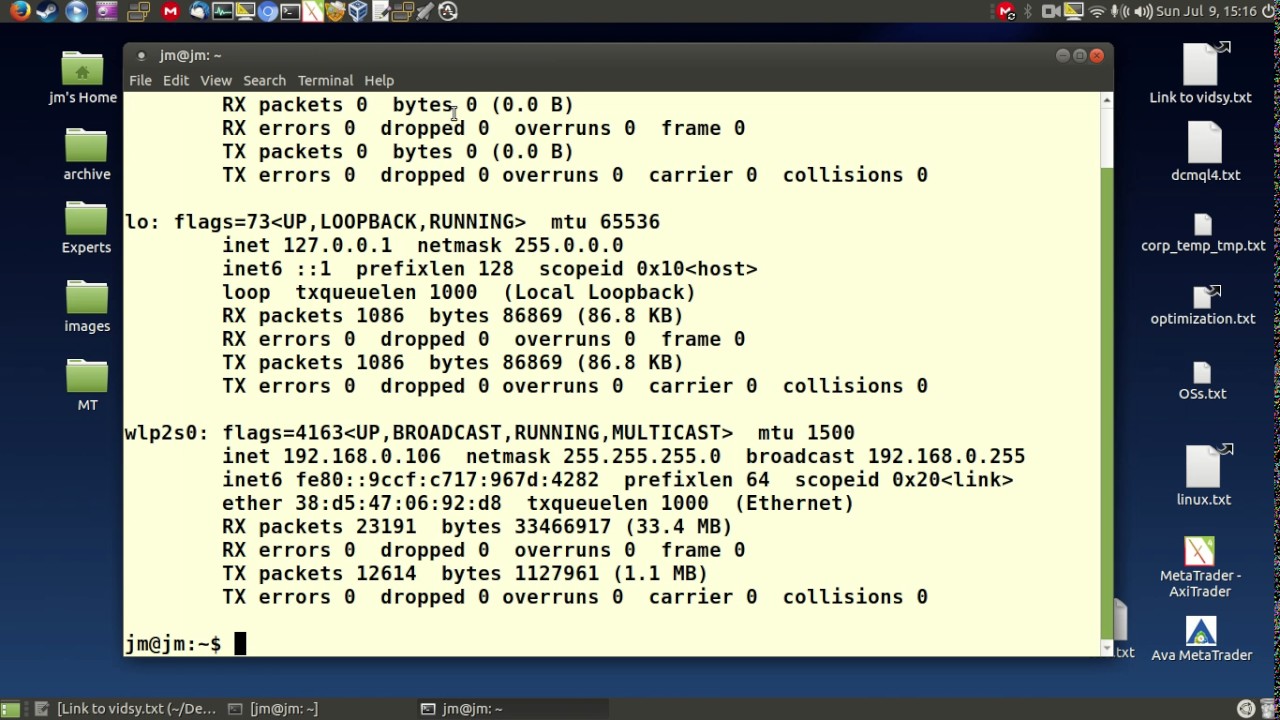
Procedure to get network interfaces in Linux Open the terminal application Type ifconfig a or ip addr or ip link show Press Enter to run the command The output will list all the network interfaces

Listing available network interfaces in Linux Here learn 11 ways to list available network interfaces in Linux 1 Using ip command The ip command is a powerful modern substitute for the popular ifconfig command It is one of the most popular and simple methods for listing network interfaces

Introduction Understanding Network Interfaces in Linux Command 1 ifconfig Command 2 ip Command 3 NetworkManager and nmcli Displaying All Network Interfaces Enabling and Disabling a Network Interface Setting a Static IP Address for an Ethernet Interface Additional Concepts and Tools

Lspci command List all PCI devices lshw command Linux identify Ethernet interfaces and NIC hardware dmidecode command List all hardware data from BIOS ifconfig command Outdated network config utility ip command Recommended new network config utility hwinfo command Probe Linux for network cards

The network interface is nothing but a software component usually implemented in the kernel and allows you to communicate using the network hardware They could be Ethernet Wireless Bluetooth etc In this tutorial I will walk you through multiple ways to list the network interfaces along with their details in Ubuntu 1 Using
[desc-11] [desc-12]
[desc-13]