Kill A Process Using Cmd How To Kill A Process In Windows How To Kill All The Processes In Windows 10 11 EaseUS Taskkill CMD Command Kill Processes In Windows How To Kill A Process In Command Prompt 7 Steps with Pictures Is It Possible To Kill A Process On Its Startup 3 Solutions YouTube The easiest way to get these is on the Details tab of the Task Manager Once you have the name of the process a simple tskill is all it takes tskill chrome If you have already migrated to the Command Prompt s older brother PowerShell it is much simpler Get Process Where Name Like chrome Stop Process
We show you how to kill a process in Windows 10 with Task Manager Command Prompt s taskkill PowerShell and third party tools For the most part Windows programs function just fine but when To start the interface run the command top To kill a specific process press k when in the interface and then enter the PID of the process you want to terminate Note Learn how to use the nohup command to block the SIGHUP signal and allow processes to complete even after logging out from the terminal shell
Is It Possible To Kill A Process On Its Startup 3 Solutions YouTube How To Kill Multiple Processes In One Cmd How Do I Kill Processes In Ubuntu Linux Genie Linux Kill Process By PID Kill Windows Processes Using CMD RAM4T7 How To Find The Process ID Of A Program And Kill It In Linux Kill Pid All Answers Ar taphoamini How To Kill Process By ID Linux Tutorials Learn Linux Configuration Command Prompt Basics Kill Processes Tasks Tutorial 7 YouTube
Kill A Process Using Cmd
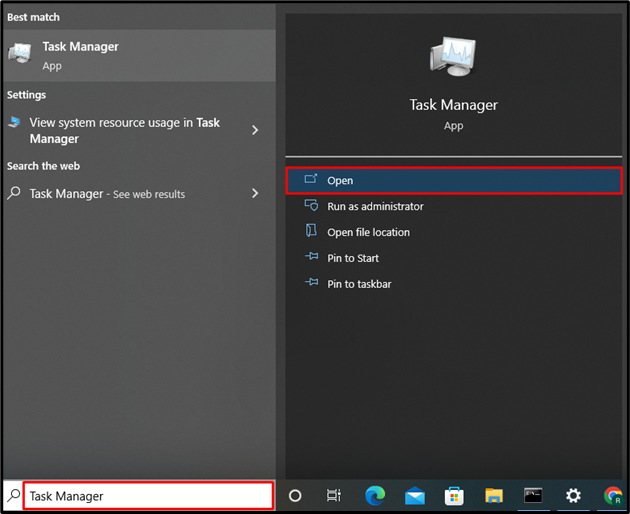 Kill A Process Using Cmd
https://linuxhint.com/wp-content/uploads/2022/08/How-to-Kill-a-Process-in-Windows-1.png
Sorted by 40 In Windows XP you can do this easily using WMIC the WMI Console From a command prompt type the following wmic Path win32 process Where CommandLine Like jar selenium server jar Call Terminate Edit I replaced the alias process by it full path path win32 process as is Aviator s port
Pre-crafted templates provide a time-saving service for developing a varied variety of files and files. These pre-designed formats and layouts can be utilized for various individual and professional projects, including resumes, invites, flyers, newsletters, reports, presentations, and more, enhancing the content development procedure.
Kill A Process Using Cmd
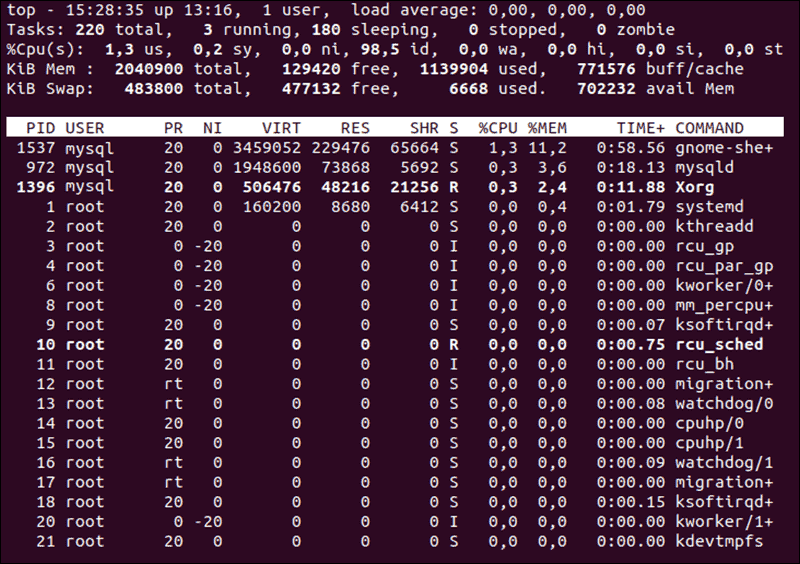
Linux Kill Process How to s Tutorials Community Support

How To Kill Multiple Processes In One Cmd
How Do I Kill Processes In Ubuntu Linux Genie
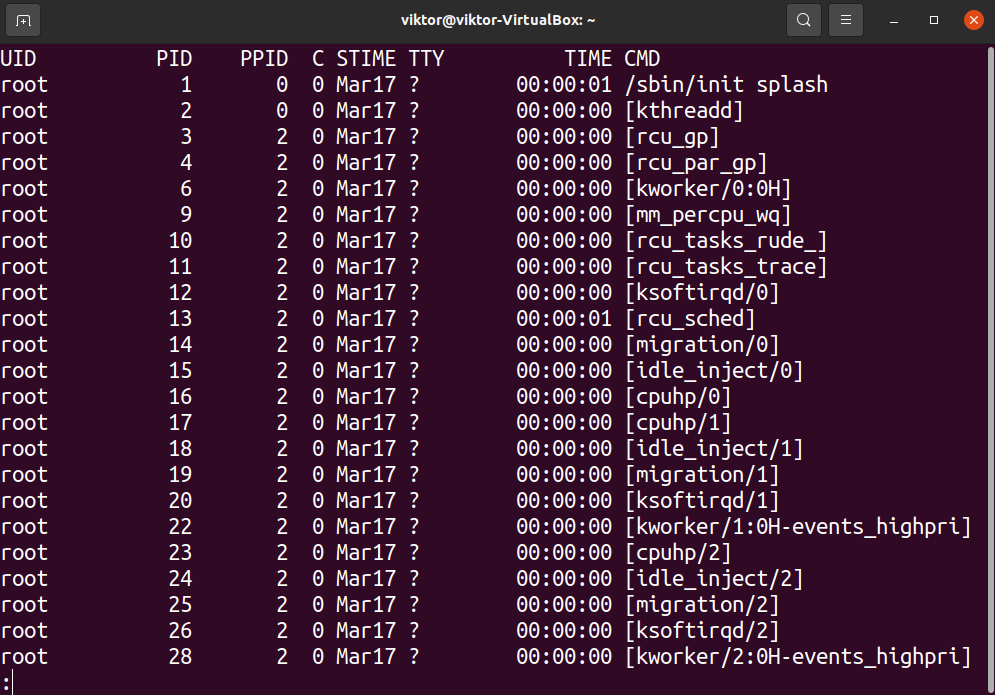
Linux Kill Process By PID
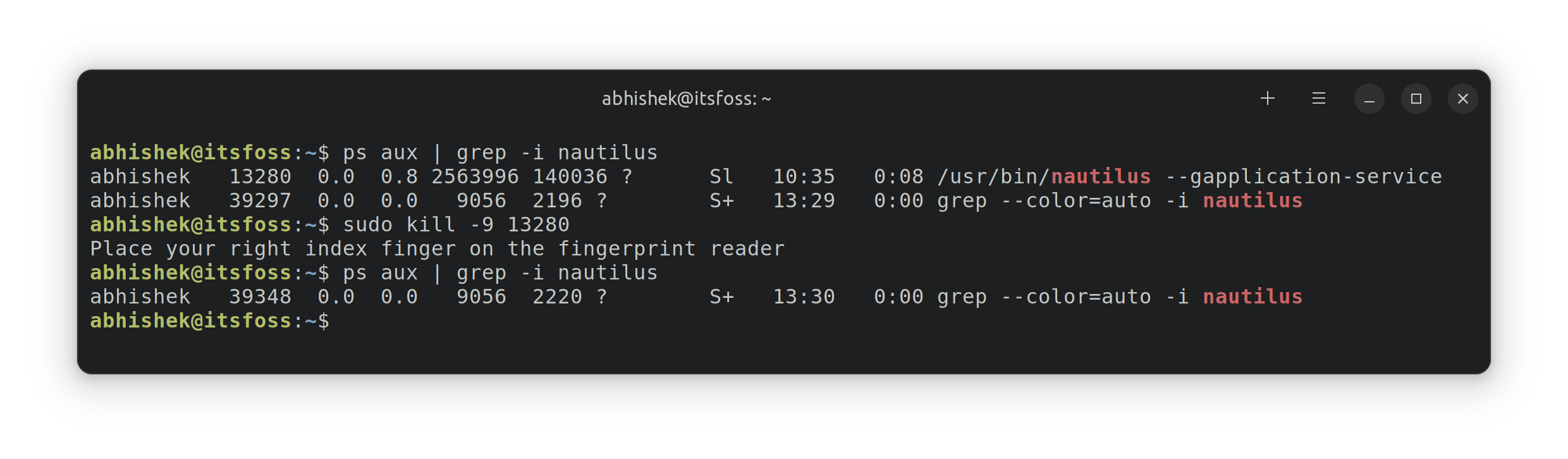
How To Find The Process ID Of A Program And Kill It In Linux
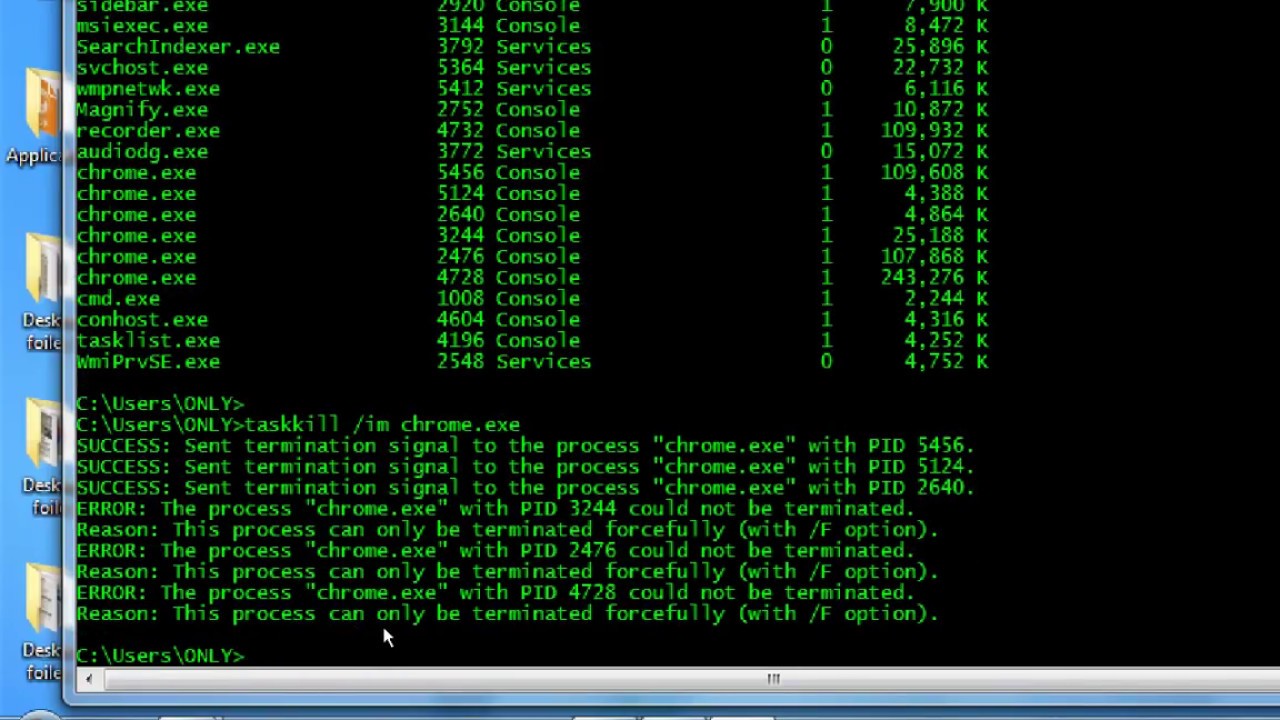
Kill Pid All Answers Ar taphoamini
To kill Windows explorer the following command would work C taskkill F IM explorer exe SUCCESS The process explorer exe with PID 2432 has been terminated The above command would make all GUI windows disappear You can restart explorer by running explorer from cmd C explorer Not using F option would send a terminate signal

Note down the name of the process that you want to kill Now use the following command to kill a process using its name PsKill exe ProcessName Kill process using PsKill As you can see from the image above the respective process will be killed and the associated service or program will be terminated
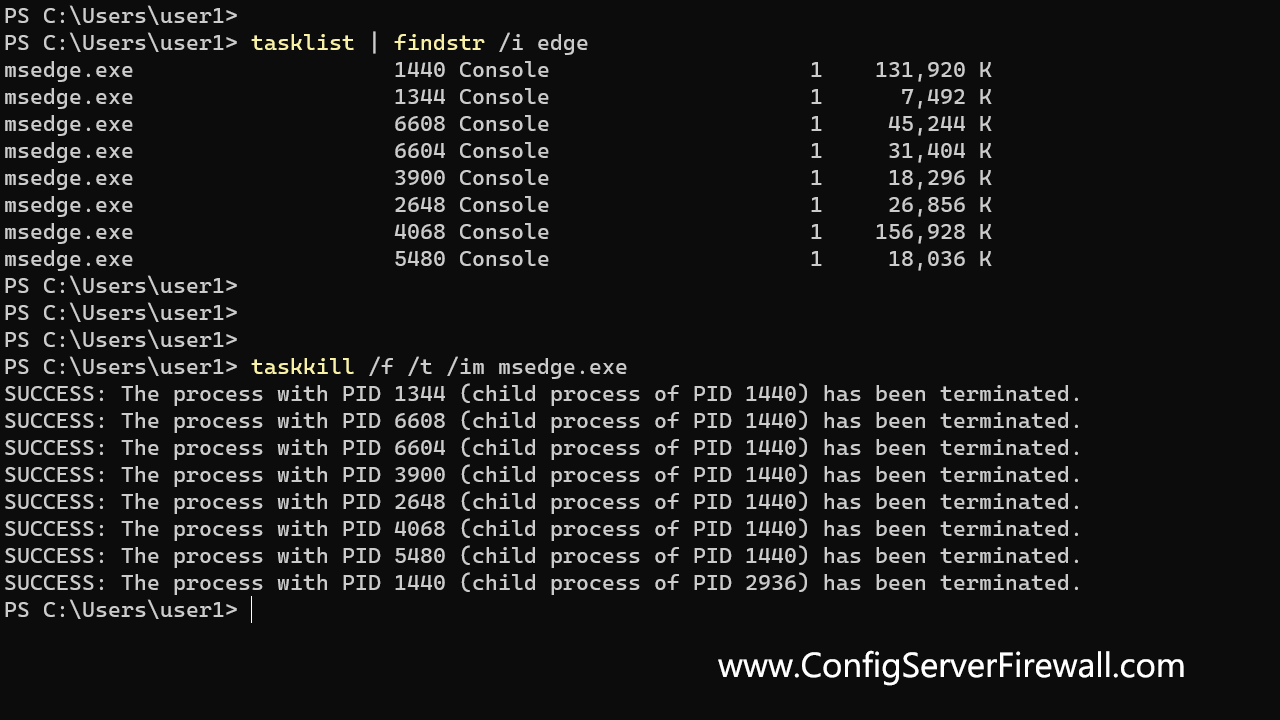
Here s how to do that Step 1 Type PowerShell in the Search box and then right click the Windows PowerShell app and select Run as administrator Then click on Yes to confirm that Step 2 In the elevated PowerShell window type the following command and hit Enter to show all the running processes on your system

Using Command Prompt to Kill a Process in Windows If you prefer command line tools then you can kill a process using CMD too The Command Prompt gives access to many useful utilities including one called Taskkill As the name suggests you can use Taskkill to kill any running task or process If you run CMD as an administrator you can even

Right click the first result that appears in the Start menu and click Run as Administrator If a User Account Control dialog appears click Yes on it 3 Type taskkill f im into Command Prompt 4 Space at least once after completing the previous step type a quotation mark type the name of the process you want to kill then type another
A Type the command below you want to use into the command prompt and press Enter see screenshot below To forcefully kill only this process taskkill PID PID F OR To forcefully kill this process and any child processes started by it taskkill PID PID T F Substitute PID in the command above with the actual PID ex 5228 from step 2 above for the process you want to kill Kill Process by Port List all Windows processes listening on TCP and UDP ports and find the PID of a process running on a specific port C netstat ano findstr port Find the name of a process by its PID C tasklist FI pid eq process id Kill the process by name or by PID C taskkill IM process name exe
Parameter Description s computer Specifies the name or IP address of a remote computer do not use backslashes The default is the local computer u domain username Runs the command with the account permissions of the user who is specified by username or by domain username The u parameter can be specified only if s is also specified The default is the permissions of the