How To View Text File In Linux How To Create And Edit Text File In Linux By Using Terminal Unix Linux How To Search The Word After The Specific Line In The How To Create A File In Linux Any Distro How To Create And Edit Text File In Linux By Using Terminal How To Display The Contents Of A Text File On The Terminal In Linux Ubuntu The cat command is a simple and extremely useful command for viewing file contents on Linux You can use the cat command to quickly print file content to the standard output in the terminal or alternatively concatenate the output The syntax for the cat command is as follows cat OPTION FILE1
The simplest way to view text files in Linux is the cat command It displays the complete contents in the command line without using inputs to scroll through it Here is an example of using the cat command to view the Linux version by displaying the contents of the proc version file Head The usual way to view the contents of a file is to simply open it in a text editor However for more quick viewing and in fact also for automating in a shell script the method of using a text editor does not suit There are many commands in Linux to solve this problem to display the file contents on the command line
How To Display The Contents Of A Text File On The Terminal In Linux Ubuntu Linux How To Read Write And Edit Text Files YouTube How To Edit A File In Linux ARZ Host How To Install so File In Linux LinuxForDevices How To Create And Edit Text File In Linux By Using Terminal How To View Contents Of Text File In Linux Shell Terminal YouTube Search A File In Linux Using Find Locate Command By The Linux GURUS How To List Hidden Files In Linux YouTube How To Create And Edit Text File In Linux By Using Terminal
How To View Text File In Linux
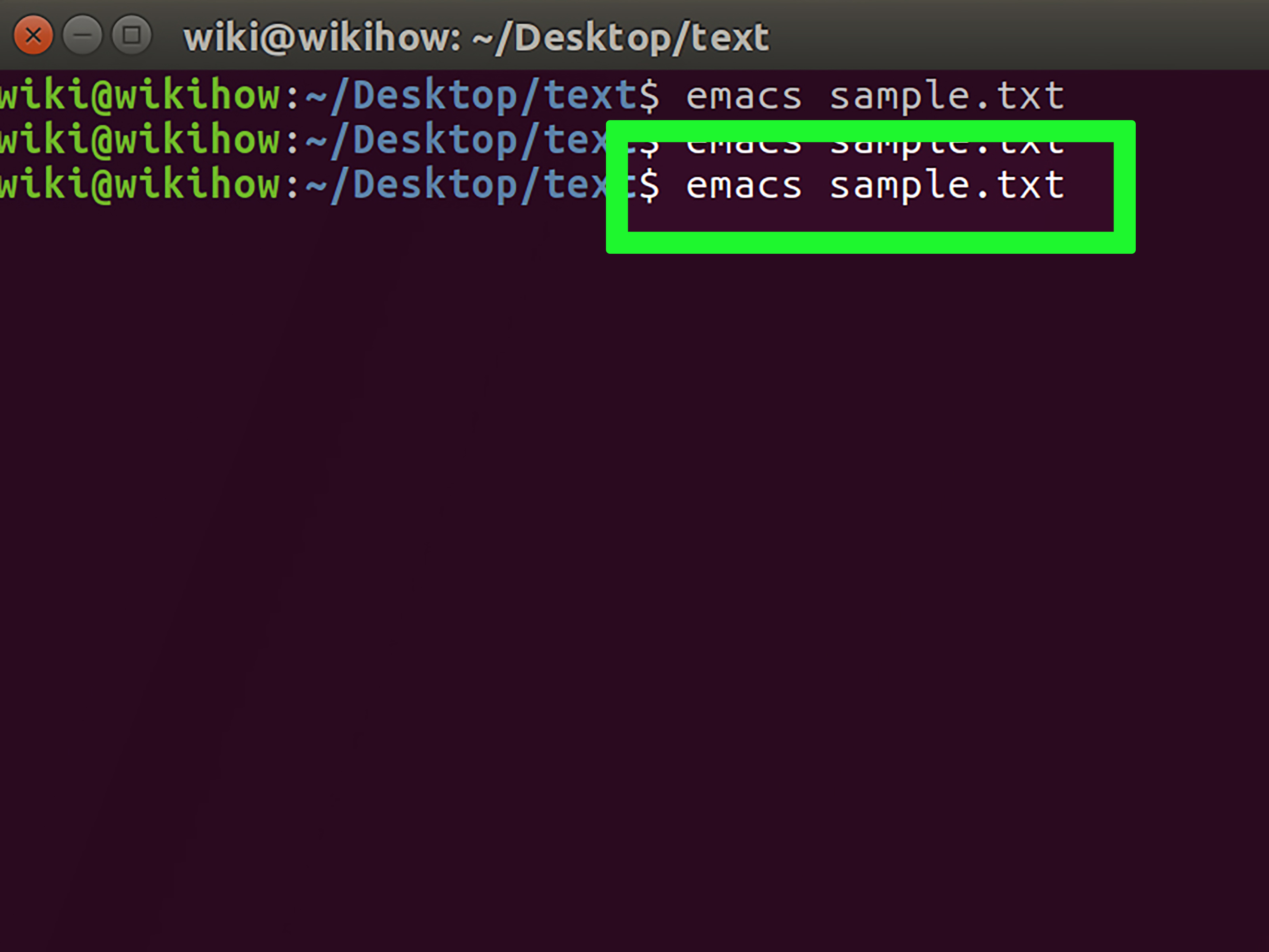 How To View Text File In Linux
https://tipsmake.com/data/thumbs/how-to-create-and-edit-text-file-in-linux-by-using-terminal-thumb-XqKMtXrw1.jpg
1 Cat The cat utility is one of the most used commands for viewing file content in Linux You can use the command for concatenating and printing standard file output To view the contents of a file using cat simply type the command name followed by the file you want to view cat etc passwd
Pre-crafted templates offer a time-saving solution for producing a varied series of documents and files. These pre-designed formats and layouts can be utilized for numerous individual and professional projects, consisting of resumes, invites, flyers, newsletters, reports, presentations, and more, simplifying the material production process.
How To View Text File In Linux
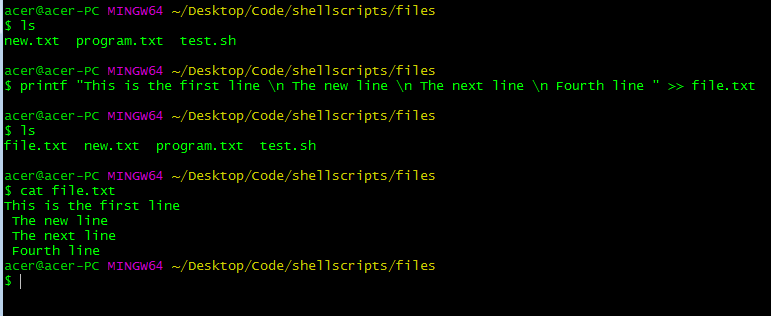
C mo Crear Un Archivo De Texto Usando La L nea De Comandos En Linux
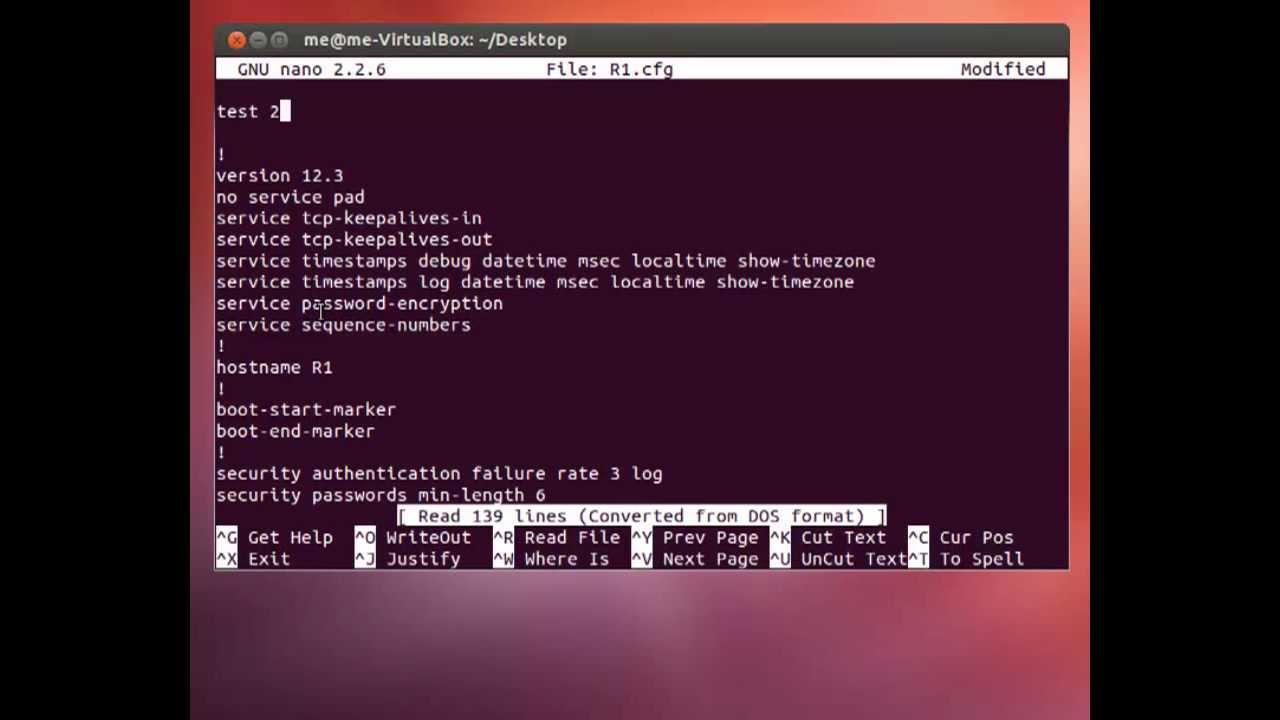
Linux How To Read Write And Edit Text Files YouTube

How To Edit A File In Linux ARZ Host

How To Install so File In Linux LinuxForDevices

How To View Contents Of Text File In Linux Shell Terminal YouTube

Search A File In Linux Using Find Locate Command By The Linux GURUS
Cat directly shows a text file in the terminal For longer files less lets you scroll and search text to search Enter in the file press q to exit e g cat home john RESULTS txt less home john RESULTS txt

Using less If you have to view the contents of a longer file you can use a pager such as less less filename You can make less behave like cat when invoked on small files and behave normally otherwise by passing it the F and X flags less FX filename
Ls l directory txt The above command executes ls with the l option which gives a detailed list of files in the current directory The operator redirects the output to the file directory txt instead of printing it to the screen If

The cat command is the most popular method to view files in Linux It is dead simple to use Just give it the file name and it displays the file content on the screen Things cannot go simpler than this cat filename Can you try displaying the contents of the columbo txt file cat columbo txt This is the output it shows
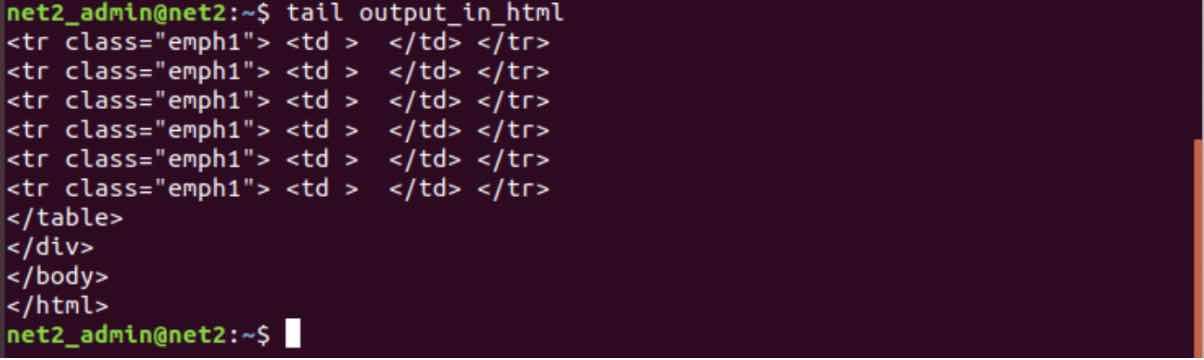
The easiest way to view any text file is to type cat followed by the name of the file If the file is short enough then you ll see the entire text just displayed flat on the screen Otherwise it will start to scroll up Fortunately on modern devices you can maximize the terminal window to add more space
[desc-11] [desc-12]
[desc-13]