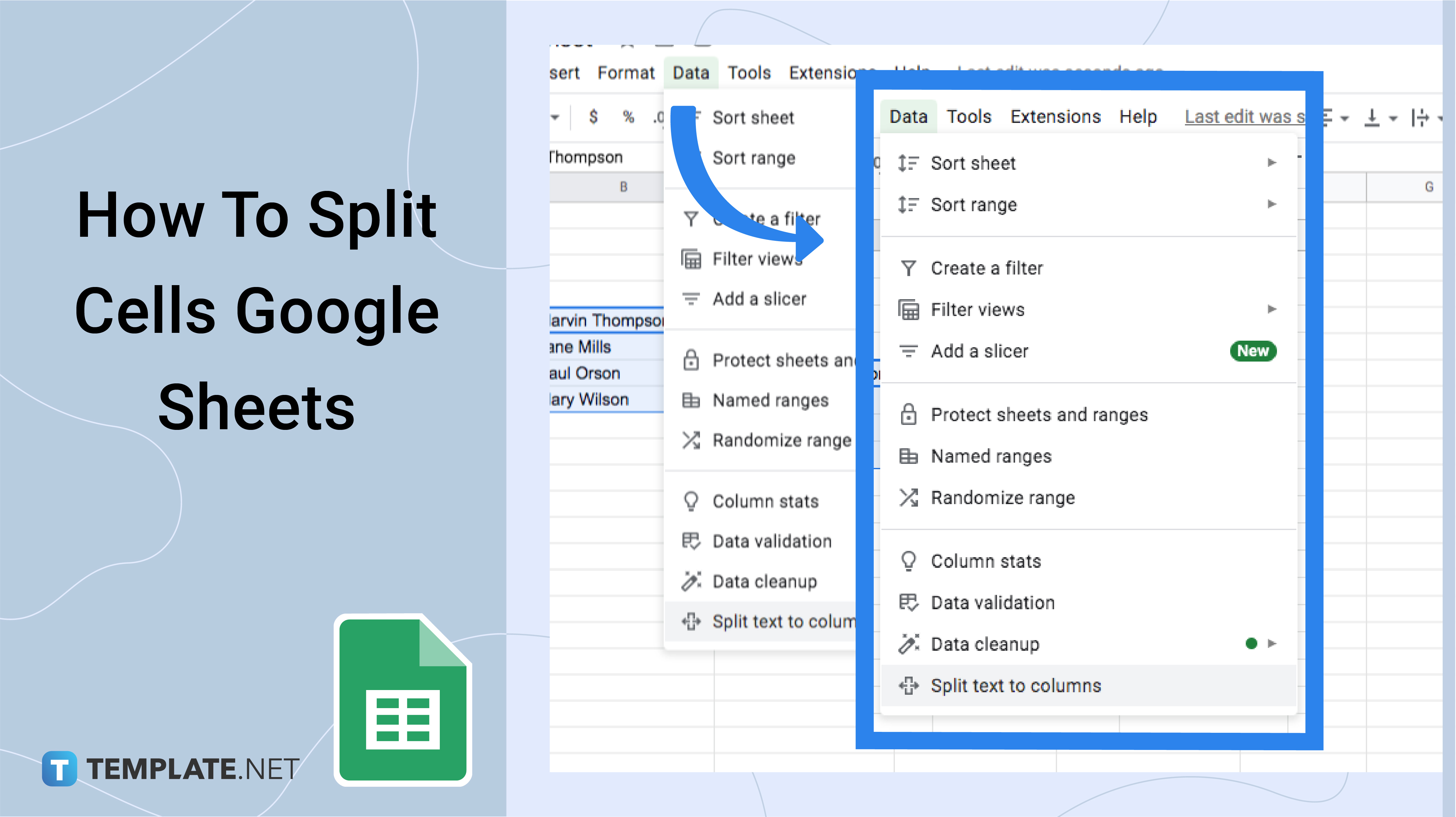
How To Split Cells In Google Sheets How To Split Cells In Google Sheets Split In Google Sheets Iweky Google Sheets Split Cells Tips And Tricks XMASuiteTips From Partner C ch T ch Trong Google Sheets Th nh C t V Chuy n C t Th nh H ng How To Split Cells And Columns In Google Sheets Positsum Images 1 Split text to columns option The fastest way to split cells in Google Sheets is to use the Split text to columns option in the Data menu To demonstrate an example let s import a sample Zendesk dataset into Google Sheets using Coefficient Read our blog on how to connect Zendesk to Google Sheets for a full walkthrough of the process
Formula Syntax The SPLIT function requires you to specify the cell to split and the delimiter used inside the cell The formula takes the cell reference as its first argument and the delimiter as the second argument The formula takes this Step 1 Select the cell you want to split then go to the Data menu and choose the Split Text To Columns option Step 2 Your data will be automatically split into columns Note that Google Sheets will look at the data and try to determine what character to use as a separator to split the text
How To Split Cells And Columns In Google Sheets Positsum Images How To Split Cells In Google Docs Spreadsheet 6 Steps How To Split Cells In Google Sheets In 3 Easy Steps How To Split Cells In Google Sheets How To Split Cells In Google Sheets Coupler io Blog How To Split Cells In Google Sheets Youtube Www vrogue co Split A Column In Google Sheet YouTube How To Split Cells In Google Sheets Coefficient How To Split Cells In Google Sheets
How To Split Cells In Google Sheets
 How To Split Cells In Google Sheets
https://blog.cometdocs.com/wp-content/uploads/split-cells-criteria-google-sheets.png
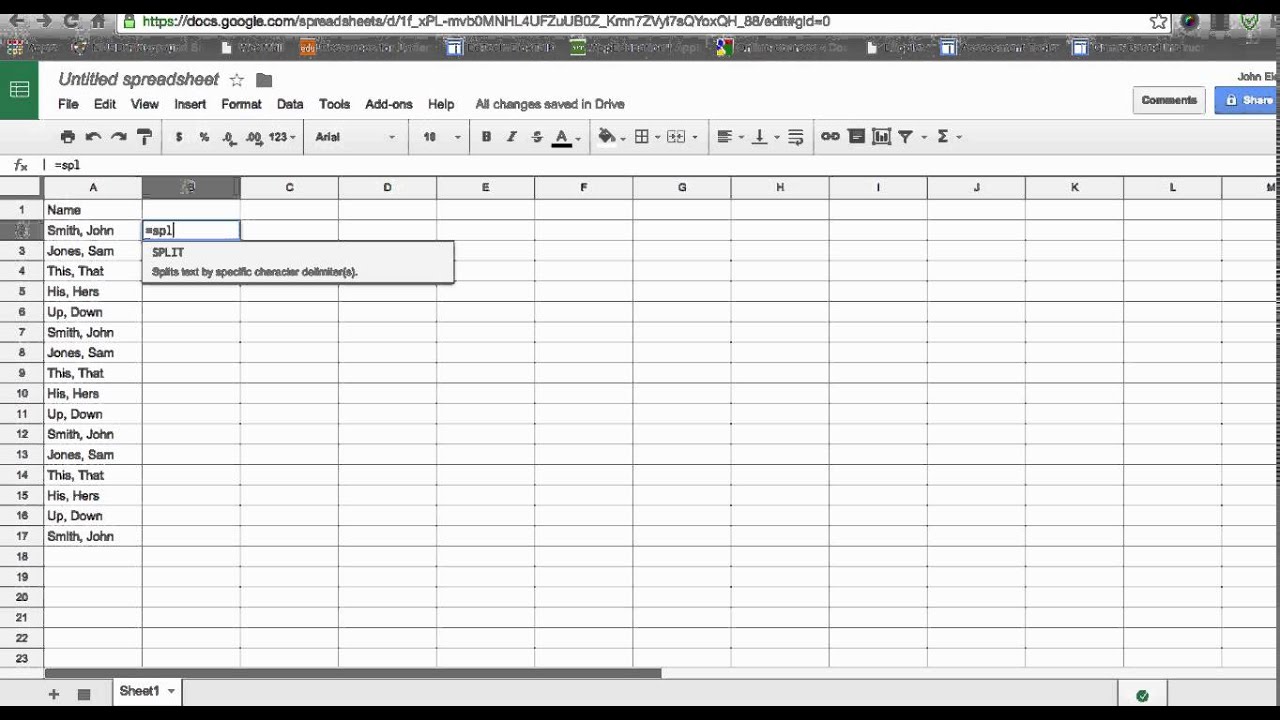
Step 1 Identify what separates your text a singular space Step 2 Go to the cell where you want your output to land B2 Step 3 Use the following syntax on the identified cell FORMULA split A2 or split A2 true true Step 4 Copy the formula down or autofill to the other cells in Column B Example Separating Names
Pre-crafted templates offer a time-saving option for developing a diverse series of documents and files. These pre-designed formats and designs can be used for numerous personal and professional jobs, consisting of resumes, invitations, leaflets, newsletters, reports, discussions, and more, improving the material development procedure.
How To Split Cells In Google Sheets

Split Cells Example Google Sheets

How To Split Cells In Google Docs Spreadsheet 6 Steps

How To Split Cells In Google Sheets In 3 Easy Steps

How To Split Cells In Google Sheets
How To Split Cells In Google Sheets Youtube Www vrogue co
Split A Column In Google Sheet YouTube

1 Using Split Text to Columns Feature To start let s split the required cells without applying any formula We can use the Split Text to Columns feature to separate values around a single delimiter There are two ways to apply the Split Text to Columns feature as described in the sections below 1 1 Applying from Clipboard Menu

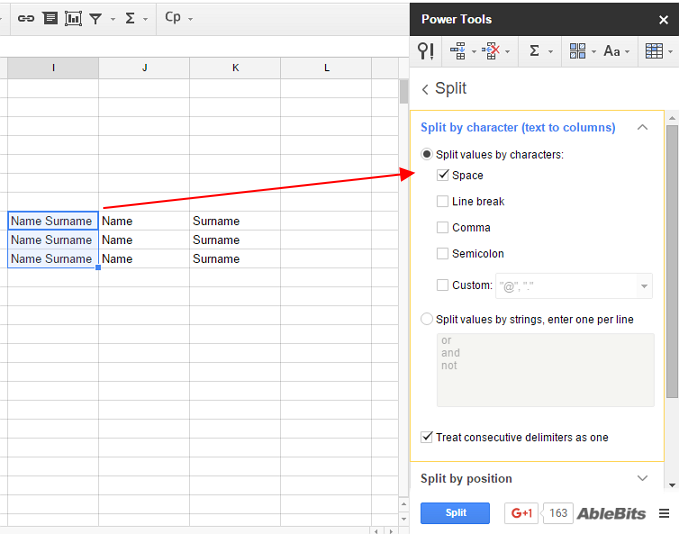
1 Standard tool to split text to columns in Google Sheets Two huge drawbacks of the standard tool 2 SPLIT function for Google Sheets 3 How to separate text in Google Sheets with the Power Tools add on Split text to columns by character Split cells in Google Sheets by position Video How to split cells in Google Sheets
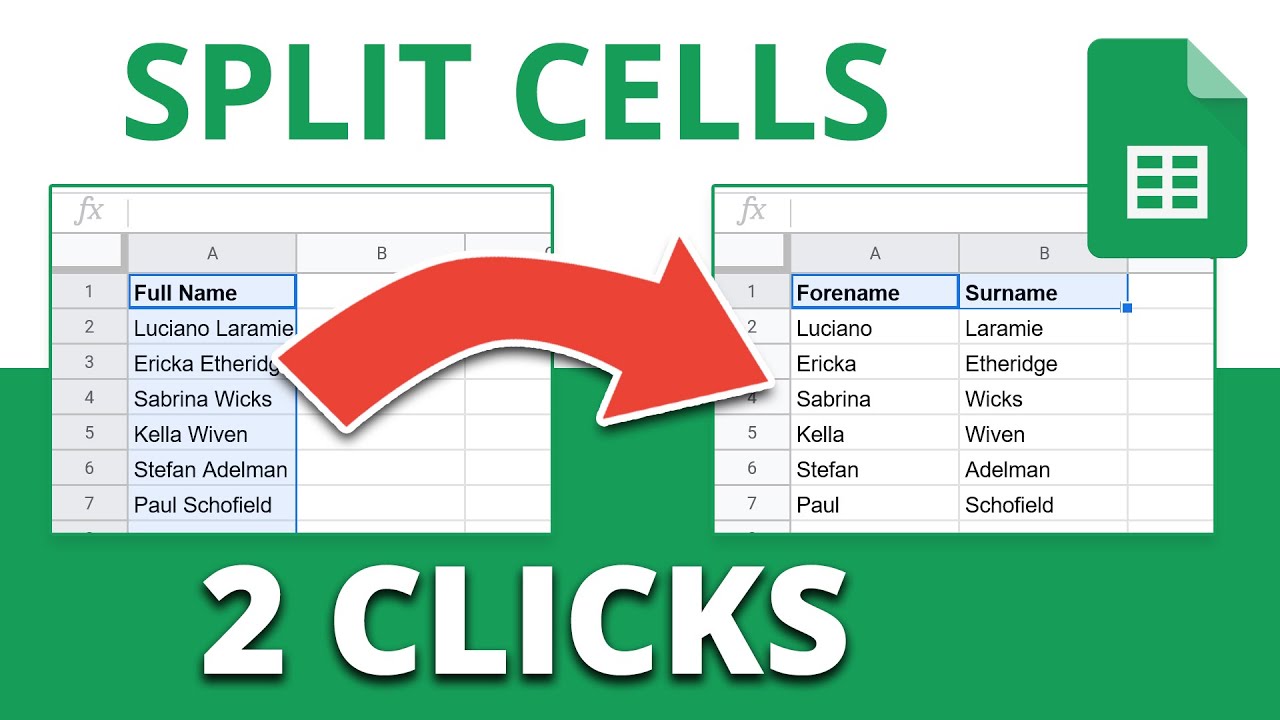
Using the SPLIT function Using the Split text to columns feature Both these methods have varying effects but with the same outcome We ll explain in detail what we mean by that later on Throughout this article we ll go over examples the pros and cons of both methods and when you should split cells in Google Sheets
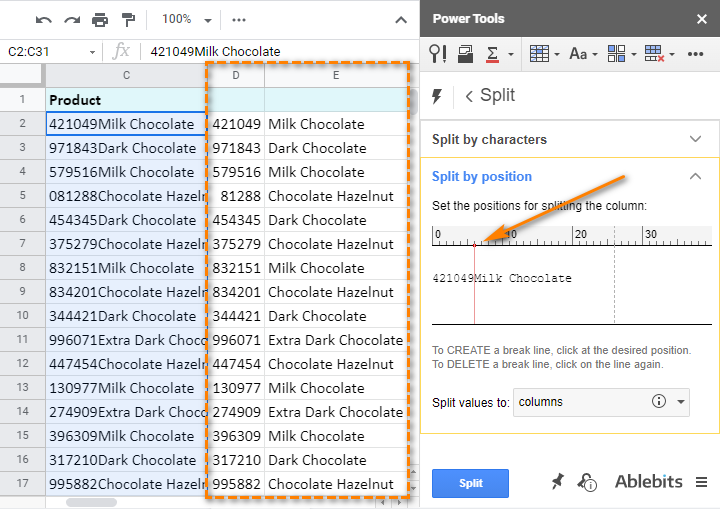
Splitting cells in Google Sheets might sound like a task for tech wizards but it s actually pretty simple All you need to do is use the Split text to columns feature or formulas like SPLIT and REGEXEXTRACT With a few clicks or formula inputs you can divide one cell s content into multiple columns Ready to become a Google Sheets pro
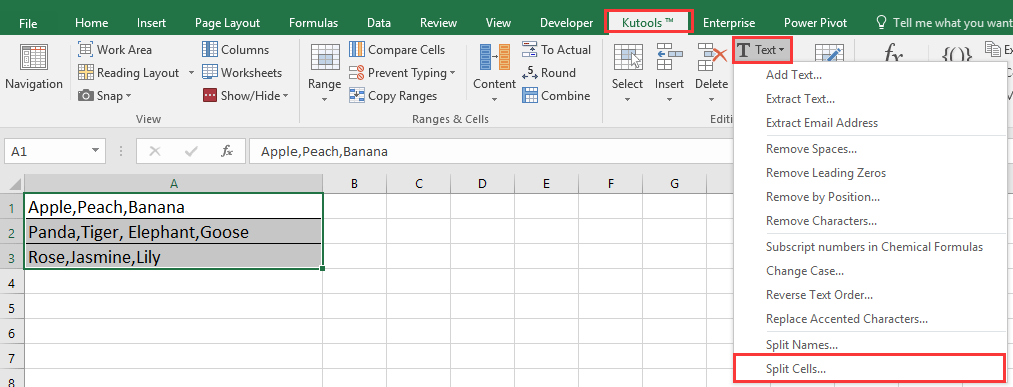
Step 1 Select the Cell You Want to Split Choose the cell with the content you wish to split Selecting the right cell is crucial Make sure that the cell you re splitting does not have important data adjacent to it as the split content may overwrite it Step 2 Use the SPLIT Function or Text to Columns Feature
[desc-11] [desc-12]
[desc-13]