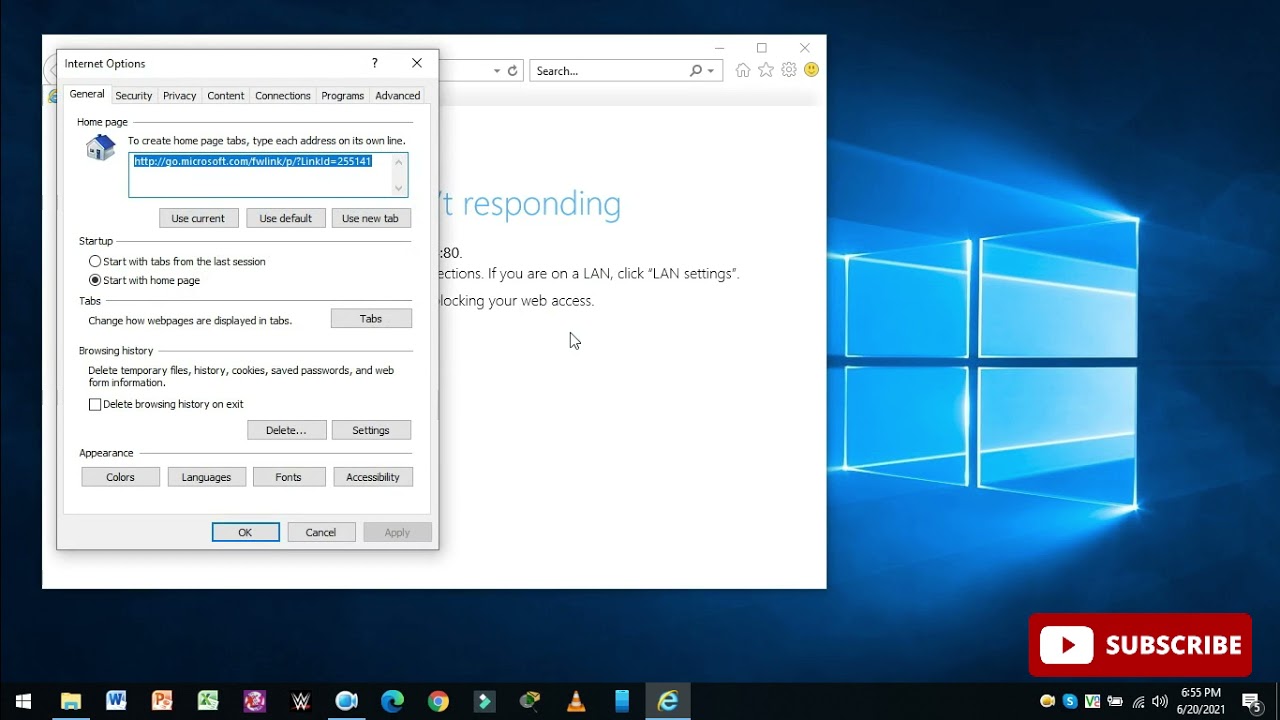
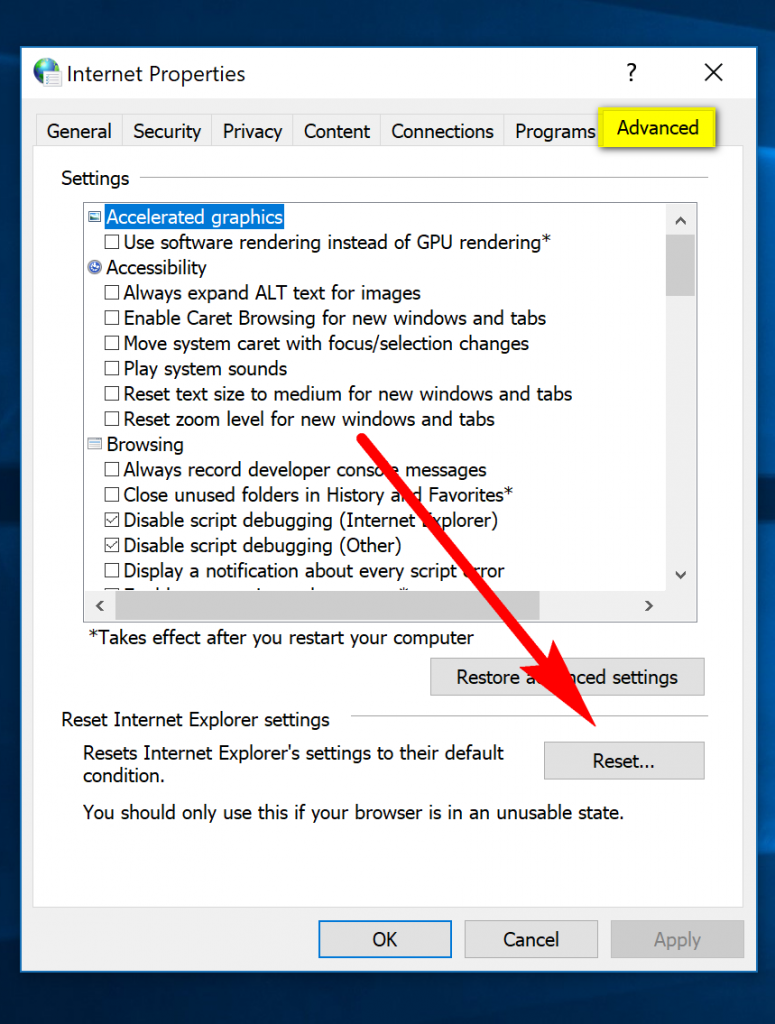
How To Reset Internet Explorer How To Reset Internet Explorer Windows 10 How To Repair Reset A Problem Caused The Program To Stop Working Correctly Outlook 2013 How To Repair Reset Internet Explorer 11 YouTube How To Reset Internet Explorer How To Reset Internet Explorer To Default Settings YouTube Web Oct 29 2017 nbsp 0183 32 2 Open the Control Panel icons view and click tap on the Internet Options inetcpl cpl icon 3 Click tap on the Advanced tab in Internet Properties and click tap on the Reset button see screenshot below 4 Do step 5 or step 6 below for what you want to include when resetting Internet Explorer
Web May 20 2016 nbsp 0183 32 To do this open the Internet Explorer desktop app click the gear menu in the upper right corner of the browser window and select quot Internet options quot from the drop down menu Click the quot Advanced quot tab and then click quot Reset quot at the bottom Web Steps to reset Internet Explorer settings in Windows 10 Step 1 Open Internet Options i e Internet Properties Step 2 Select Advanced and click Reset under Reset Internet Explorer settings Step 3 Choose Reset to confirm the change Step 4 Tap Close
How To Reset Internet Explorer To Default Settings YouTube How To Reset Internet Explorer To Its Default Settings Windows Guide How To Reset Internet Explorer Settings To Default Reset Internet Explorer To Default Settings In Windows 10 Consuming Tech How To Reset Internet Explorer As Default Reset Guide TechsGuide Computer Error There Is A Problem With This Website s Security Windows How To Reset Internet Explorer Settings To Default YouTube Windows 7 How To Fix And Reset Internet Explorer YouTube Reset Internet Explorer To Default In Windows 10 Tutorials
How To Reset Internet Explorer
 How To Reset Internet Explorer
https://benisnous.com/wp-content/uploads/2021/06/how-to-reset-internet-explorer-windows-10-How-To.jpg
Web Jun 29 2023 nbsp 0183 32 Start by closing any programs or windows still running on your system Lunch your Internet Explorer and click on quot Tools quot Choose quot Internet Options quot and quot Advanced quot button Choose to quot Reset quot the explorer in the box for quot Reset Internet Explorer Settings quot Complete using the prompts
Templates are pre-designed documents or files that can be used for various purposes. They can conserve time and effort by supplying a ready-made format and design for creating various sort of material. Templates can be used for personal or professional tasks, such as resumes, invitations, flyers, newsletters, reports, presentations, and more.
How To Reset Internet Explorer

How To Reset Internet Explorer 7 Tech Support All

How To Reset Internet Explorer To Its Default Settings Windows Guide
How To Reset Internet Explorer Settings To Default
Reset Internet Explorer To Default Settings In Windows 10 Consuming Tech

Computer Error There Is A Problem With This Website s Security

Windows How To Reset Internet Explorer Settings To Default YouTube

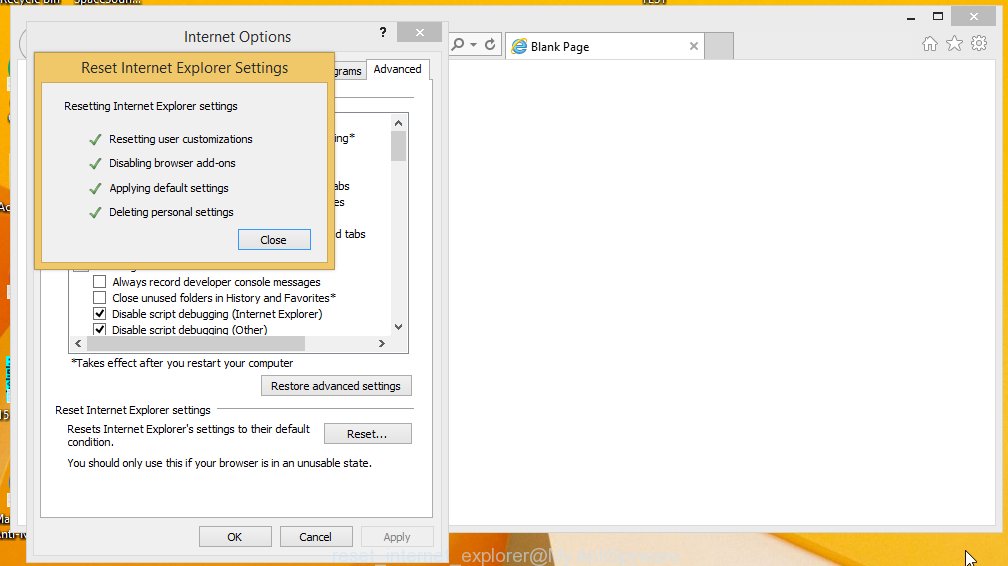
Web Jun 15 2022 nbsp 0183 32 Open Internet Explorer and select Tools gt Internet options Select the Advanced tab and then select Reset In the Reset Internet Explorer settings dialog box select Reset When Internet Explorer finishes applying the default settings select Close gt OK Restart your PC to apply the changes

Web Oct 20 2022 nbsp 0183 32 To reset Internet Explorer Settings to default open IE gt Tools gt Internet Options gt Advanced tab gt Click Reset gt Close gt OK Once this is done restart Internet Explorer

Web May 21 2014 nbsp 0183 32 The easiest fix is a full browser reset Resetting Internet Explorer will not delete your bookmarks but it will disable add ons and restore security privacy and other settings to their

Web Mar 23 2022 nbsp 0183 32 You can reset the program settings to repair your Internet Explorer To do this use the following procedure Exit all programs including Internet Explorer Press the Windows logo key R to open the Run box Type inetcpl cpl and select OK The Internet Options dialog box appears Select the Advanced tab

Web Jan 24 2022 nbsp 0183 32 To reset Internet Explorer to the default settings follow these steps Start Internet Explorer and then on the Tools menu click Internet Options Click the Advanced tab and then click Reset The screenshot for this step is listed below In the Internet Explorer Default Settings dialog box click Reset
[desc-11] [desc-12]
[desc-13]