Gmail Server Settings For Outlook 2016 How To Setup Gmail In Outlook 2016 TheITBros 2019 Gmail Server Settings For Outlook 2016 Europeanpasa Set up Gmail Imap Setting In Outlook step by step Guide 6EC Gmail Email Settings For Outlook 2016 Paradisegarry And Trolley Must Gmail Imap Settings Outlook 365 Mechanic Triumphant Mark Step 1 Open your IMAP settings Open Thunderbird Click Tools Account Settings Highlight your Gmail address Step 2 Update the settings on each tab Server settings tab Check Check for new messages at startup Check Check for new messages every 10 minutes Next to When I delete a message select Just mark it as deleted
In the IMAP access section under Folder size limits click Limit IMAP folders to contain no more than this many messages Click the dropdown and select the maximum number of emails to sync Click Save Changes Prevent mail to Gmail users from being blocked or sent to spam Choose your IMAP email client settings for Gmail If the automatic setup does not work properly set up Gmail manually in Outlook Open Outlook Select File Select Add Account The Add Account window opens Select Advanced Options Select Let Me Set Up My Account Manually Enter your email address then select Connect Select IMAP
And Trolley Must Gmail Imap Settings Outlook 365 Mechanic Triumphant Mark Adorable Configurar Outlook Para Gmail 2022 News G Suite Imap Settings For Outlook 2016 2019 Gmail Server Settings For Outlook 2016 Passlblind 2019 Gmail Server Settings For Outlook 2016 Passlblind Gmail Server Settings For Outlook 2010 Soldas Gmail Server Settings For Outlook 2010 Daseveryday Icloud Server Settings For Outlook 2016 Nakedmokasin Setup Gmail In Outlook 2016 O365 Easy Steps Gmail IMAP Settings Sysprobs
Gmail Server Settings For Outlook 2016
 Gmail Server Settings For Outlook 2016
https://theitbros.com/wp-content/uploads/2017/12/word-image-7.png
Type your Gmail address in the blank field Under Advanced options check the box next to Let me set up my account manually Click Connect to continue On the Advanced Setup window select POP from the list of options On the next screen type your Gmail account password then hit Connect Outlook will connect to your Gmail account using your
Templates are pre-designed files or files that can be utilized for different purposes. They can conserve effort and time by supplying a ready-made format and layout for creating various type of material. Templates can be utilized for individual or professional projects, such as resumes, invitations, flyers, newsletters, reports, presentations, and more.
Gmail Server Settings For Outlook 2016

How To Setup Gmail In Outlook 2016 TheITBros

Adorable Configurar Outlook Para Gmail 2022 News
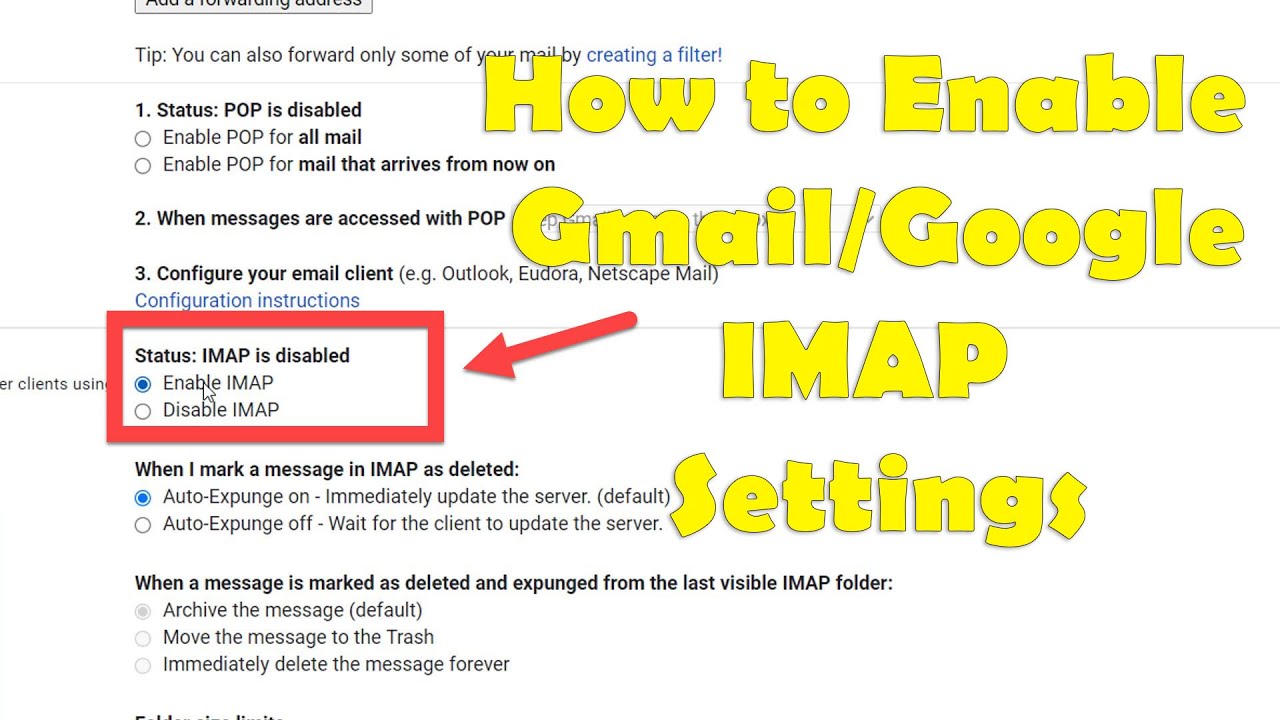
G Suite Imap Settings For Outlook 2016
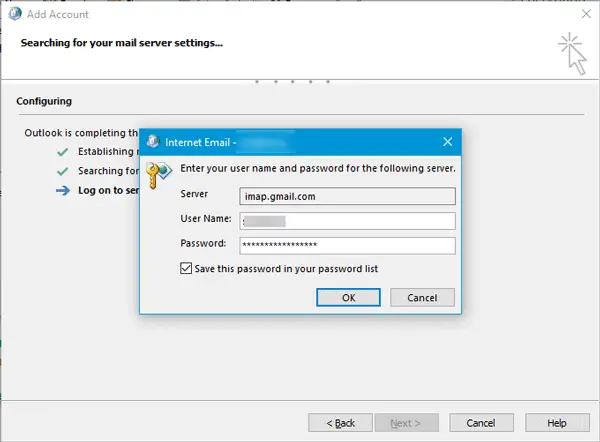
2019 Gmail Server Settings For Outlook 2016 Passlblind
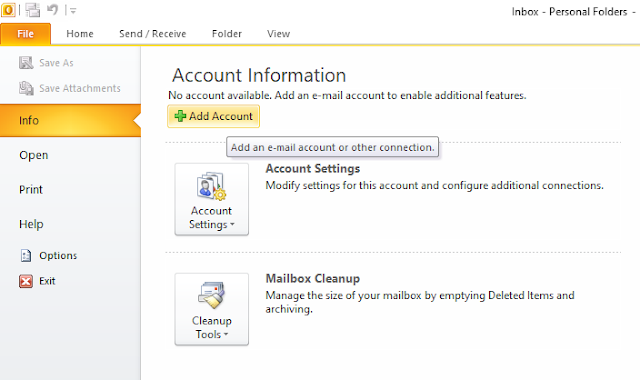
Gmail Server Settings For Outlook 2010 Soldas

Gmail Server Settings For Outlook 2010 Daseveryday

2 Click Add Account 3 Select Manual Setup or Additional Server types 4 Fill out your information and put this information in Incoming mail server imap gmail Outgoing mail server smtp gmail For you username don t include gmail or whatever Google domain you

If you need instructions for adding an email account using advanced settings see Use advanced setup to add a POP or IMAP email account in Outlook for PC Outlook won t accept my password If Outlook won t accept your password and you know you re using the right password for your Gmail account you might have an older version of Outlook that doesn t currently support this faster Gmail
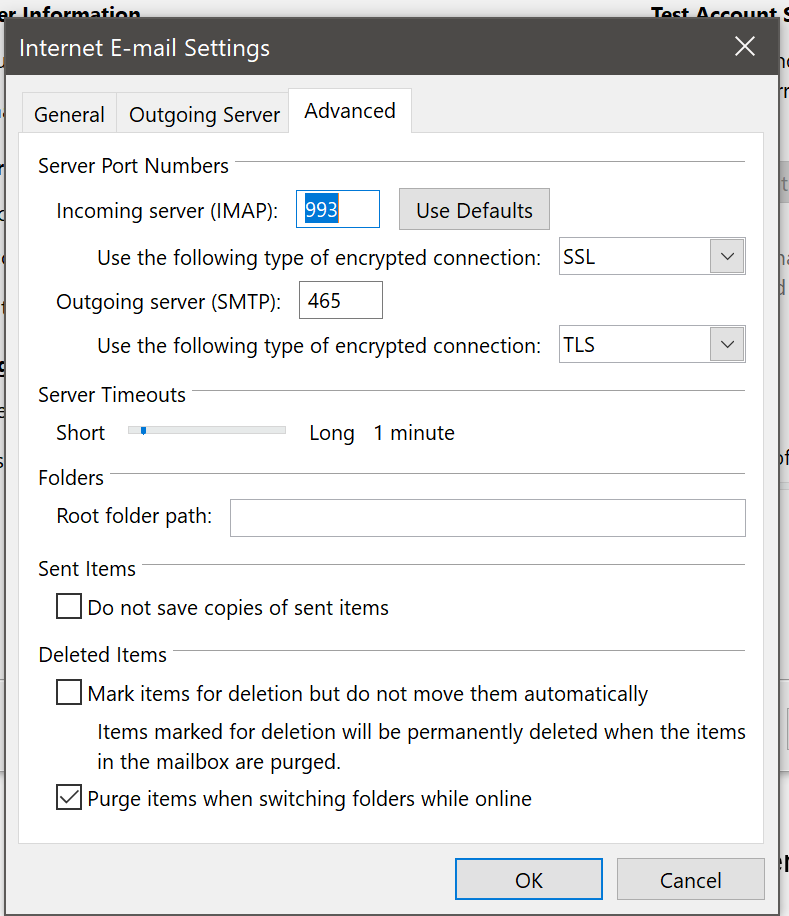
Open Outlook 2016 and select File Add your Gmail account via Add Account then click on Manual setup or additional server types Choose POP or IMAP Enter your account details along with the following information IMAP for account type imap gmail for incoming mail server smtp gmail for outgoing mail server

First set up POP in Gmail On your computer open Gmail In the top right click Settings See all settings Click the Forwarding and POP IMAP tab In the POP download section select Enable POP for all mail or Enable POP for mail that arrives from now on At the bottom of the page click Save Changes

If you re having trouble connecting your Gmail account to Outlook or Mail for Windows 10 this might be due to your Gmail settings Follow the steps below to change your Gmail settings and fix the issue Step 1 Enable IMAP IMAP must be enabled in Gmail before you can connect your account In a browser go to Gmail
In Outlook click on the File tab in the top left corner In Account Information click on Account Settings and then Server Settings The IMAP Account Settings window will open showing the Incoming mail settings Check to make sure the settings match the following User name your Gmail address Server imap gmail Select your account and then choose Allow Under Create a G Suite profile in Microsoft Outlook leave the Import data from an existing profile check box cleared and then choose Create profile On the setup confirmation page choose Start Microsoft Outlook On the Microsoft 365 confirmation page choose Accept and start Outlook
Configure Gmail Account In Outlook 2016 in MinutesAdd your Gmail account to Outlook 2016 using IMAP settingsLog into your Gmail account and go to the setting