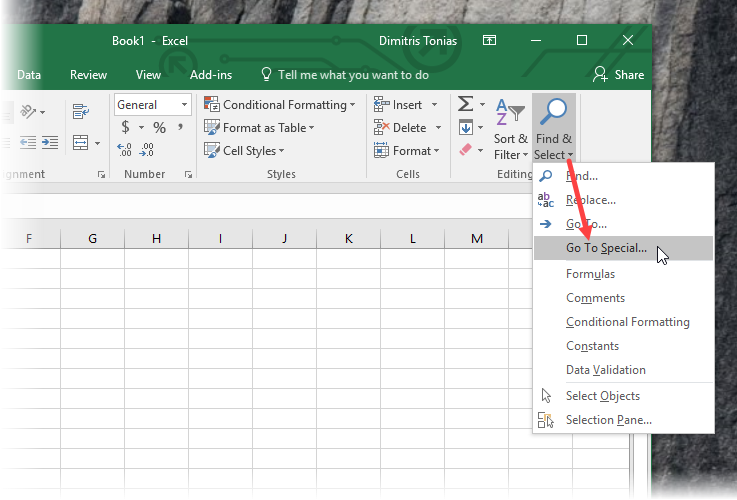
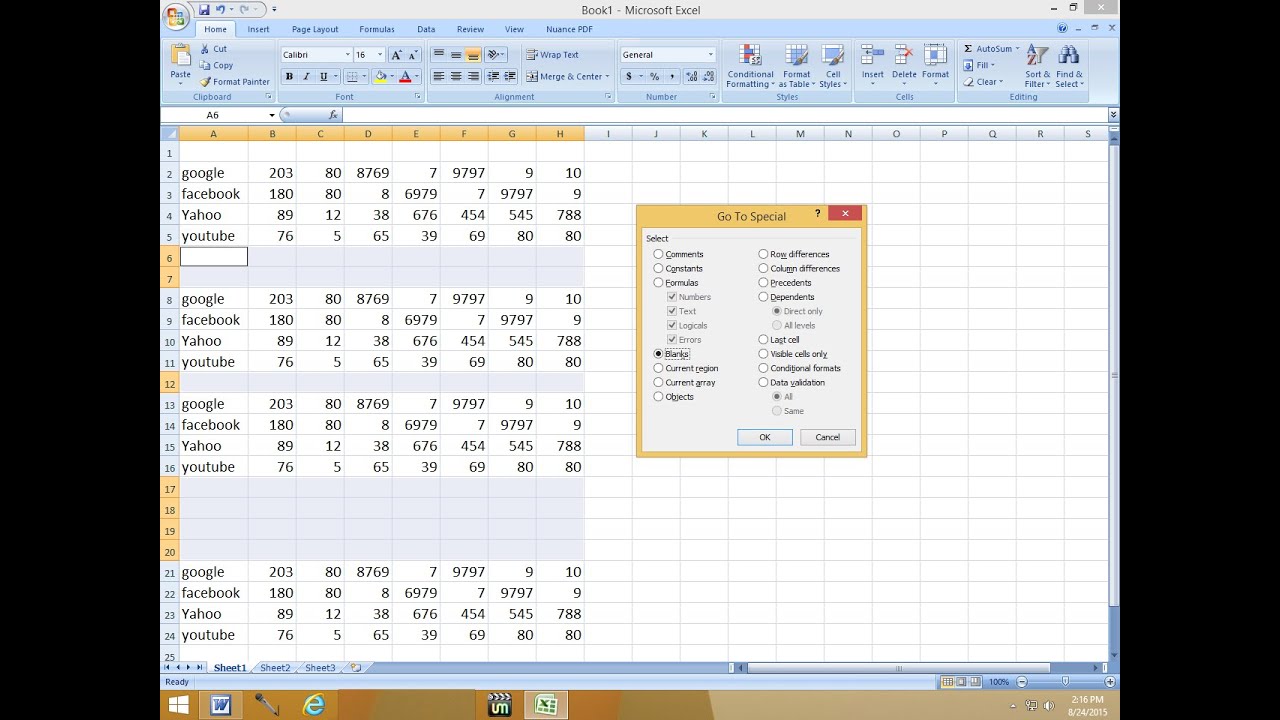
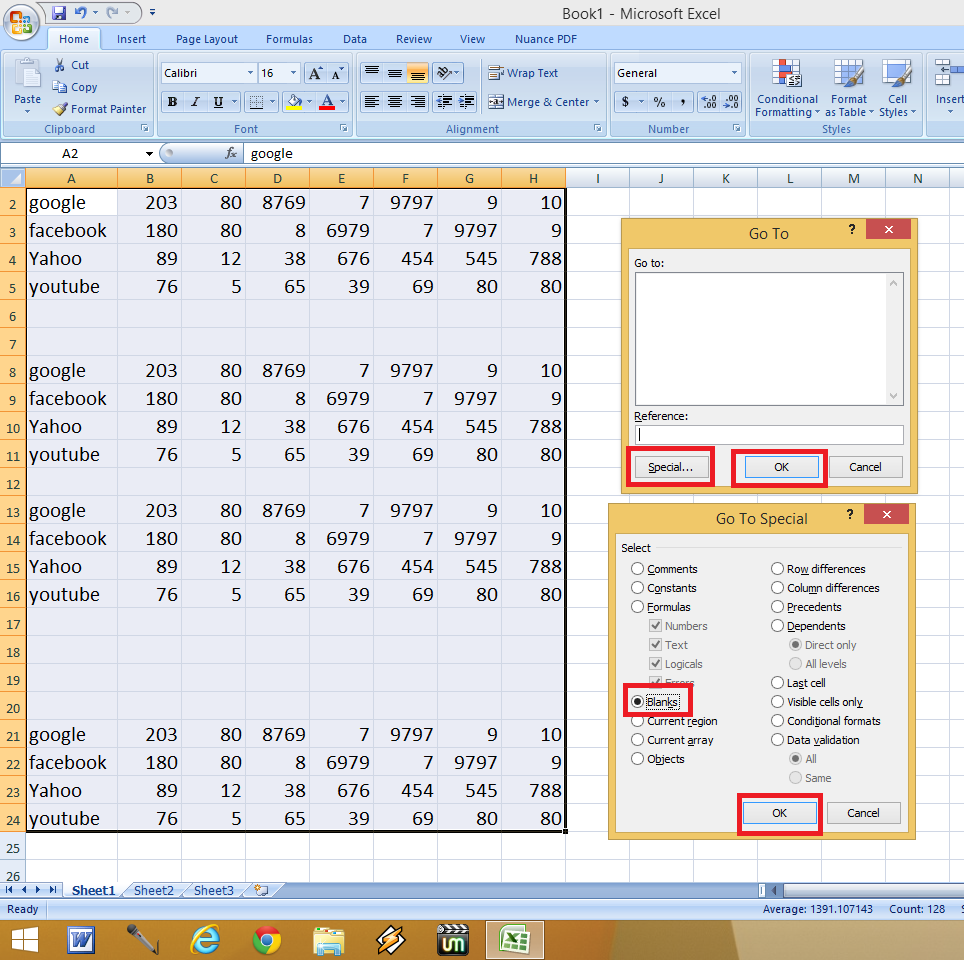
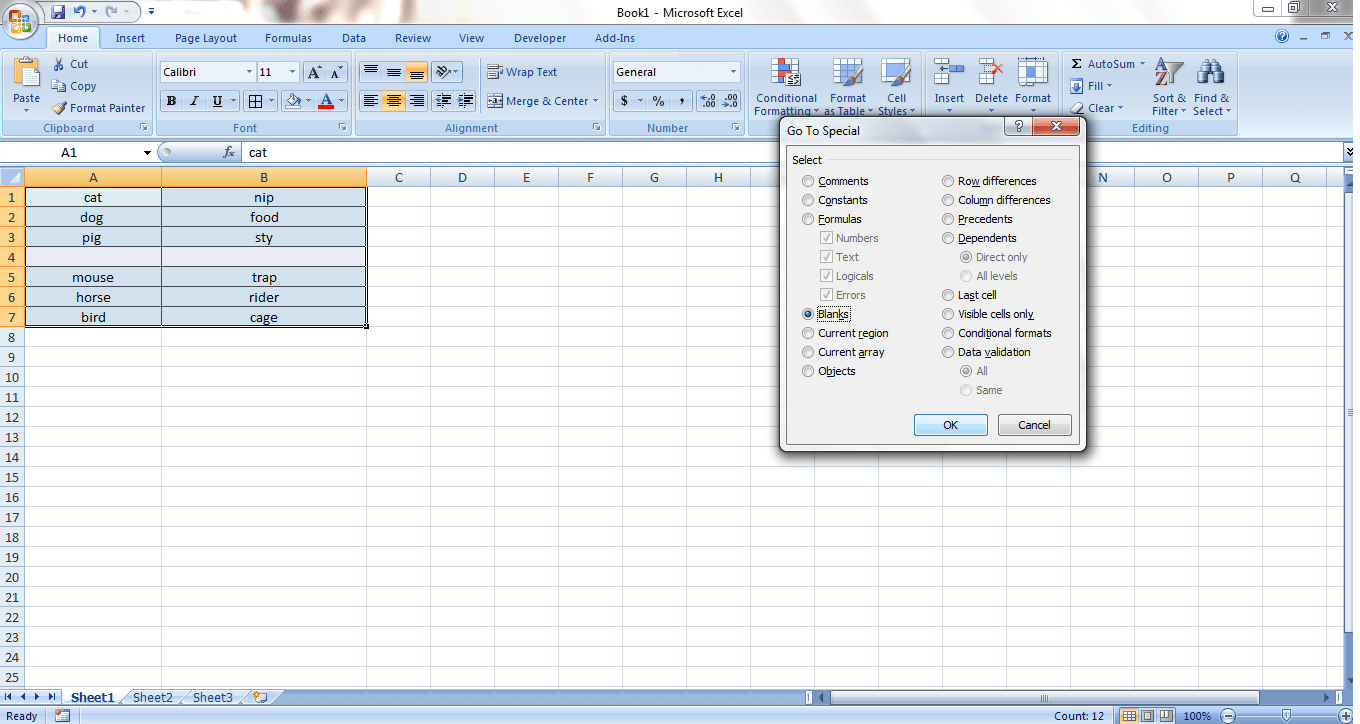
Delete Multiple Blank Rows In Excel Deleting Blank Rows In A Variable Range With Vba Dan Wagner Co Riset How To Delete Blank Rows In Excel 5 Fast Ways To Remove Empty Rows Riset How To Delete Blank Cells In Excel Vba Printable Forms Free Online How To Delete Blank Rows In Excel YouTube How To Delete All Blank Rows At Once In Excel Tip DotTech 1 In the Home tab click the Find Select button on the right side of the Ribbon so you can start to find blank rows 2 Select Go To Special 3 Select Blanks and click OK This select only the blank cells in your data Now you need to delete entire rows instead of just the selected cells 4
Macro 1 Delete empty lines in a selected range Macro 2 Delete all empty rows in Excel Macro 3 Delete row if cell is blank Excel formula to remove blank rows How to delete multiple blank rows in Excel with Power Query How to remove rows if a certain column is blank How to delete extra lines below data Fastest way to delete blank lines in Excel Press Ctrl on the keyboard That s it Our blank rows are gone now Delete Blank Rows Using Go To Special Selecting and deleting rows manually is OK if we only have a couple rows to delete What if there are many blank rows spread across our data Manual selection would be a pain
How To Delete All Blank Rows At Once In Excel Tip DotTech Learn New Things Shortcut Key To Delete Multiple Blank Rows Columns In Learn New Things How To Delete Multiple Blank Cells At A Time In MS Remove Blank Rows In Excel Delete Empty Columns And Sheets How To Delete Empty Rows In Excel Steps With Pictures 0 Hot Sex Picture Delete Multiple Blank Rows And Columns In Excel Dimitris Tonias How To Delete Empty Rows In Excel 9 Steps WikiHow How To Delete Multiple Blank Rows In Excel Excel Tips How To Remove How To Delete Blank Rows In Excel YouTube
Delete Multiple Blank Rows In Excel
 Delete Multiple Blank Rows In Excel
https://www.dtonias.com/wp-content/uploads/2017/08/delete-rows-columns-excel-04.png
1 On the Home tab in the Editing group click Find Select 2 Click Go To Special 3 Select Blanks and click OK Excel selects the blank cells 4 On the Home tab in the Cells group click Delete 5 Click Delete Sheet Rows Result The following awesome trick only removes rows that are completely empty and leaves rows with a few empty cells
Pre-crafted templates provide a time-saving option for producing a varied series of files and files. These pre-designed formats and layouts can be utilized for different personal and professional projects, including resumes, invites, flyers, newsletters, reports, discussions, and more, enhancing the content production procedure.
Delete Multiple Blank Rows In Excel
Short Tutorial To Delete Blank Rows In Excel Vrogue
Learn New Things Shortcut Key To Delete Multiple Blank Rows Columns In
Learn New Things How To Delete Multiple Blank Cells At A Time In MS
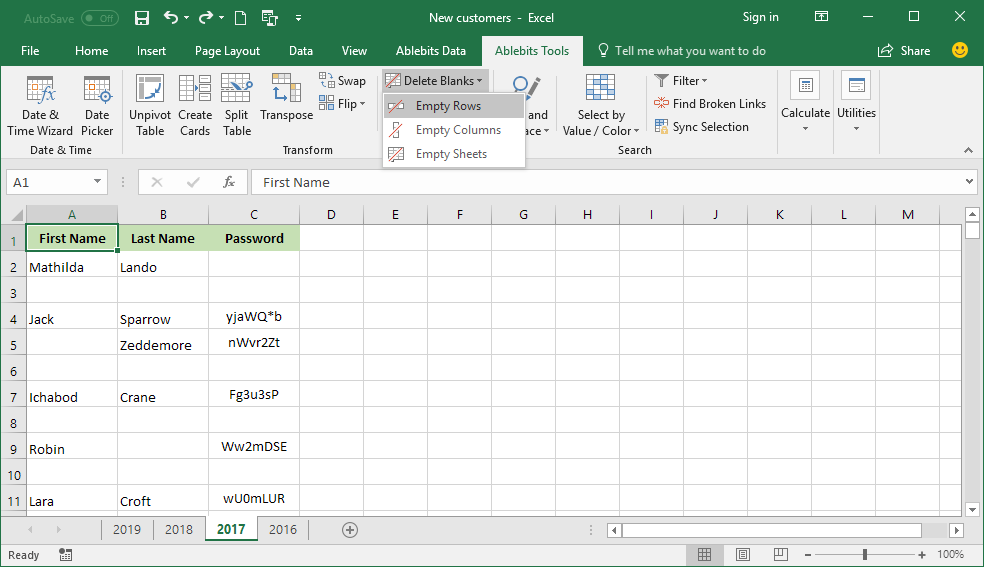
Remove Blank Rows In Excel Delete Empty Columns And Sheets

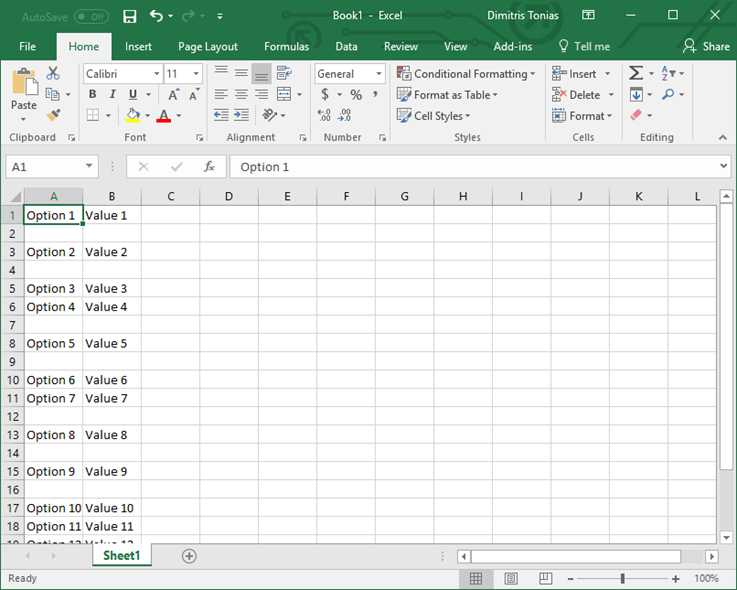
Delete Multiple Blank Rows And Columns In Excel Dimitris Tonias

How To Delete Empty Rows In Excel 9 Steps WikiHow

You can automatically remove blank rows in Excel by first selecting your dataset opening in the ribbon Find Select Go To Special and then selecting Blanks Finally in the ribbon click Delete Delete Sheet Rows Want to remove all the blank rows from your dataset
Method A Remove blank rows with the Go To Special command 4 steps Method B Remove blank rows in range sheet workbook with Kutools 1 step Method C Remove blank rows with the VBA code 4 steps Method D Remove blank rows with the helper column and Filter function 7 steps Relative operation Insert blank rows in every other row 1
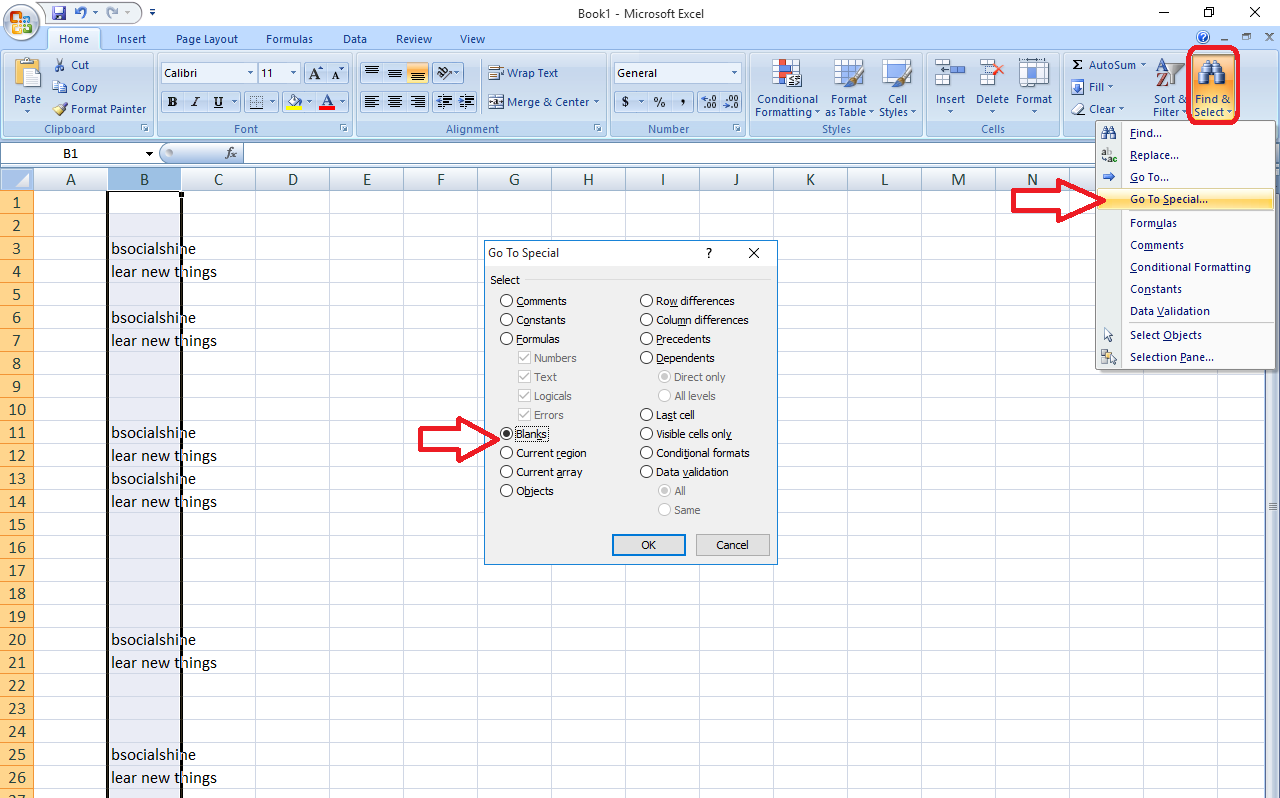
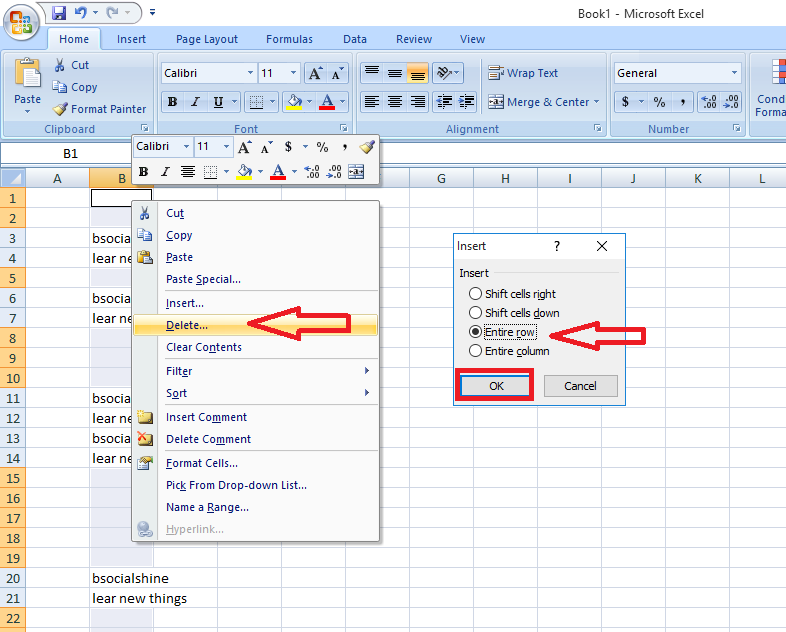
Press F5 to bring the Go to dialog In the dialog box click the Special button In the Go to special dialog choose Blanks radio button and click OK Right click on any selected cell and select Delete In the Delete dialog box choose Entire row and click Entire row
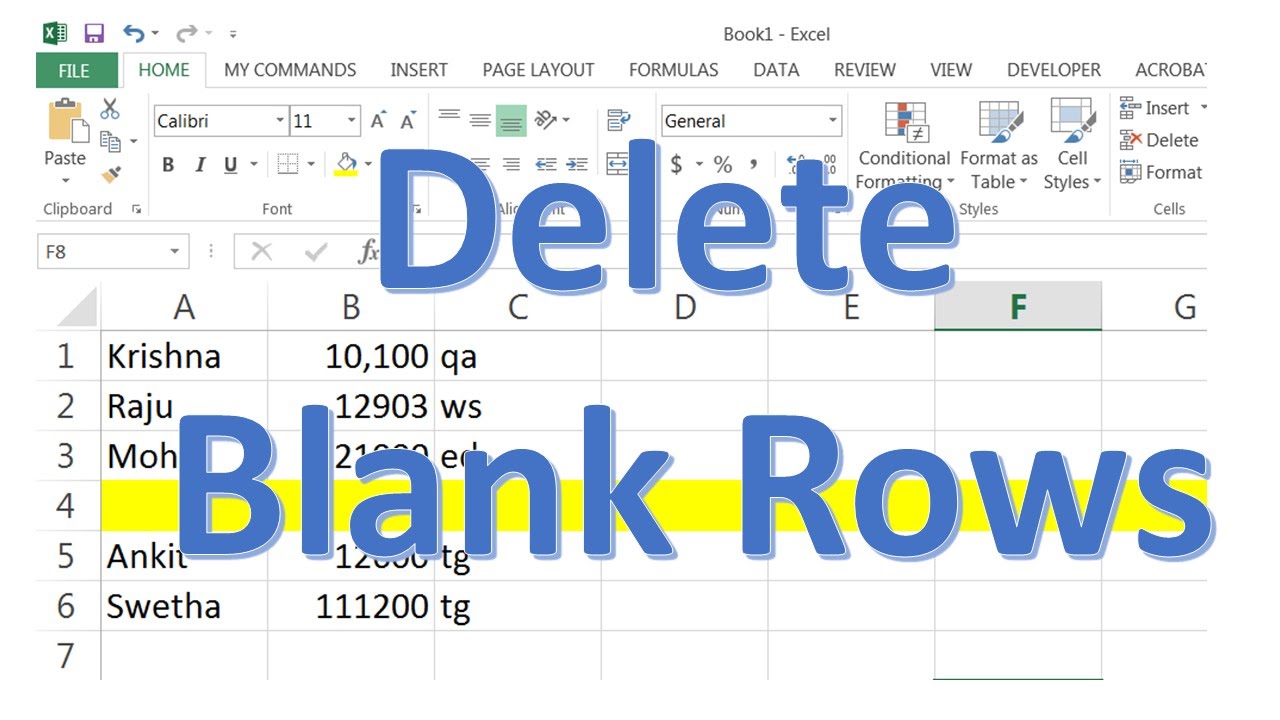
Step 1 Selecting the rows Before you can delete multiple empty rows in Excel you need to first select the rows you want to remove Here s how to do it A Open the Excel spreadsheet and navigate to the worksheet containing the empty rows To begin open the Excel spreadsheet that contains the empty rows you want to delete
Method 1 Delete Multiple Adjacent Rows Using the Excel shortcut The keyboard shortcut is the simplest way to delete multiple rows in Excel To do so we can follow the steps outlined below Choose the row headers of inactive customers Select the first row then hold the shift key on your keyboard and then select the last row
3 Using Formulas to Delete Multiple Empty Rows in Excel Insert a new column and use a formula to identify rows with partially blank cells For example IF COUNTBLANK A2 C2 0 Delete Keep Filter by the Delete value and delete the selected rows 4 Using the GoTo Special Dialog Box Select the range of your dataset The steps are given below Steps Mark up the rows by dragging the mouse over the rows that we want to delete at once Or you can hold CTRL and then select the rows you want to Delete Right click on the selection is necessary to initiate the Context menu Then click on Delete A dialog box of Delete will appear
One of the easiest ways to quickly remove blank rows is by sorting your data set so that all the blank rows are stacked together Once all the empty rows are together you can manually select and delete them in one go