Create Macro To Find And Replace Text Excel VBA To Find And Replace Text In A Column 2 Examples How To Find And Replace In Word MAC YouTube Json Text Editor Download Bingerfoot How To Find And Replace Text In Canva With Only One Click Download Find And Replace Text In Multiple Ms Word Documents Files Riset Example 1 Find and Replace Strings Using VBA Case Insensitive Suppose that we would like to replace each occurrence of Mavs with Mavericks in the range A1 B10 We can create the following macro to do so Sub FindReplace Range A1 B10 Replace What Mavs Replacement Mavericks End Sub When we run this macro we receive
Step 1 Consider an Excel sheet where you have a list of strings First right click on the sheet name and select View Code to open the VBA application Step 2 Then click on Insert and select Module then copy the below code into the text box Insert Module Copy Example In VBA we can create a macro which can be used for finding and replacing anything which we normally do in Excel by pressing Ctrl H shortcut keys With the help of VBA Find and Replace we can automate the finding of any word and replacing that with other replacement This helps when we need to perform the same activity multiple times
Download Find And Replace Text In Multiple Ms Word Documents Files Riset How To Find And Replace Words In Microsoft Word Documents Simul Docs Learn New Things Shortcut Key For Find And Replace Text Speech To Text In Premiere Pro How To Create A Macro In Excel Rezfoods Resep Masakan Indonesia Construction Architecture Macroview Normalising Your Manuscript Using Microsoft Word Evelyn Chartres Microsoft Word Find And Replace All Carbonhopde How To Find And Replace Text In Word
Create Macro To Find And Replace Text
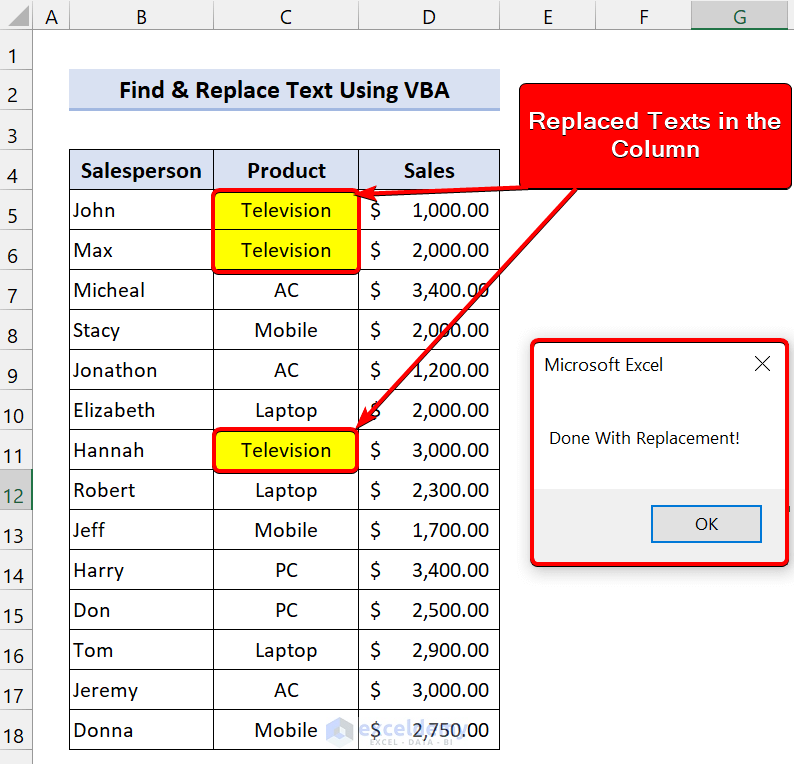 Create Macro To Find And Replace Text
https://www.exceldemy.com/wp-content/uploads/2022/03/excel-vba-find-and-replace-text-in-column-5.png
Start by choosing Tools Macro Record Macro Name your macro ReplaceSpaces or whatever you want the macro s name cannot contain spaces Hit OK This is the part where you would do
Templates are pre-designed documents or files that can be used for various purposes. They can conserve effort and time by supplying a ready-made format and design for producing various sort of content. Templates can be utilized for personal or professional tasks, such as resumes, invites, flyers, newsletters, reports, presentations, and more.
Create Macro To Find And Replace Text
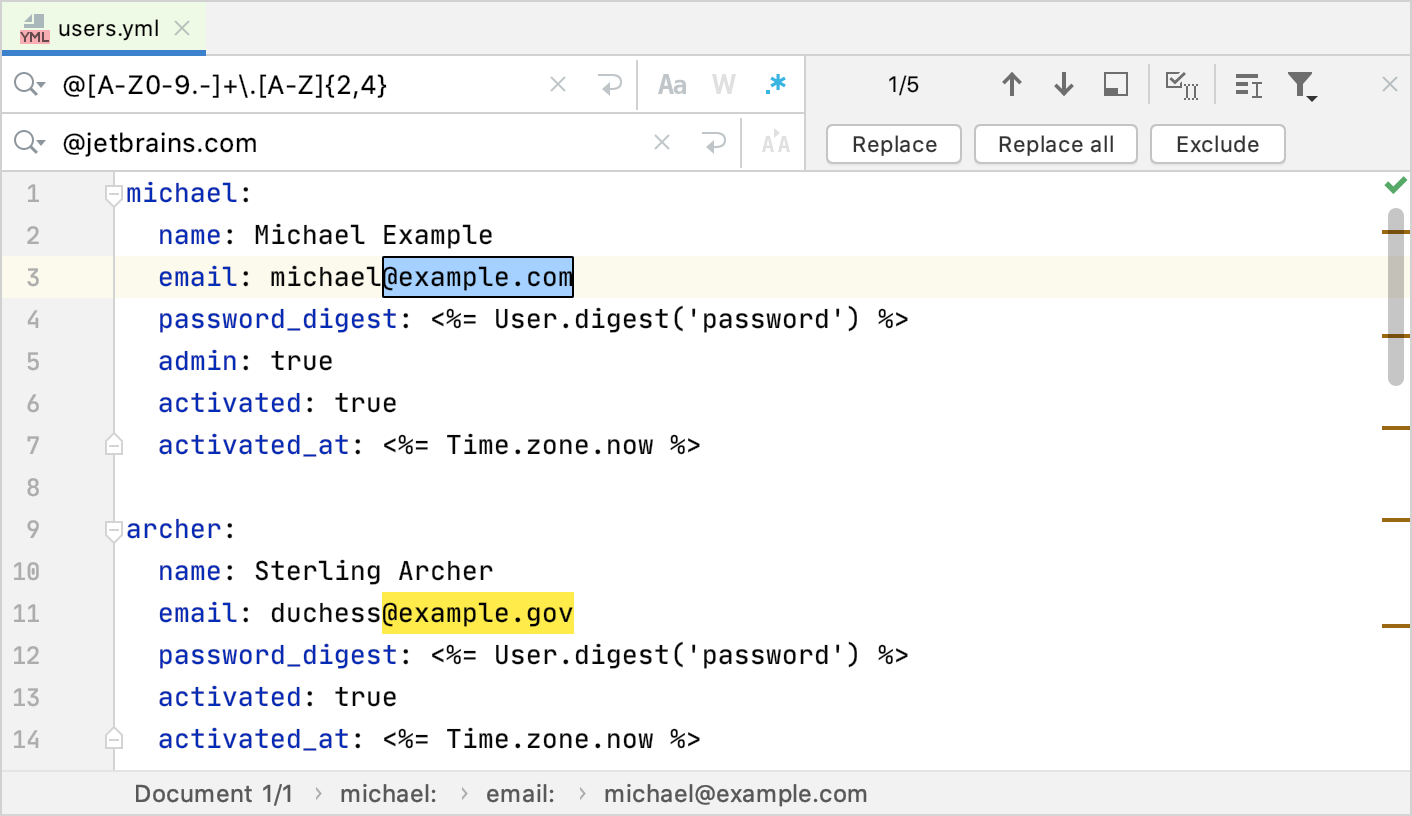
Find And Replace Text Using Regular Expressions RubyMine
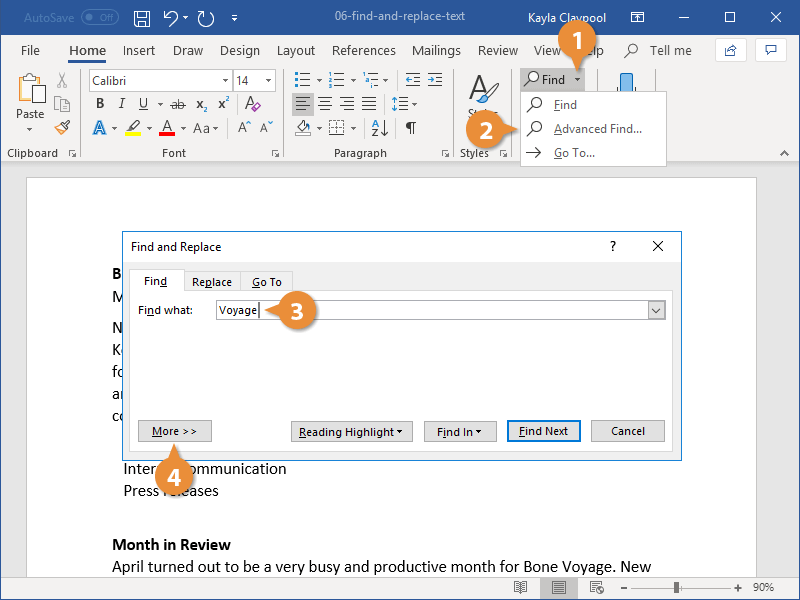
How To Find And Replace Words In Microsoft Word Documents Simul Docs
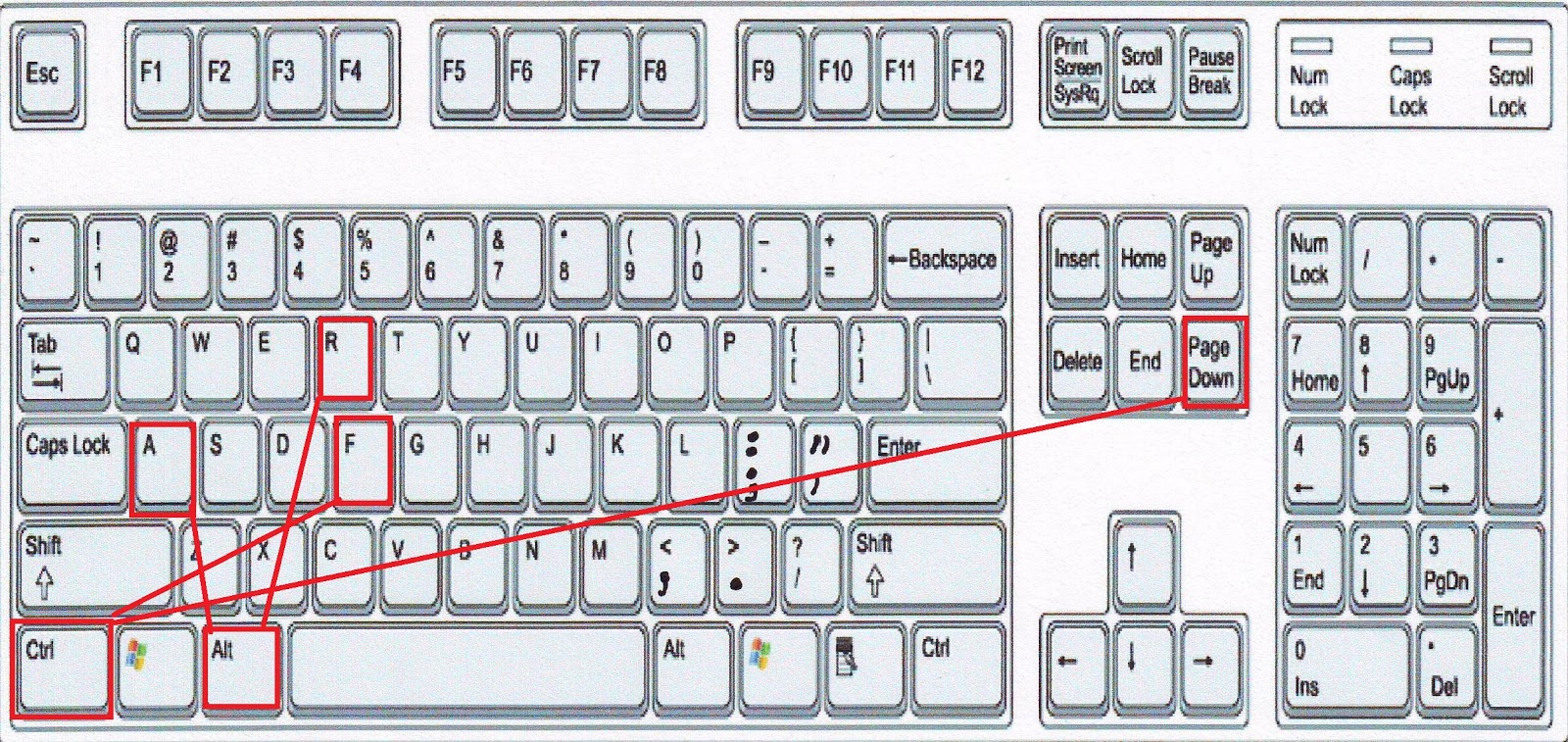
Learn New Things Shortcut Key For Find And Replace Text

Speech To Text In Premiere Pro

Construction Architecture Macroview

Normalising Your Manuscript Using Microsoft Word Evelyn Chartres

Create a macro in excel using find and replace Ask Question Asked 3 years 10 months ago Modified 3 years 10 months ago Viewed 951 times 0 I want to find whatever is in cell A1 and replace it with whatever is in cell B1 and then do the same with A2 to B2 A3 to B3 etc

1 Press the Alt F11 keys to open the Microsoft Visual Basic for Applications window 2 In the Microsoft Visual Basic for Applications window click Insert Module Then copy below VBA code into the code window VBA code Create a macro code to achieve find and replace text in Excel

Find and Replace All With Excel VBA By Chris Newman Updated 04 15 14 7 min read VBA VBA Text Manipulation What This VBA Code Does These VBA macros will show you various ways to find and replace all for any text or numerical value Find Replace All Within A Specific Worksheet

Description The Replace parameter of the Replace function specifies the substring you want to use as replacement for StringToReplace If you explicitly declare a variable to represent ReplacementString use the String data type Item Count NumberOfReplacements VBA Construct Count parameter of the Replace function

I m trying to create a macro that open a text file and find the text located in Excel s cell A1 and to replace it with text in cell B1 Then it should find the text located in cell A2 and replace it with cell B2 and so on until the last cell in column A that contains data Now I ve searched a bit and stumbled upon this working code
Step 2 Now put a dot to see the IntelliSense list Step 3 Select the Replace method from the IntelliSense list Step 4 Mention what parameter as September Code Range A1 B15 Replace What September Step 5 Next Replace with parameter should be the new value we are replacing with i e December I m very new to using Macros and don t know how to execute replacing text with a symbol or if that s even possible I ve been using the following to find and replace text but it won t process any of the special symbols I d like to use Is there a way to do this Thanks Jessie With Selection Find
First we check the ShapeRange of each of the six header and footer StoryRanges in each document section for for the presence of a shape If a shape is found we then check shape s TextFrame TextRange for the Find Text parameter This final macro contains all of the code to find and replace text anywhere in a document