Clear Remote Desktop Cache Knowledge Area Clear Remote Desktop Cache Knowledge Area Clear Remote Desktop Cache Knowledge Area Clear Remote Desktop Cache How To Clear Remote Desktop Connection History Playa Vista Medical Center Yelp Interquadta over blog 3 unblock the bat file 4 Double click tap on the bat file to run it 5 You will now notice a command prompt quickly open and close running the commands in the BAT file to apply 6 You can now delete the downloaded bat file if you like 7 The BAT file does not delete any saved credentials of remote computers
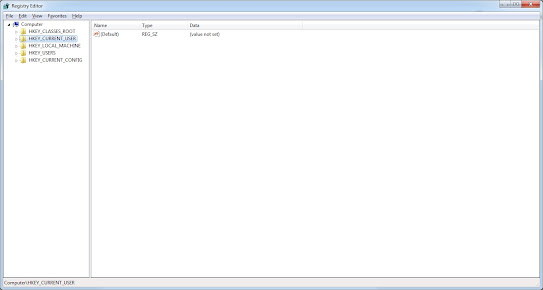
Open the Registry Editor by pressing Windows R and typing regedit Navigate to the following key HKEY CURRENT USER Software Microsoft Terminal Server Client Delete the following keys Default Servers Close the Registry Editor To remove RDP cache history using the Command Prompt Open the Command Prompt as an administrator 1 Log in to the computer that contains the cache that you want to delete and click on the Start button 2 Type regedit into the Search or Run box to open the registry editor 3 Click
Playa Vista Medical Center Yelp Interquadta over blog How To View Connection History Remote Desktop On Windows 10 11 WuInstall How To Clear The Windows Update Cache For Multiple Remote Computers Analyze Remote Desktop Saved Credentials Activity History And Image Cache Clear Remote Desktop Sessions Nguy n C ng Blog How To Secure Remote Desktop On Windows 10 11 4 Options How To Reset RDP Settings Windows 10 11 Why Can t Your Dog Stand Other Dogs Easily By Pallavi Medium Windows
Clear Remote Desktop Cache
 Clear Remote Desktop Cache
https://1.bp.blogspot.com/-4UVVaUCJW0w/XKWwhhIXwHI/AAAAAAAACIs/X_63BXXkAokRuWs-TD3NMzbEw6SUU3jkACPcBGAYYCw/w543-h291/Untitled.jpg
Home Software How to Delete Remote Desktop Cache By C D Crowder i Microsoft makes it easy to connect to remote machines for support or file sharing through the Remote Desktop utility The application is installed in Windows and allows you to see a virtual desktop of another person s computer
Pre-crafted templates offer a time-saving service for developing a varied series of documents and files. These pre-designed formats and designs can be utilized for numerous personal and expert tasks, consisting of resumes, invitations, flyers, newsletters, reports, presentations, and more, simplifying the content creation procedure.
Clear Remote Desktop Cache

How To Start STK Under Remote Desktop Programmer Sought

How To View Connection History Remote Desktop On Windows 10 11
WuInstall How To Clear The Windows Update Cache For Multiple Remote Computers

Analyze Remote Desktop Saved Credentials Activity History And Image Cache
How To Secure Remote Desktop On Windows 10 11 4 Options
How To Reset RDP Settings Windows 10 11

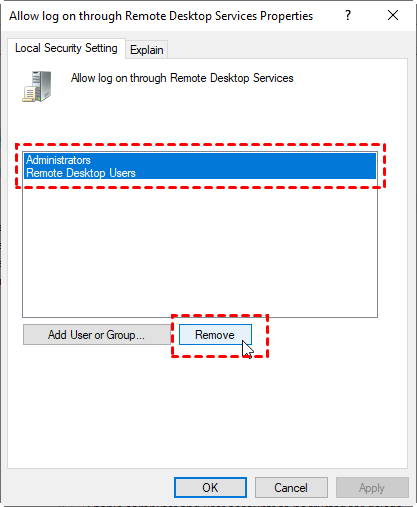
Open Windows Search Win S and type Remote Desktop Settings Then toggle off the Remote desktop option If you want to disable Remote Desktop for another user click on Remote

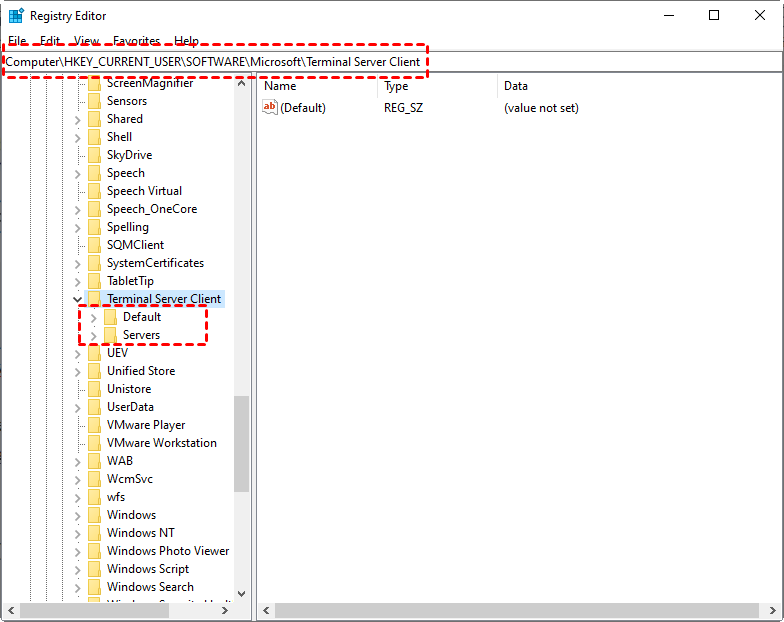
To clear the cache in Remote Desktop you can reset RDP settings to clear its connection history and previous settings However RDP does not support any built in options to clear the cache directly So here we will assist you to manually reset RDP settings Windows 10 11 How to reset RDP settings Windows 10 11 2 Methods

Run the Registry Editor regedit exe and browse to the registry key HKEY CURRENT USER Software Microsoft Terminal Server Client You need two registry keys in this section Default stores the history of the last 10 RDP connections and Servers contains the list of all RDP servers and usernames used previously to login
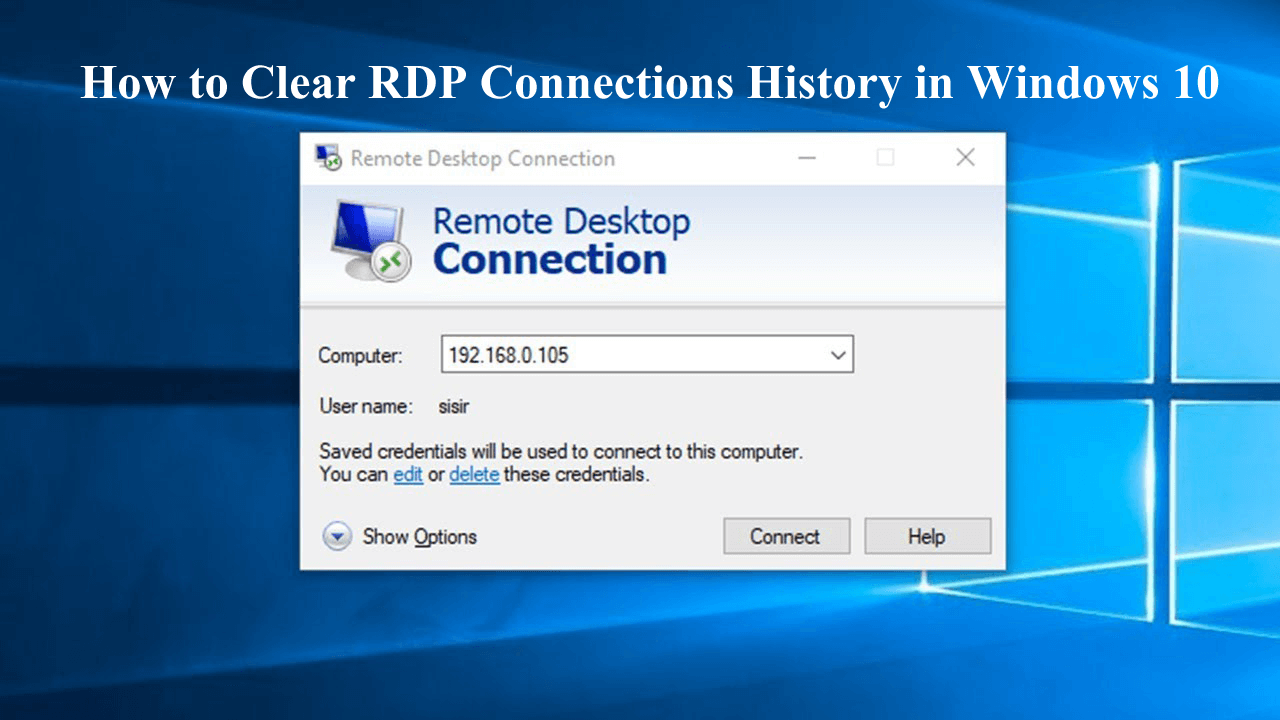
Method 1 Clear the RDP cache from the Registry Registry stores the information about RDP connections It s impossible to remove a computer or computers from the list of RDP connection history using built in Windows tools Users need to manually clear some registry keys to clear RDP connection history Step 1
To remove entries from the Remote Desktop Connection Computer box in the Windows Remote Desktop Connection client start Registry Editor and then select this registry key HKEY CURRENT USER Software Microsoft Terminal Server Client Default Entries appear as MRU number and are visible in the right pane
Press the Win R keys to open Run type mstsc into Run and click tap on OK to open the Remote Desktop Connection client 2 Select the computer ex 192 168 1 133 you want to delete the saved credentials of and click tap on the delete link see screenshot below 3 Click tap on Yes to confirm see screenshot below 4 Step 3 After navigating to this location look for the registry string that is present in the right pane The name of the registry string may be MRUnumber where the number may be 0 1 2 Simply right click over this string and choose Delete After it closes the Registry Editor and restarts the system Now you will see that Remote
If you re using the Remote Desktop Web client you can use an InPrivate browser window to try a different account If you re using the correct account make sure your application group is associated with a workspace Your account is configured to prevent you from using this device