Change Root Password Ubuntu Ssh How To Change Root Password In Ubuntu Linux LinuxStoney How To Change Root Password In Ubuntu 22 04 LTS YouTube How To Reset Forgotten Root Password In Ubuntu DesignLinux How To Switch To Root User In Ubuntu How To Change Root Password On Ubuntu 14 04 YouTube Ubuntu 20 04 reset root password step by step instructions The first step is to reboot into the GRUB menu If Ubuntu 20 04 is the only operating system installed you need to keep pressing SHIFT for the GRUB menu to show up Next while your Ubuntu boot menu is highlighted press e to edit the Grub s boot prompt
In order to change the root password you have to use the passwd and specify the root account sudo passwd root After changing your password the account will be automatically unlocked In order to switch to the root account you can use the well known su command without any arguments the default account is root su You can change your root password on your Ubuntu server via SSH with some simple commands by completing the following steps See also Changing your root password on Plesk and cPanel Step 1 First of all log in to the server via SSH Step 2 When logged in if you re using the root user you just need to type sudo passwd root
How To Change Root Password On Ubuntu 14 04 YouTube Kali Linux A Linux Distribution For Security Professionals And Hobbyists Alike Systran Box How To Change Root Password In Ubuntu Linux SSH Login Without Password Linux Tutorials Learn Linux Configuration Ubuntu Root Ssh How To Change Root Password In Ubuntu Fedingo Changing The Root Password On Juniper JunOS Switches HumairAhmed Reset Root Password Ubuntu Linux Without CD How To SSH Into Your Jailbroken Apple TV 4 Or 4K And Change Your Root Password
Change Root Password Ubuntu Ssh
 Change Root Password Ubuntu Ssh
https://i0.wp.com/linuxstoney.com/wp-content/uploads/2021/05/How-to-Change-Root-Password-in-Ubuntu-Linux-.jpg
Changing Your Root Password in Ubuntu Step 1 Open a Terminal Window Right click the desktop then left click Open in terminal Alternately you can click Menu Applications Accessories Terminal Step 2 Change Your Root Password In the terminal window type the following sudo passwd root
Templates are pre-designed documents or files that can be used for various functions. They can save time and effort by supplying a ready-made format and layout for creating different type of material. Templates can be utilized for personal or professional tasks, such as resumes, invitations, flyers, newsletters, reports, discussions, and more.
Change Root Password Ubuntu Ssh

Szalv ta rtalmatlan tani Vend gszeretet Enable Root Login Ubuntu Megel z s Gy m lcs Z lds gf l k t

Kali Linux A Linux Distribution For Security Professionals And Hobbyists Alike Systran Box
How To Change Root Password In Ubuntu Linux
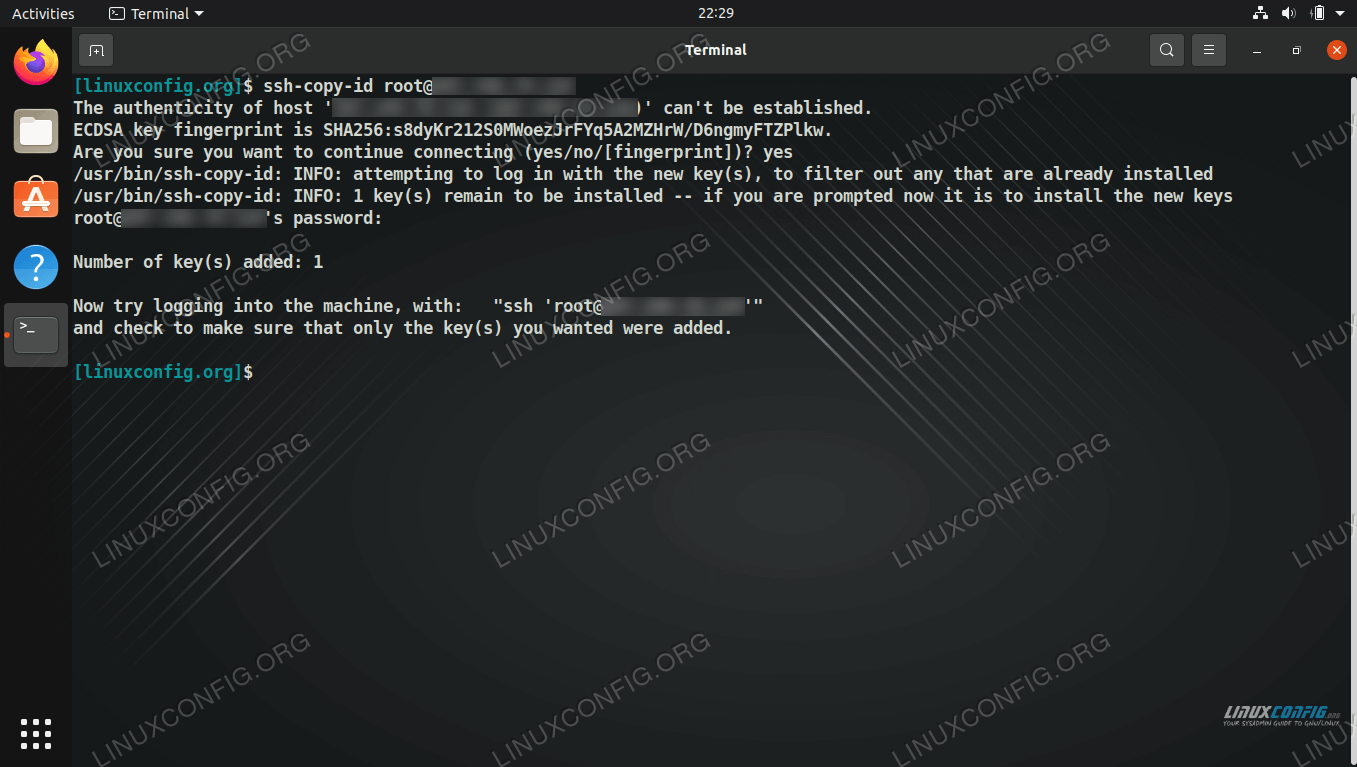
SSH Login Without Password Linux Tutorials Learn Linux Configuration
How To Change Root Password In Ubuntu Fedingo
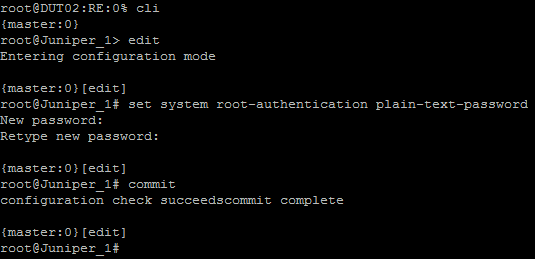
Changing The Root Password On Juniper JunOS Switches HumairAhmed

3 Next change the password by running the command passwd Type and retype a new password to verify the change 4 After changing the password log out of the root user with the command exit 5 Exit out of the terminal with the same command exit Option 3 Changing Ubuntu Password Using GUI

To change the password of the root user in Ubuntu run the following command as a sudo user sudo passwd root You will be prompted to enter and confirm the new root password When setting the password make sure you re using a unique and robust password Having a strong password is the most important aspect of the security of your account
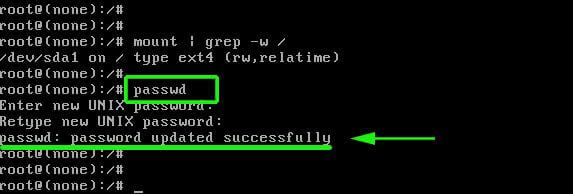
The procedure to change the root user password on Ubuntu Linux Type the following command to become root user and issue passwd sudo i passwd OR set a password for root user in a single go sudo passwd root Test it your root password by typing the following command su How to disable your root account on Ubuntu
Open the etc ssh sshd config file with administrative privileges and change the following line FROM PermitRootLogin prohibit password TO PermitRootLogin yes The quick way to do this job could be just to simply use the sed command as shown below sudo sed i s PermitRootLogin prohibit password PermitRootLogin yes etc ssh sshd config

The procedure to change the user password on Linux or Unix over ssh Open the Terminal application Type the following command to change password for vivek user using ssh ssh t vivek IP here passwd Type the following command to change password for root user using ssh ssh t root server IP here passwd Type your current password when prompted
How to set up passwordless SSH access for root user duplicate Ask Question Asked 11 years 11 months ago Modified 5 years 5 months ago Viewed 281k times 55 This question already has answers here How to avoid being prompted for a password by sudo duplicate 6 answers Closed 6 years ago How to change a root superuser password in Ubuntu Firstly open a terminal window If you want to change the password for remote Ubuntu server log in using the ssh command ssh user ubuntu server ip ssh vivek ubuntu webserver 1 ssh ubuntu aws ec2 cloud server name Type sudo i at the command prompt and press the Enter key
If you want to change your current password simply run this command in a terminal passwd You ll be asked to enter your current password and the new password twice You won t see anything on the screen while typing the password This is perfectly normal behavior for UNIX and Linux Change Password using passwd