Add Existing Project To Github Visual Studio 2019 How To Add An Existing Project To Your GitHub Repo With Visual Studio - YouTube Tutorial: Open a project from a repo in Visual Studio - Visual Studio (Windows) | Microsoft Learn The Git experience in Visual Studio | Microsoft Learn Tips Beginner]Publish to Github from Visual Studio 2019 - YouTube How do I use Team Explorer in Visual Studio 2019 to connect my project to a new repository instead of the existing one on Github? - Stack Overflow Francesco Magliocco 321 subscribers Subscribe Subscribed 89K views 6 years ago Tutorial GitHub With Visual Studio If you need to add an already existing project to your GutGub
This video shows you how to publish and existing project to GitHub using Visual Studio You can also use the information from this video to create and work o In this example we will use one of mine Hit the Clone or Download button Hit Open in Visual Studio or Copy the URL that is in the Clone with HTTPS dialog Go back to Visual Studio Team Explorer Connect Clone Paste the URL into the Open from GitHub Choose a Local Path
How do I use Team Explorer in Visual Studio 2019 to connect my project to a new repository instead of the existing one on Github? - Stack Overflow Visual Studio Version Control - Code Repository vb.net - How to add a project as a reference of another project - Stack Overflow How to make "Add Solution to Source Control" available? Manage GitHub Repository Using Visual Studio Code Using Github with Visual Studio Code - Publish Existing Project | Tutorial - YouTube Upload Visual Studio 2019 project to GitHub - YouTube SIMPLE] How to push Visual Studio Project to GitHub - Xybernetics Add Google test directly to your Visual Studio project | Myoddweb.com
Add Existing Project To Github Visual Studio 2019
 Add Existing Project To Github Visual Studio 2019
https://i.ytimg.com/vi/kHM3xzkou_0/maxresdefault.jpg
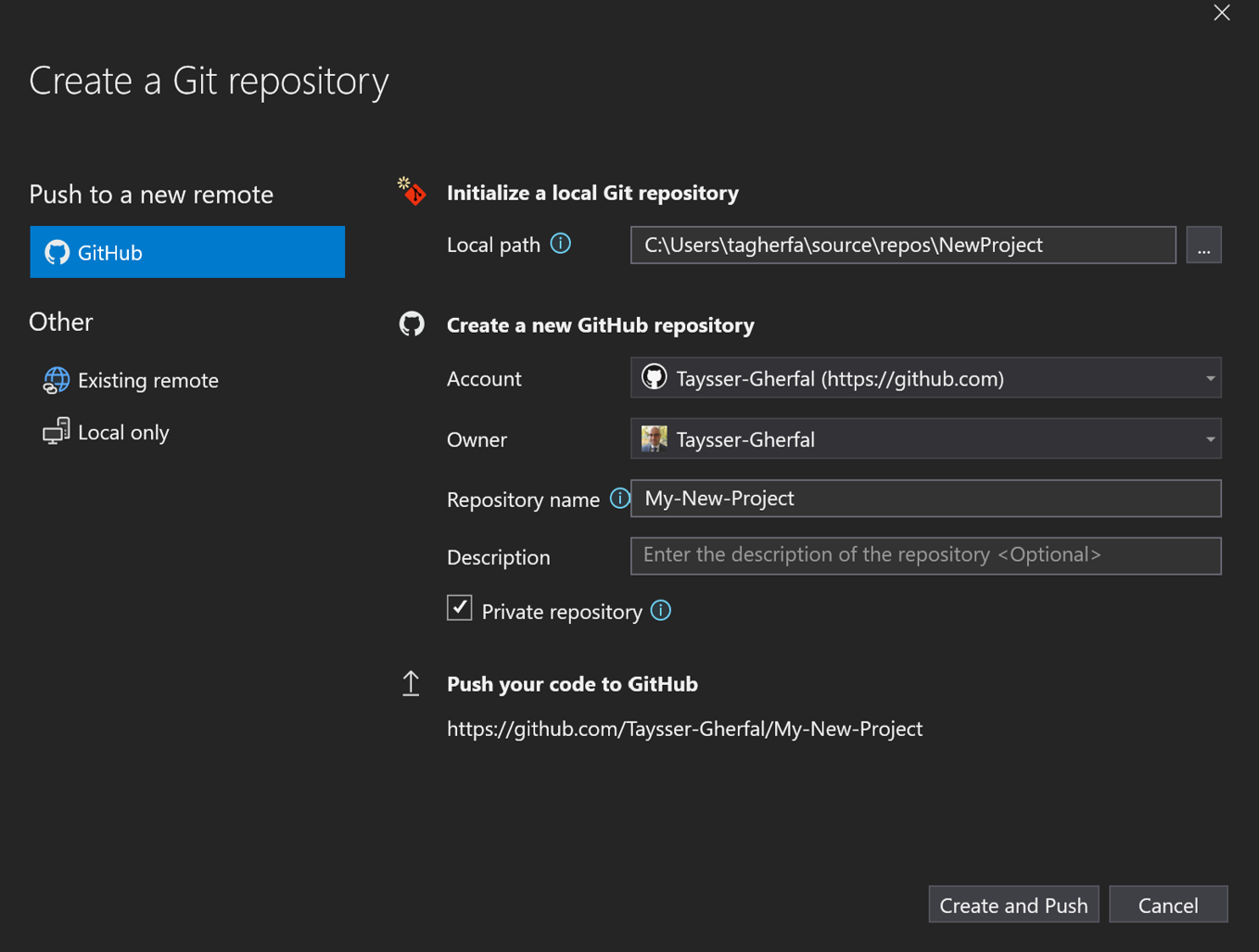
Visual Studio GitHub Account Visual Studio download link can be found in downloads page Push your Code to GitHub I hope you have the project or code changes ready in the Visual Studio to be pushed to GitHub You will have similar project like this with a Solution and under the solution one or more projects
Templates are pre-designed files or files that can be used for various purposes. They can conserve time and effort by offering a ready-made format and design for creating various type of content. Templates can be used for individual or professional jobs, such as resumes, invitations, flyers, newsletters, reports, presentations, and more.
Add Existing Project To Github Visual Studio 2019

How To Add An Existing Visual Studio Project To Git Hub - YouTube
Visual Studio Version Control - Code Repository

vb.net - How to add a project as a reference of another project - Stack Overflow

How to make "Add Solution to Source Control" available?

Using Github with Visual Studio Code - Publish Existing Project | Tutorial - YouTube

Upload Visual Studio 2019 project to GitHub - YouTube

Open an existing local repository After you ve created a repo or cloned one Visual Studio detects the Git repository and adds it to your list of Local Repositories in the Git menu From there you can quickly access and switch between your Git repositories

Open Visual Studio On the start window select Clone a repository Enter or type the repository location and then select the Clone button If you re not already signed in you might be prompted to sign into Visual Studio or your GitHub account Tip For more information about signing in to Visual Studio see the Sign in to Visual Studio page

Select an existing branch in Visual Studio 2019 Visual Studio displays the current branch in the selector at the top of the Git Changes window The current branch is also available in the status bar on the bottom right corner of the Visual Studio IDE From both locations you can switch between existing branches Create a new branch in Visual
![Tips Beginner]Publish to Github from Visual Studio 2019 - YouTube](https://i.ytimg.com/vi/I_uTHk2310M/maxresdefault.jpg?w=186 "Tips Beginner]Publish to Github from Visual Studio 2019 - YouTube")
Open Visual Studio Code and either open your existing project folder or create a new one In VS Code open the integrated terminal you can do this by pressing Ctrl Navigate to your project folder using the cd command cd path to your project Initialize a Git repository with the following command git init Step 4 Add and Commit Your Files

Using Visual Studio 2017 click the GitHub button on the Start Page to open the clone dialog n From the Start Window n Using Visual Studio 2019 on the Start Window select Clone or check out code and then click the GitHub button to open the clone dialog n From the File menu n Go to File Open Open From GitHub n Clone repositories
How to Connect a Visual Studio Project to GitHub Vikas Srivastava Feb 27 2020 234 8k 0 10 Introduction In this article you will learn how to create a new project and connect to Github for the first time We ll also look at push pull code from Github Create your application Step 1 Open Visual Studio and select File Create a new project Adding a project to Git Instructor It s time to look at how to take an existing project and add it to Source Control I m using this new project I created called
We are happy to announce that Visual Studio 2019 now offers a fully integrated GitHub account experience Starting with version 16 8 you ll be able to add both GitHub and GitHub Enterprise Server accounts directly from Visual Studio